Moving the login page off /wp-login.php stops the bots that only try that address from ever reaching your password check. It does not stop someone who is after your site in particular, because WordPress has other doors that accept passwords: XML-RPC, and the REST API with application passwords.
So it is worth doing if you also cover those doors, and if you keep a way back in for the day you forget the new address. This guide shows what changes once the login page moves, tested with curl on a WordPress 7.1 site, and the three ways back in.
What moving the login page does and does not do#
A WordPress site normally answers on /wp-login.php, and /wp-admin/, /login and /dashboard all redirect there. Automated tools know that, so they send their password guesses straight to /wp-login.php. Every guess makes WordPress load, look up the user and check the password.
Once the login page moves, those requests get a "page not found" before any password is checked. That is the whole benefit: less noise in your logs and less work for the server. It is the same login page with the same checks, just at an address bots do not know.
What it leaves alone:
- XML-RPC (
/xmlrpc.php) still checks usernames and passwords. On my test site, with the login page moved, XML-RPC accepted a correct password and returned the site details. - The REST API (
/wp-json/) accepts application passwords on sites that use HTTPS. It never shows a login form, so it does not care where the form lives. - A weak password stays weak. Anyone who finds the new address, from a leaked bookmark, a browser history or a careless link, faces the same check as before.
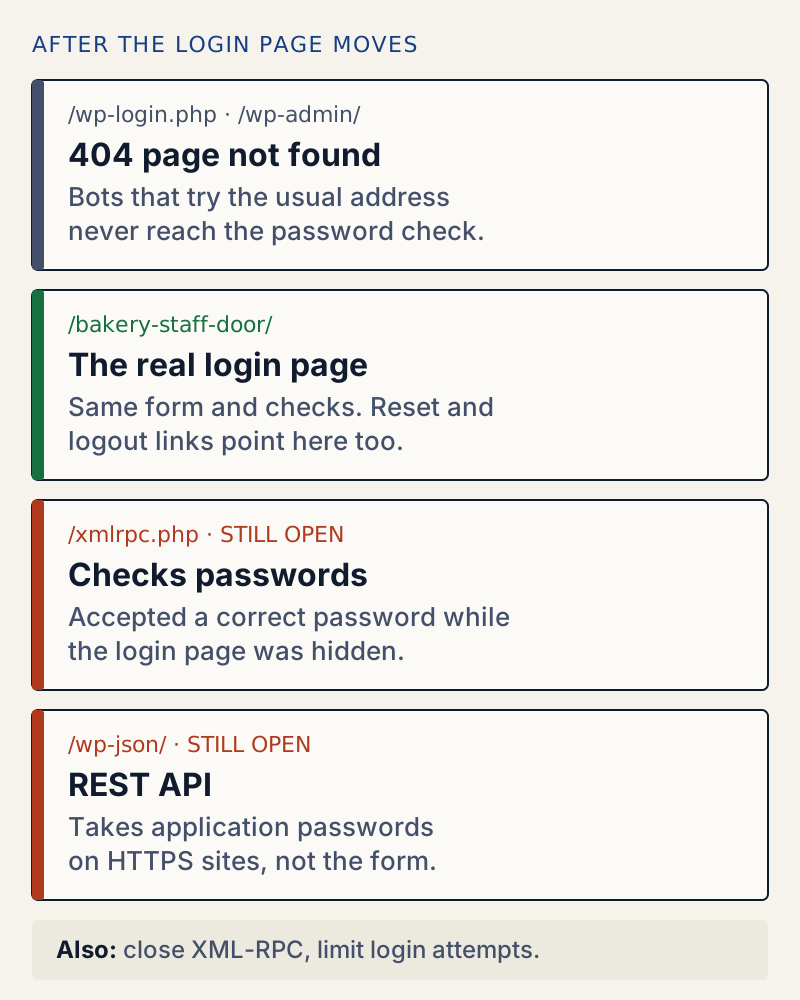
That is why this setting sits low on our list of WordPress security settings that matter. Turn on a limit on login attempts and switch off XML-RPC if nothing uses it. Those cover every door, not only the one bots knock on first.
Before you start#
- Write down the new address somewhere outside the site: a password manager entry or a note. Do it before you save.
- Make sure you can reach the site without the dashboard. That means WP-CLI, SFTP or your host's file manager. If you have none of these, ask your host how you would edit
wp-config.phpin an emergency. - Check for other login forms. A shop "My account" page or a membership plugin may send its form to
/wp-login.php. Those break when the old address closes, so note which pages have one.
Change the login address with WellTend Site and Admin Toolkit#
WellTend Site and Admin Toolkit has a Change Login URL module. It writes no rewrite rules and no files: it serves the real wp-login.php at the address you choose, and points every login link WordPress builds at that address. You can do the same with other plugins; the checks later in this guide work for any of them.
Go to the Toolkit's Modules page, open Change Login URL and fill in New login address. The help text under the field shows the full address you will log in at.
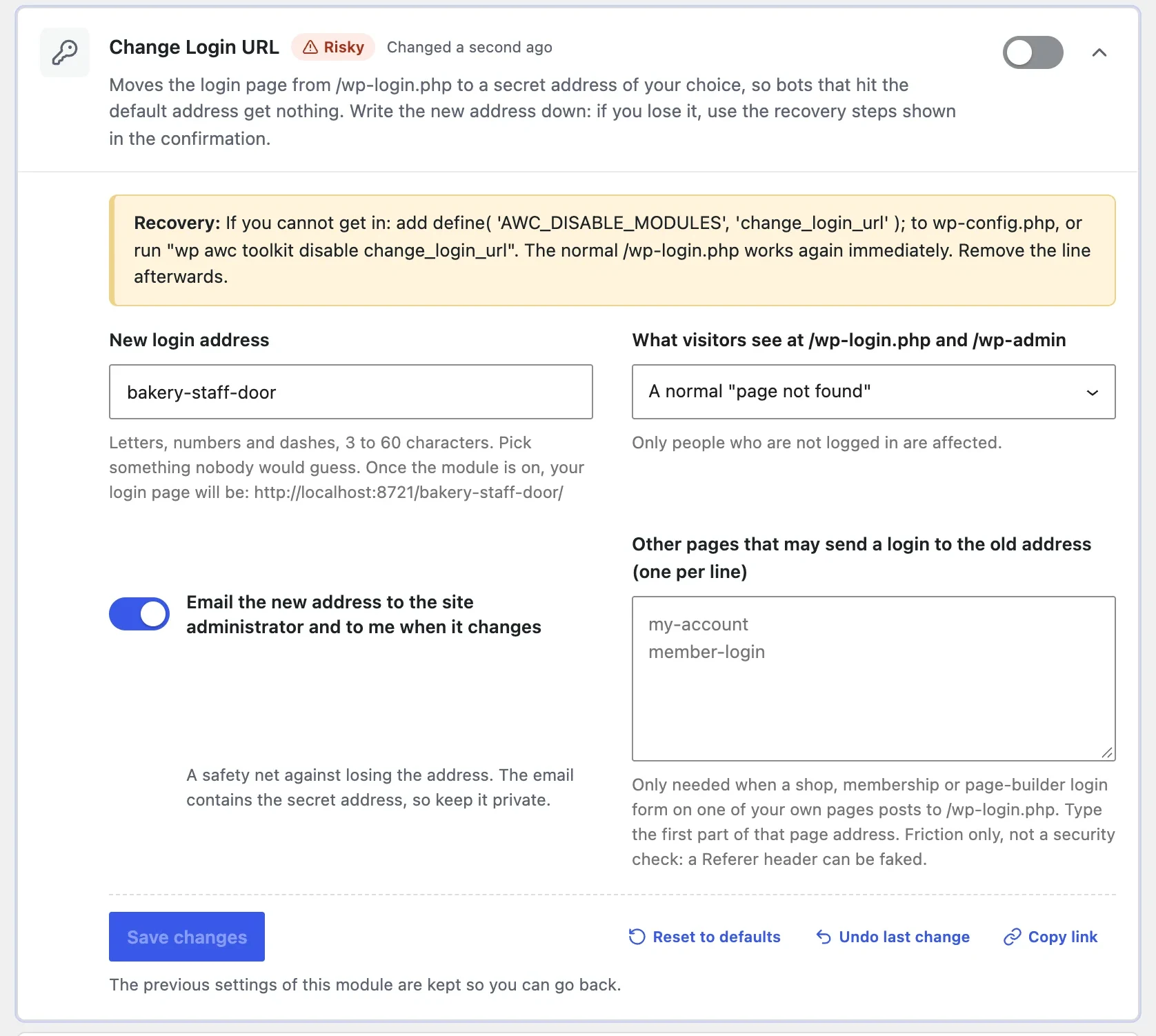
The settings, as they appear on the card:
- New login address: letters, numbers and dashes, 3 to 60 characters. Words such as
login,adminordashboardare refused, and so is the address of an existing page. Trying the address of my "Visit us" page gave:You already have a page or post at that address. Pick something else. - What visitors see at /wp-login.php and /wp-admin: A normal "page not found" (the default) or Send them to the home page. Only people who are not logged in are affected.
- Email the new address to the site administrator and to me when it changes: on by default. Leave it on. It is your safety net.
- Other pages that may send a login to the old address: for the shop or membership forms from the checklist above. Type the first part of that page's address, such as
my-account.
When you switch the module on, a confirmation explains what will change and how to undo it:
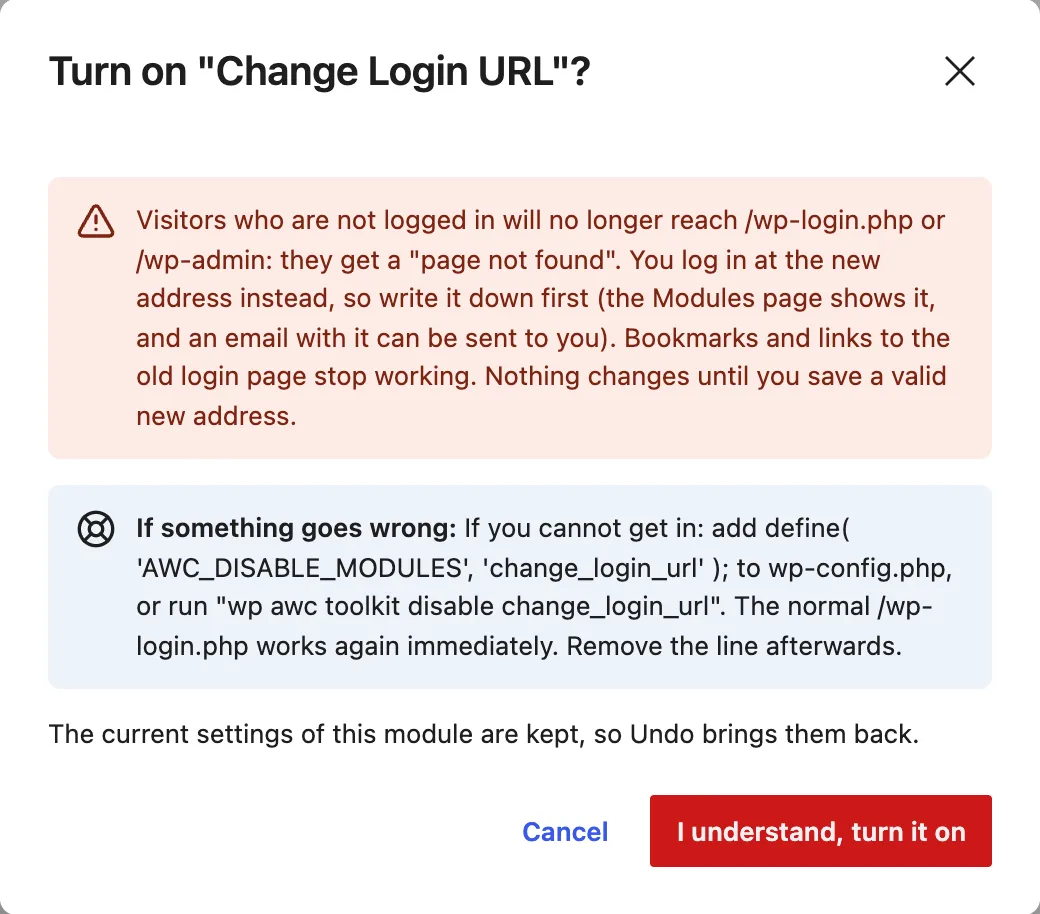
With WP-CLI, the same change is two commands:
wp awc toolkit set change_login_url slug bakery-staff-door --yeswp awc toolkit enable change_login_url --yesSuccess: Saved change_login_url.slug.Success: change_login_url is now on.Nothing changes until a valid address is saved, so switching the module on with an empty field does nothing.
Check what each address returns#
Do not trust the settings screen. Check the addresses from a terminal, or from a private browser window where you are not logged in. These are the answers my test site gave after the change, for a visitor who is not logged in:
curl -s -o /dev/null -w "%{http_code}\n" https://example.com/wp-login.phpcurl -s -o /dev/null -w "%{http_code}\n" https://example.com/bakery-staff-door/404200| Address | Before | After |
|---|---|---|
/wp-login.php | 200, the login form | 404 |
/wp-admin/ | 302 to /wp-login.php | 404 |
/login and /dashboard | 302 to the login page | 404 |
/wp-login.php?action=lostpassword | 200 | 404 |
/bakery-staff-door/ | 404 | 200, the login form |
/wp-admin/admin-ajax.php | 400 | 400 (still reachable) |
/xmlrpc.php | checks passwords | checks passwords |
Two rows are worth a closer look.
/login and /dashboard. WordPress normally redirects these to the login page, wherever it lives. Left alone, that redirect would hand the new address to anyone who types /login. The module switches that redirect off for logged-out visitors, which is why they return 404 too.
admin-ajax.php stays reachable on purpose. Contact forms, carts and other front-end features send background requests to it. A plugin that blocked all of /wp-admin/ would break them.
The blocked old address looks like any missing page on your site. Nothing on it hints that a login page exists somewhere else:
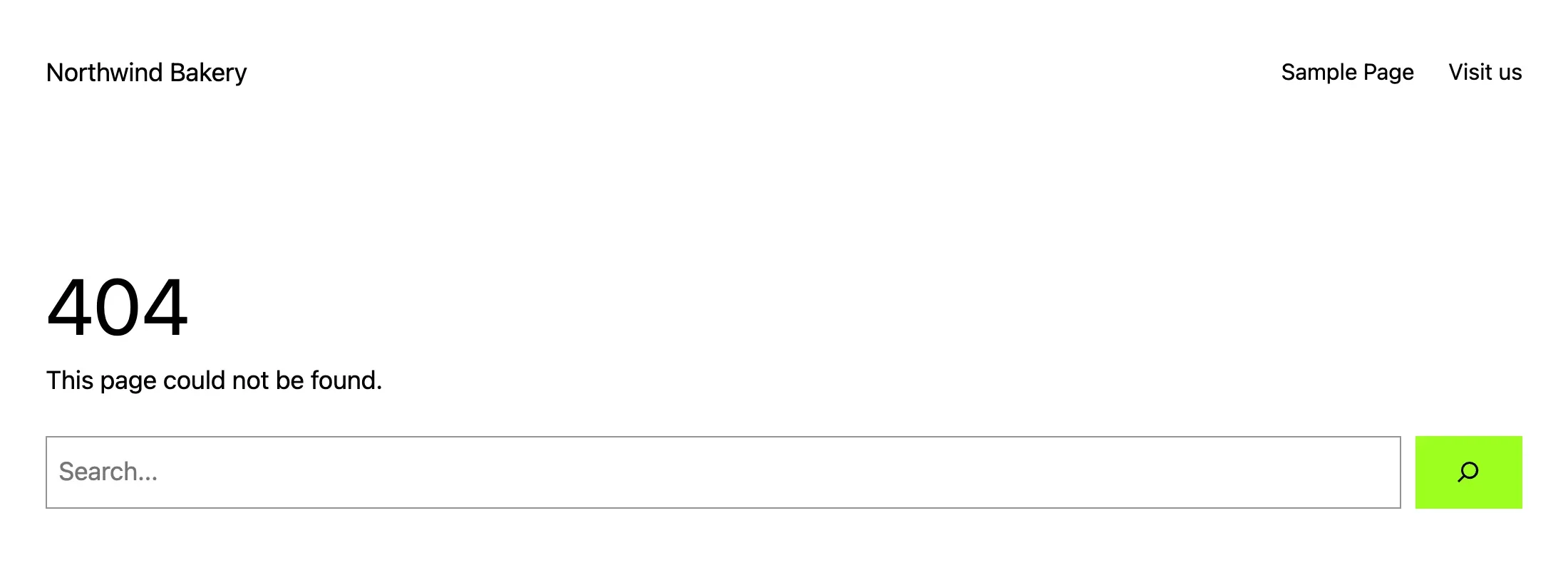
If you chose Send them to the home page instead, both /wp-login.php and /wp-admin/ answered 302 Found with Location: set to the home page.
Password resets, logout and links in emails#
A login page is more than one form. Password resets, logout and registration all use wp-login.php addresses, and a plugin that only moves the form leaves those broken. This is what I checked:
wp eval 'echo wp_login_url(), "\n", wp_lostpassword_url(), "\n", wp_logout_url(), "\n";'https://example.com/bakery-staff-door/https://example.com/bakery-staff-door/?action=lostpasswordhttps://example.com/bakery-staff-door/?action=logout&_wpnonce=6b772ee3b8- Password reset email. I asked for a reset for the user
mariaat the new address. The email WordPress sent said "To reset your password, visit the following address:" followed byhttps://example.com/bakery-staff-door/?login=maria&key=…&action=rp. Opening it showed the "new password" form. The same reset request sent to the old/wp-login.php?action=rpreturned 404. - Logout. The Log Out link in the toolbar pointed at the new address. Clicking it redirected to
/bakery-staff-door/?loggedout=true, and/wp-admin/then returned 404 again. - Logging in. A login at the new address redirected to
/wp-admin/as usual, and the dashboard loaded.
One exception is deliberate: the password form of a password-protected post still posts to /wp-login.php?action=postpass, so the new address never appears in public pages.
Caching, CDNs and bookmarks#
The module sends the secret login page and the blocked old address with this header:
Cache-Control: no-cache, must-revalidate, max-age=0, no-store, privateThat asks browsers, page caches and CDNs not to keep either answer. Without it, a cache could keep serving the 404 after you switch the module off, or keep serving the login form at an address it should no longer answer. If your CDN has a rule that caches everything regardless of headers, add the new address to the same exclusion list as /wp-admin/ and /wp-login.php.
Bookmarks to /wp-login.php stop working, including those of other editors. Tell them the new address before you switch, not after.
Get back in if you forget the new address#
The new address is in the email from the module, if you left that option on. If you cannot find it, any of these brings /wp-login.php back. I ran each one on the test site with the module on.
WP-CLI#
wp awc toolkit disable change_login_url --yescurl -s -o /dev/null -w "%{http_code}\n" https://example.com/wp-login.phpSuccess: change_login_url is now off.200To see the address instead of turning the module off, run wp awc toolkit get change_login_url slug.
The AWC_DISABLE_MODULES line in wp-config.php#
Without WP-CLI, open wp-config.php over SFTP or your host's file manager and add this line above the one that says /* That's all, stop editing! */:
define( 'AWC_DISABLE_MODULES', 'change_login_url' );With the line in place, /wp-login.php returned 200 straight away and the secret address returned 404. The module's saved setting did not change (wp awc toolkit get change_login_url enabled still said true), so once I removed the line, /wp-login.php went back to 404. Log in, switch the module off or note the address, then remove the line.
Rename the plugin folder#
The last resort, and it works for any login plugin. In wp-content/plugins, rename the plugin's folder, for example to welltend-site-and-admin-toolkit-off. WordPress cannot load a plugin it cannot find, and /wp-login.php returned 200 on the next request.
Two things to know:
- When I opened the Plugins screen while the folder was renamed, WordPress showed "The plugin
welltend-site-and-admin-toolkit/welltend-site-and-admin-toolkit.phphas been deactivated due to an error: Plugin file does not exist." Renaming the folder back then leaves the plugin inactive. - When I activated it again, the login page moved straight back to the secret address. The module's settings are kept. Switch the module off first if that is not what you want.
If you see "Sorry, you are not allowed to access this page" after logging in, the login worked but your account lacks a permission; see that error page.
When to leave it off#
- Multisite. The Toolkit's module refuses to switch on in a network, and it does nothing if one is detected.
- Sites where many people log in through forms that post to
/wp-login.phpand you cannot list them all. Every missed form breaks. - Sites where nobody can edit
wp-config.php. If losing the address means waiting for your host, the risk outweighs the benefit.
On the other sites it is a fair extra step, as long as the bigger steps come first: the WordPress security settings that matter.
WellTend Site and Admin Toolkit changes the login address and shows the recovery steps before you switch it on. Turning the module off puts /wp-login.php back.
FAQ
Does changing the login URL make WordPress secure?
No. It stops bots that only try /wp-login.php from reaching the password check, which cuts noise. Someone who targets your site can still try passwords through XML-RPC, and a weak password is still weak. Treat it as a small extra after updates, strong passwords, two-factor login and a limit on login attempts.
I forgot my new login address. How do I get back in?
Check the email the plugin sent when you set it, if you left that option on. Otherwise turn the module off without logging in: run wp awc toolkit disable change_login_url, or add define( 'AWC_DISABLE_MODULES', 'change_login_url' ); to wp-config.php. On my test site /wp-login.php answered again at once. Remove the line once you are in.
Will password reset emails still work?
Yes, with a plugin that rewrites WordPress's own login links. On my test site the reset email linked to the new address, the link opened the 'enter a new password' form, and the old /wp-login.php reset address returned a 404.
What happens to /wp-admin/ after the change?
For visitors who are not logged in, it returns the same 404 as /wp-login.php instead of redirecting to the login page. That redirect would give the new address away. Once you are logged in, /wp-admin/ works as normal.
Do I need to change anything in my caching plugin or CDN?
Usually not. The secret login page and the blocked old address were both sent with Cache-Control: no-cache, must-revalidate, max-age=0, no-store, private, which tells caches not to keep them. If you use a 'cache everything' CDN rule, exclude the new address the same way you exclude /wp-login.php.
One email when something breaks or changes.
New plugins and re-tested guides, about twice a month. Never a sales pitch.