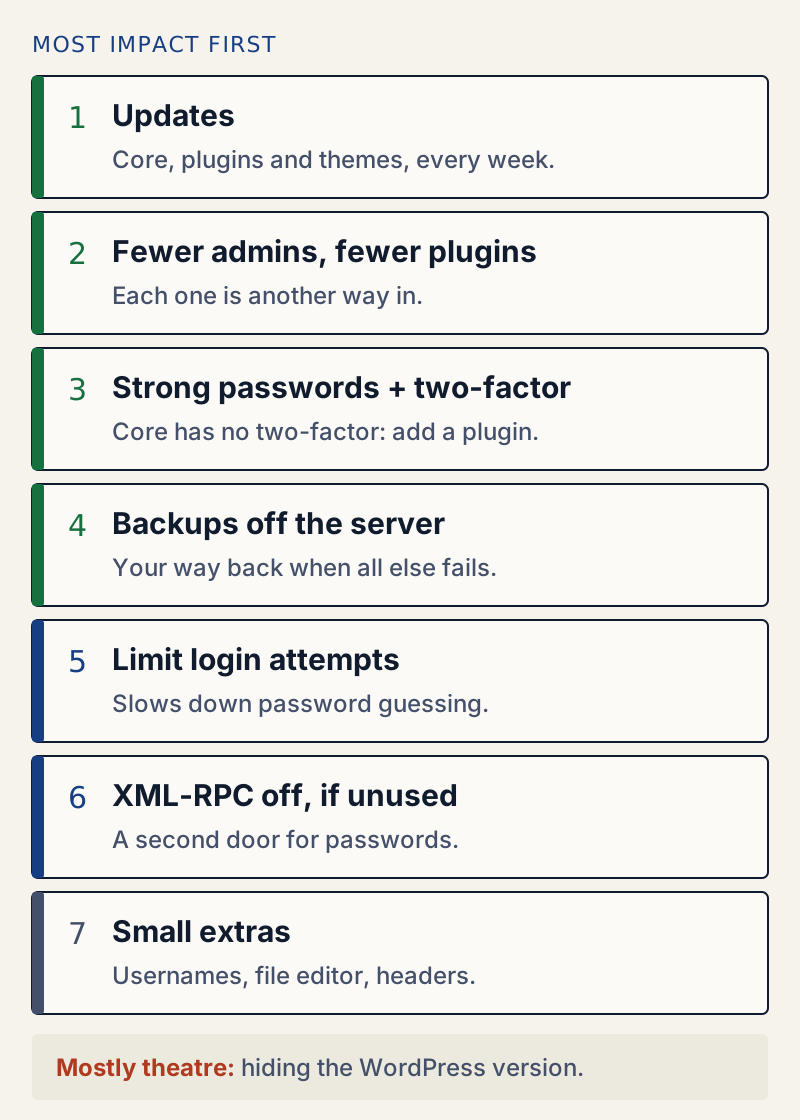
The settings that protect a WordPress site most are the dull ones: keep everything updated, remove admins and plugins you do not use, use strong passwords with two-factor login, and keep backups away from the server. After those, limit login attempts and close XML-RPC if nothing uses it. Hiding usernames, turning off the file editor and sending security headers are small extras, and hiding the WordPress version is mostly theatre.
This guide goes through them in that order. For each one that a setting can change, I show what a fresh WordPress 7.1 site does by default and what changed after the setting, checked with curl. A plugin is named only where I tested it.
1. Keep core, plugins and themes updated#
Updates close holes that are already public. WordPress and most plugins are open source, so once a fix is released, anyone can compare the old and new code and see what was broken, including the people who write attack tools. A site that updates weekly is a moving target; a site that updates yearly is not.
- Dashboard → Updates lists everything that has an update waiting.
- On the Plugins screen, the Enable auto-updates link next to each plugin lets WordPress install that plugin's updates by itself.
- Delete what you do not use instead of leaving it switched off. On my test site,
wp plugin listshowed this:
name status version update_versionakismet inactive 5.0.1 5.7.2hello inactive 1.7.2Akismet was switched off and several versions behind. A deactivated plugin does not run, but its files are still on the server, and a plugin nobody uses is a plugin nobody updates. Delete it.
Updates can break things, so do them with a backup and a quick check afterwards. Our guide to updating plugins safely covers the routine.
2. Remove unused administrators and plugins#
Every administrator account is a full way in. Every plugin is code that runs on every page. Fewer of both means fewer things to go wrong.
wp user list --role=administrator --fields=ID,user_login,user_registeredLook for people who have left, developers who finished their work and accounts you do not recognise. Give each person the lowest role that lets them do their job: an Editor can publish and change anyone's posts but cannot install plugins or change settings. If you find an account you did not create, read someone changed my WordPress settings before you delete it, because the account is evidence.
3. Strong passwords and two-factor login#
The login page only keeps out people who do not know the password, so the password has to be one nobody can guess or has seen elsewhere. Use a password manager and a long random password for every account that can publish.
WordPress 7.1 has no two-factor login. I searched the core files for it and there is none. The WordPress hardening handbook says: "In addition to using a strong password, it's a good idea to enable two-step authentication as an additional security measure." Add it with a plugin, set it up for every administrator, and keep the backup codes somewhere safe.
WordPress also tells visitors which usernames exist. On my test site, a wrong password for a real user and a made-up user gave different messages:
Error: The password you entered for the username maria is incorrect.Error: The username nobody is not registered on this site.The first message confirms that maria is a real account. That does not matter much once passwords are strong, but step 5 below can hide it.
4. Backups stored off the server#
When everything above fails, a backup is how you get the site back. Two rules make a backup useful:
- Keep copies away from the server. A backup in the same hosting account can be deleted or encrypted along with the site.
- Test a restore once. A backup you have never restored is a guess. Restore it to a staging copy or a local site and click around.
The WordPress handbook's advice is short: "Back up your data regularly, including your MySQL databases."
5. Limit login attempts#
Out of the box, WordPress lets anyone try passwords as fast as the server answers. I sent 20 wrong passwords for maria to wp-login.php with curl. All 20 got the "password you entered … is incorrect" message, and the 21st attempt, with the right password, logged straight in. Nothing slowed down and nothing was recorded.
A lockout plugin counts wrong passwords per internet address and refuses that address for a while. I tested the Limit Login Attempts module of WellTend Site and Admin Toolkit with its default settings:
wp awc toolkit enable limit_login_attempts --yesfor i in 1 2 3 4 5; do curl -s -b jar -c jar -d "log=maria&pwd=guess$i&wp-submit=Log+In" \ https://example.com/wp-login.php | grep -o 'Error:</strong> [^<]*\|Too many[^<]*'doneError:</strong> The username or password is not correct.Error:</strong> The username or password is not correct.Error:</strong> The username or password is not correct.Too many failed login attempts from this address. Please try again in 15 minutes.Too many failed login attempts from this address. Please try again in 15 minutes.Three wrong passwords are allowed; the fourth attempt is refused. A sixth attempt with the correct password got the same "Too many failed login attempts" message, so a guesser cannot get lucky during the lockout. Refused attempts are not counted again, so the lockout does not keep stretching.
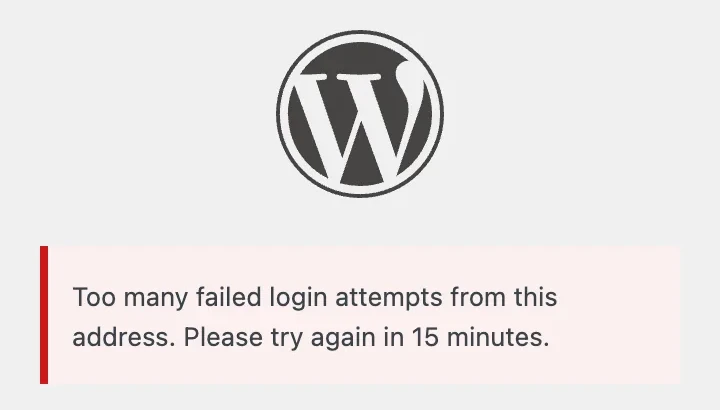
How long it lasts, from the module's settings and code: 15 minutes per lockout, and 24 hours once an address has been locked out three times (Wrong passwords before a 15-minute lockout and Lockouts before a 24-hour lockout, both default 3). I moved the log's timestamps back 15 minutes twice to test it; the third lockout said "Please try again in 24 hours."
Two more details from the test:
- The error message no longer gives usernames away. With the module on, wrong usernames and wrong passwords both got "The username or password is not correct." That is the Use one error message for a wrong username and a wrong password setting, on by default.
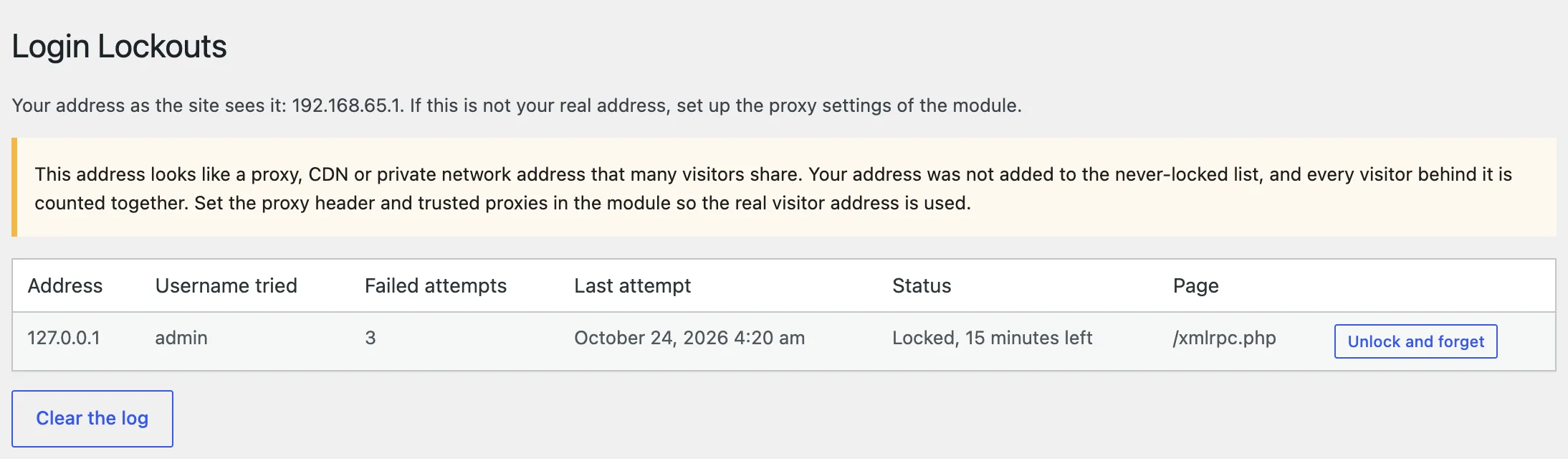
- It counts XML-RPC too. Guesses sent to
/xmlrpc.phpwent into the same count, and the log shows the page they came in on.
The shared-address catch#
A lockout plugin sees an internet address, not a person. Everyone in one office, on one school network or behind one mobile carrier can share an address, and they share the count. The module says so in its description: "Shared networks (offices, mobile data) share one address, so keep the limits generous."
It gets worse behind a CDN or proxy. Then every visitor arrives from the proxy's address, and one bot can lock everyone out. On my test site the module saw a private network address and warned: "This address looks like a proxy, CDN or private network address that many visitors share." The fix is to fill in Trusted proxies and Read the visitor address from this header (for example CF-Connecting-IP on Cloudflare), so the module reads the real visitor address. Add your own office address under Addresses that are never locked out.
If you lock yourself out anyway: wait 15 minutes, run wp awc toolkit lockouts clear, or add define( 'AWC_DISABLE_MODULES', 'limit_login_attempts' ); to wp-config.php and remove it once you are in.
6. Turn off XML-RPC if nothing uses it#
XML-RPC is an older way for apps to talk to WordPress, at /xmlrpc.php. It is on by default. On my test site it answered a request for its list of methods with 80 entries:
curl -s -d '<?xml version="1.0"?><methodCall><methodName>system.listMethods</methodName></methodCall>' \ https://example.com/xmlrpc.php | head<?xml version="1.0" encoding="UTF-8"?><methodResponse> <params> <param> <value> <array><data> <value><string>system.multicall</string></value> <value><string>system.listMethods</string></value> <value><string>system.getCapabilities</string></value>50 of those methods start with wp., and those take a username and password. That makes XML-RPC a second login page, one that ignores where your real login page lives and never shows a form.
system.multicall is the method security guides warn about: it bundles many calls into one request, so the warning is that a bot can try many passwords in one go. WordPress 7.1 does not allow that. Its XML-RPC server marks the first failed login in a request and refuses every later login in the same request without checking it. I sent one multicall with five passwords for maria, the fifth one correct. All five came back Incorrect username or password., and the lockout log counted one attempt, not five. So in WordPress 7.1, multicall does not multiply guesses. XML-RPC is still a second door that takes passwords at one guess per request.
WellTend Site and Admin Toolkit's Disable XML-RPC module refuses the request outright:
HTTP/1.1 403 ForbiddenContent-Type: text/plain; charset=utf-8XML-RPC services are disabled on this site.It also removed the EditURI link from the page head, which points apps to xmlrpc.php. The module's own warning lists what stops working: "the WordPress mobile app, Jetpack, some publishing tools and older apps that post to your site." Pingbacks and trackbacks stop too. If you use any of those, keep XML-RPC on and rely on the login limit from step 5, which counts XML-RPC guesses.
7. Small extras#
These are cheap and do no harm, but none of them stops an attacker who has a password.
Hide login names#
WordPress shows login names in three places by default. On my test site, with an editor whose login is maria and display name "Maria Ko":
/?author=2 → 301 Location: /author/maria//wp-json/wp/v2/users → [{"id":2,"name":"Maria Ko",...,"slug":"maria",...}]/wp-sitemap-users-1.xml → <loc>https://example.com/author/maria/</loc>Each Toolkit module covers a different part. I switched them on one at a time:
| Module | /?author=2 leads to | REST users list shows |
|---|---|---|
| None | /author/maria/ | maria |
| Block REST User Enumeration | /author/maria/ | nothing (404) |
| Obfuscate Author Slugs | a random code | the same code |
| Disable Author Archives | 404 | maria |
No single module closes both. Obfuscate Author Slugs alone covered both columns while keeping author pages: Maria's page moved to /author/eb1b3b59fb621a9c/, and /author/maria/ returned 404. If you do not need author pages, Disable Author Archives plus Block REST User Enumeration works too. Block REST User Enumeration also removes the author address from the embed data of each post (/wp-json/oembed/1.0/embed?url=…), which would otherwise give the login slug away.
Turn off the plugin and theme editor#
Theme File Editor and Plugin File Editor (under Tools when the site uses a block theme) let any administrator change PHP code from the browser. If an attacker gets into an admin account, that is the quickest way to plant code. Add this line to wp-config.php:
define( 'DISALLOW_FILE_EDIT', true );The handbook is honest about the limit: "This will not prevent an attacker from uploading malicious files to your site, but might stop some attacks." I checked the administrator's permissions with WP-CLI before and after:
edit_themes: yes → noedit_plugins: yes → noedit_files: yes → noupdate_plugins: yes → yesinstall_plugins: yes → yesUpdates and installs keep working. Opening the plugin editor after the change showed "Sorry, you are not allowed to access this page" (what that error means). The Toolkit's Disable Plugin & Theme Editor module gave exactly the same five results without editing wp-config.php.
Do not confuse it with DISALLOW_FILE_MODS. With that constant set, update_plugins, install_plugins and update_core all became no on my test site, so you lose updates from the dashboard, which works against step 1.
Security headers#
A fresh WordPress site sends no security headers on its pages:
HTTP/1.1 200 OKServer: Apache/2.4.54 (Debian)X-Powered-By: PHP/7.4.33Link: <https://example.com/wp-json/>; rel="https://api.w.org/"Content-Type: text/html; charset=UTF-8With the Toolkit's Security Headers module on its defaults:
HTTP/1.1 200 OKServer: Apache/2.4.54 (Debian)X-Powered-By: PHP/7.4.33X-Content-Type-Options: nosniffReferrer-Policy: strict-origin-when-cross-originX-Frame-Options: SAMEORIGINLink: <https://example.com/wp-json/>; rel="https://api.w.org/"Content-Type: text/html; charset=UTF-8X-Frame-Options: SAMEORIGIN stops other sites from showing your pages inside a frame, which is how "clickjacking" tricks work. nosniff stops browsers from guessing file types. Referrer-Policy sends only your domain, not the full address, when a visitor follows a link to another site. WordPress already sent X-Frame-Options and Referrer-Policy on its own login page before the change. These headers protect your visitors more than your site, and they do not include a Content Security Policy or HSTS. Set HSTS at your host once HTTPS works everywhere.
Mostly theatre#
Hiding the WordPress version. The Toolkit's Hide WordPress Version module removed the <meta name="generator" content="WordPress 7.1.3" /> tag, the version from the feed and the ver=7.1.3 from script and style addresses for visitors, the login page included. It tells nobody anything once you are up to date, and an old version is just as vulnerable with the number hidden. The handbook puts it plainly: "Security through obscurity is generally an unsound primary strategy." Keep the version current instead of hidden.
Moving the login page. Not theatre, but smaller than it looks. It stops bots that only try /wp-login.php, while XML-RPC and the REST API still accept passwords. Our guide to changing the login URL shows what it does and how to get back in if you lose the address.
Treating your username as a secret. As the table above shows, WordPress publishes login names in three places by default. Hide them if you like, but count on your password and two-factor login, not on nobody knowing your username.
If something goes wrong after a change, Site Health and the debug log are the first places to look.
WellTend Site and Admin Toolkit has login limits, XML-RPC and file-editor switches, security headers and more. Each one is off until you turn it on, and each has an undo.
FAQ
Does WordPress limit login attempts by default?
No. On my test site, 20 wrong passwords in a row each got the normal error message, and the 21st attempt with the right password logged straight in. You need a plugin or a server rule to slow guessing down.
Does WordPress have two-factor authentication built in?
No. WordPress 7.1 has no two-factor login. Add it with a plugin, and set it up for every administrator first.
Should I disable XML-RPC?
Yes, if nothing uses it. XML-RPC checks usernames and passwords on its own address, so it is a second place to guess them. The Toolkit's Disable XML-RPC module warns that the WordPress mobile app, Jetpack and some publishing tools stop working without it, so check before you switch it off.
Is hiding the WordPress version worth it?
Not much. A version number tells nobody anything useful once you are up to date, and an out-of-date site is just as vulnerable with the number hidden. Spend the time on updates instead.
Will a lockout plugin lock me out of my own site?
It can, especially if you share an internet address with others or your site is behind a CDN. Pick one with an allow list and a recovery path. With WellTend Site and Admin Toolkit, wp awc toolkit lockouts clear empties the lockouts, and the AWC_DISABLE_MODULES line in wp-config.php turns the module off.
One email when something breaks or changes.
New plugins and re-tested guides, about twice a month. Never a sales pitch.