To turn on the WordPress debug log, set WP_DEBUG and WP_DEBUG_LOG to true in wp-config.php and set WP_DEBUG_DISPLAY to false, so errors go into a file instead of onto your pages. Then make sure that file cannot be downloaded: on a default Apache server, wp-content/debug.log can be opened by anyone who types its address.
Everything below was done on a test site running WordPress 7.1.3 and PHP 7.4 on Apache, with a small plugin I broke on purpose so the log had real errors in it.
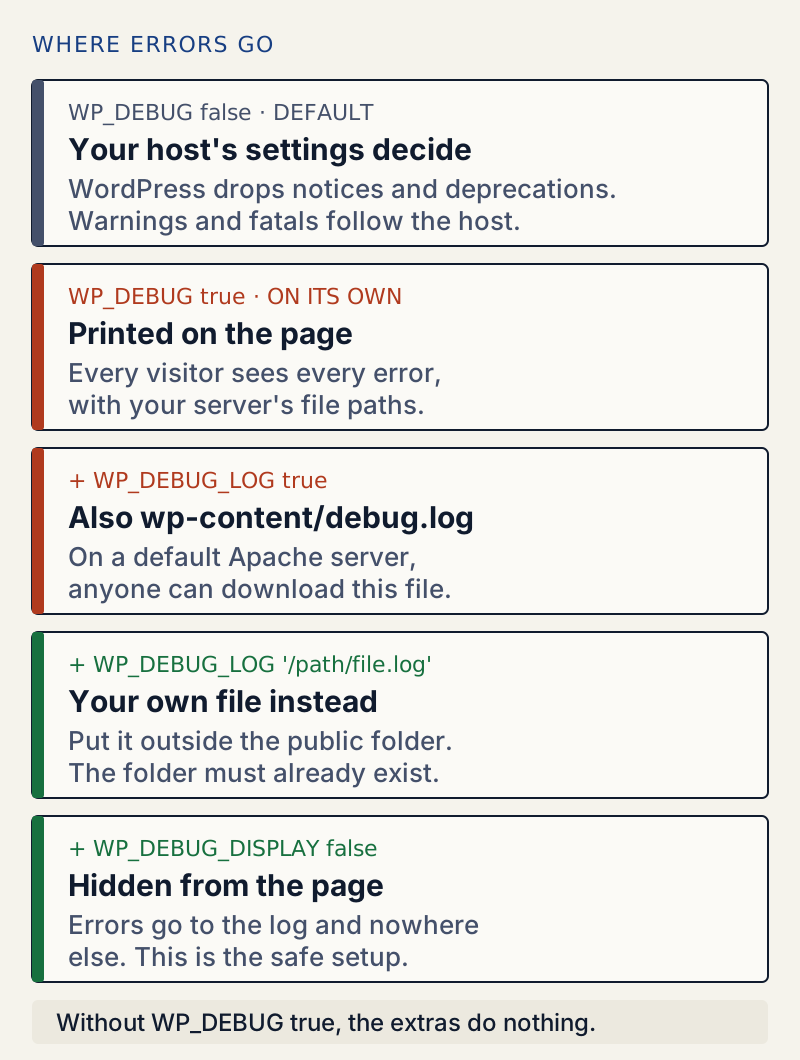
Turn on logging without showing errors to visitors#
Open wp-config.php in the main WordPress folder, over SFTP or your host's file manager. Find the line that defines WP_DEBUG. Most sites have define( 'WP_DEBUG', false );. Replace that one line with these three:
define( 'WP_DEBUG', true );define( 'WP_DEBUG_LOG', true );define( 'WP_DEBUG_DISPLAY', false );Two rules keep this from going wrong:
- Change the existing line, do not add a second one. PHP keeps the first definition and silently ignores any later one. On my test site, a second
define( 'WP_DEBUG', false );lower down changed nothing: logging stayed on, and no message said why. - Put the lines above
/* That's all, stop editing! Happy publishing. */. WordPress reads its settings before that line and starts loading after it.
If you have WP-CLI, three commands do the same edit for you, changing the lines that are there or adding them if they are missing:
wp config set WP_DEBUG true --rawwp config set WP_DEBUG_LOG true --rawwp config set WP_DEBUG_DISPLAY false --rawSuccess: Updated the constant 'WP_DEBUG' in the 'wp-config.php' file with the raw value 'true'.Success: Updated the constant 'WP_DEBUG_LOG' in the 'wp-config.php' file with the raw value 'true'.Success: Updated the constant 'WP_DEBUG_DISPLAY' in the 'wp-config.php' file with the raw value 'false'.--raw matters. When I left it out on a test constant, WP-CLI wrote the value as 'true' in quotes: text, not the value true.
Why WP_DEBUG_DISPLAY false is not optional#
WP_DEBUG_DISPLAY defaults to true. So if you only switch on WP_DEBUG, WordPress prints every error into the page for every visitor. This is what the end of my test site's home page looked like with WP_DEBUG on by itself:
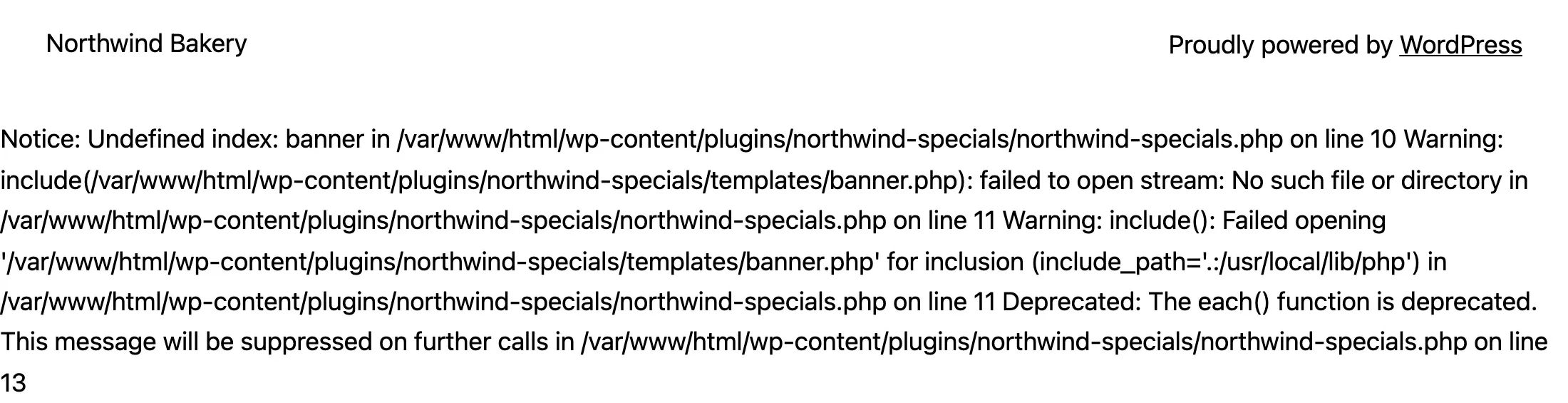
With the three lines above, the same page showed no error text at all, and the errors went into the log instead.
What happens with WP_DEBUG left off#
WP_DEBUG is false by default. In that state WordPress tells PHP to ignore notices and deprecation messages, and leaves warnings and fatal errors to your host's PHP settings. On my test server those went to the web server's own error log, where only the host can see them:
[php7:warn] PHP Warning: include(/var/www/html/wp-content/plugins/northwind-specials/templates/banner.php): failed to open stream: No such file or directory in /var/www/html/wp-content/plugins/northwind-specials/northwind-specials.php on line 11WP_DEBUG_LOG and WP_DEBUG_DISPLAY only take effect when WP_DEBUG is true. WordPress's documentation says the same: "for WP_DEBUG_LOG to do anything, WP_DEBUG must be enabled (true)."
Where the log goes#
With WP_DEBUG_LOG set to true, WordPress tells PHP to write errors to debug.log in the wp-content folder. The file does not exist until the first error. On my test site it appeared on the first page view after the change, owned by the web server user.
You can choose another place by giving WP_DEBUG_LOG a full file path instead of true. This is how WordPress core reads the setting in wp_debug_mode(): true or 1 means wp-content/debug.log, any other text is used as the path.
define( 'WP_DEBUG_LOG', '/var/www/logs/php-errors.log' );Pick a folder outside the public web folder (the one that holds wp-config.php and wp-content), so no web address can reach the file. Two things to know:
- The folder must already exist and the web server must be allowed to write to it. WordPress does not create it. When I pointed
WP_DEBUG_LOGat a folder that did not exist, no file appeared, and the errors went to the server's own error log instead. - Ask your host which folder to use if you are not sure which folders are outside the public one.
The big risk: debug.log is public on Apache#
Anything inside the WordPress folder can be requested by URL unless the server is told otherwise. debug.log is a plain text file inside wp-content, and a default Apache setup serves it to anyone. With logging on, I requested it without logging in:
curl -sI https://example.com/wp-content/debug.logHTTP/1.1 200 OKServer: Apache/2.4.54 (Debian)Accept-Ranges: bytesContent-Length: 8315The body was the full log, starting with:
[24-Oct-2026 04:27:32 UTC] PHP Notice: Undefined index: banner in /var/www/html/wp-content/plugins/northwind-specials/northwind-specials.php on line 10A log tells a stranger which plugins you run, where your files live on the server, and sometimes values that were passed to a broken function. Fix it one of two ways.
Option 1: block the file (Apache)#
Create a file called .htaccess inside wp-content (or add to it, if it exists) with this:
<Files "debug.log"> Require all denied</Files>The same request then returned:
HTTP/1.1 403 ForbiddenTheme files in the same folder still loaded normally. This works only where Apache is set to read .htaccess files. Nginx does not read them at all: WordPress's Nginx documentation says "there is no directory-level configuration file like Apache’s .htaccess". On Nginx, ask your host to block the file or use option 2.
Option 2: move the log out of the public folder#
Use a custom path as shown above. This works on any server, because there is no web address for a file outside the public folder. After I moved the log and deleted the old debug.log, the old address answered HTTP/1.1 404 Not Found.
Repeat the curl -sI check after either change. You want 403 or 404, never 200.
How to read a log line#
Here is one line from my test log, split into its parts:
[24-Oct-2026 04:27:32 UTC] PHP Warning: include(/var/www/html/wp-content/plugins/northwind-specials/templates/banner.php): failed to open stream: No such file or directory in /var/www/html/wp-content/plugins/northwind-specials/northwind-specials.php on line 11[24-Oct-2026 04:27:32 UTC]: when it happened. The time is in UTC, so it may differ from your clock by some hours.PHP Warning: the level (see below).include(...): failed to open stream: No such file or directory: what went wrong. Here, the plugin tried to load a file that is not there.in .../wp-content/plugins/northwind-specials/northwind-specials.php on line 11: the file and line where it happened. The folder name afterwp-content/plugins/orwp-content/themes/tells you which plugin or theme to blame. A path inwp-includesorwp-adminis WordPress itself, but the cause is often a plugin that called it.
What each level means for you#
My broken plugin produced one of each common level on every page view:
| Level | Example from my log | What it means | What to do |
|---|---|---|---|
| Fatal error | Uncaught Error: Call to undefined function northwind_get_todays_specials() | PHP stopped. The rest of the page was not built. | Act now. Update or turn off the plugin named in the path. |
| Warning | include(...): failed to open stream | Something failed, but the page carried on. A feature may be missing. | Worth fixing if it repeats. Update the plugin or tell its author. |
| Notice | Undefined index: banner | The code used a value that was never set. Usually harmless. | Leave it, or pass it on to the author. |
| Deprecated | The each() function is deprecated | Works on this PHP version, will not on a newer one. | Tell the author before your host upgrades PHP. |
The Deprecated example shows why those lines matter. The PHP manual says each() was "DEPRECATED as of PHP 7.2.0, and REMOVED as of PHP 8.0.0". On PHP 8, that plugin line would be a fatal error.
A fatal error also writes a stack trace, a list of the functions that led to it, numbered from #0:
[24-Oct-2026 04:27:32 UTC] PHP Fatal error: Uncaught Error: Call to undefined function northwind_get_todays_specials() in /var/www/html/wp-content/plugins/northwind-specials/northwind-specials.php:17Stack trace:#0 /var/www/html/wp-includes/class-wp-hook.php(353): northwind_specials_banner('')#1 /var/www/html/wp-includes/class-wp-hook.php(377): WP_Hook->apply_filters(NULL, Array)...#8 {main} thrown in /var/www/html/wp-content/plugins/northwind-specials/northwind-specials.php on line 17You do not need to follow the whole trace. The first line and the thrown in line name the file. In this case the fatal error happened in the footer, after most of the page had been sent, so the page simply stopped after the footer and the server still answered 200. Nothing on screen said anything was wrong. Only the log did. If the error happens earlier, you get the critical error screen instead.
Keep an eye on the size#
WordPress never trims or rotates debug.log. It only adds to it. On my test site, 100 visits to the home page added 400 lines and 91,500 bytes from one broken plugin. A site with 1,000 visits a day and the same problem would add about 0.9 MB a day, every day, until someone notices.
To empty the log, delete the file or empty it over SFTP. With shell access:
: > wp-content/debug.logIf logging is still on, new errors start a fresh file.
Turn it off again#
When you have found the problem, set WP_DEBUG back to false:
wp config set WP_DEBUG false --rawor change the line by hand. I checked: with WP_DEBUG back to false, the next page view added nothing to the log file, while warnings still reached the server's own log as before. You can leave the WP_DEBUG_LOG and WP_DEBUG_DISPLAY lines in place for next time; they do nothing while WP_DEBUG is off. Delete or download the old log so it does not sit on the server.
WordPress Site Health warns about the log too#
Site Health (Tools → Site Health) checks the debug settings. While logging is on, it shows Your site is set to log errors to a potentially public file. It marks this as critical when the log is inside the WordPress folder and as recommended when it is elsewhere. It decides by the file's location only. It does not try to download the file, so it cannot tell whether your .htaccess block works. Our guide to WordPress Site Health covers the other checks.
Reading the log without SFTP#
WellTend Health Monitor, our free plugin, reads the same log in wp-admin under AllWPCare → Site Health → Error log. On my test site it found wp-content/debug.log, grouped every line under Northwind Specials, and counted 4 fatal errors, 20 warnings and 20 notices and deprecations in the last 24 hours.
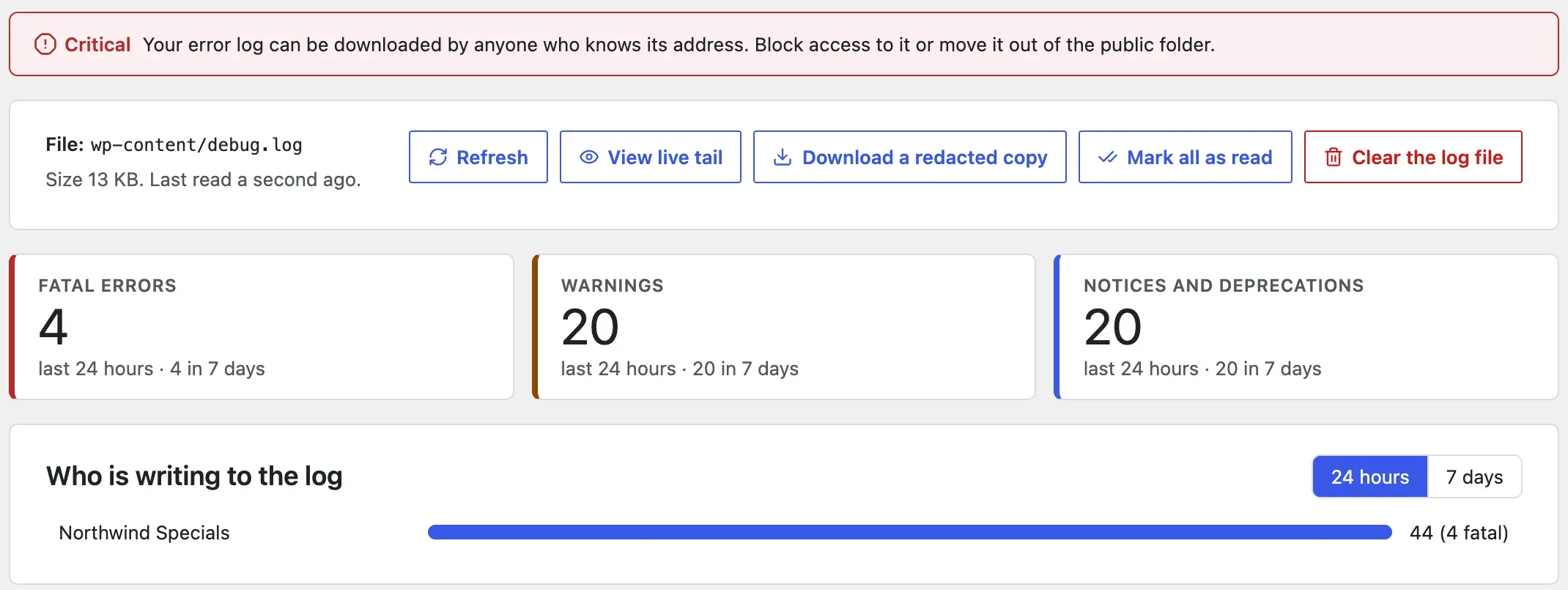
The public-file warning is a real test, not a guess from the location. The plugin asks your own site for the log's address and compares what comes back with the start of the real file. After I added the .htaccess block, its check changed to "Your error log cannot be downloaded from the web." After I moved the log outside the public folder, it found the new path by itself and reported "Your error log is stored outside the public part of your site." With WP-CLI, wp awc health log prints the same summary:
Log: wp-content/debug.log (13 KB)period level count24h deprecated 1024h fatal 424h notice 1024h warning 20If a fatal error has locked you out, the log still points to the plugin. Our page on the critical error screen shows how to turn that plugin off without the dashboard.
WellTend Health Monitor shows your PHP error log in wp-admin, grouped by the plugin or theme that wrote each line.
FAQ
Where is the WordPress debug log?
With WP_DEBUG_LOG set to true, it is wp-content/debug.log. WordPress creates the file the first time an error happens, so an empty site may have no file yet. If WP_DEBUG_LOG holds a file path instead, the log is at that path.
Is it safe to leave WP_DEBUG on?
Only with WP_DEBUG_DISPLAY set to false and the log kept private, and even then only while you are looking for a problem. WordPress's own documentation says not to use the debug tools on live sites. Turn it off when you are done.
Why is my debug.log empty or missing?
Either nothing has gone wrong since you turned it on, or WP_DEBUG is still false. WP_DEBUG_LOG does nothing on its own. Check that the file has only one WP_DEBUG line (PHP uses the first one it finds) and that the lines sit above the "stop editing" comment. With a custom path, the folder must already exist.
Can I delete debug.log?
Yes. It is only a record. Download a copy first if you still need it. If logging is still on, WordPress starts a new file at the next error.
Do I need to fix every Notice and Deprecated line?
No. Those come from the code of a plugin or theme, not from your settings. Fatal errors and repeated warnings matter most. Deprecated lines are worth passing to the plugin's author, because they mark code that newer PHP versions no longer run.
One email when something breaks or changes.
New plugins and re-tested guides, about twice a month. Never a sales pitch.