Why it happens
- A plugin threw a PHP fatal error, usually after an update, a fresh install, or a PHP version change on the server.
- The active theme has a fatal error or a syntax error in
functions.phpor another template file. - A code snippet pasted into
functions.phpor a snippets plugin contains a mistake, such as a missing bracket or a function that does not exist. - PHP ran out of memory. The message then appears together with an
Allowed memory sizeline in the error log. - An update was interrupted and left WordPress core files missing or mixed between two versions.
- The server was moved to a newer PHP version and a plugin or theme still uses code that PHP no longer accepts.
How to fix it
Try the fixes in this order. Each one is independent: stop as soon as the error is gone.
Look for the recovery mode email
- Open the inbox of the address under Settings → General → Administration Email Address. Check spam too. The subject is "Your Site is Experiencing a Technical Issue".
- Read the line that says which plugin or theme caused the error. The email also gives the file and line number.
- If there is no email, move on. WordPress sends at most one a day by default, it only sends one when the error is traced to a plugin or a theme, and many servers cannot send mail at all.
Use the recovery mode link
- Open the link in the email. It looks like
/wp-login.php?action=enter_recovery_mode&rm_token=.... It expires after one day. - WordPress shows "Recovery Mode Initialized. Please log in to continue." Log in with an administrator account.
- A notice at the top says you are in recovery mode. Open Plugins. The broken plugin is marked "This plugin failed to load properly and is paused during recovery mode" with the file and line of the error.
- Click Deactivate on that plugin. If the cause is a theme, open Appearance → Themes and activate a default theme such as Twenty Twenty-Five.
- Click Exit Recovery Mode at the top, or log out, then reload the site.
Read the real error from the log
- Open
wp-config.phpin the WordPress root over SFTP or your host's file manager. - Above the line that says to stop editing, set
define( 'WP_DEBUG', true );,define( 'WP_DEBUG_LOG', true );anddefine( 'WP_DEBUG_DISPLAY', false );. The last line keeps errors off the page that visitors see. - Reload the broken page once, then open
wp-content/debug.log. - Find the last line that starts with
PHP Fatal errororPHP Parse error. The path in it names the culprit, for example/wp-content/plugins/some-plugin/some-plugin.php:5or/wp-content/themes/your-theme/functions.php. - With WP-CLI,
wp config set WP_DEBUG true --raw,wp config set WP_DEBUG_LOG true --rawandwp config set WP_DEBUG_DISPLAY false --rawmake the same edit. Set them back tofalsewhen you are done. - Your host's PHP error log shows the same line even with debugging off. Look for it in the hosting control panel.
Turn the plugin off without the dashboard
- With SFTP, rename the folder named in the error, for example
wp-content/plugins/some-plugintosome-plugin.off. WordPress skips a plugin whose folder is missing. Open the Plugins screen only after you put the folder back or accept the result, because that screen deactivates a plugin whose file it cannot find. On my test site the front end returned to normal at once. - With WP-CLI over SSH, run
wp plugin deactivate some-plugin --skip-plugins. Without--skip-plugins, WP-CLI loads the broken plugin and fails with the same fatal error. - If you cannot tell which plugin it is, run
wp plugin deactivate --all --skip-plugins. It turns off every active plugin. Reactivate them one at a time and reload the site after each. - Reload the site and the dashboard. If both load, reinstall the plugin from a fresh copy or look for a newer version before you activate it again.
Switch the theme without the dashboard
- Make sure a default theme such as Twenty Twenty-Five is installed in
wp-content/themes. Upload one over SFTP if it is not. - Run
wp theme activate twentytwentyfive --skip-themes. I used this on a test site with a syntax error in the active theme'sfunctions.php, and it switched the theme and brought the site back. - If the error is in a snippet you added to
functions.php, remove it, or restore the theme file from your backup or a fresh copy of the theme.
Fix core files, PHP version and memory
- Run
wp core verify-checksums. It lists any WordPress core file that is missing or changed. Add--skip-pluginsif a broken plugin stops WP-CLI from loading. - If it reports problems, reinstall core without touching your content. Back up first. Run
wp core download --force --skip-content --version=$(wp core version --skip-plugins --skip-themes). The--versionpart keeps you on your current release instead of jumping to the latest one.--forceoverwrites every core file, so hand edits to core are lost, andwp-config.phpis not touched. - If the error started right after your host changed the PHP version, set the site back to the previous version in the hosting panel, and update the plugin or theme before upgrading PHP again.
- If the log says
Allowed memory size, follow the memory limit guide.
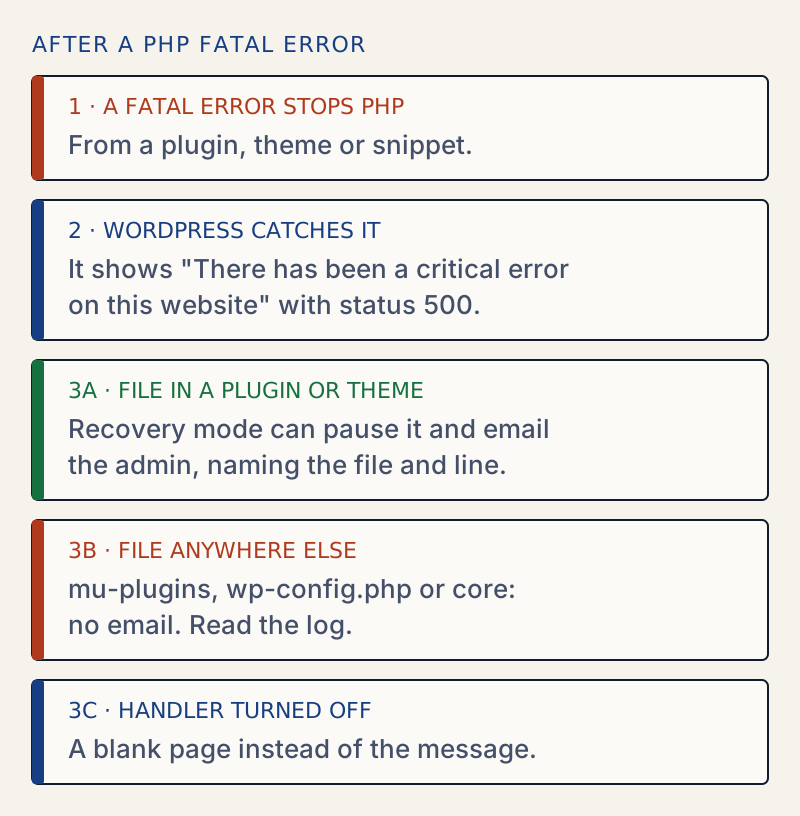
This message means PHP stopped with a fatal error while WordPress was loading. It replaced the older blank page. Your content is in the database and is almost always intact. WordPress shows the message and exits instead of leaving a half-built page.
What you see, and where#
What you see depends on where you are:
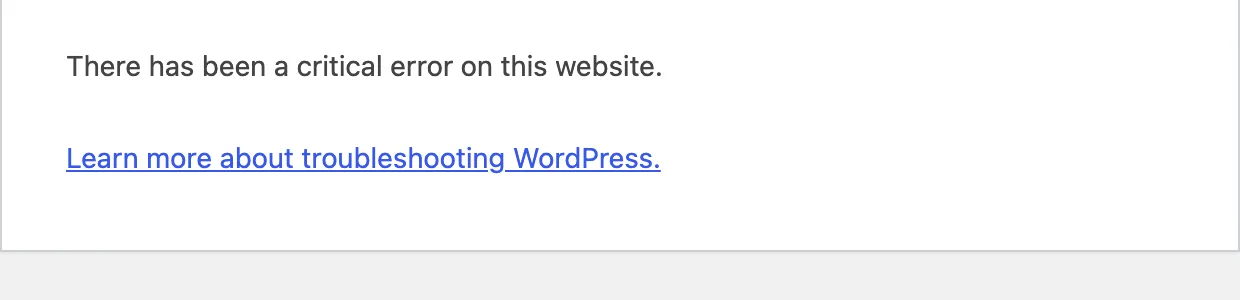
- Visitors on the front end. "There has been a critical error on this website." and a link to the WordPress troubleshooting page.
- The login page and the dashboard. The same sentence, followed by "Please check your site admin email inbox for instructions. If you continue to have problems, please try the support forums." This is the version that points to the recovery email.
- After you enter recovery mode. "There has been a critical error on this website, putting it in recovery mode. Please check the Themes and Plugins screens for more details."
All of them are sent with an HTTP 500 status. I confirmed the wording and the status on WordPress 7.1.4 by adding a plugin that calls a function that does not exist.
Why the email sometimes never comes#
Recovery mode only knows about plugins and themes. WordPress finds the file path in the PHP error and checks whether it sits inside wp-content/plugins or wp-content/themes.
If the error is somewhere else, it cannot pause anything, and no email is sent. I tested this with a fatal error in a must-use plugin (wp-content/mu-plugins). The login page still said to check the inbox. No email was sent. The same applies to errors in wp-config.php and in core files. For those, go straight to the log and the file path in it.
The order to work in#
- Look for the email. It is the quickest route and it names the cause.
- If there is none, turn on the debug log (how to do it safely) and read the last fatal line.
- Turn off only the thing named in that line.
- Check the PHP version and core files if nothing in
wp-contentis named.
Do not delete the plugin or theme at first. Deactivating it keeps its settings, so you can reactivate it after an update.
A friendlier page for visitors#
You can replace the default message. Create wp-content/php-error.php. WordPress loads it in place of the default message when a fatal error is caught. Your file is responsible for the HTTP status and the markup, so start it with http_response_code( 500 );. Without that, the page returns 200 and can be cached or indexed as a good page. Keep it static, and check function_exists() before calling any WordPress function, because WordPress may not have finished loading. The constant WP_DISABLE_FATAL_ERROR_HANDLER turns the whole feature off, On my test site, with display_errors off, a fatal error in a must-use plugin then returned status 500 with an empty body, and the error went only to the PHP log. With the constant removed, the same error showed the message above. See the white screen of death for when that is useful and when it hurts.
If it keeps coming back#
- After every plugin update. Test updates on a staging copy first, and keep a backup you can restore. Updating plugins safely walks through it. If the error appears when you activate a plugin, see plugin could not be activated because it triggered a fatal error.
- After a PHP upgrade. Update plugins and themes first. Syntax that worked on PHP 7.4 may fail on 8.x, and the other way round. A file with a syntax error is covered in parse error: syntax error.
- With a 500 page that is not WordPress's. If the page does not mention a critical error, the web server stopped before WordPress ran. See the 500 Internal Server Error.
If settings changed along the way, see how to find and undo changed settings.
Sources
- WordPress: fatal error recovery mode in 5.2 · The core team's announcement of the handler and recovery mode
- WordPress: debugging · WP_DEBUG, WP_DEBUG_LOG and WP_DEBUG_DISPLAY
- WordPress core: WP_Fatal_Error_Handler · Shows the message, sends 500 and loads php-error.php if present
- WP-CLI: wp plugin deactivate · Command reference; --skip-plugins is a global parameter
- PHP: error levels · E_ERROR is a fatal run-time error; E_PARSE is a compile-time parse error
One email when something breaks or changes.
New plugins and re-tested guides, about twice a month. Never a sales pitch.