Why it happens
- The memory limit is too low for what the page does. WordPress raises a lower PHP limit only up to 40 MB on a single site by default, which is tight for a site with several large plugins.
- A plugin or theme uses far more memory than it should, because of a bug, a very large query or a loop that never ends.
- A heavy task runs in one request: an import, a backup, a large image upload or resize, a bulk update, or a page builder saving a big page.
- The host sets the limit in a way WordPress cannot raise, so
WP_MEMORY_LIMITinwp-config.phphas no effect. - The command-line PHP has a different limit from the web PHP, so a task works in the browser and fails in WP-CLI, or the other way round.
How to fix it
Try the fixes in this order. Each one is independent: stop as soon as the error is gone.
Read the number and the file in the message
- The first number is the limit that was in force when PHP stopped.
41943040bytes is 40 MB. Common values:33554432is 32 MB,67108864is 64 MB,134217728is 128 MB,268435456is 256 MB,536870912is 512 MB. - The second number is the size of the allocation that failed. A value of tens of megabytes means one operation tried to grab a big block at once, such as loading a huge file or building a very large array.
- The path at the end names where it ran out. A path under
wp-content/plugins/name/points at that plugin. It is not always the cause, since it only shows where the last allocation failed. - If the message does not show on the page, it is in the debug log or the host's PHP error log. See the critical error guide for how to turn the log on.
Raise WP_MEMORY_LIMIT
- Open
wp-config.phpin the WordPress root and keep a copy of the original. - Above the line that says to stop editing, add
define( 'WP_MEMORY_LIMIT', '256M' );. - With WP-CLI,
wp config set WP_MEMORY_LIMIT 256Madds the same line. - Reload the page that failed. On my test site, a task that needed about 60 MB failed at a limit of 40 MB and passed with this line.
- Check the value in use at Tools → Site Health → Info → WordPress Constants and Server. The first shows
WP_MEMORY_LIMITandWP_MAX_MEMORY_LIMIT, the second shows PHP's own memory limit.
Check whether your host overrides it
- If the same message comes back and the number has not changed, the host fixes the limit and WordPress cannot raise it. I tested this with a limit set by
php_admin_valuein the Apache config: the message kept showing33554432even withWP_MEMORY_LIMITset to 256M. - In your hosting control panel, look for PHP settings, MultiPHP INI Editor, or similar, and raise
memory_limitthere. Hosts that use PHP-FPM often read a.user.inifile in the site root, wherememory_limit = 256Mis the line to add. - On Apache with PHP as a module,
php_value memory_limit 256Min.htaccessalso works. On any other setup that line causes a 500 error, so read the 500 Internal Server Error first. - If you cannot change it, ask your host to raise it, quoting the exact message. Shared plans often cap it at a fixed value, so ask what yours is.
Fix the admin-only case
- In the dashboard WordPress raises the limit to
WP_MAX_MEMORY_LIMIT, which defaults to 256M unless PHP's own limit or yourWP_MEMORY_LIMITis higher. If a dashboard task still runs out, set it higher:define( 'WP_MAX_MEMORY_LIMIT', '512M' );. - Image resizing, imports and exports use this admin limit too. For uploads, shrink very large images before uploading.
- Run heavy jobs through WP-CLI when you can. WP-CLI uses the command-line PHP, which can have a different, often higher,
memory_limit. Check withphp -r 'echo ini_get("memory_limit");'.
Find what is using the memory
- Raising the limit again and again hides a bug. If 256M is not enough for an ordinary page, something is wrong.
- Deactivate plugins one at a time, starting with the one named in the error path. With WP-CLI,
wp plugin deactivate name --skip-pluginsworks even when the site is down. - Test with a default theme:
wp theme activate twentytwentyfive --skip-themes. - If the error appears on one screen only, such as an import or a report page, note the exact steps and send them to the plugin author with the full message.
- Run
wp plugin list --status=activeand update what has an update. A memory bug is often already fixed.
PHP gives every request a fixed amount of memory. When a page needs more, PHP stops it and writes this message. It is a limit set per request, not a sign that the server is out of memory.
What visitors see#
With debugging off, visitors do not see this text. On WordPress 7.1.4 I triggered it with display off and got the standard critical error page with a 500 status, which is how most live sites show it. The exact Allowed memory size line then appears only in the log. With WP_DEBUG_DISPLAY set to true, or on servers where PHP displays errors, the line appears on the page.

How WordPress sets the limit#
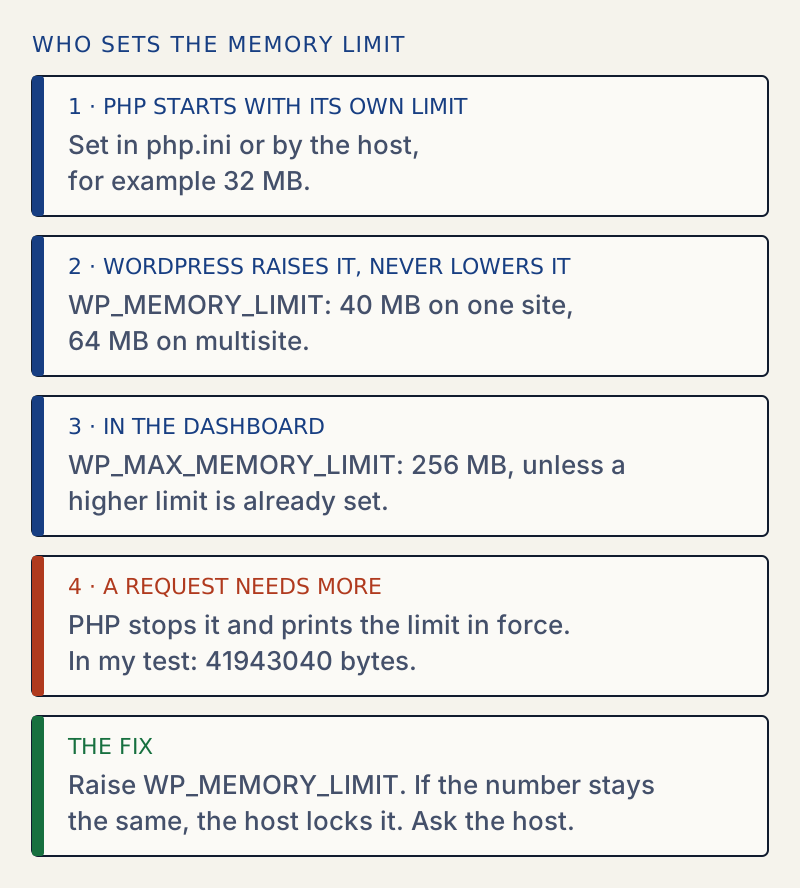
WordPress works out two limits at start-up, from wp-includes/default-constants.php:
WP_MEMORY_LIMIT: used on every request. The default is 40 MB on a single site and 64 MB on multisite.WP_MAX_MEMORY_LIMIT: used in the dashboard for heavy tasks. The default is 256 MB, unless PHP's own limit or yourWP_MEMORY_LIMITis higher.
It only ever raises PHP's limit. If PHP is already set to 128 MB, a WP_MEMORY_LIMIT of 40M does not lower it. If PHP is set to 32 MB, WordPress tries to raise it to 40 MB. That is why the message I produced reported 41943040 bytes and not 33554432. If the setting is locked by the host, WordPress takes PHP's own value and does not try to change it.
| What you see in the message | What it tells you |
|---|---|
| 41943040 | PHP's limit was below 40 MB, and WordPress raised it to its 40 MB default |
| 134217728 | The host's limit is 128 MB, and WordPress did not change it |
The same number after you set WP_MEMORY_LIMIT | The host locks the limit, or wp-config.php was not the file that loaded |
Choosing a value#
These figures are my own rule of thumb, not an official requirement. Check the minimums your page builder or shop plugin documents.
- 128M is a reasonable floor for a site with a page builder or a shop.
- 256M suits most sites that import data, run backups or process images.
- Above 512M, look for the cause instead of raising the limit. A page that needs that much usually has a bug behind it.
After it is fixed#
Reload the failing page and the main pages, and run the task that failed once more. If you made a change to wp-config.php, keep a copy of the working file; the wp-config.php generator can rebuild the memory lines. If the task now runs out of time instead of memory, see maximum execution time exceeded. If the host raised the limit for you, ask what the new value is, so you know when you are close to it.
Sources
- PHP: memory_limit · What the directive limits: memory a single script may use
- WordPress core: default-constants.php · wp_initial_constants() sets WP_MEMORY_LIMIT and WP_MAX_MEMORY_LIMIT. Checked at 6.8.3; the defaults (40M, 64M, 256M) are the same on the 7.1.4 test site
- WordPress core: wp_raise_memory_limit() · Raises the limit for a context and never lowers it
- WordPress: editing wp-config.php · Where constants such as WP_MEMORY_LIMIT go
One email when something breaks or changes.
New plugins and re-tested guides, about twice a month. Never a sales pitch.