Why it happens
- A plugin or theme does too much work in one page load, such as an import, an export, a backup, a large report or resizing many images.
- A bug makes some code loop without end. No time limit is high enough for that, and the same file and line appear in every error.
- The host sets a low limit. PHP's default is 30 seconds, and many hosts keep it.
- It is not caused by waiting. On Linux servers, time spent sleeping, in database queries or waiting on another website does not count toward the limit. A page that hangs while it waits can end in a 504 from a proxy instead, if the site has one.
How to fix it
Try the fixes in this order. Each one is independent: stop as soon as the error is gone.
Read the file path in the message
- The path after
innames the code that was running when time ran out. A path underwp-content/plugins/stock-sync/points at the Stock Sync plugin. A path underwp-content/themes/points at a theme. - If visitors only see "There has been a critical error on this website", turn on the debug log: in
wp-config.php, setWP_DEBUGandWP_DEBUG_LOGtotrueandWP_DEBUG_DISPLAYtofalse. Load the slow page once and read the last line ofwp-content/debug.log. - If the error happened in the dashboard, check the admin email inbox too. On my test site a timeout in wp-admin started recovery mode and created a recovery link, just like any other fatal error. A timeout on the front end did not.
- The path shows where PHP was at the moment of the timeout. That is usually the slow code, but if it points into WordPress core (
wp-includes), the plugin that called it is the real cause. Turn plugins off one at a time to find it.
Turn off the plugin that is too slow
- Deactivate the plugin named in the path from Plugins → Installed Plugins, or with
wp plugin deactivate stock-sync. - If the dashboard itself times out, follow the critical error page to turn the plugin off over SFTP or WP-CLI.
- Look in the plugin's settings for a batch size, a smaller import file or a background mode, then turn it back on. Update the plugin too, in case the loop is a fixed bug.
Check the limit you really have
- Open Tools → Site Health → Info, expand Server, and read PHP time limit. The number is in seconds.
- Do not check it with WP-CLI.
wp eval 'echo ini_get("max_execution_time");'printed0on my test site while web requests had 30, because PHP on the command line has no time limit.
Raise the limit where your server reads it
- In the hosting control panel, look for PHP settings, PHP options or a MultiPHP INI editor, and set
max_execution_timeto 60 or 120. This is the safest route because the host knows which file its PHP reads. - With access to
php.inior the PHP config folder, setmax_execution_time = 60and restart or reload the web server. On my test site a file inconf.dchanged nothing until Apache was reloaded. - On Apache with PHP as a module (Site Health shows PHP SAPI as
apache2handler), addphp_value max_execution_time 60to.htaccess. It worked on the next request in my test. On Apache with PHP-FPM or CGI that line causes a 500 error (nginx ignores.htaccessaltogether), see the 500 Internal Server Error. - On PHP-FPM or other FastCGI setups, put
max_execution_time = 60in a.user.inifile in the WordPress folder. PHP re-reads it every 5 minutes by default. Under Apache with PHP as a module the file is ignored: my test site kept 30. - Reload Site Health → Info → Server and check that PHP time limit shows the new value. If it does not, ask your host.
Run long jobs outside the browser
- If the plugin offers a WP-CLI command for the task, run it there. On the command line PHP has no time limit, so the job can take as long as it needs.
- If the task has no command, split it: import a smaller file, or export a date range at a time.
If you see a 504 instead
- "504 Gateway Time-out" comes from a proxy, CDN or load balancer in front of PHP, not from PHP. Raising
max_execution_timedoes not change it. - On nginx, the setting is
proxy_read_timeout(orfastcgi_read_timeoutwhen nginx talks to PHP-FPM directly), 60 seconds by default. On managed hosting, ask the host what their limit is. - Treat a 504 the same way as a timeout: find the slow request and make it shorter, rather than raising every limit.
PHP gives each request a fixed number of seconds to run. When a script uses them up, PHP stops it in the middle and logs this fatal error. Nothing is broken on disk. The page that ran out of time fails, and every other page keeps working.
What visitors see#
WordPress catches the timeout like any other fatal error. With debugging off, visitors get the critical error screen and a 500 status. On my test site the page took 30.2 seconds to appear, which is the limit plus a little:

The real message goes to the log. I reproduced it with a test plugin called Stock Sync that runs a busy loop on page load:
[24-Oct-2026 04:22:51 UTC] PHP Fatal error: Maximum execution time of 30 seconds exceeded in /var/www/html/wp-content/plugins/stock-sync/stock-sync.php on line 12With WP_DEBUG_DISPLAY set to true, the page showed only that line, without the critical error box, and the status was 200. PHP printed the error first, so the headers had gone out before WordPress could send its 500. Keep display off on a live site.
What counts toward the limit#
max_execution_time defaults to 30 seconds. The PHP manual says the limit covers "the execution time of the script itself", and that "any time spent on activity that happens outside the execution of the script such as system calls using system(), stream operations, database queries, etc. is not included". That holds on a standard Linux build, which is what I tested with PHP 7.4. The manual adds that this is not true on Windows, where the measured time is real time.
I tested it on the same site with the limit at 30. A request that called sleep( 40 ) finished normally after 40.7 seconds. A request that kept PHP busy was stopped at 30. So this error means PHP was working the whole time, not waiting. A plugin that waits a long time on a slow outside service tends to run into a different limit first.
A 504 is a different limit#
Most sites have more than one clock running. A proxy or CDN in front of the site waits for a reply, PHP counts its own seconds, and the shortest one ends the request.
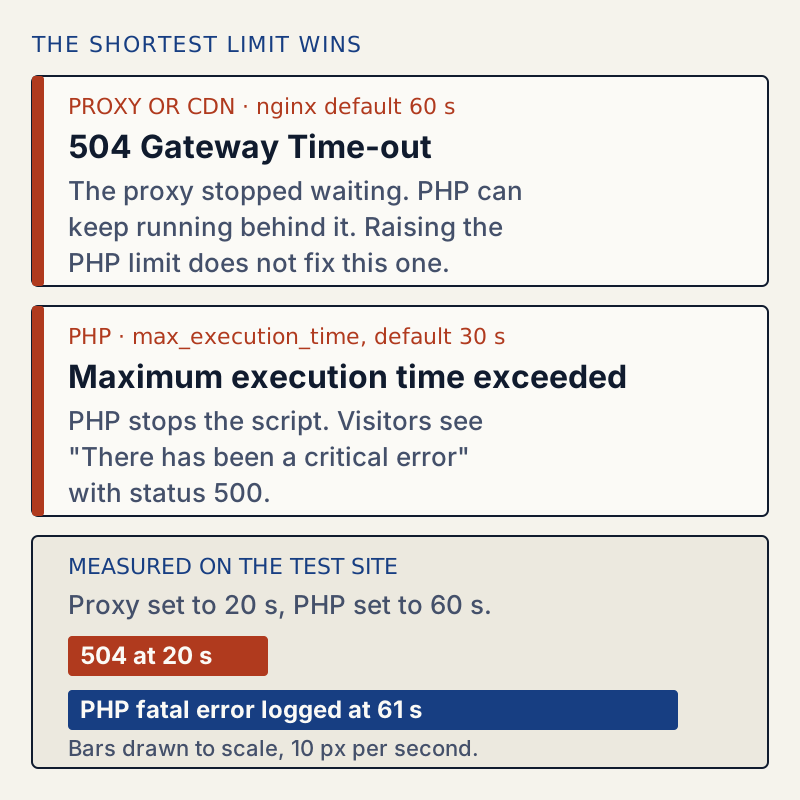
To see this happen, I put nginx in front of the test site with proxy_read_timeout 20s and raised PHP's limit to 60. The browser got nginx's error page after 20 seconds:

504 after 20.025270sPHP did not know the visitor had gone. It kept running and logged its own fatal error 41 seconds later:
[24-Oct-2026 04:25:31 UTC] PHP Fatal error: Maximum execution time of 60 seconds exceeded in /var/www/html/wp-content/plugins/stock-sync/stock-sync.php on line 12This is why raising the PHP limit alone can turn a timeout into a 504, and why a slow task can keep loading the server after the visitor has given up.
Checking the limit after a change#
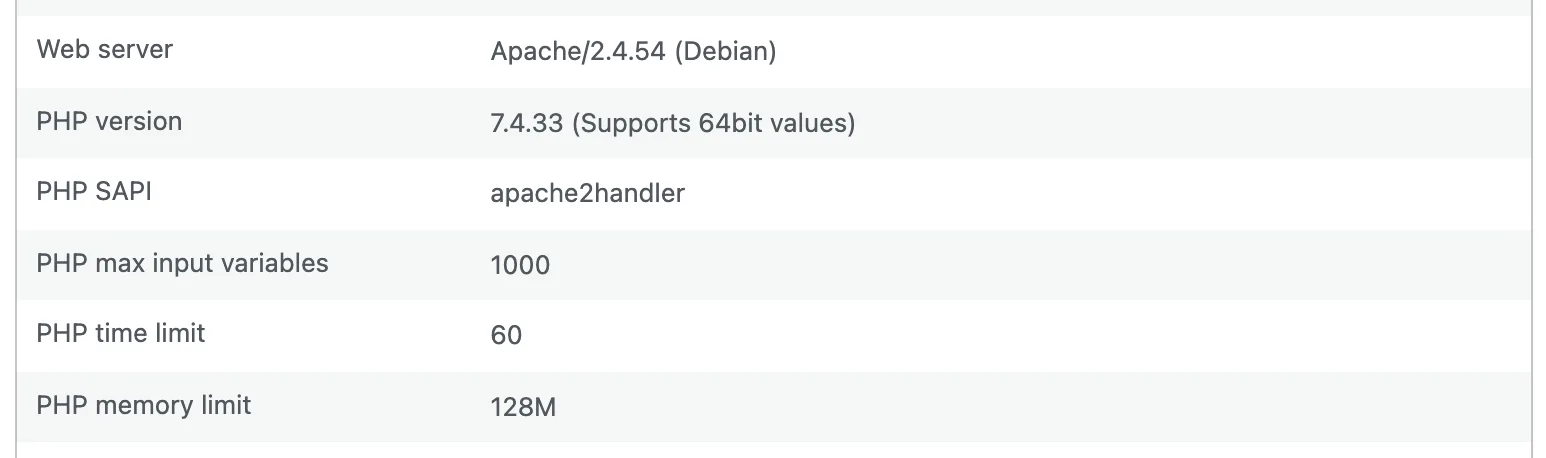
The figure in Site Health comes from the running web server, so it is the one to trust. After I raised the limit to 60 in PHP's conf.d folder and reloaded Apache, it showed the new value:
Here is what each method did on Apache 2.4 with PHP 7.4 as a module, starting from 30:
| Method | Result in Site Health |
|---|---|
.user.ini with max_execution_time = 60 | Still 30 (only FastCGI reads it) |
php_value max_execution_time 60 in .htaccess | 60 at once |
A new max_execution_time in PHP's conf.d folder | 30 until Apache reloaded, then the new value |
Keep the new limit modest. A higher number does not make anything faster. It only lets one slow request hold a PHP worker longer. If a page needs minutes, the job belongs in WP-CLI or a background queue.
WordPress raises the limit for some of its own long jobs. During a core, plugin or theme update it calls set_time_limit( 300 ), which restarts the clock with five minutes. A core update that dies halfway can also leave another update is currently in progress behind.
If memory runs out before time does, the message is different: see allowed memory size exhausted. If the browser shows a 504 from the server in front of PHP instead, see 504 gateway timeout. For reading the log in general, see the WordPress debug log.
One email when something breaks or changes.
New plugins and re-tested guides, about twice a month. Never a sales pitch.