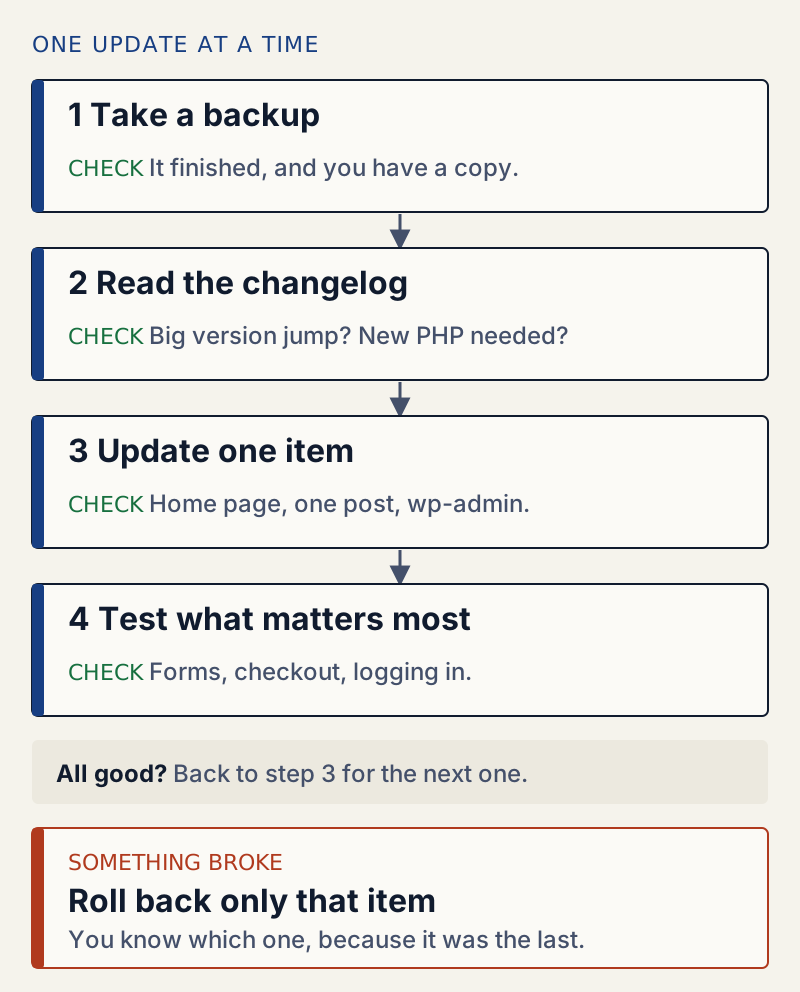
Update one plugin at a time, after a backup, and check the site after each one. If an update breaks something, you then know which plugin did it, and you can put just that plugin back to its previous version with wp plugin install <slug> --version=<old version> --force or a rollback plugin, without touching anything else.
The rest of this page is the routine in detail, what WordPress 7.1 already does by itself when an update fails (I tested it), and the one thing a rollback does not undo.
Before you update#
Take a backup#
Use your host's backup tool or a backup plugin, and make sure the backup finished. A backup that covers files and the database is the only thing that undoes everything an update can change.
A settings snapshot is a lighter extra. It does not replace a backup, but it lets you see later which settings an update changed. With WellTend Snapshots it is one command:
wp awc config snapshot create --label="Before Yoast SEO update"Success: Created snapshot 3.Read the changelog#
On Plugins, click View version 5.7.2 details (the link names the new version) and open the Changelog tab. Look for:
- A big version jump. Going from 22.0 to 28.7 skips many releases, and each may have changed something.
- A new requirement for PHP or WordPress.
- Words like "database update", "migration" or "removed". These are the updates that change stored data, not just code.
Update one item and check it#
Update a single plugin from Plugins with update now, or from Dashboard → Updates with one box ticked. With WP-CLI:
wp plugin update classic-editorEnabling Maintenance mode...Downloading update from https://downloads.wordpress.org/plugin/classic-editor.1.7.0.zip...Unpacking the update...Installing the latest version...Removing the old version of the plugin...Plugin updated successfully.Disabling Maintenance mode...name old_version new_version statusclassic-editor 1.6.3 1.7.0 UpdatedSuccess: Updated 1 of 1 plugins."Enabling Maintenance mode" means visitors get a short "Briefly unavailable for scheduled maintenance" page while the files are swapped. If an update is interrupted, that page can stay; see briefly unavailable for scheduled maintenance and another update is currently in progress.
Then check, in this order:
- The home page, logged out, in a private window. A page cache can hide a problem from you, so clear it if you have one.
- One post and one page that use the plugin.
- wp-admin: the plugin's settings screen and the post editor.
- What earns money or brings in people: the contact form (send a test), checkout, member login.
All good? Move to the next update. Themes and WordPress itself get the same treatment.
When an update breaks something#
If the site shows "There has been a critical error on this website", follow critical error on this website to get back into wp-admin. Once you are in, roll back only the plugin you just updated.
Roll back with WP-CLI#
wp plugin install with a version and --force replaces the plugin's files with that version from WordPress.org:
wp plugin install classic-editor --version=1.6.3 --forceInstalling Classic Editor (1.6.3)Downloading installation package from https://downloads.wordpress.org/plugin/classic-editor.1.6.3.zip...Unpacking the package...Installing the plugin...Removing the old version of the plugin...Plugin updated successfully.Success: Installed 1 of 1 plugins.The plugin stayed active. Its auto-update setting also stayed on:
name status version update_version auto_updateclassic-editor active 1.6.3 1.7.0 onThat matters. When WP-Cron next ran on my test site, WordPress updated Classic Editor straight back to 1.7.0. Turn off auto-updates for a plugin before you roll it back, with Disable auto-updates on the Plugins screen or wp plugin auto-updates disable classic-editor, and leave it off until a fixed version is out. The same --version and --force options work for themes with wp theme install.
Roll back without WP-CLI#
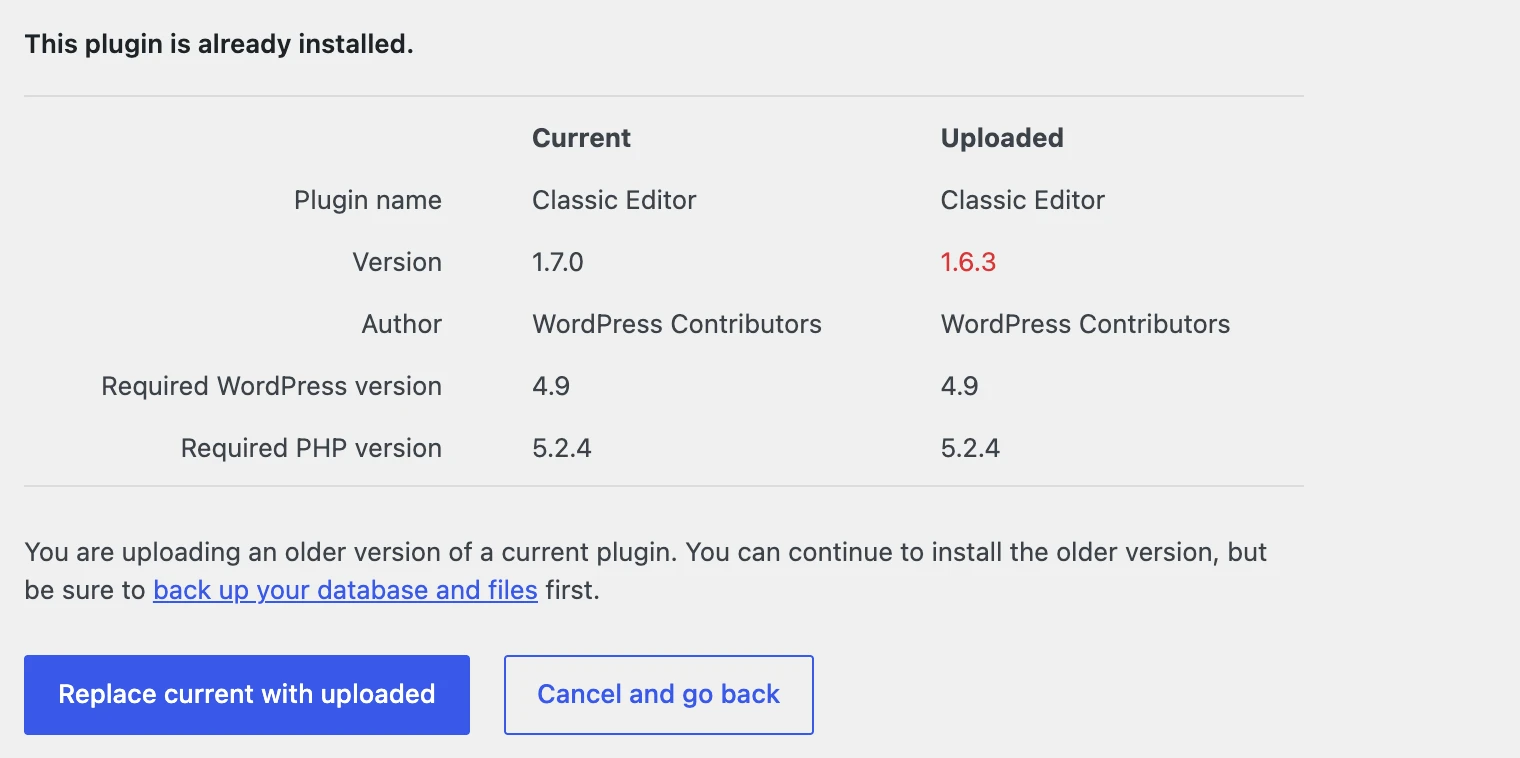
- Upload the old zip. On the plugin's page on WordPress.org, open Advanced View; the Previous Versions section lets you pick a version and download it. Then go to Plugins → Add Plugin → Upload Plugin, choose the zip, and pick Replace current with uploaded when WordPress says the plugin is already installed. On my test site this replaced Classic Editor 1.7.0 with 1.6.3 ("Plugin downgraded successfully.") and the plugin stayed active.
- Use a rollback plugin. WP Rollback, a free plugin on WordPress.org, is made for this. WellTend Site and Admin Toolkit has a Plugins and Themes Rollback module that does the same from Tools, only downloads from
downloads.wordpress.org, and keeps a log. Either way, take a backup first.
A rollback does not undo data changes#
Reinstalling an old version replaces files. It does not touch the database, and updates often change what is stored there.
I tested this with Yoast SEO. I installed version 22.0, took a settings snapshot, updated it to 28.7, and compared:
wp awc config diff 3Yoast SEO (plugin.yoast) - General settings and features › enable_llms_txt was set to off. - General settings and features › enable_schema was set to on. - General settings and features › enable_task_list was set to on. - General settings and features › site_kit_connected was set to off. - General settings and features › zapier_integration_active was removed (it was off). - General settings and features › zapier_subscription was removed (it was (empty)).9 secret values are redacted and were not compared.The update added 17 settings to Yoast's stored options, some of them switched on, removed 4, and created 3 new options of its own. The command printed 24 changes in all and exited with status 1, which means "differences found".
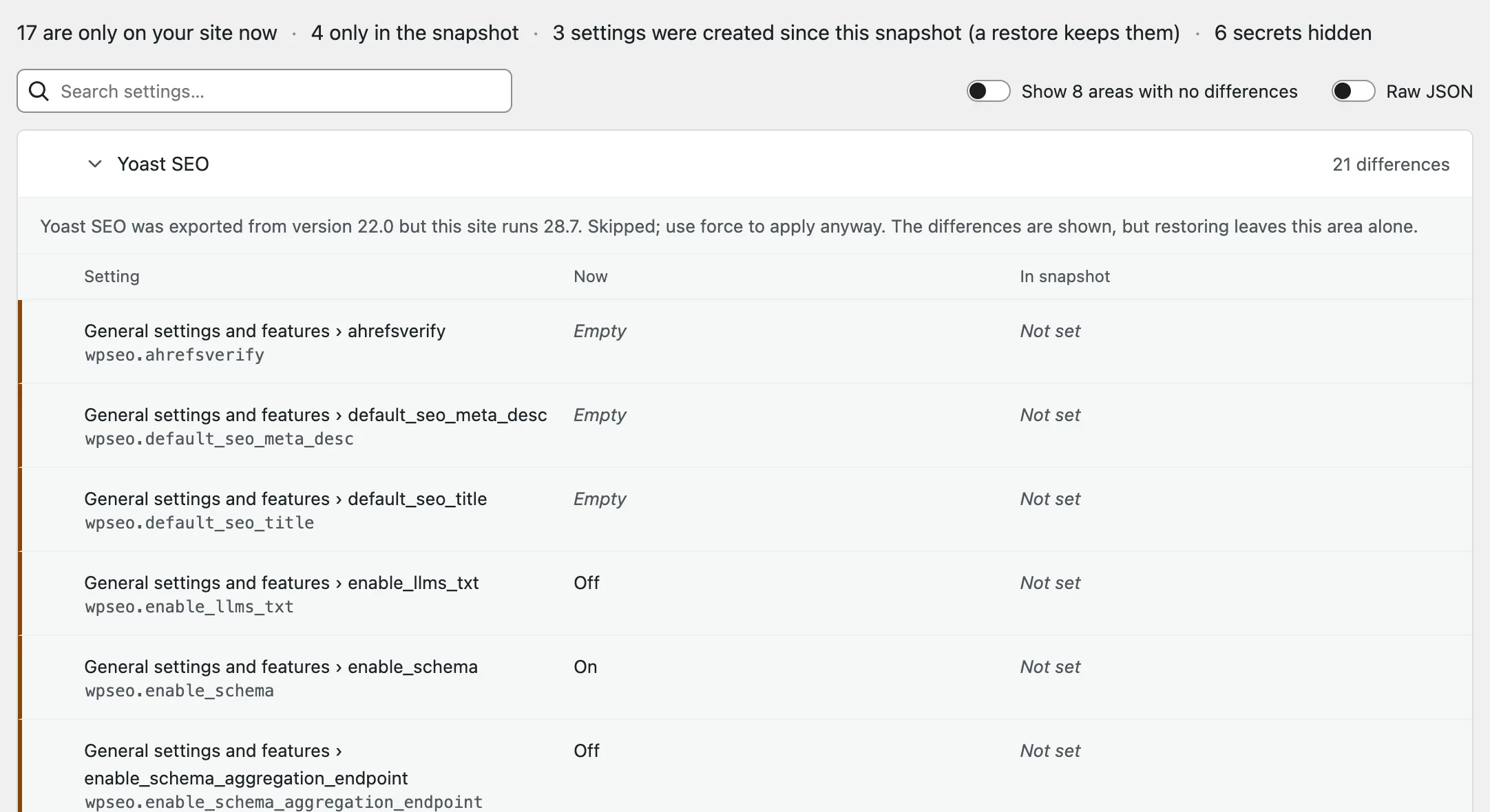
In wp-admin, open the before-update snapshot and compare it with Your site now. It shows the same differences, with a note that restoring will leave the Yoast area alone (more on that below), and lists the 3 new options as created since the snapshot.
Then I rolled back to 22.0 with --force. The files were old again, but the stored options still said version: 28.7, and the settings the update had added were still there. The old code was now running on data written by the new one. Here the site kept working, but this is how a rollback can leave a plugin confused.
So if an update changed settings you care about:
- Put back the specific setting from the plugin's settings screen, using the comparison as your list. Our guide on finding and undoing changed settings covers this in detail.
- Restore the backup if the plugin changed its own database tables or many settings at once. That also rolls back everything else since the backup, such as new orders or comments.
WellTend Snapshots marked Yoast's settings in snapshot 3 as an area it will skip on restore, with the message "Yoast SEO was exported from version 22.0 but this site runs 28.7. Skipped; use force to apply anyway." Writing old settings into a newer plugin is a risk of its own, so skipping is the right default.
What WordPress already does when an update fails#
I read the update code in WordPress 7.1.3 and tested it. There are two safety nets, and they cover less than people assume.
Since 6.3: a failed install puts the old files back. Before WordPress updates a plugin or theme, it moves the current folder to wp-content/upgrade-temp-backup/plugins/ (or themes/). If the install step itself fails, for example a file cannot be copied into place, WordPress moves the old folder back. A download that fails never gets this far, so the old files are not touched at all. If the install succeeds, the copy is deleted. A weekly WP-Cron task, wp_delete_temp_updater_backups, clears anything left over. This net does not help when the new version installs fine and then breaks a page.
Since 6.6: a fatal error after an automatic update rolls the plugin back. This applies only to automatic updates of active plugins. After the update, WordPress keeps the site in maintenance mode, requests the home page in the background, and reads back whether a PHP fatal error happened. If it did, it restores the old version from upgrade-temp-backup and emails the admin that plugins failed to update.
I tested this by giving a small test plugin a version 1.1 that calls a function that does not exist, and letting WP-Cron auto-update it. From the debug log:
Automatic plugin updates starting... Upgrading plugin 'northwind-hours'... Plugin 'northwind-hours' has been upgraded. Scraping home page...PHP Fatal error: Uncaught Error: Call to undefined function northwind_load_holiday_hours() The update for 'northwind-hours' contained a fatal error. The previously installed version has been restored.Automatic plugin updates complete.Afterwards the plugin was back on 1.0, still active, and the site loaded normally. Nothing marked 1.1 as bad: auto-updates for the plugin were still on.
The limits, all from the source code:
- Only the home page is checked. A fatal error on the checkout page or in wp-admin is not seen.
- Only fatal errors count. An update that breaks a layout or a form without a PHP fatal error stays installed.
- Inactive plugins and themes are not checked.
- Manual updates are not part of this check. An update you start from the Plugins screen or WP-CLI does not get this check.
- If the background request itself fails, WordPress treats it as a fatal error and rolls back. On a host that blocks a site from requesting itself, every automatic update of an active plugin is rolled back.
Auto-updates: what the switches do#
The Automatic Updates column on Plugins has an Enable auto-updates link per plugin. Each click adds or removes the plugin from one option, auto_update_plugins:
wp plugin auto-updates enable classic-editorwp option get auto_update_plugins --format=jsonSuccess: Enabled 1 of 1 plugin auto-updates.["classic-editor\/classic-editor.php"]Themes have the same thing on Appearance → Themes, stored in auto_update_themes.
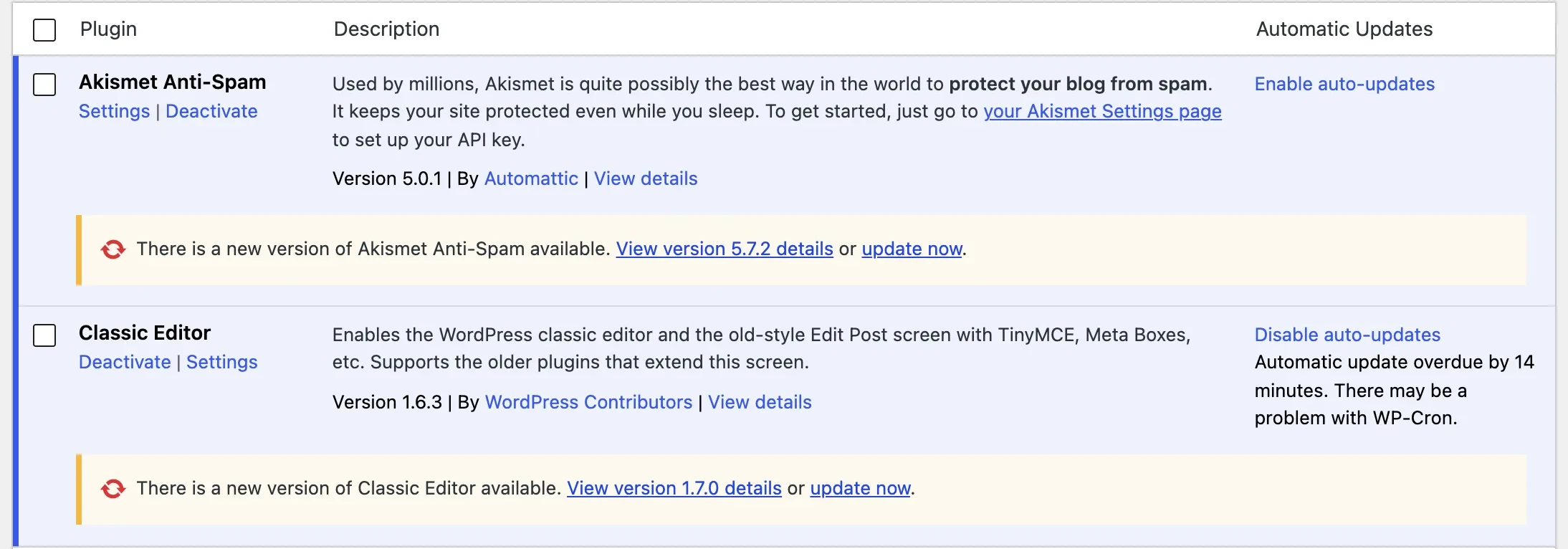
Auto-updates run from WP-Cron. WordPress checks for updates twice a day (wp_version_check, wp_update_plugins), and the update check is what starts the automatic updates. If WP-Cron does not run, nothing updates: that is the "Automatic update overdue by 14 minutes. There may be a problem with WP-Cron." note in the screenshot above. On my test site the updates happened within seconds of fixing WP-Cron. If your site shows that note, see missed schedule and WP-Cron.
For WordPress itself, maintenance and security releases install automatically by default. Dashboard → Updates shows "This site is automatically kept up to date with maintenance and security releases of WordPress only." and a link to Enable automatic updates for all new versions of WordPress, which stores enabled in the auto_update_core_major option.
A reasonable split:
- Auto-update: small plugins that do one thing, from developers who release carefully, and maintenance releases of WordPress.
- Update by hand, with the routine above: your shop, forms, membership, page builder and theme, and major WordPress versions.
If an update does not finish#
An update that times out or cannot write files leaves a clear message. These pages cover the common ones: could not create directory, maximum execution time exceeded and another update is currently in progress. After any of them, check that the plugin's folder in wp-content/plugins is complete, and reinstall the version you want with --force if it is not.
WellTend Snapshots saves your settings on a schedule or with one click, and shows what an update changed, so you can put a reset setting back.
FAQ
Should I update all plugins at once?
Not on a site that matters. Bulk updates are faster, but when something breaks you do not know which update caused it. Update one plugin, check the site, then do the next. If something breaks, the last update is the cause.
How do I go back to the previous version of a plugin?
With WP-CLI, run wp plugin install plugin-slug --version=1.2.3 --force. Without it, download the older zip from the plugin's page on WordPress.org and upload it under Plugins, Add Plugin, Upload Plugin, then choose Replace current with uploaded. Turn off auto-updates for that plugin first, or WordPress will update it again.
Does WordPress roll back a broken update by itself?
Partly. Since 6.6, if an automatic update of an active plugin causes a fatal error on the home page, WordPress puts the old version back and emails the admin. Since 6.3, if a plugin or theme update fails while installing, the old files are restored. The 6.6 check does not run for updates you start yourself, and it only looks at the home page.
Is it safe to turn on plugin auto-updates?
For small, well-maintained plugins, usually yes, and WordPress 6.6 and later can undo an auto-update that causes a fatal error. For plugins that run checkout, forms or memberships, update by hand so you can check the result. Auto-updates need WP-Cron to work.
Does rolling back a plugin undo its database changes?
No. Reinstalling an older version replaces the files only. In my test, Yoast SEO's stored settings still said version 28.7 after I went back to 22.0, and the settings the update added were still there. To undo data changes, restore a backup or the plugin's settings.
One email when something breaks or changes.
New plugins and re-tested guides, about twice a month. Never a sales pitch.