Why it happens
- The folder belongs to a different user than the one PHP runs as. This happens after files are uploaded or restored over SFTP or SSH as another user, or after a command is run as
root. - The owner is right, but the folder's permissions take away the owner's right to write, for example mode 555.
- The Store uploads in this folder setting under Settings → Media still points to a folder on an old server, often after a move to a new host.
- The disk or the hosting account's storage quota is full, so nothing new can be written.
How to fix it
Try the fixes in this order. Each one is independent: stop as soon as the error is gone.
Read the path in the message
- The path at the end of the message is the folder WordPress tried to make. Its parent is the folder that refused.
wp-content/upgrade/<name>means the temporary folder where WordPress unpacks a zip. It failed before anything was installed.wp-content/plugins/<name>/orwp-content/themes/<name>/means the unpacking worked and the final copy failed. The Upload Plugin screen then also says "Plugin installation failed."wp-content/uploads/2026/10means the media upload folder for this month. The message shows onlyuploads/2026/10when the uploads folder sits outside the WordPress folder, which is a sign of a wrong Upload Path setting.
Check Site Health for folders WordPress cannot write
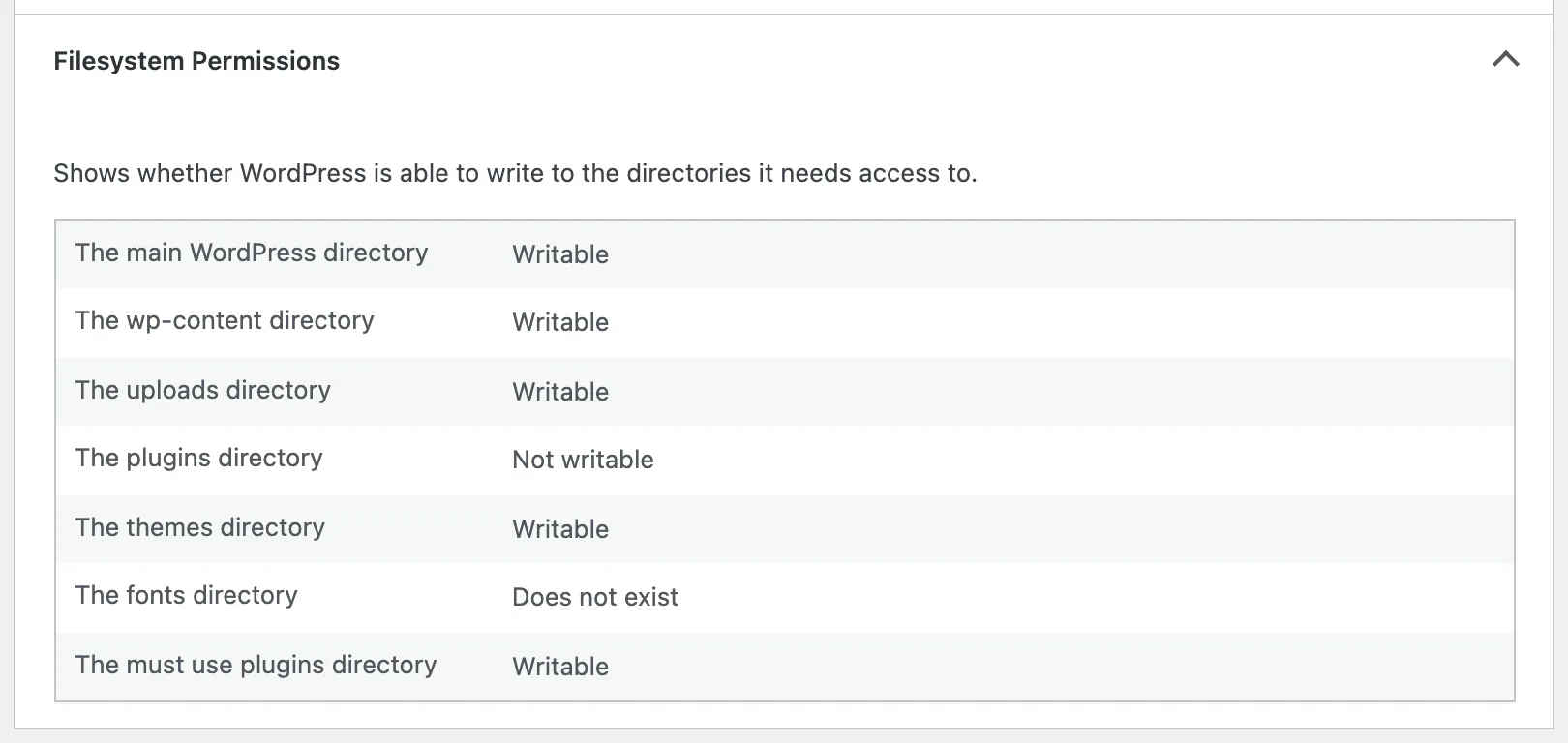
- Open Tools → Site Health → Info and expand Filesystem Permissions. Each folder shows Writable or Not writable.
- This list covers the main WordPress folder,
wp-content, uploads, plugins, themes, fonts and must-use plugins. It does not includewp-content/upgrade, so check that one withls -laif the message names it.
Compare the folder owner with PHP's user
- Over SSH, run
ls -la wp-contentin the WordPress folder. The third column is the owner of each folder. - To find PHP's user, look at the owner of a file WordPress made itself, such as a recent image in
wp-content/uploadsorwp-content/debug.log. On my test site both belonged towww-data. - Any folder WordPress must write to should have that same owner. If it shows
rootor another account, that is the cause. - Without SSH, your host's file manager often shows the owner, or the host's support can check it for you.
Give the folder back to PHP's user
- With root or sudo access, run
chown www-data:www-data wp-content/upgradewith the user and folder from the previous steps. Add-R(chown -R) when the files inside the folder have the wrong owner too. - On shared hosting you cannot change owners yourself. Ask the host to reset the owner of your site's files to your account.
- Try the install or upload again. On my test site, changing only the owner, with the mode left at 755, made the same plugin install succeed.
Set the normal permissions, never 777
- Folders should be 755 and files 644. The 500 error page has the commands that reset a whole site and the stricter values for
wp-config.php. - Mode 777 lets every user on the server write to the folder. That is why it seems to fix this error even when the owner is wrong: my root-owned
upgradefolder at 777 let the install through. Fix the owner instead, then set the folder back to 755.
Do not hide the problem behind FS_METHOD
- If WordPress shows a Connection Information screen asking for FTP details, it found that it could not write safely as itself. Fix the ownership instead of entering FTP details or adding a constant.
define( 'FS_METHOD', 'direct' );inwp-config.phpskips that check. On my test site, with core files owned byroot, it let a plugin install, but a WordPress update then failed with "The update cannot be installed because some files could not be copied. This is usually due to inconsistent file permissions."- Remove the constant once the owners are right. WordPress then picks the direct method by itself.
Clear a wrong Upload Path
- Go to Settings → Media. If you see Store uploads in this folder, the setting has been changed from the default. The field is hidden when it is empty.
- Empty the field so WordPress uses
wp-content/uploads, then click Save Changes. Empty Full URL path to files too, unless you serve media from another address on purpose. - With WP-CLI,
wp option update upload_path ''does the same. On my test site a media import worked again right after.
Check free disk space
- Look at disk usage in your hosting panel, or run
df -h .in the WordPress folder over SSH. - Delete old backups and large log files, or ask the host for more space. I did not fill a disk to reproduce this cause.
- Background updates check the space first and report "Could not copy files. You may have run out of disk space." instead.
WordPress tried to make a new folder and the server said no. The PHP process that runs WordPress has no right to write in that place. Your site and its content are fine. The install or upload stopped before it changed anything.
Where it appears#
On Plugins → Add Plugin, clicking Install Now shows the message under the plugin card:
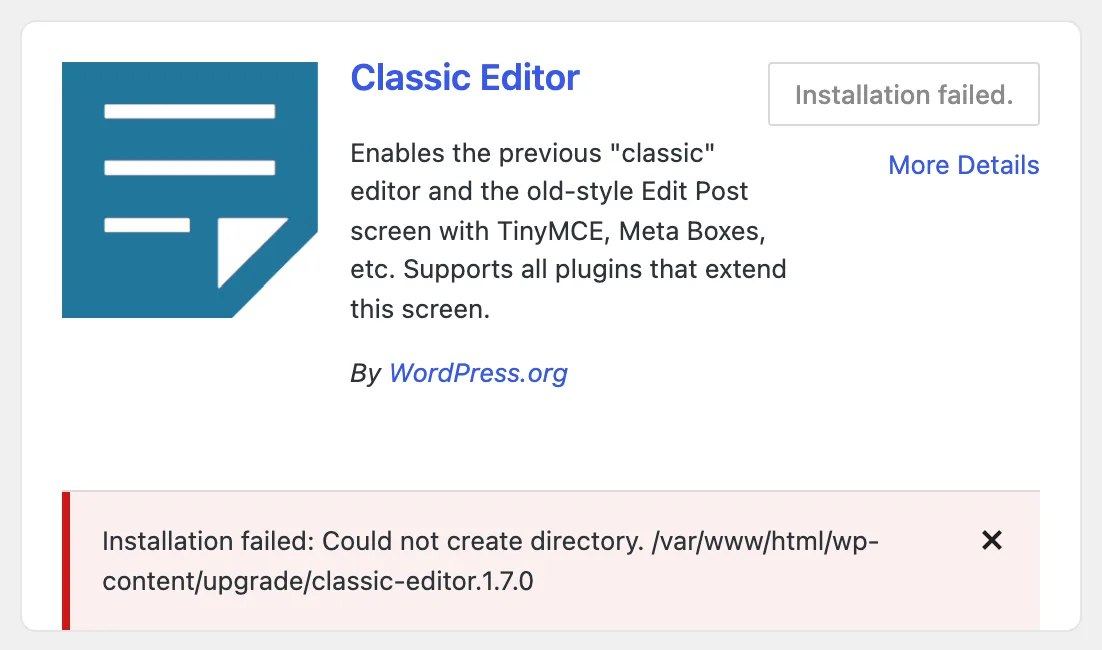
The Upload Plugin screen prints the same error as a line of text, "Could not create directory." followed by the path, with no "Installation failed:" in front. Plugin updates from the Plugins screen use "Update failed:" instead.
Media uploads hit a different check with a longer message:

Ownership matters more than permissions#
Most advice about this error says "set permissions to 755". On my test site the folders were already 755 the whole time. The owner was wrong.
Every file and folder on a Linux server has an owner, and the permission bits say what the owner, the group and everyone else may do. With 755, only the owner may write. So 755 only helps if the owner is the same user PHP runs as.
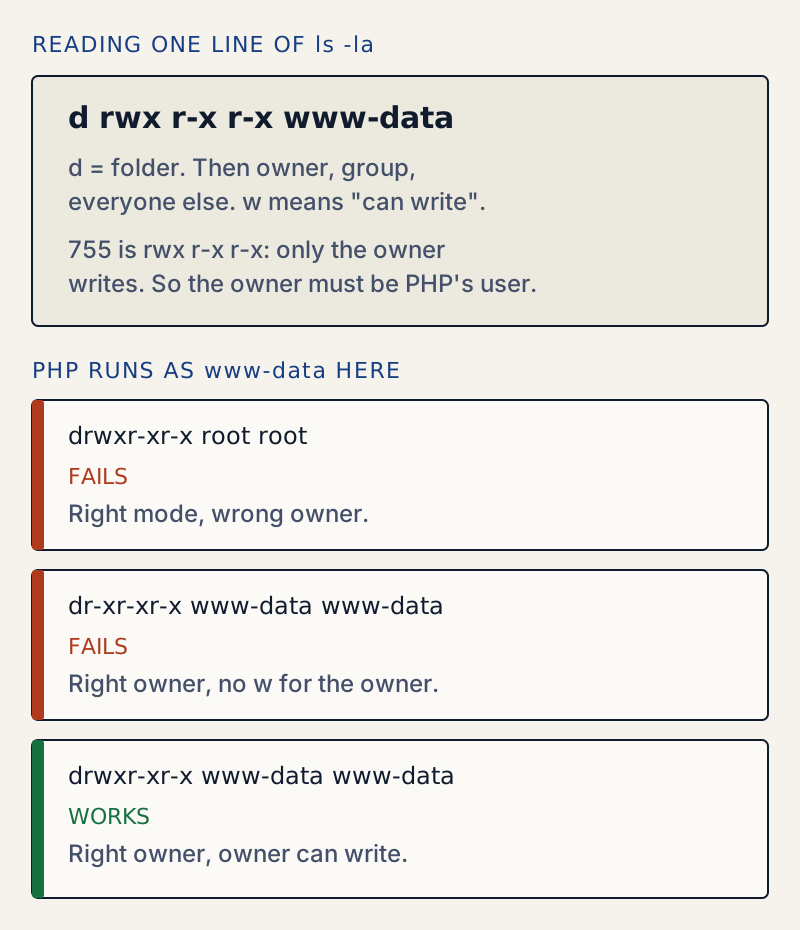
Here is the folder before and after the fix on my test site. The mode did not change:
drwxr-xr-x 7 www-data www-data 4096 Oct 24 04:19 pluginsdrwxr-xr-x 2 root root 4096 Oct 24 04:19 upgradechown www-data:www-data wp-content/upgradedrwxr-xr-x 7 www-data www-data 4096 Oct 24 04:19 pluginsdrwxr-xr-x 2 www-data www-data 4096 Oct 24 04:19 upgradeThe same zip then installed with "Plugin installed successfully." The opposite case fails just as hard. With the right owner but mode 555, WP-CLI gave:
Unpacking the package...Warning: Could not create directory. "/var/www/html/wp-content/upgrade/opening-hours"Error: No plugins installed.The quickest way to see which folder is affected is the Filesystem Permissions section of Site Health. This is the same site with wp-content/plugins owned by root:
Why you sometimes get an FTP form instead#
Before it installs anything, WordPress writes a test file in wp-content and compares its owner with the owner of WordPress's own files. If it cannot write there, or the owners differ, it does not try. It shows a Connection Information form that asks for FTP details:
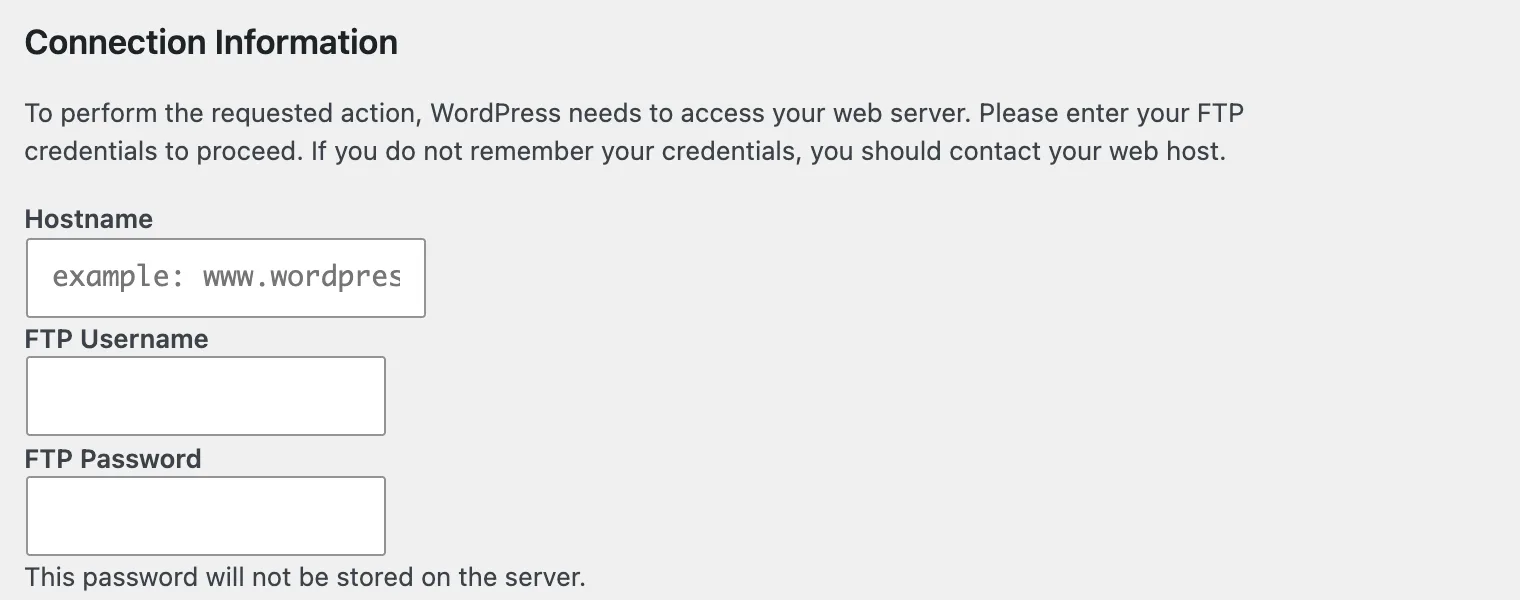
So the FTP form and "Could not create directory" are two sides of one problem. The form appears when the check finds it. The error appears when the check passes but a deeper folder, such as upgrade or plugins, has the wrong owner. I saw both on my test site. I did not test entering FTP details.
A wrong Upload Path after a move#
The Store uploads in this folder field under Settings → Media only appears once someone has changed it. A full path from an old host, such as /home/oldhost/public_html/wp-content/uploads, makes every upload fail on the new server:

Warning: Unable to import file '/tmp/sourdough-loaf.jpg'. Reason: Unable to create directory uploads/2026/10. Is its parent directory writable by the server?The message dropped wp-content/ from the path because the folder is outside the WordPress folder. That is a quick clue. After moving a site, check the settings that came across.
If the dashboard asks for FTP details instead of showing this message, read unable to connect to the filesystem. If the folder is writable but a single file fails, see could not copy file.
Failed uploads from the Upload Plugin screen leave their zip in the uploads folder. WordPress schedules a task that removes each one two hours later, so you do not need to clean them up by hand.
One email when something breaks or changes.
New plugins and re-tested guides, about twice a month. Never a sales pitch.