Why it happens
- The folder
wp-contentbelongs to a different user than the one PHP runs as, so WordPress cannot write a test file there. This happens after files were uploaded, restored or unpacked asrootor another account. wp-contentis writable, but WordPress's own files belong to another user. WordPress compares the owners and refuses when they differ.- WordPress fell back to FTP, and the FTP details are empty or wrong. The form is a side effect of the first two causes, not the problem itself.
- The FTP login works, but the FTP account's home folder is not the WordPress folder, so WordPress cannot find
wp-contentthrough it.
How to fix it
Try the fixes in this order. Each one is independent: stop as soon as the error is gone.
Find out who owns what
- Over SSH, go to the WordPress folder and run
ls -ld wp-content wp-admin/includes/file.php. The third column is the owner. - PHP's user is the owner of a file WordPress made itself, such as an image in
wp-content/uploads. On the test site it waswww-data. - If
wp-contentorfile.phpshows another user, such asroot, that is the cause. Without SSH, ask your host to check the owner of your site files.
Give the files back to PHP's user
- With root or sudo access, run
chown -R www-data:www-data wp-content, using the user from the previous fix. Addwp-adminandwp-includesiffile.phpwas the odd one out. - On shared hosting you cannot change owners yourself. Ask the host to reset the owner of your site's files to your account.
- Set folders to 755 and files to 644, never 777. The 500 error page has the commands.
- Press Install Now again. On the test site, changing only the owner made the install run with no form.
Click Cancel and retry, do not guess FTP details
- Click Cancel on the Connection Information box. Entering details does not fix the owner.
- Only fill the form when your host gave you an FTP or SFTP account for this site. Use the host name, user and password from the host, not from your own computer.
- WordPress keeps the host name and user name for next time but never the password. It sits in the
ftp_credentialsoption. Delete that option if wrong details are stuck:wp option delete ftp_credentials.
Remove FS_METHOD if you added it
define( 'FS_METHOD', 'direct' );inwp-config.phponly hides the form. Withwp-contentowned byroot, the form was gone and the install failed instead with "Could not create directory. /var/www/html/wp-content/upgrade".- Delete the line, fix the owner, and let WordPress pick the method itself.
- Keep
FS_METHODonly when a host tells you to. On some hosts PHP runs as a user different from the file owner on purpose, and the host's own tool handles updates.
If you must use FTP, read the FTP error text
- "Failed to connect to FTP Server" followed by a host and port means WordPress could not reach the host. Check the host name and port, and that the host allows FTP from your own server.
- "Username/Password incorrect for …" means the server was reached but refused the login.
- "Unable to locate WordPress content directory (wp-content)." means the login worked but the FTP home folder is not the WordPress folder. Ask the host which folder the FTP account opens in.
- Prefer SFTP or FTPS over plain FTP when your host offers them. The WordPress upgrade guide recommends this.
- You can store the details in
wp-config.phpwithFTP_HOST,FTP_USERandFTP_PASS. WordPress then uses them without showing the form. On the test site, a made-upFTP_HOSTgave "Failed to connect to FTP Server nosuchhost.invalid:21" at once, so wrong values there show the FTP error, not this page's message.
WordPress tried to write files as itself and decided it should not. It asks for FTP details instead. If you leave the form empty, or the details do not work, you get this message. In every case I reproduced, the cause was who owns the WordPress files, not the credentials.
What you see#
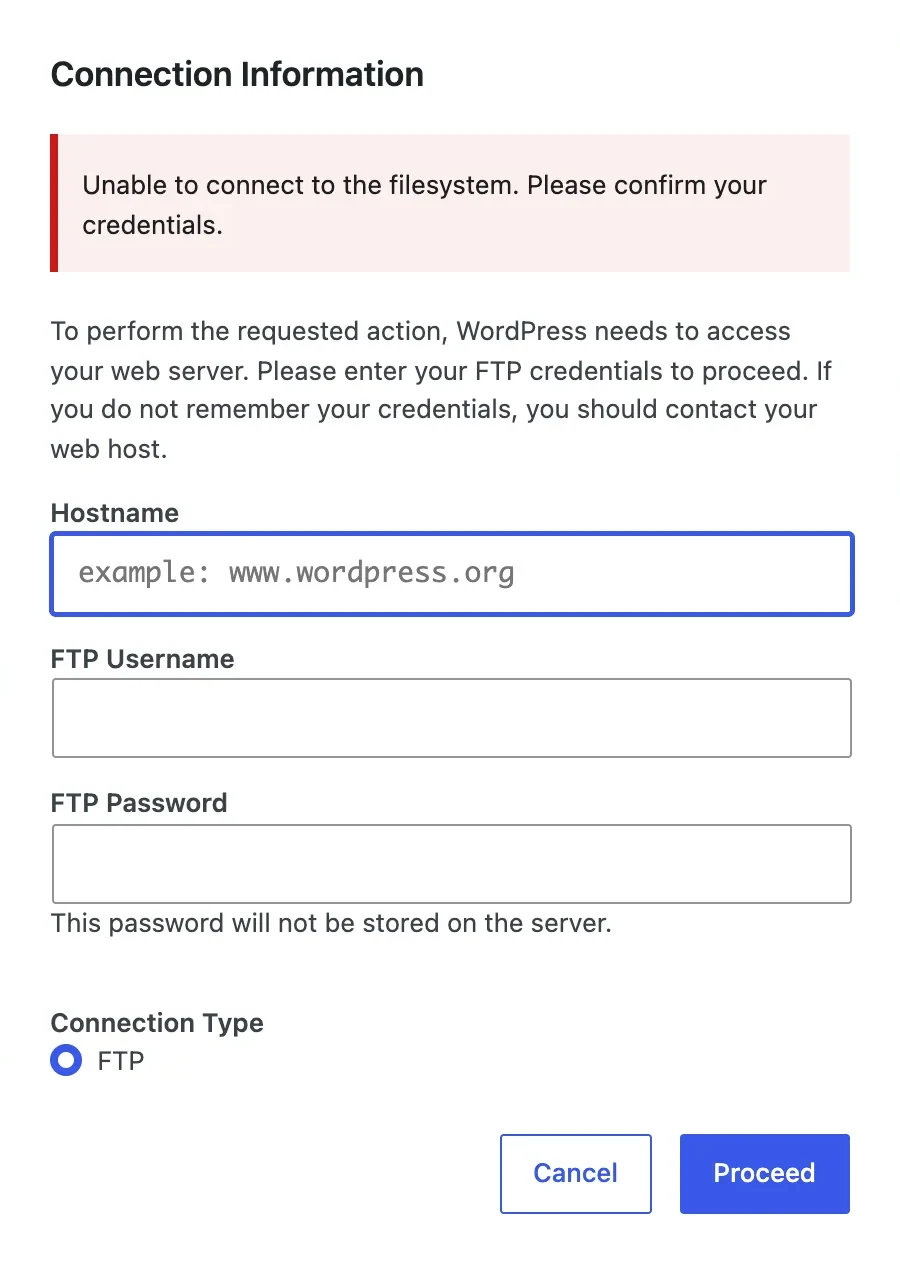
On Plugins → Add Plugin, clicking Install Now opens a Connection Information box. Click Proceed with the fields empty and the red message appears inside the box:
The same text shows in other places:
| Where | What shows |
|---|---|
| Plugins → Add Plugin, Install Now | The box above |
| Plugins → Upload Plugin, after choosing a zip | A full page with the same Connection Information form and no red text |
| Tools → Site Health | A recommended item, "Could not access filesystem", with this sentence as its text |
| Plugin update and delete buttons | The same box. The request behind them returns this text with the code unable_to_connect_to_filesystem |
A REST request to install a plugin (POST /wp/v2/plugins) | A different text: fs_unavailable, "The filesystem is currently unavailable for managing plugins." |
The message changes once you send details:
| What I typed | What WordPress said |
|---|---|
| Nothing | Unable to connect to the filesystem. Please confirm your credentials. |
| A host that does not exist | Failed to connect to FTP Server nosuchhost.invalid:21 |
| A real FTP server, wrong password | Username/Password incorrect for ftpuser |
| A real FTP server, right password | Unable to locate WordPress content directory (wp-content). |
So the exact sentence in this page's title means "no details were given". The other lines come from the FTP connection itself. The last row was an FTP server in another container, whose folders do not hold WordPress.
How WordPress decides to ask#
Before it changes any file, WordPress picks a method. get_filesystem_method() creates a temporary file called temp-write-test-… in wp-content and compares its owner with the owner of WordPress's own file, wp-admin/includes/file.php. If the two owners match, the method is direct and no form appears. If not, it tries FTP.
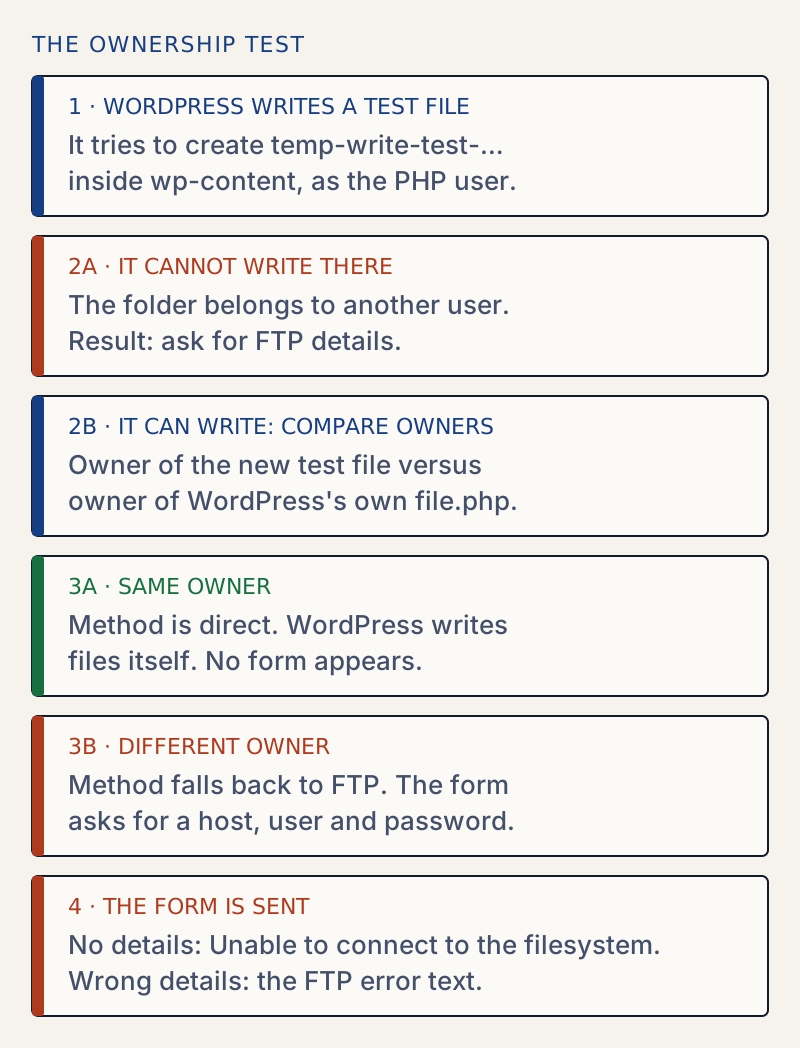
That is why chmod does not help here. A folder at 755 owned by root cannot be written by PHP. A folder at 777 can, but only because everyone can write to it. I saw both on the test site: with the right owner the install ran, and with a root-owned wp-content at 777 it also ran. Only one of the two is safe.
The second way to trigger it#
The owner of wp-content can be right and the form still appears. On the test site I changed only wp-admin/includes/file.php to root and left wp-content owned by www-data. Install Now then opened the form, because the test file (www-data) and WordPress's file (root) had different owners. Changing file.php back made the install run. This is what you see after unpacking a WordPress zip as root over an existing site.
Setting FS_METHOD hides the form and keeps the problem#
With FS_METHOD set to direct and everything in wp-content owned by root, Install Now gave this:
{"success":false,"data":{"install":"plugin","slug":"classic-editor","errorMessage":"Could not create directory. /var/www/html/wp-content/upgrade"}}Same cause, different message. See could not create directory for what to read in that path.
Core updates test a different folder#
The test above uses wp-content. That is the folder for plugins, themes and uploads. A WordPress core update tests the WordPress root folder instead, and some core updates accept a looser rule ($allow_relaxed_file_ownership in the source), where a writable folder is enough. So on a core update, check ls -ld . in the WordPress folder, not only wp-content.
I called get_filesystem_method() on the test site with different folders and owners:
| Owners | wp-content | WordPress root | Root, relaxed rule |
|---|---|---|---|
wp-content owned by root, everything else www-data | ftpsockets | direct | direct |
Root folder and file.php owned by root | ftpsockets | ftpsockets | ftpsockets |
Root folder www-data, file.php owned by root | ftpsockets | ftpsockets | direct |
"direct" means no form. "ftpsockets" means the FTP form. I ran the function, not a real core update. The first row also shows why plugin installs can fail while a core update would not.
WP-CLI never shows this#
WP-CLI adds a filesystem_method filter at priority 99 that always returns direct. On the test site the same root-owned folder gave this in the terminal, with no form and no credentials message:
wp plugin install hello-dollyUnpacking the package...Warning: Could not create directory. "/var/www/html/wp-content/upgrade"Warning: The 'hello-dolly' plugin could not be found.Error: No plugins installed.So if a command works for you in the terminal and the dashboard asks for FTP, the terminal user is not PHP's user. Compare them with ls -ld wp-content. Once the owner is right, a failing update is covered in could not copy file.
Before you change owners on a live site, back up first; the routine is in how to update plugins safely.
What I did not test#
I did not complete an install through a working FTP or SFTP server, and I did not run a real core update.
Sources
- get_filesystem_method(), WordPress Code Reference · The temporary file and owner comparison, and the FS_METHOD override.
- request_filesystem_credentials(), WordPress Code Reference · The form, the stored host name and user name, and the FTP_* constants.
- Editing wp-config.php: FS_METHOD and FTP constants · States that FS_METHOD should be changed only when updates fail, and removed if it does not help.
- Upgrading WordPress over FTP, Advanced Administration · Recommends SFTP or FTPS over plain FTP.
One email when something breaks or changes.
New plugins and re-tested guides, about twice a month. Never a sales pitch.