Why it happens
- The
.htaccessfile in the WordPress root has a line Apache does not accept, often after a plugin or a pasted snippet edited it. - A PHP setting in
.htaccess, such asphp_valueorphp_flag, is used on a server where PHP does not run as an Apache module. - File or folder permissions are wrong, so the server cannot read the files it needs.
- The PHP process crashed or hit a hosting limit, for example memory, processes or execution time.
- The PHP version or handler selected for the site does not match the code, after a host change.
- A plugin or theme caused a fatal error. WordPress usually catches that and shows its own message, but not when the error happens before WordPress loads.
How to fix it
Try the fixes in this order. Each one is independent: stop as soon as the error is gone.
Find out who is answering
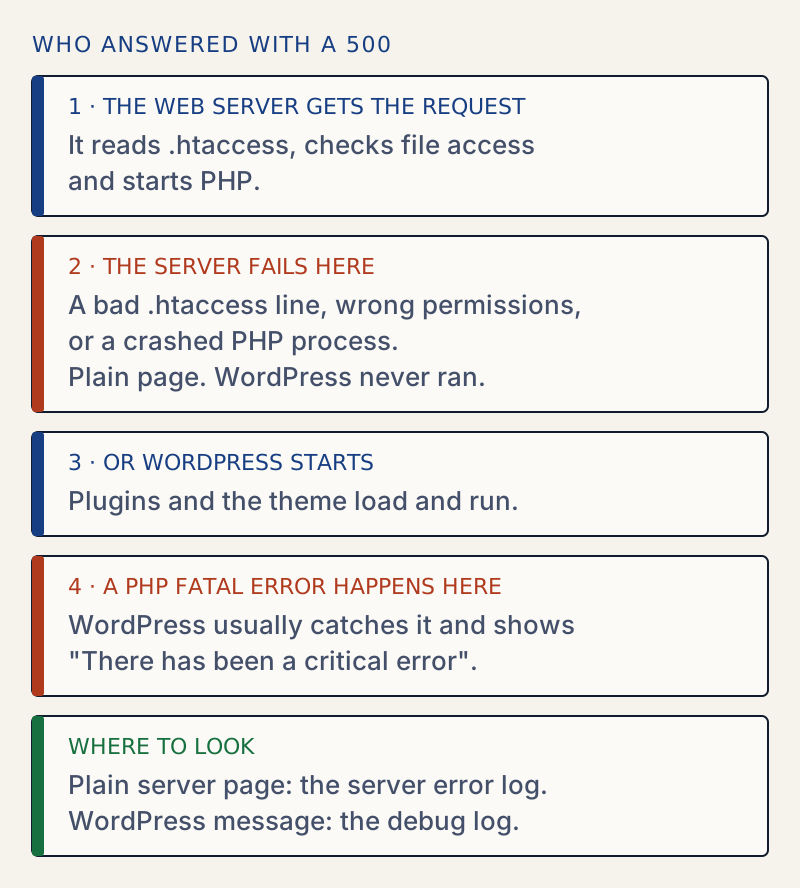
- Compare the page with the WordPress critical error message. "There has been a critical error on this website" is also sent with a 500 status, but it comes from WordPress. If you see that, use the critical error guide.
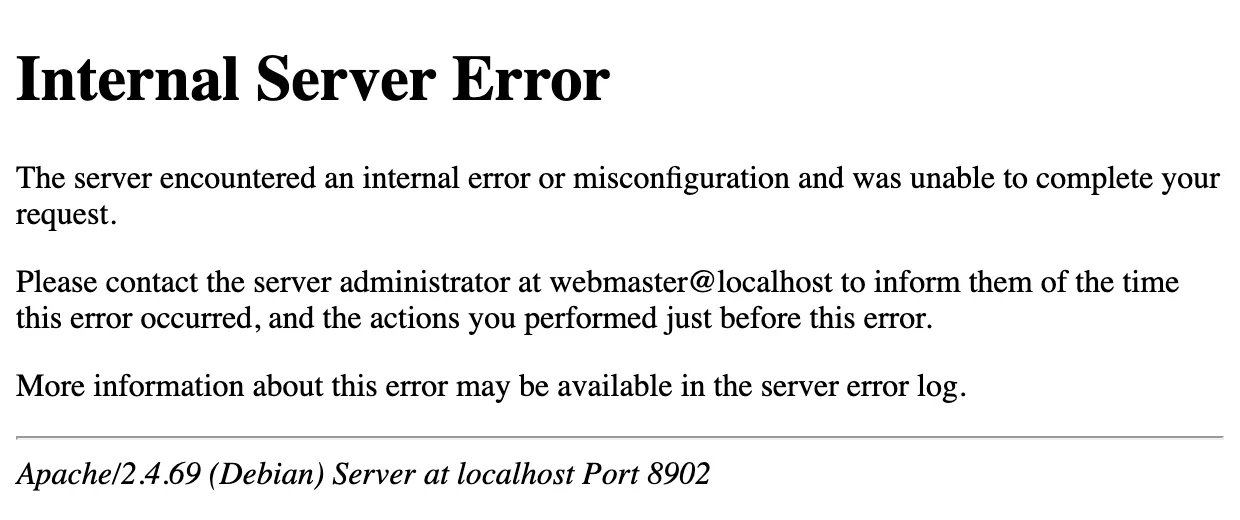
- A plain page headed "Internal Server Error" with no styling comes from the web server. WordPress never ran. On Apache it ends with a line like
Apache/2.4.x Server at example.com Port 443. Many hosts turn that footer off, so its absence does not mean the page is from nginx or WordPress. Nginx shows a short "500 Internal Server Error" page that names nginx. - If the page is from the server, the reason is in the server's error log. The page tells you nothing more.
Read the server error log
- In your hosting control panel, look for Logs, Error log or Metrics. Many hosts also let you download
error_logover SFTP. - On a server you manage, Apache logs are often in
/var/log/apache2/error.logor/var/log/httpd/error_log, and nginx logs in/var/log/nginx/error.log. In Docker,docker compose logsshows the same lines. - Find the line with the time you loaded the page. A broken
.htaccessgives a line like/var/www/html/.htaccess: Invalid command 'BogusDirective', perhaps misspelled or defined by a module not included in the server configuration. I produced exactly that line on Apache 2.4 by adding one bad line to the file. - The text after the file name is the reason. Use it in the next steps.
Test whether .htaccess is the cause
- Connect by SFTP, turn on hidden files, and find
.htaccessin the folder that containswp-config.php. - Download a copy, then rename the file on the server to
.htaccess.off. - Reload the site. On my test site a bad
.htaccessmade every URL return 500, including/wp-login.phpand/wp-admin/, and the site returned to normal as soon as the file was out of the way. - If the site loads, the file was the cause. Pretty-permalink pages may now return 404, which is expected until the file is rebuilt.
- Moving
.htaccessaside also drops any security, redirect or HTTPS rules your host or a plugin kept in it, such as deny rules or blocks onwp-config.phpandxmlrpc.php. Put the copy back, or rebuild it, rather than leaving the site without it.
Rebuild .htaccess
- Log in to
/wp-admin/, open Settings → Permalinks, and click Save Changes. WordPress writes a fresh.htaccesswith its own rules. I checked this on a test site with no.htaccess: the file appeared and posts worked again. - If WordPress says "You should update your .htaccess file now", it cannot write the file. Create
.htaccessyourself with the standard WordPress block, shown below, and save it in the WordPress root. - With WP-CLI,
wp rewrite flush --hardonly writes the file ifapache_modules: - mod_rewriteis set inwp-cli.yml. Without that, it prints a warning and does nothing to the file. - If your old file held rules from a security, redirect or caching plugin, re-save that plugin's settings. Do not paste the old file back until you have found the bad line.
Check file permissions and ownership
- The WordPress hardening guide recommends 755 for folders and 644 for files, and 400 or 440 for
wp-config.php. Many hosts use 640 or 600 for it, which is common practice. Avoid 777. - Wrong ownership is a more usual cause than wrong mode. Files must be owned by the user your PHP process runs as. If you recently restored files as another user, run
ls -lto see the owner and ask your host for the right one. Mode 755 will not let a different PHP user write towp-content/uploads. - If the modes really are wrong, run
pwdover SSH first and confirm the folder containswp-config.php. Running the next commands from the wrong directory changes files you did not mean to touch. - Then run
find . -type d -exec chmod 755 {} +andfind . -type f -exec chmod 644 {} +. This also strips executable bits from any scripts. - Afterwards re-tighten the config file with
chmod 640 wp-config.php(or 600, or the 400/440 the hardening guide gives), because the blanket command set it to 644. - I did not reproduce a permission failure for this page. The log line for one usually says
Permission deniedorFile not readable.
Check PHP settings, version and handler
- If the log names
php_valueorphp_flagas an invalid command, remove those lines from.htaccess. On hosts where PHP runs as FastCGI, set the same values in.user.iniorphp.iniinstead. - In the hosting panel, check the PHP version selected for this site. If the error began when the version changed, switch back, then update plugins and themes before trying again.
- If the log mentions memory or timeouts, see the memory limit guide, or ask your host whether the account hit a process or resource limit at that time.
Look for a plugin or theme
- With WP-CLI, first note the active plugins with
wp plugin list --status=activeso you can restore the list. Then runwp plugin deactivate --all --skip-pluginsand reload the site. - Without WP-CLI, rename single plugin folders over SFTP, one at a time, to find the cause. Renaming the whole
wp-content/pluginsfolder toplugins.offalso works for a quick test, but do not open Settings or Plugins in wp-admin while it is renamed. The Plugins screen permanently deactivates every active plugin whose file it cannot find, and you would have to reactivate each one. - If you still see 500, try a default theme with
wp theme activate twentytwentyfive --skip-themes.
A 500 status means the server could not finish the request. It is a general failure code, not one cause. The useful question is who produced it: the web server before WordPress started, or WordPress itself.
If the page says only "Internal Server Error", the server answered and WordPress did not run. The reason is in a log file, never on the page. Your content is not touched by this error.
The same status can come from two places, and the fix depends on which one.
The standard .htaccess block#
If you rebuild the file by hand, this is the block WordPress wrote on my test site when I saved the permalink settings. It is for a single-site install with pretty permalinks.
# BEGIN WordPress# The directives (lines) between "BEGIN WordPress" and "END WordPress" are# dynamically generated, and should only be modified via WordPress filters.# Any changes to the directives between these markers will be overwritten.<IfModule mod_rewrite.c>RewriteEngine OnRewriteRule .* - [E=HTTP_AUTHORIZATION:%{HTTP:Authorization}]RewriteBase /RewriteRule ^index\.php$ - [L]RewriteCond %{REQUEST_FILENAME} !-fRewriteCond %{REQUEST_FILENAME} !-dRewriteRule . /index.php [L]</IfModule># END WordPressLines outside the BEGIN and END markers belong to you or to other plugins. WordPress leaves them alone when it rewrites its block, and WordPress overwrites everything inside the markers. A bad line outside the markers is a common cause of this error.
If you have lost or damaged the WordPress block, the .htaccess generator builds a file that keeps it intact.
Nginx has no .htaccess#
On nginx, .htaccess does nothing, so a 500 never comes from it. Look at the nginx error log and at the PHP-FPM log, which is a separate file. A 502 or 504 from nginx points at PHP-FPM being down or slow, not at WordPress. I tested only the Apache case on this page.
The order to work in#
- Decide whether the page came from the server or from WordPress.
- Read the server error log for the matching time.
- Move
.htaccessaside if the log or the timing points at it. - Check permissions, PHP version and plugins only if the log does not already name the cause. If WordPress itself catches a PHP fatal error, you get the critical error message or a white screen, not this page.
After it is fixed#
Check the home page, a post, a page, /wp-login.php and a form if the site has one. If you rebuilt .htaccess, confirm that redirects and security rules from your plugins are back. A pretty-permalink 404 after the repair is covered in posts return 404.
If a plugin changed settings along the way, see how to find and undo changed settings.
Sources
- Apache HTTP Server: .htaccess files · What .htaccess can hold, and that a bad directive stops the request
- Apache HTTP Server: log files · Where the error log is and what a line contains
- MDN: 500 Internal Server Error · What the 500 status means
- WordPress: file permissions · Folders 755 or 750, files 644 or 640, and the stricter modes for wp-config.php
- WordPress: Apache .htaccess for WordPress · The standard WordPress rewrite block
One email when something breaks or changes.
New plugins and re-tested guides, about twice a month. Never a sales pitch.