Someone Changed My WordPress Settings: Find and Undo It
How to find out what changed in WordPress settings and put it back: backups, host snapshots, activity logs, and a wp_options diff you can run yourself.
Last verified Oct 2026Tested with WordPress 7.111 min read
AWWritten and tested by AllWPCare Team · First published Oct 17, 2026
WordPress does not record who changed a setting or when, so you find the change by comparing today's settings with an older copy: a backup, a host snapshot, or a saved export. The fix is to put back only the options that differ, not the whole database.
If you have no older copy, you can still work out a lot from what the site tells you. This guide covers both cases, in the order that tends to save time.
Before you change anything, make a record of the current state. A fix that goes wrong should not cost you your evidence.
Note the symptom. Which page or setting looks wrong, and what did it look like before?
Take a backup of the site as it is now. Use your host's tool or a database export (wp db export ~/before-fix.sql, which writes to your home folder, not the WordPress folder). It is the copy you compare against, and the copy you fall back on if your fix makes things worse.
Save the current options to a file outside the WordPress folder. If you have WP-CLI:
Terminal
wp option list --orderby=option_name --unserialize --format=json > ~/options-now.json
Plain wp option list leaves transients out by default (tested on WP-CLI 2.12). The --transients flag does the opposite: it lists only the transients.
Do not edit anything yet. Edits overwrite the evidence.
Keep options-now.json private. It can contain keys and passwords. Never leave exports inside the WordPress folder: anything there can be fetched by URL. That is why the commands write to your home folder (~/), and why you should delete the files when you are finished.
Core has no change history for settings. The wp_options table has four columns: option_id, option_name, option_value and autoload. None of them is a date or a user.
Two small clues exist:
Order of creation. Each new option gets a higher option_id. Sorting by it shows options added recently, which is useful when a plugin created new rows. It does not show changed options, because a changed option keeps its ID.
Related content dates. Some changes leave a trace elsewhere: a post's modified date, a plugin's own log, or a new user's registration date.
To see the newest options on your site:
Terminal
wp option list --orderby=option_id --order=desc --fields=option_name --format=csv | tail -n +2 | head -20
The tail -n +2 drops the CSV header line. Many of the newest rows are plugin housekeeping, for example Action Scheduler or SMTP notification options, so treat this as a lead, not a verdict.
Users are another thing you can check. If an unexpected administrator exists, that matters more than any setting:
Terminal
wp user list --role=administrator --fields=ID,user_login,user_registered --format=csv
Look for accounts you do not recognise, or ones created around the time the trouble began. If you find one, treat it as a security problem first, but take the backup from the first section before you touch anything.
Then act in this order:
Do not delete the account yet. Deleting a user also deletes their posts unless you reassign the content, and the account is evidence. Demote it to Subscriber, or reset its password, instead. When you do delete it later, choose to reassign the content to another user.
Reset the password of every administrator, and rotate the secret keys and salts in wp-config.php. That logs everyone out, including anyone using a stolen session.
Look for things you did not install. Check the plugin and theme lists for unknown entries, and look in wp-content/plugins, wp-content/themes and wp-content/uploads for unfamiliar folders or .php files (there should be almost no PHP in uploads).
If you think the site is compromised, stop here and bring in your host or a security professional. Cleaning a hacked site by hand is easy to get wrong. See the prevention section below for how to reduce the chance of a repeat.
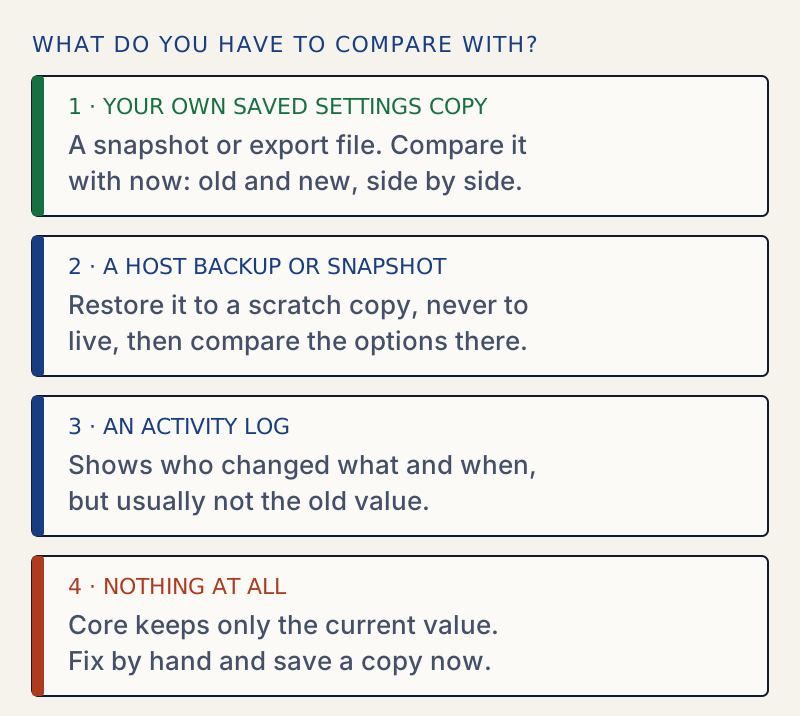
You need an older version of the settings to compare with. Look in these places, from easiest to hardest:
A saved export. If you or a developer saved settings from before, that is the best source, because it holds only settings.
Host snapshots. Many hosts keep daily or on-demand snapshots. Where they live, how long they are kept, and what they include differ by host. Check your host's dashboard and its documentation. Some snapshots cover files and the database together.
Backup plugin archives. If a plugin has been taking backups, its archive can usually be downloaded.
Database dumps. A .sql file you or your host made earlier.
A staging copy. If you have a staging site made before the change, it carries the old values. Staging also holds environment-specific values, so read carefully.
Whatever you pick, restore the old copy to a place where it cannot hurt: a local site, a staging site, or a scratch database. Do not restore it over the live site just to look at it.
What you can compare with, from most to least useful.
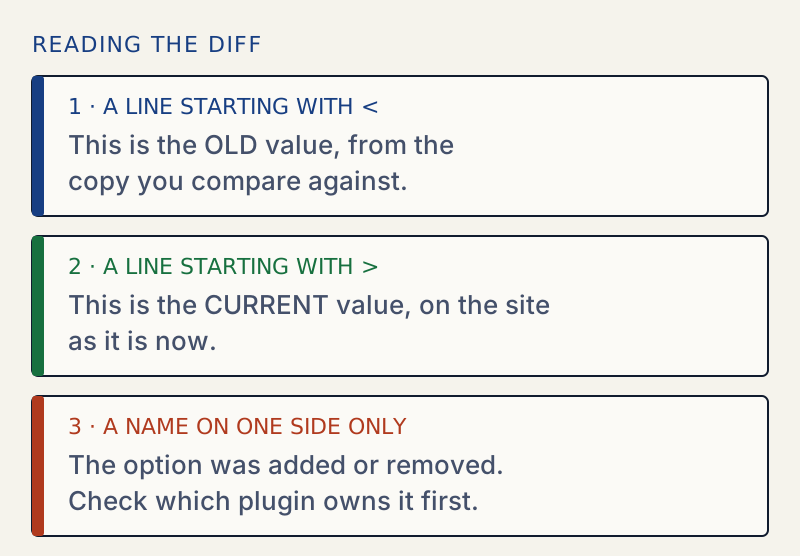
Lines starting < are the old version and lines starting > are the current one. An option present only on one side was added or removed. A name with different values on each side was changed.
How to read each line of the diff.
I tested this routine on a site by changing the tagline. The output was exactly one pair of lines: blogdescription= for the old, and blogdescription=x for the new. A real comparison is noisier, and you will see lines that do not matter.
wpseo_*, rank-math-options-*, woocommerce_*: plugin screens from Yoast SEO, Rank Math and WooCommerce. Rank Math's settings use hyphens; its rank_math_* rows are mostly modules and version housekeeping
theme_mods_ followed by a theme name: Appearance and the Customizer
To read a single option by itself, wp option get NAME works. In the browser, /wp-admin/options.php (the hidden All Settings page, not linked from the menu) shows plain values, though arrays appear as SERIALIZED DATA.
Two changes deserve extra attention when they appear:
blog_public set to 0 means "Discourage search engines". If your traffic vanished, check this first.
default_role set to administrator would make every new registration an administrator, if Anyone can register is ticked in Settings → General (the users_can_register option is 1). That is dangerous. Check both options, fix them at once, and look at your user list. With registration closed, the role matters far less, but it is still wrong.
Leave out the flag and the array is stored as text. That is the most common way a revert makes things worse.
If you only have the admin screens, set each value by hand from the old copy using the normal settings pages. It is slower but it validates what you type.
It is tempting, and sometimes right. But a full restore returns the whole site to the backup's date. Every order, comment, form entry and edit made since is lost.
A full restore makes sense when:
The site is badly broken and you cannot tell what is wrong.
The backup is recent enough that nothing of value happened since.
You were hacked, and you restore to before the compromise, then patch and change every password.
An activity-log plugin records who did what and when, going forward. Many record logins, settings changes, plugin and theme actions, and user changes. They cannot tell you about changes made before you installed them, so install one before you need it. Choose one that records the username and the old and new values, and check where it stores its data and how long it keeps it.
Not every change is a person. Common non-human causes:
A plugin update migrated its settings. Some updates rewrite their options into a new shape or add defaults.
A plugin deactivation or deletion. Some plugins remove their options on uninstall.
A setup wizard. Plugins like WooCommerce and SEO plugins run wizards that write many options at once.
A staging push. Someone pushed a copy from staging, and brought the staging values with it.
Auto-updates. If auto-updates are on, a change could appear without anyone logging in.
The diff shows the new values but not the cause. Check the plugin's changelog for the version that updated, and the "last updated" date shown for it on the Plugins screen. Your host's access and error logs, or an activity-log plugin, can show what ran and when. Dashboard → Updates lists only pending updates, and Tools → Site Health shows only the current state. Neither keeps a history.
Take a settings snapshot regularly. A dated JSON file of your options is cheap. Keep it somewhere private and outside the WordPress folder, since it can contain secrets.
Give people the lowest role that does the job. Editors cannot change settings. Administrators can.
Delete unused administrator accounts, and use unique passwords with two-factor authentication.
Install an activity log and keep its data for a useful length of time.
Disable the file editor for plugins and themes, so a stolen login cannot edit code from the admin. Keep a copy of wp-config.php first, then add define( 'DISALLOW_FILE_EDIT', true ); above the line that says require_once ABSPATH . 'wp-settings.php';. A define placed after that line is too late, because WordPress has already loaded.
Test changes on staging first. Then move only the options that you changed. See the staging-to-live guide.
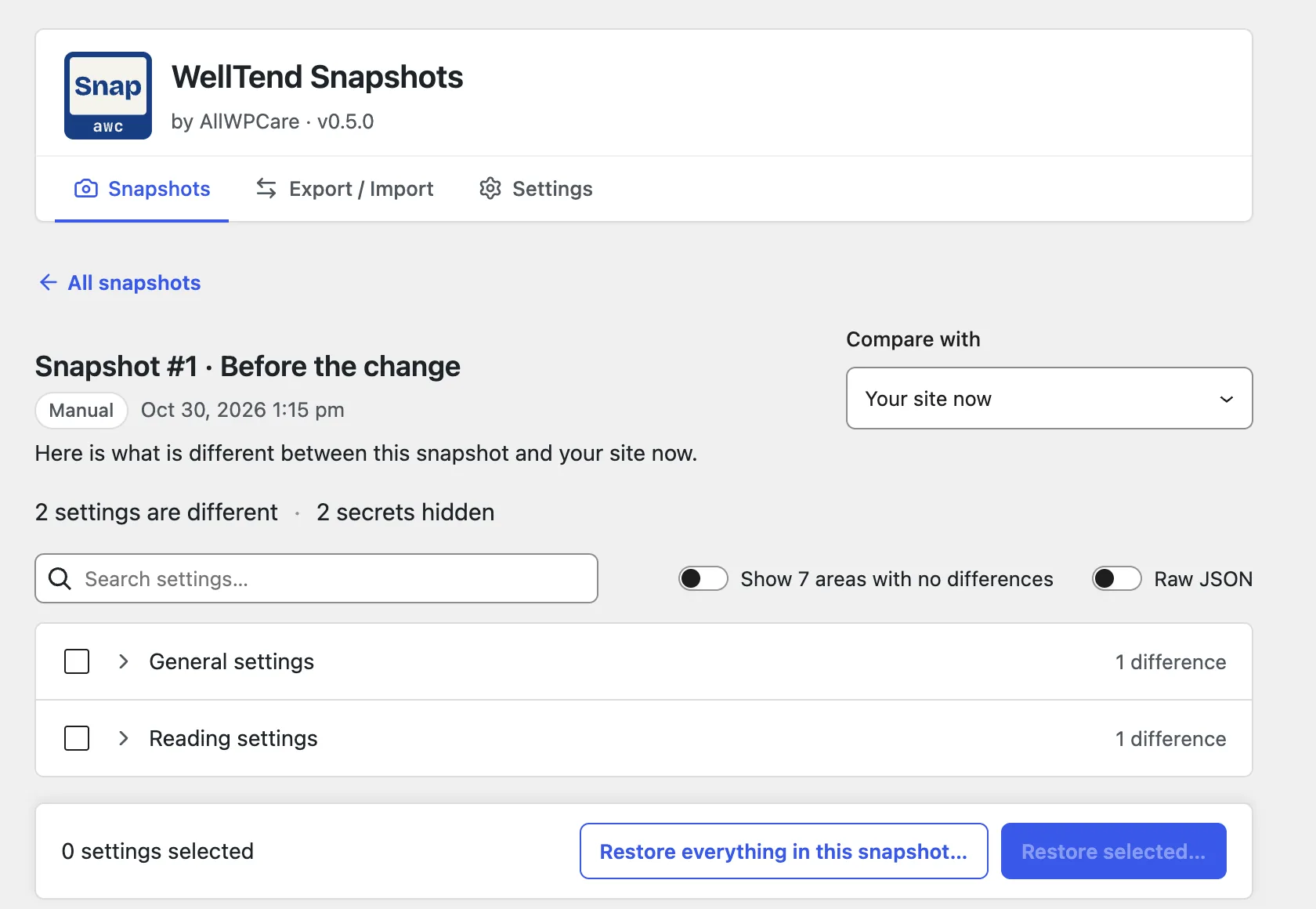
If you saved a snapshot with WellTend Snapshots before the change, you do not need the shell commands. Open the snapshot and it lists what is different from your site now. I saved a snapshot, then changed two settings: one in General and one in Reading. The screen reported "2 settings are different", one under General settings and one under Reading settings. "2 secrets hidden" means two values that look like passwords or keys were found. The plugin does not show them and never restores them, so your site keeps its own. Nothing is restored until you tick settings and confirm.
WellTend Snapshots 0.5.0: a saved snapshot against the site as it is now.
Put a setting back, with an undo.
Restore one area of settings or a whole snapshot. A pre-restore snapshot is saved first, so a wrong click is reversible.
Does WordPress keep a history of settings changes?
No. Core stores only the current value of each option. The wp_options table has no modified date and no record of who changed a value. To get history you need a backup, a host snapshot, or an activity-log plugin that was already running when the change happened.
Can I find out who changed a setting?
Only if something recorded it. An activity-log plugin or a server access log can show which account made the request. Without one, you can see what is different now, but not who did it.
Is it safe to restore an old database backup?
Restoring a whole backup also rolls back every post, order and comment made since. For a settings-only mistake, copy back just the affected options instead, taking a fresh backup first.
What if the settings changed because of a plugin update?
Updates can migrate or reset settings. Compare the option before and after, check the plugin's changelog, and restore the old value of the specific option if the plugin allows it.
How do I stop it happening again?
Give each person the lowest role they need, remove unused administrator accounts, turn on an activity log, and keep a recent snapshot of your settings so there is always something to compare against.
Sources
WP-CLI: wp option list · --orderby, --unserialize. --transients lists only transients; the default leaves them out (tested on WP-CLI 2.12)
New plugins and re-tested guides, about twice a month. Never a sales pitch.
By subscribing you agree to receive occasional AllWPCare emails: plugin launches and WordPress guide updates, about twice a month at most. You can unsubscribe at any time.