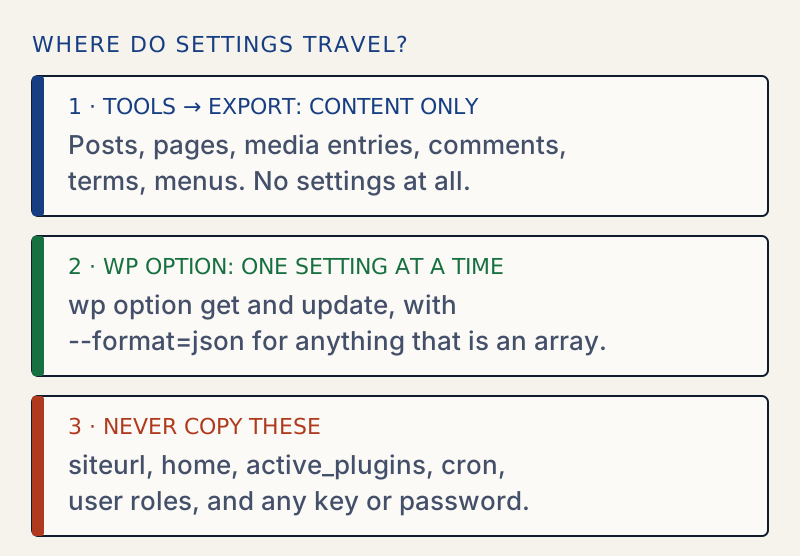
WordPress core cannot export your settings. Tools → Export only exports content, so to copy settings you read options one by one with WP-CLI (wp option get) or copy them by hand, and leave a short list of site-specific options alone.
That sounds like bad news, and a little of it is. But it is also a clear rule once you see where settings live. This guide shows where, how to move them, and which ones you must never move.
What Tools → Export actually exports#
Open Tools → Export in the admin. You get a choice of All content, Posts, Pages, Media, and any custom post types your site registers. The file you download is a WXR file, short for WordPress eXtended RSS.
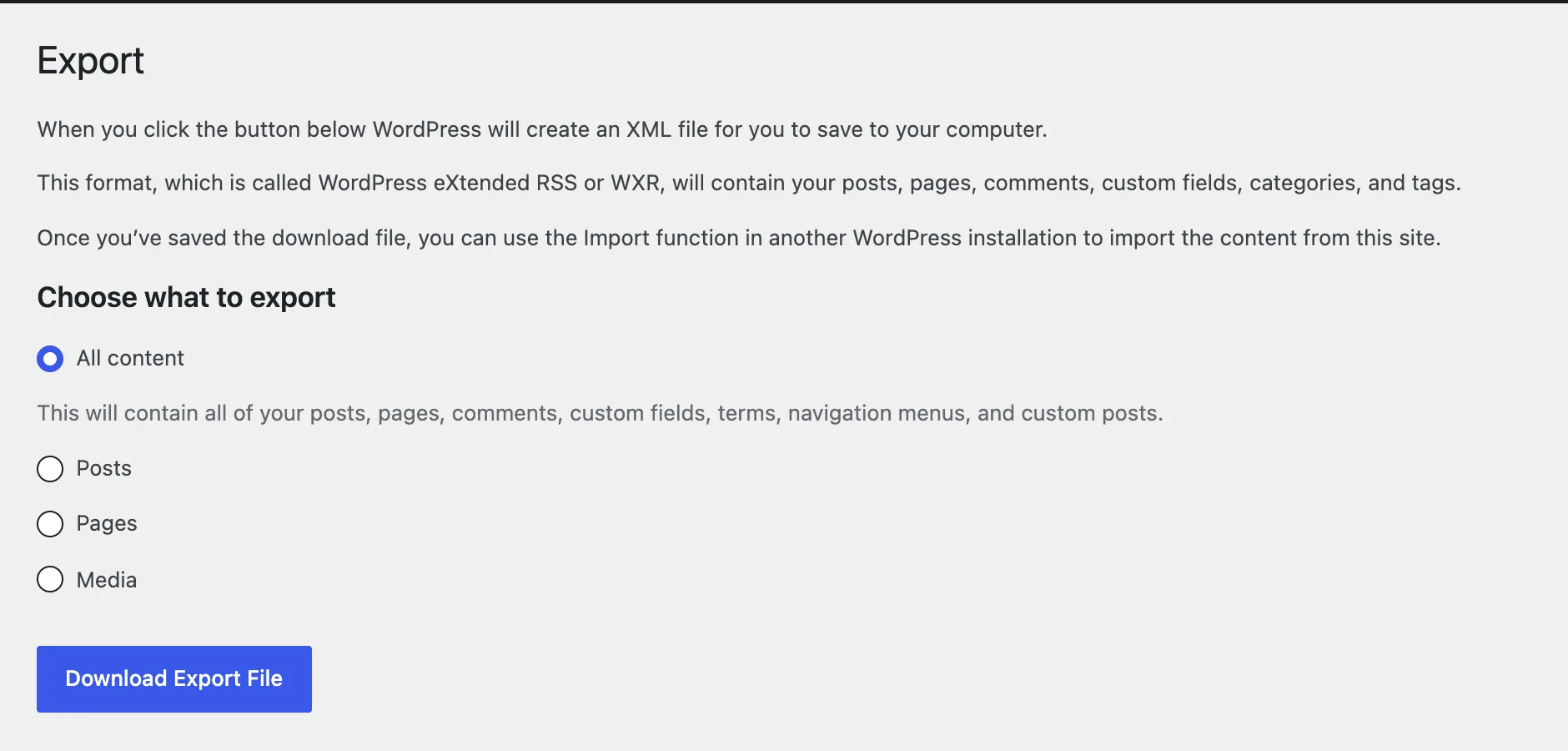
That file contains content. It does not contain:
- The settings under Settings → General, Writing, Reading, Discussion, Media, Permalinks or Privacy
- Your theme's customizer values and widget layout
- Any plugin's settings screen
The WP-CLI equivalent, wp export, is described by WP-CLI itself as exporting "WordPress content to a WXR file". Same scope, same limit.
If you imported a WXR file into a new site and found the settings missing, this is why. It worked as designed.
Where settings live#
Almost every setting is a row in the wp_options table. The table prefix may differ on your site, but the structure is the same: four columns named option_id, option_name, option_value and autoload.
There is no "last modified" column. WordPress does not record when an option changed or who changed it.
Three kinds of settings matter for an export:
- Core options. Plain names such as
blogname,blogdescription,permalink_structureanddefault_role. Most hold a single value. - Theme mods. Customizer and theme settings are stored in one option per theme, named
theme_mods_followed by the theme's folder name, for exampletheme_mods_twentytwentyfive. The value is an array. WP-CLI has a dedicatedwp theme modcommand for it. - Plugin options. Each plugin picks its own names. Many store everything in one array under one name (WP Mail SMTP uses
wp_mail_smtp). Others spread settings over dozens of rows with a shared prefix (WooCommerce useswoocommerce_).
Block themes also keep some design data as posts (global styles and templates) rather than as options, so those do not follow the option commands below. Check them on the new site.
Reading settings#
You can look at options without WP-CLI. Visit /wp-admin/options.php while logged in as an administrator. WordPress calls it All Settings, and it is not linked from the menu. It lists simple values in text fields. Arrays show as SERIALIZED DATA and cannot be read there. Treat the page as read-only. It offers none of the help or guard rails of the normal screens, and it will write values no screen would let you enter.
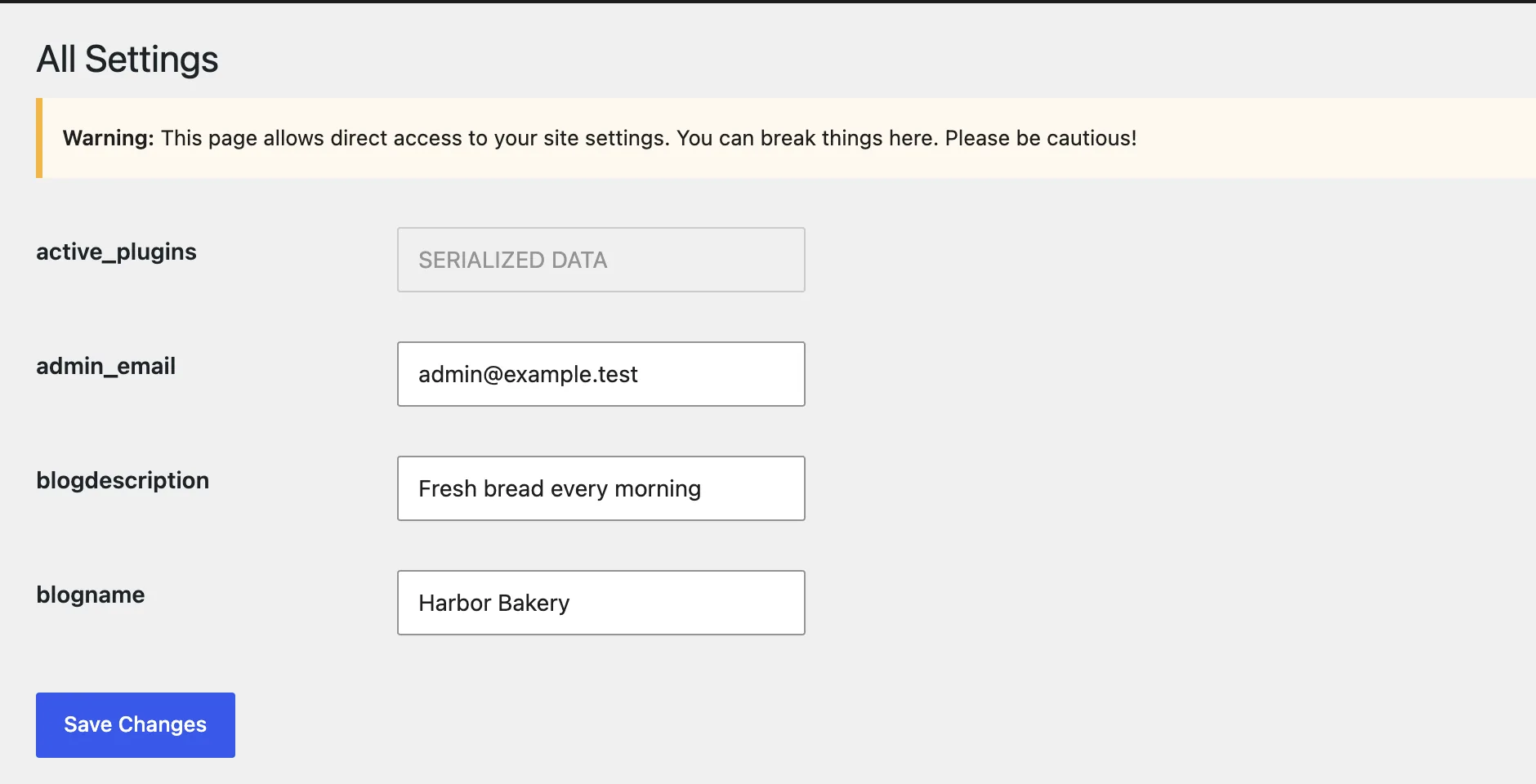
With WP-CLI, read a single option:
wp option get blognameFind every option that belongs to a plugin by searching the name. The search accepts * and ? wildcards:
wp option list --search="woocommerce_default_*" --format=csvOn the test site used for this guide, that returned two rows: woocommerce_default_country and woocommerce_default_customer_address.
Exporting a single option#
For simple values, the output of wp option get is all you need. For anything that is an array, ask for JSON:
wp option get wpseo_titles --format=json > ~/wpseo_titles.jsonReplace wpseo_titles with the option you want. I picked that one because Yoast SEO keeps its title templates in it. The file now holds the decoded structure, readable and diffable.
Without --format=json, WP-CLI prints arrays in PHP var_export style, which is awkward to reuse.
Exporting many options at once#
To capture a whole group, list it as JSON and tell WP-CLI to decode arrays:
wp option list \ --search="woocommerce_*" \ --unserialize \ --format=json > ~/woocommerce-options.jsonThe --unserialize flag matters. Without it, arrays arrive as PHP serialized strings like a:1:{s:1:"a";i:2;}, which you cannot read or diff sensibly. With it, you get real JSON.
To snapshot every option for later comparison, sort by name so two exports line up, and leave out the volatile ones. Transients are already left out by default. --exclude takes only one pattern, so use jq to drop several names:
wp option list \ --orderby=option_name \ --unserialize \ --format=json \ | jq 'map(select(.option_name | IN("cron", "recently_activated", "fresh_site") | not))' > ~/options-before.jsonThis file is for comparing, not for importing. It still contains secrets and site-specific values, so do not email it or commit it to a public repository. Write exports outside the WordPress folder, as these commands do with ~/. Anything inside the folder can be fetched by URL.
Importing a single option#
This is where people lose an afternoon. Importing a value has two forms, and only one is right for arrays.
For a simple string or number, pass the value directly:
wp option update blogdescription "Plain-English WordPress help"For an array, read the JSON from the file and pass --format=json:
wp option update wpseo_titles --format=json < ~/wpseo_titles.jsonIf you leave out --format=json, WordPress stores your JSON as a plain text string. I checked this on a scratch option: adding '{"a":1}' without the flag stored the literal text, and updating it with --format=json stored a real array. The plugin that owns the option then sees text where it expects an array.
A round trip is exact. I exported wpseo_titles to a file, added it back under a new name with --format=json, read it again, and the two files were byte-identical. That is the property you want from any export format.
To change one nested value without rewriting the whole option, use wp option patch:
wp option patch update wpseo_titles separator sc-dashThe command finds the separator key inside the array, changes it, and leaves the rest alone. That avoids editing serialized strings by hand, which is how people corrupt options. Serialized strings store the length of every text value, so changing a character in a text editor breaks the length and the whole value becomes unreadable.
Theme settings#
Customizer values travel as theme mods:
wp theme mod listwp theme mod get custom_logowp theme mod set custom_logo 123Be careful with any mod whose value is a number that refers to something in the media library or the database. Examples are custom_logo, header images, and nav_menu_locations. Those numbers are IDs on the source site. On the target site the same ID points at a different file, or at nothing. Copy the content first, find the new IDs, then set the theme mods.
Only copy theme mods between sites running the same theme. The option name includes the theme's folder name. A child theme has its own theme_mods_ option.
What not to copy#
Some options describe the machine, not your preferences. Leave these alone when you move settings between sites:
siteurlandhome. They tell WordPress where it lives. Copying them from staging to live points your public site at the staging address.admin_email. It receives system mail and password resets.active_plugins. It lists which plugins are on. Importing it can activate a plugin that is not installed on the target, or deactivate one that is.cron. The scheduled task queue. It contains hook names and timestamps from the source site.- Transients. Rows named
_transient_*and_site_transient_*are cached values that expire. They are noise, and WordPress rebuilds them. rewrite_rules. Generated from your permalink settings. Runwp rewrite flushon the target instead of copying it.- Database version options. Names ending in
_db_version, such aswoocommerce_db_version. They track which schema upgrade has run. Copying a newer number onto an older database skips an upgrade that needed to happen. - The user roles option. It is named
wp_user_roles, with your own table prefix in place ofwp_. It holds capabilities for every role, and plugins add to it. Overwriting it can lock people out or give them access they should not have. - Secrets. API keys, license keys, SMTP passwords and tokens. Plugins store these in ordinary options. WP Mail SMTP, for example, keeps its settings in one array, so exporting the whole option can include credentials depending on the mailer you picked.
When a value looks like a key, a token or a password, leave it out of any file that leaves your machine.
Serialized data: why it bites#
WordPress stores arrays as PHP serialized strings. A serialized string records the exact character count of every text value inside it. That has three consequences:
- A plain find-and-replace on a database dump corrupts any serialized value where the text length changes.
- Raw SQL
UPDATEstatements have the same problem. - Reading from a file you edited by hand is risky for the same reason.
The safe tools are the ones that decode first and encode afterwards: wp option with --format=json, wp option patch, and wp search-replace. The last one understands serialized data and fixes the lengths for you.
Never unserialize() a file from a source you do not trust. PHP can create objects while unserializing, and a crafted file can abuse that. JSON does not have that risk, which is another reason to prefer it.
A cautious import routine#
- Export the target site's current options with the "snapshot everything" command above, so you can compare afterwards.
- List the options you intend to copy. Cross every name against the "what not to copy" list.
- Export those options from the source site, using
--format=jsonfor arrays. - Look at the files. Search them for words like
key,secret,tokenandpassword. - Import each option on the target with
wp option update. - Flush rewrite rules if you changed permalinks (
wp rewrite flush), and clear caches (wp cache flush). - Export the target's options again and compare with the file from step 1. The next section shows how.
Checking what changed#
You can diff two exports with ordinary tools. This is the shape of the check:
diff \ <(jq -r '.[] | "\(.option_name)=\(.option_value)"' ~/options-before.json) \ <(jq -r '.[] | "\(.option_name)=\(.option_value)"' ~/options-after.json)It prints each option that was added, removed or changed. jq is a separate tool and may not be installed on a shared host.
I ran the same comparison on a test site after changing the tagline. The result was one line pair: blogdescription= on the left, blogdescription=x on the right. That precision is the goal. Array options print as compact JSON on one line, so a change inside one shows as a changed line and you open the two values to see where.
WellTend Snapshots exports your settings to one JSON file, shows a diff before you import, and keeps an undo.
What this method cannot do#
Be clear about the limits so you pick the right tool:
- It is manual. There is no single "import this file" command in core or WP-CLI. You loop over options, or write a script.
- It does not validate. WordPress will happily store a wrong value. Nothing checks that
permalink_structureis a valid pattern. - It does not know about plugin versions. An option saved by version 5 of a plugin may not suit version 4.
- It carries no undo. A snapshot you took yourself is the undo, and you have to take it.
For a handful of options on one site, the commands above are enough. For regular moves between staging and live, a repeatable routine is worth more than cleverness. The staging-to-live guide builds one.
Quick reference#
Related: moving settings from staging to live and finding what changed.
FAQ
Does Tools → Export include my settings?
No. Tools → Export produces a WXR file of content: posts, pages, media entries, custom post types, comments, terms and menus. It does not include general settings, permalink structure, theme options or plugin settings.
Can I export plugin settings with WP-CLI?
You can read and write any plugin's options with wp option get and wp option update, and list them with wp option list --search. There is no single command that exports and imports everything as one file, so you do it per option.
Is it safe to copy the whole wp_options table?
No. The table holds site-specific values such as siteurl, home, active_plugins, scheduled tasks, transients and often API keys. Copying all of it from one site to another overwrites those and can break the target site.
Why did my imported option turn into text?
WP-CLI treats the value as a plain string unless you pass --format=json. Without it, a JSON object is stored as a string instead of an array, and the plugin that reads it will usually ignore it or misbehave.
Do I need WP-CLI to do this?
No, but it is the most reliable route. Without it you can read values on the hidden Settings → All Settings screen at /wp-admin/options.php, which shows simple values but displays arrays as SERIALIZED DATA.
Sources
- WP-CLI: wp option · get, update and patch, and the --format=json flag
- WP-CLI: wp option list · --search, --unserialize, --orderby
- WP-CLI: wp export · Exports content to a WXR file
- WP-CLI: wp theme mod
- WP-CLI: wp search-replace · Understands serialized data
- Core: options.php (All Settings screen) · The SERIALIZED DATA branch for array values
- PHP: unserialize() · Warning about untrusted input
One email when something breaks or changes.
New plugins and re-tested guides, about twice a month. Never a sales pitch.