WordPress Maintenance Mode Without Hurting Your Search Rankings
Put WordPress in maintenance mode the right way: a 503 with Retry-After, editors still working, caches cleared, and robots.txt left alone.
Last verified Oct 2026Tested with WordPress 7.18 min read
AWWritten and tested by AllWPCare Team · First published Oct 24, 2026
Maintenance mode should send visitors and search engines a 503 Service Unavailable status with a Retry-After header, let logged-in editors keep using the real site, and last hours, not days. That combination tells Google the outage is temporary, so your pages stay in the index.
Most problems with maintenance mode come from getting one of those parts wrong: a page that returns 200, a cache that keeps serving it after you finish, or an update lock that will not go away. This guide shows what WordPress does by itself, what a good maintenance page sends, and how to check it with one command.
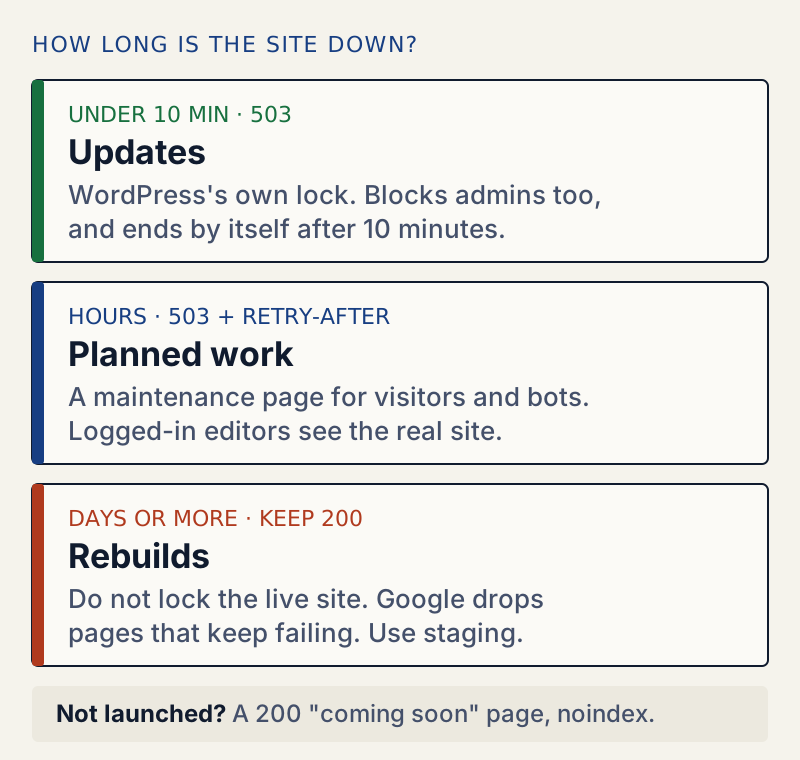
The length of the outage decides the method. Each box shows the status a visitor's browser receives.
WordPress already has a maintenance mode, but you rarely choose it. While core, a plugin or a theme updates, WordPress writes a file called .maintenance into the WordPress folder. As long as that file exists, every request gets this:
WordPress's built-in maintenance message, from the .maintenance file. It has no logo, no theme and no way around it.
I created the file by hand on a test site and checked the response:
The status is right. It is a 503 with Retry-After: 600, which asks bots to come back in 10 minutes.
It locks out administrators too./wp-admin/ returned the same 503. You cannot log in to fix anything while the file is there.
It expires by itself. The file holds a timestamp, and WordPress ignores it once that time is 10 minutes old. I backdated the timestamp by 601 seconds and the site came straight back with a 200.
That last detail explains the most common question about maintenance mode: why a site is "stuck" after an update. A failed update leaves .maintenance behind. Wait 10 minutes. If the message is still there, delete .maintenance from the WordPress folder over SFTP or your host's file manager. Its name starts with a dot, so turn on "show hidden files" if you cannot see it. Our briefly unavailable for scheduled maintenance page covers that error in detail.
wp maintenance-mode activatewp maintenance-mode status
Output
Enabling Maintenance mode...Success: Activated Maintenance mode.Maintenance mode is active.
It is handy for a deploy script, but it writes the same .maintenance file with the current time in it, so the same 10-minute rule applies: once the timestamp is 10 minutes old, WordPress ignores the file and the site opens again, even if nobody runs deactivate. That is fine for a deploy that takes 30 seconds. It is not a way to keep a site closed for an afternoon.
For planned work that takes longer than a few minutes, you want a maintenance page you switch on and off yourself. Whichever plugin or method you use, check that it does these five things.
Status 503 for visitors and bots. Not 200. A 200 tells search engines the maintenance text is your page's real content.
A Retry-After header. It tells crawlers when to try again. Google's best practices for a 503 page ask for it, as a "best effort date or duration".
The real site for people who are logged in. You need to check your work while visitors see the notice.
Static, simple HTML. The page should not load your theme, a page builder or outside fonts. If the reason for maintenance is a broken theme, a page that uses the theme breaks too.
An exception for things that must keep working. Payment providers call your site to confirm orders, and wp-cron.php runs scheduled tasks. Blocking those can lose orders or emails.
Here is what WellTend Site and Admin Toolkit's Maintenance Mode sends with its default settings, measured with the same curl -sI:
The Retry-After value comes from the setting "Ask search engines to come back after (minutes)", which defaults to 60. wp-cron.php and wp-login.php still answered 200, and the REST API answered with a JSON error that carries the 503 status.
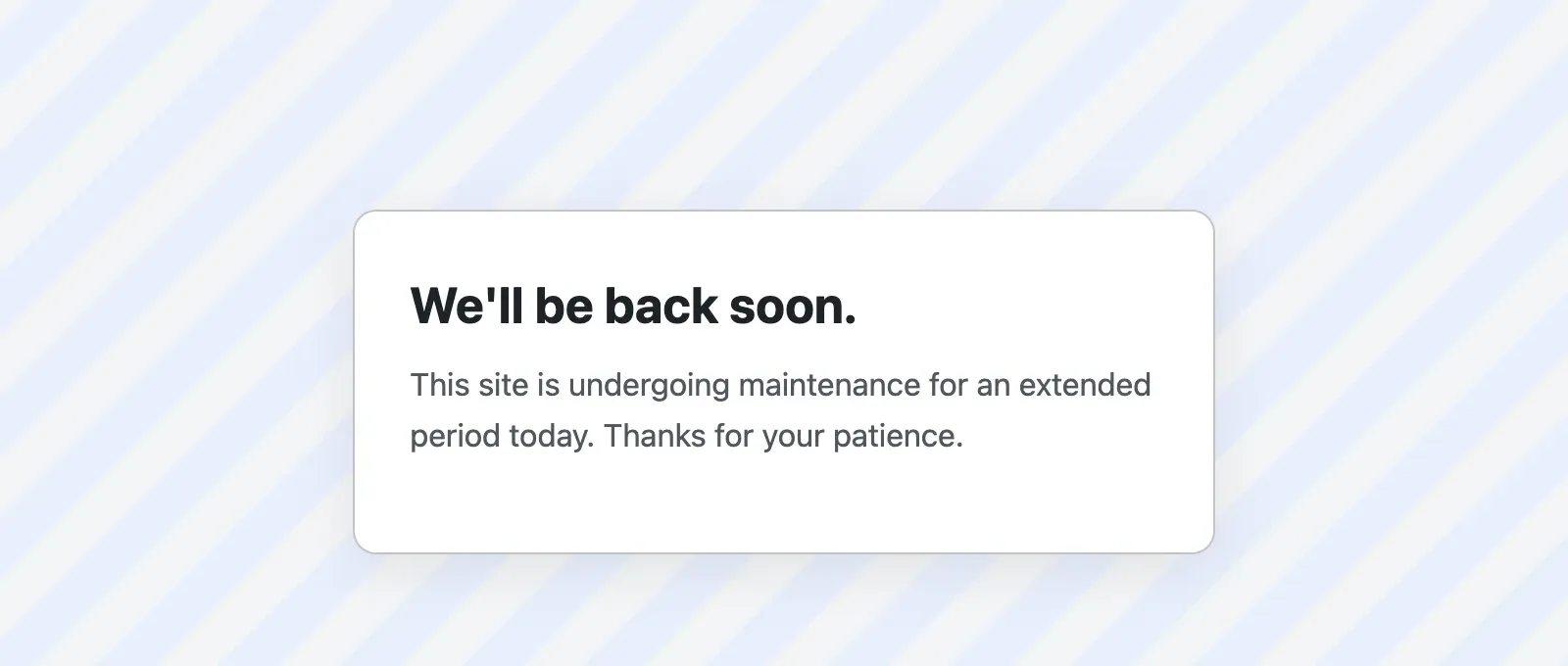
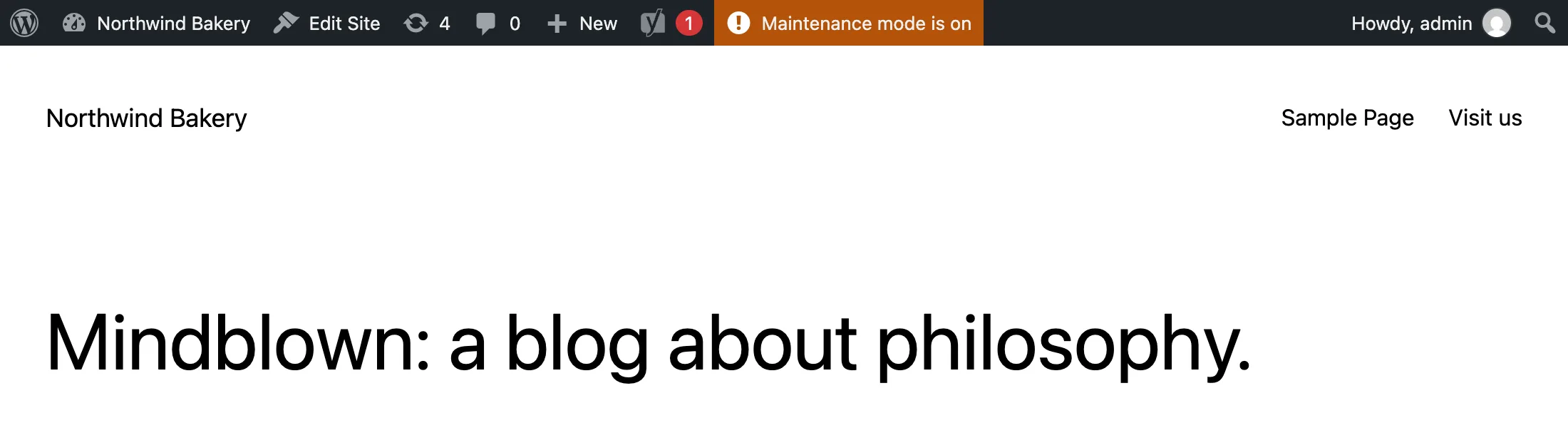
What a visitor sees. The page is plain HTML with inline styles, so it does not depend on the theme.The same address for a logged-in editor: the real site, with a reminder in the admin bar.
The order is what keeps you from locking yourself out or leaving a cached notice behind.
Log in first, in a normal browser window. Open a private window as well; that is your "visitor" view.
Take a backup, or at least a settings snapshot, if the work changes settings or content.
Write the message. Say what is happening and when you expect to be back. "Back by 3 pm (UTC)" beats "Back soon".
Switch maintenance mode on, then clear your page cache and CDN cache (more on that below).
Check the private window. You should see the notice.
Check the status code from a terminal:
Terminal
curl -sI https://example.com/ | head -1
You want HTTP/1.1 503 Service Unavailable. If you see 200, search engines see 200 too.
Do the work. Test it in your logged-in window.
Switch maintenance mode off, clear the caches again, and reload the private window.
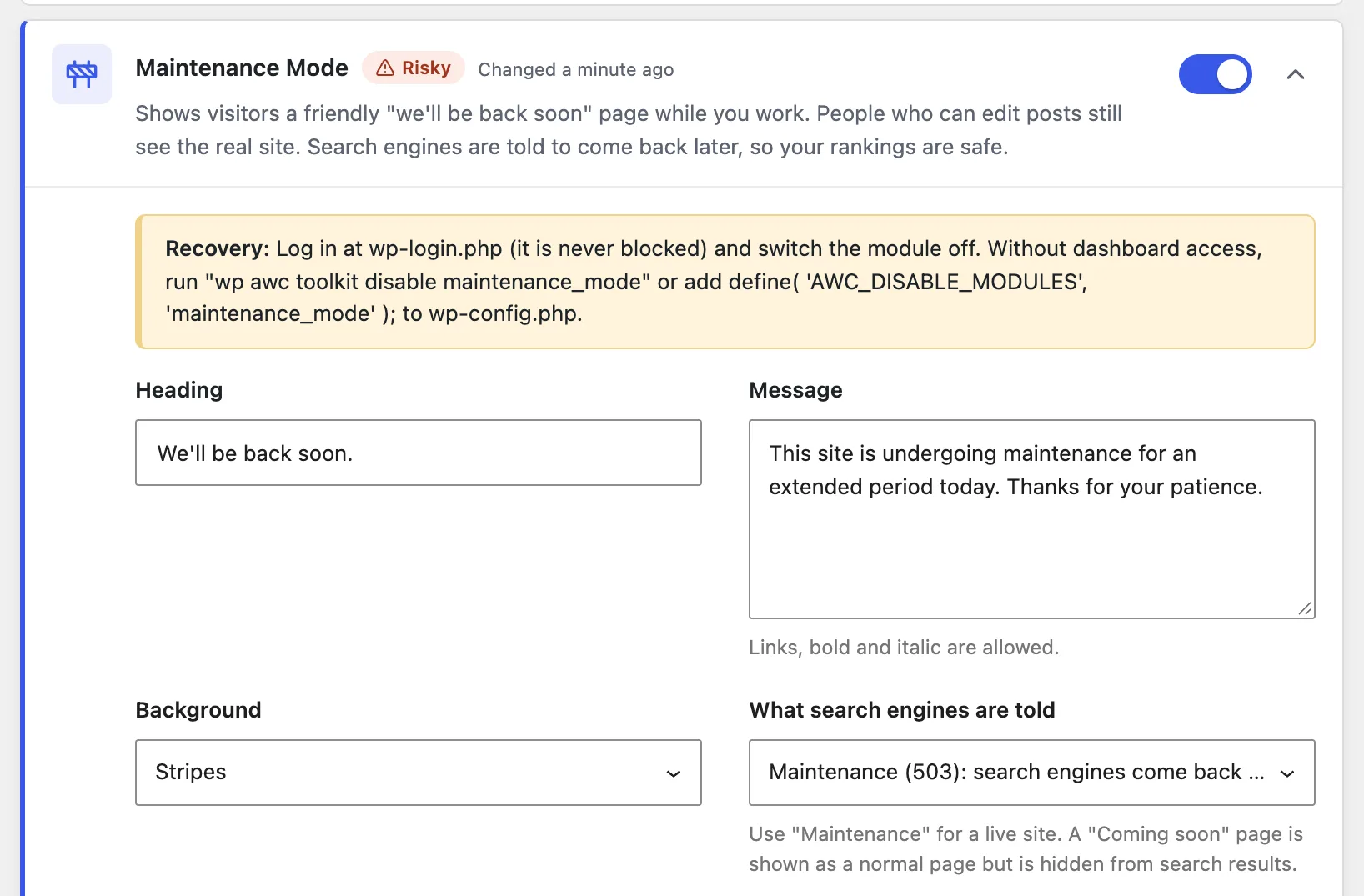
WellTend Site and Admin Toolkit's settings. The yellow note at the top is the way back in if anything goes wrong. 'What search engines are told' is where you pick 503 or 200.
A page cache or a CDN saves a copy of each page and serves it without asking WordPress. That causes two opposite problems:
Visitors still see the real site after you switch maintenance mode on, because the cache answers before WordPress runs.
Visitors still see the maintenance page after you switch it off, because the cache saved the notice.
A good maintenance page sends Cache-Control: no-store, as both responses above do, and most caches respect that. Not all do. A "cache everything" rule on a CDN, or a host cache that ignores headers, can keep either version for hours.
The fix is the same every time: clear the caches right after you switch maintenance mode on, and again right after you switch it off. That means your caching plugin's "purge all" button, your host's cache button if it has one, and your CDN's purge. If you are not sure which caches you have, request the page with curl -sI and look at the headers. X-Cache: HIT or CF-Cache-Status: HIT means a copy came from a cache, and an Age header above 0 says how many seconds old that copy is.
Google's guidance on pausing a site says a 503 should only last "a few days at most". While pages return 503, Google cannot refresh their titles, descriptions or structured data. Pages that keep returning server errors are eventually dropped from the index.
So:
Minutes to hours: a maintenance page is the right tool.
A day: still fine, with a clear message and a real Retry-After.
More than a day or two: do not close the live site. Build the changes on a staging copy and switch over when they are ready. Our guide on moving settings from staging to live covers the settings part of that switch.
Google's same guidance has one specific warning: do not return a 503 for robots.txt, "because this blocks all crawling". When robots.txt fails with a server error, Google stops crawling the whole site for the first 12 hours, then falls back to its last good copy.
Check yours while maintenance mode is on:
Terminal
curl -sI https://example.com/robots.txt | head -1
A 200 is what you want. Many maintenance setups block every address, robots.txt included, and return 503 here. WellTend Site and Admin Toolkit's Maintenance Mode leaves robots.txt open: on my test site it answered 200 while the home page answered 503. For maintenance of an hour or two the effect is small, because crawling pauses anyway. For a long window it is one more reason to use staging instead.
A site that has never launched has no rankings to protect, so a 503 is the wrong signal: there is no "come back later" to promise. Use a normal page with status 200 that asks search engines not to index it, either with a noindex robots meta tag or an X-Robots-Tag: noindex header.
Two traps:
Remove it at launch. A noindex left behind after launch keeps the whole site out of search results. Check Settings → Reading → Search engine visibility too: the box "Discourage search engines from indexing this site" does the same thing for the whole site.
Do not use coming soon mode on a live site. A 200 page with noindex on a live site asks Google to remove your pages.
Most maintenance plugins leave wp-login.php open, so try logging in at /wp-login.php first and switch the mode off from the dashboard.
If that fails:
The .maintenance file: delete it from the WordPress folder, or wait 10 minutes.
A plugin's maintenance mode: turn the plugin off without the dashboard. With WP-CLI, wp plugin deactivate plugin-folder-name. With SFTP, rename the plugin's folder in wp-content/plugins.
WellTend Site and Admin Toolkit: wp awc toolkit disable maintenance_mode turns off just that module. Without WP-CLI, add define( 'AWC_DISABLE_MODULES', 'maintenance_mode' ); to wp-config.php above the line that says to stop editing, then remove the line once you are back in.
Whatever the method, clear the caches afterwards so visitors get the real site, not a saved copy of the notice.
A maintenance page that tells search engines to wait.
WellTend Site and Admin Toolkit's Maintenance Mode sends a 503 with Retry-After to visitors and bots, while logged-in editors keep working on the real site.
Not if it is short and sends the right status code. A 503 tells search engines the page is temporarily unavailable, so they keep the page in the index and come back later. A maintenance page sent as a normal 200 page can replace your real content in search results, and a 503 that lasts many days can get pages dropped.
How long can a site stay in maintenance mode?
Hours are fine. Google's own guidance says a 503 should only last a few days at most. For longer work, keep the live site up and build the changes on a staging copy.
Why is my site still in maintenance mode after an update?
An update left the .maintenance file behind in the WordPress folder. WordPress ignores it after 10 minutes, so first wait. If the message stays, delete .maintenance over SFTP or run wp maintenance-mode deactivate. If the site stays down after that, a page cache is still serving the saved maintenance page: clear it.
Can I see my site while maintenance mode is on?
With WordPress's own update lock, no: it blocks everyone, administrators included. A maintenance plugin usually lets logged-in editors see the real site, and some offer a secret link for people without an account.
What is the difference between maintenance mode and coming soon mode?
Maintenance mode is for a live site that will be back shortly, so it sends a 503. Coming soon mode is for a site that has not launched yet, so it is a normal 200 page that asks search engines not to index it.
New plugins and re-tested guides, about twice a month. Never a sales pitch.
By subscribing you agree to receive occasional AllWPCare emails: plugin launches and WordPress guide updates, about twice a month at most. You can unsubscribe at any time.