Why it happens
- An update of WordPress core, a plugin or a theme was interrupted, so the .maintenance file it created was never deleted.
- The update is still running. Bulk updates and slow servers can take longer than a minute.
- An update timed out, ran out of memory, or hit a file permission problem partway through.
- A browser tab was closed during an update from the Plugins or Updates screen.
How to fix it
Try the fixes in this order. Each one is independent: stop as soon as the error is gone.
Wait a few minutes first
- Wait about ten minutes without starting another update. WordPress ignores a .maintenance file that is ten minutes old or older, so a stuck site often recovers on its own.
- Reload the site in a private window to avoid a cached copy of the message.
Delete the .maintenance file
- Connect to your site by SFTP, or open your host's file manager.
- Go to the folder that contains
wp-config.php, which is the WordPress root, notwp-content. - Turn on the option to show hidden files. The file starts with a dot, so many tools hide it by default.
- Find the file named
.maintenanceand delete it. - Reload the site.
Turn maintenance mode off with WP-CLI
- Connect to the server by SSH and change to the WordPress folder.
- Run
wp maintenance-mode statusto check whether it is active. - Run
wp maintenance-mode deactivate. It deletes the file for you. - Run
wp maintenance-mode statusagain and confirm that it reports that maintenance mode is not active.
Finish the interrupted update
- Open
/wp-admin/and go to Dashboard, then Updates. Check what is still waiting. - Run the update again for the item that failed, one at a time and with the site open in a single tab.
- If a core update refuses to start and says another update is in progress, an update lock is still set. Wait about 15 minutes, or delete it with
wp option delete core_updater.lock. - If a plugin update broke the site, rename that plugin's folder in
wp-content/pluginsto deactivate it, then reinstall a fresh copy. - With WP-CLI,
wp core update,wp plugin update --allorwp theme update --allrun updates without a browser timeout. - Run
wp core verify-checksumsafter a core update to confirm that WordPress core files are complete.
Replace the default message with your own
- Create a file named
maintenance.phpinwp-content. WordPress shows it in place of the default message while maintenance mode is on. - Send a 503 status and a Retry-After header from that file so search engines treat it as temporary.
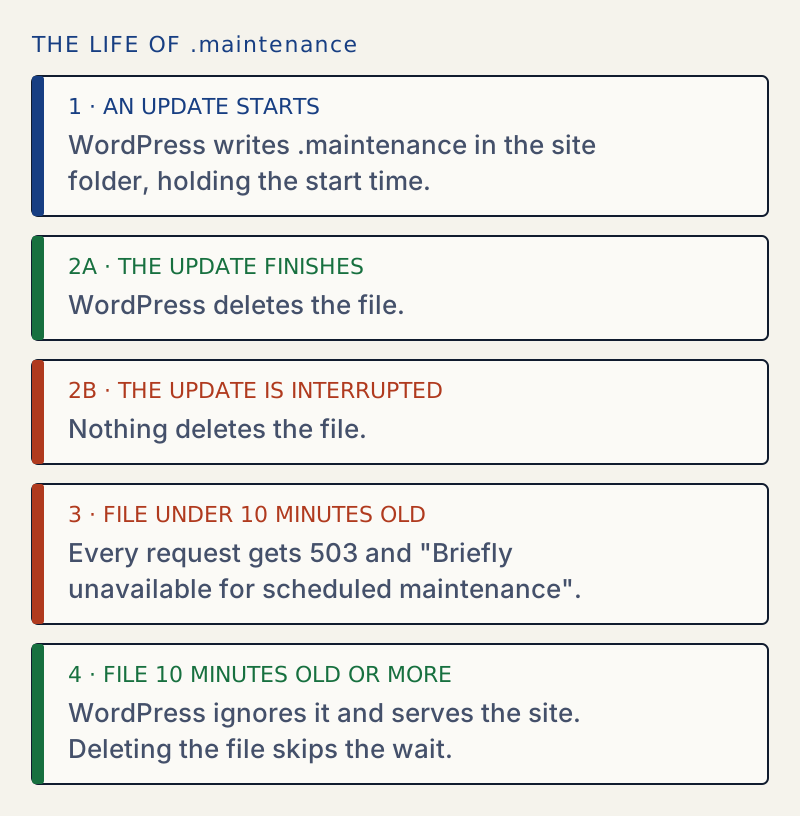
WordPress shows Briefly unavailable for scheduled maintenance. Check back in a minute. while it is updating itself. Before it starts, WordPress writes a tiny file called .maintenance into the site folder. When it finishes, it deletes the file. If the update is interrupted, the file stays, and visitors keep seeing the message.
The message itself does no harm, but the update behind it was interrupted, so check the site once it is back.

What is in the file#
The file holds one line of PHP: a timestamp of when the update began.
<?php $upgrading = 1792157696; ?>On every request, WordPress looks for this file. If it exists and the timestamp is less than ten minutes old, WordPress answers with a 503 Service Unavailable response and a Retry-After: 600 header. I confirmed both on a test site by switching maintenance mode on and requesting the home page.
Once the timestamp is ten minutes old or older, WordPress treats maintenance as over and serves the site normally. That is why waiting works. If you see the message for longer than that, check that the file is not being rewritten, for example by a repeated failing update.
Which route to pick#
- You have WP-CLI and SSH. Use
wp maintenance-mode deactivate. I ran this on a test site and it removed the file at once. - You have SFTP or a file manager. Delete the
.maintenancefile by hand. The most common trouble is that hidden files are not shown. - You can do neither. Wait ten minutes. If the message is still there after that, clear any page cache, then ask your host to delete the file.
What may have gone wrong underneath#
Removing the file brings the site back, but it does not fix the interrupted update. Check:
- Is the WordPress version what you expect? Dashboard → Updates shows it.
- Are there plugins marked as needing a database update or showing a half-installed state?
- Does the site load without errors in the front end and admin?
If an update died partway through, some files may be old and some new. Running the same update again usually replaces them all. For core, wp core verify-checksums compares your core files with the official ones and lists anything missing or changed.
If you want a maintenance page on purpose, the maintenance mode guide explains the difference. If the message is a server 503 and not this text, see 502 Bad Gateway.
Prevent it#
- Run updates one at a time on a site that matters, and keep the browser tab open until you see the result.
- Take a backup before updating. Updating plugins safely covers the order of steps.
- Test updates on staging first when the site takes orders or logins.
- On slow shared hosting, use WP-CLI for large updates, since it does not depend on a browser request staying alive.
If your site is down because of this error, nothing in a settings export or backup is needed. If a plugin update changed settings as well, see how to find and undo changed settings.
Sources
- WordPress core: wp_maintenance() · Reads .maintenance and sends the 503 reply
- WordPress core: load.php · wp_is_maintenance_mode() and the ten-minute check
- WP-CLI: wp maintenance-mode · activate, deactivate and status
- MDN: 503 Service Unavailable · What the status means and how Retry-After is used
- MDN: Retry-After · The header WordPress sends with the value 600
One email when something breaks or changes.
New plugins and re-tested guides, about twice a month. Never a sales pitch.