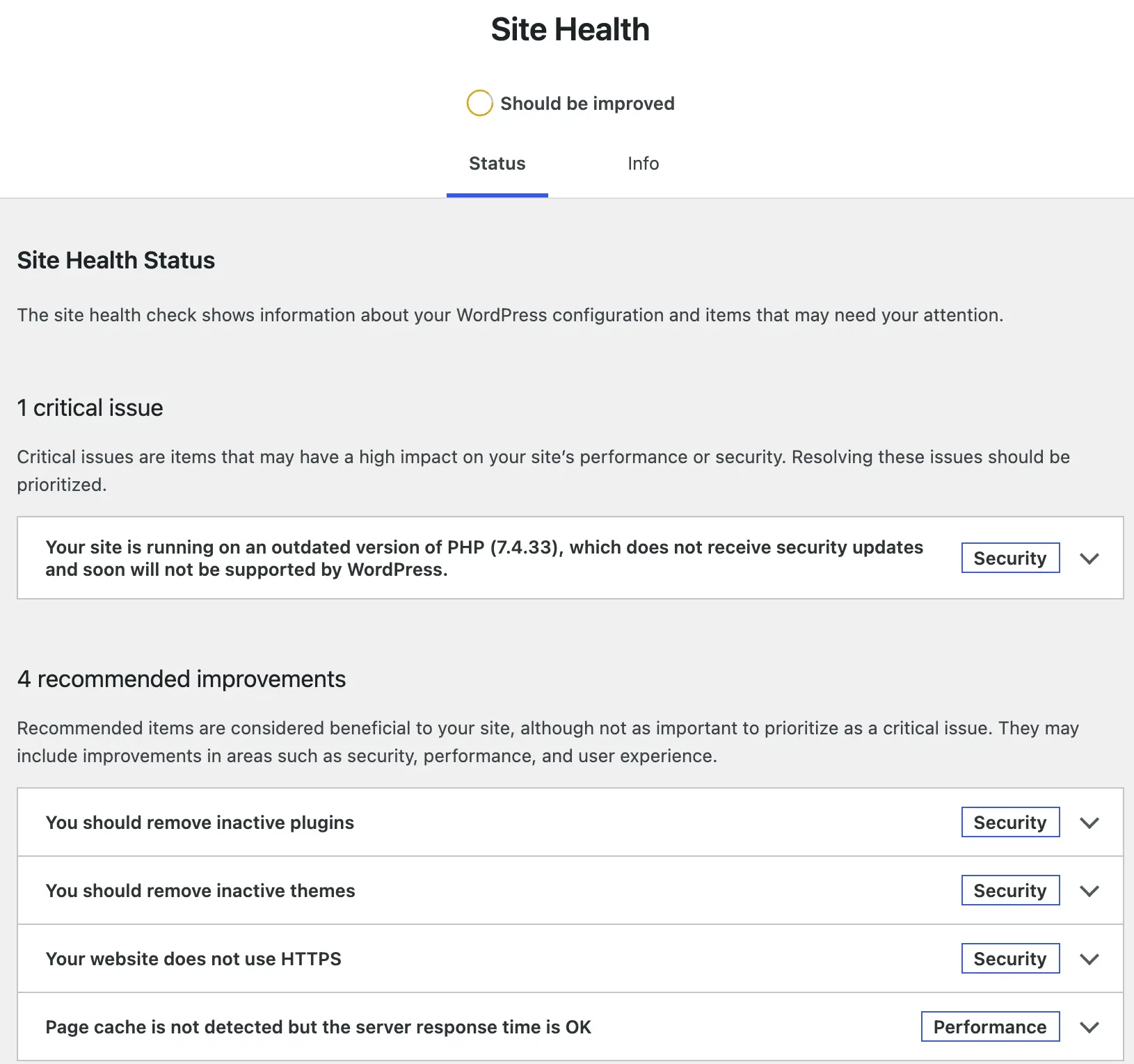
Tools → Site Health runs a set of tests on your WordPress setup (28 on my test site) and sorts the results into critical issues, recommended improvements and passed tests. The label at the top, Good or Should be improved, comes from a simple rule: any critical item means "Should be improved", and with no critical items you need a score of 80 or more for "Good".
That rule explains why a site that works fine can sit at "Should be improved" for months. This guide shows what the screen checks, how the label is decided (read from the WordPress 7.1 source), which items deserve your time, and which are often fine to leave. The screenshots come from a fresh test site, "Northwind Bakery", on WordPress 7.1.3 with PHP 7.4.
What Site Health checks#
The Status tab runs two kinds of tests. Most run in PHP as the page loads. A few take longer, so your browser runs them one by one after the page appears, which is why the circle at the top says "Results are still loading" for a moment. Those slower ones are Communication with WordPress.org, Background updates, Loopback request, HTTPS status, Authorization header and Page cache.
The tests cover five areas:
- Versions: WordPress, plugins, themes, PHP and the database server.
- Security: HTTPS, debug settings, open registration with a powerful default role, and whether automatic updates can work.
- Things WordPress needs to work: scheduled events, the REST API, loopback requests, file uploads, outgoing requests, disk space for updates.
- Performance: opcode cache, page cache, persistent object cache, and the size of autoloaded options.
- Privacy: whether search engines are discouraged from indexing the site.
Each result has a title, a coloured tag (Security, Performance or Privacy) and a description you open with the arrow. The title changes with the result. A passing PHP test says one thing, a failing one names your version, so the exact titles below are the ones you will see when something needs attention.
How Good and Should be improved are decided#
The label is worked out in your browser by wp-admin/js/site-health.js once all tests have finished. The rule in WordPress 7.1:
- Count the results. Critical items weigh 1.5, others weigh 1.
- Problems are recommended items × 0.5 plus critical items × 1.5.
- Score = 100 minus problems as a percentage of the total, rounded up against you.
- The label is Good only if the score is 80 or more and there are no critical items. Otherwise it is Should be improved.
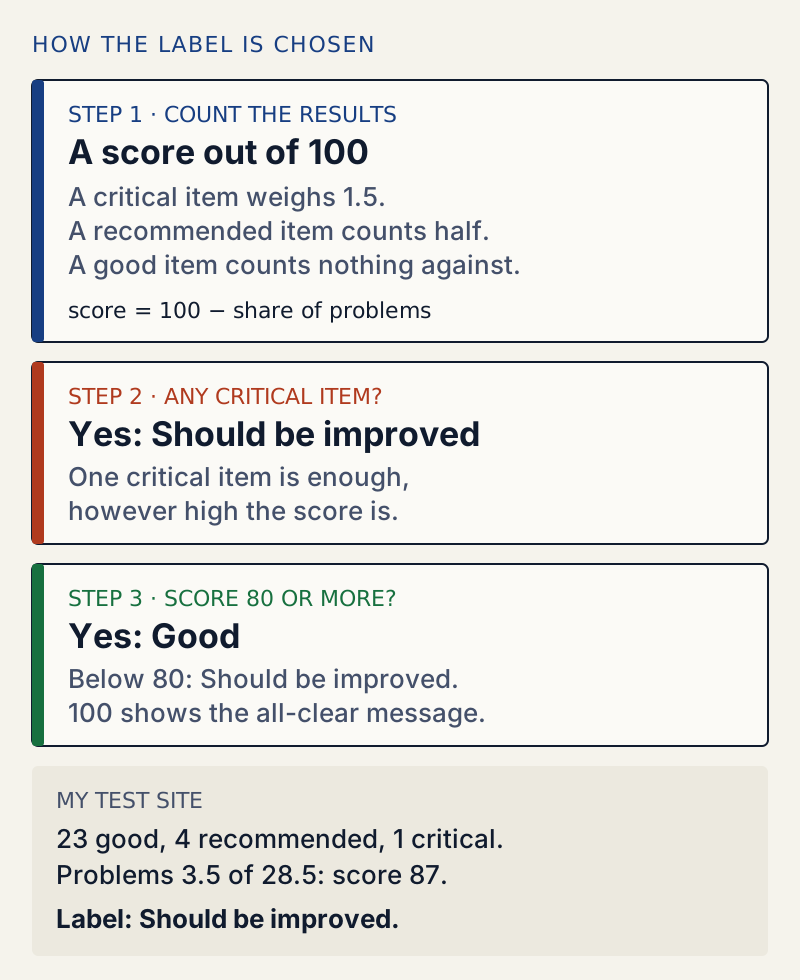
On my test site: 23 good, 4 recommended and 1 critical. Problems are 4 × 0.5 + 1 × 1.5 = 3.5, the total is 23 + 4 + 1.5 = 28.5, so the score is 100 − 13 = 87. That is well above 80, and the label still says "Should be improved" because of the single critical PHP item. The score itself is only drawn as the ring; WordPress never prints the number.
Three related details:
- The number next to Site Health in the menu counts critical issues only. My site showed Site Health 1 with five items listed.
- The Site Health Status widget on the Dashboard does not run the tests. It shows the counts saved the last time someone opened Tools → Site Health, or the last weekly background check (
wp_site_health_scheduled_check, which runs once a week). Open the screen to refresh it. - A score of 100 replaces the lists with an all-clear message.
Critical items worth acting on#
Critical means the item can affect security or stop part of the site from working. These are the ones I saw on my test site, with their exact titles.
Your site is running on an outdated version of PHP#
The full title names your version: "Your site is running on an outdated version of PHP (7.4.33), which does not receive security updates and soon will not be supported by WordPress." The description on WordPress 7.1 says "The minimum recommended version of PHP is 8.3."
WordPress decides this with data from WordPress.org about which PHP versions still get security fixes. Your site keeps working on the old version for now, but the PHP team no longer fixes security problems in it. Act: ask your host to move the site to a supported PHP version, on a staging copy first if they offer one, because old plugins can break on newer PHP. Our debug log guide shows how to find the plugin behind any errors after the switch.
Your site could not complete a loopback request#
A loopback request is the site calling its own address. WordPress needs it to run scheduled tasks and to check edits in the theme and plugin editors. When I broke it on my test site, Site Health also showed The REST API encountered an error and, a few minutes later, A scheduled event has failed. Act: this one causes "Missed schedule" on posts and stuck updates. Our guide on missed schedules and WP-Cron walks through the fix.
Your site is set to display errors to site visitors#
Shown when WP_DEBUG is on and WP_DEBUG_DISPLAY is left at its default of true, so PHP errors appear on the page. Act: turn display off. The related item Your site is set to log errors to a potentially public file is critical when the log is inside the WordPress folder, and recommended when it is elsewhere. The debug log guide covers both.
You have plugins waiting to be updated#
This is critical, but it often hides. Look at what my test site showed instead.
Recommended items, and when to leave them#
You should remove inactive plugins#
My site had one plugin with an update waiting, which is a critical item in the code. But the site also had inactive plugins, and the plugin test sets its title last: the inactive-plugin message replaces the update warning, and the item drops to recommended. The description still holds the update line:
Your site has 1 plugin waiting to be updated.Your site has 4 inactive plugins. Inactive plugins are tempting targets for attackers. If you are not going to use a plugin, you should consider removing it.The same happens with themes. So open this item every time and read it for "waiting to be updated". Then delete the plugins you do not use; deactivated plugins still sit on the server. Keep any you switch on now and then on purpose, and keep them updated.
You should remove inactive themes#
Site Health allows your active theme, its parent theme if it is a child theme, and one default WordPress theme (Twenty Twenty-Five on 7.1). On my site the description said: "Your site has 3 inactive themes, other than Twenty Twenty-Five, the default WordPress theme, and Twenty Twenty-Three, your active theme." Keep one default theme. WordPress counts it as allowed for a reason: it is the theme you switch to when your own theme breaks. Delete the rest.
Your website does not use HTTPS#
Act on any live site. First open your address with https:// in front in a browser. If it loads with a padlock, take a backup and change WordPress Address (URL) and Site Address (URL) in Settings → General to start with https://. If it does not load, ask your host to add a certificate first.
The description may add "HTTPS is already supported for your website". Do the browser check anyway: on my test site that line appeared although the server had no HTTPS set up at all, and a curl request to the https:// address failed with an SSL connection error.
Page cache is not detected but the server response time is OK#
WordPress requests your home page three times, looks for caching headers, and measures the median response time against a 600 millisecond limit. My site answered in 31 milliseconds with no cache. Often fine to leave on a small site: the title itself says the response time is OK. The variant to act on is Page cache is not detected and the server response time is slow, which means pages take more than 600 milliseconds to start arriving.
You should use a persistent object cache#
My test site passed this one with A persistent object cache is not required. WordPress only recommends an object cache (such as Redis or Memcached, which your host provides) when the site is big enough to benefit: more than 500 autoloaded options or 100 KB of them, at least 1,000 rows in the posts, comments, terms, users or options tables, or a multisite network. Often fine to leave unless the site feels slow in wp-admin and your host offers one.
Opcode cache is not enabled#
My site passed this one in the browser (Opcode cache is enabled), but the same test run from WP-CLI said Opcode cache is not enabled, because PHP on the command line had the cache switched off. An opcode cache is a PHP setting on the server, and the web server's setting is the one that counts. If you see it fail on the Site Health screen, it is a question for your host, not something to fix in WordPress.
The Info tab: what owners need most#
The Info tab is a long list of facts, not tests. It is where you look up a number before you ask for help or change a setting. The Server section answers most owner questions:
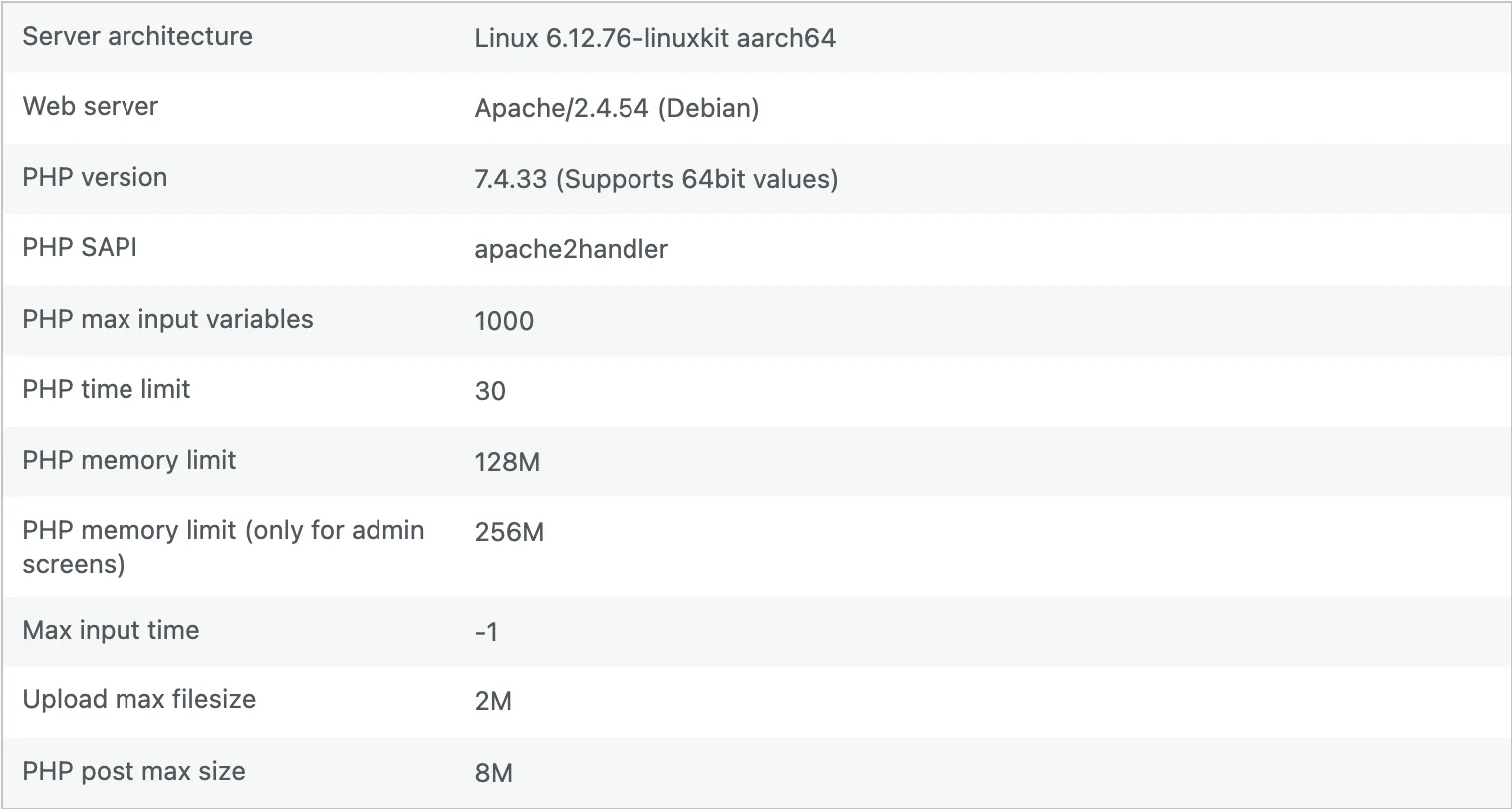
- PHP version: what your host runs. Compare it with the PHP item on the Status tab.
- PHP memory limit: if errors mention "Allowed memory size exhausted", this is the number to raise. See allowed memory size exhausted.
- PHP time limit: the seconds a request may run. See maximum execution time exceeded.
- Upload max filesize and PHP post max size: the largest file you can upload through wp-admin.
Two more sections help with support requests. Directories and Sizes shows how much space uploads, themes, plugins and the database take. WordPress Constants shows settings from wp-config.php, such as WP_DEBUG and WP_MEMORY_LIMIT.
The Copy site info to clipboard button copies the whole tab as text for a support ticket. It skips fields marked private in WordPress's code, including the site and home addresses, the WordPress folder path, and the database name, username, host and table prefix.
What WellTend Health Monitor adds#
Site Health only knows what is true at the moment you open it, and it does not read your error log. WellTend Health Monitor, our free plugin, runs 47 checks in the background on a timetable (hourly or daily depending on the check), keeps a history, and reuses many of WordPress's own tests so the two do not disagree on facts. Its own checks cover the PHP error log grouped by plugin, whether scheduled tasks are actually running, pending updates and how long they have waited, PHP end-of-support dates, disk and database growth, SSL certificate expiry and email delivery.
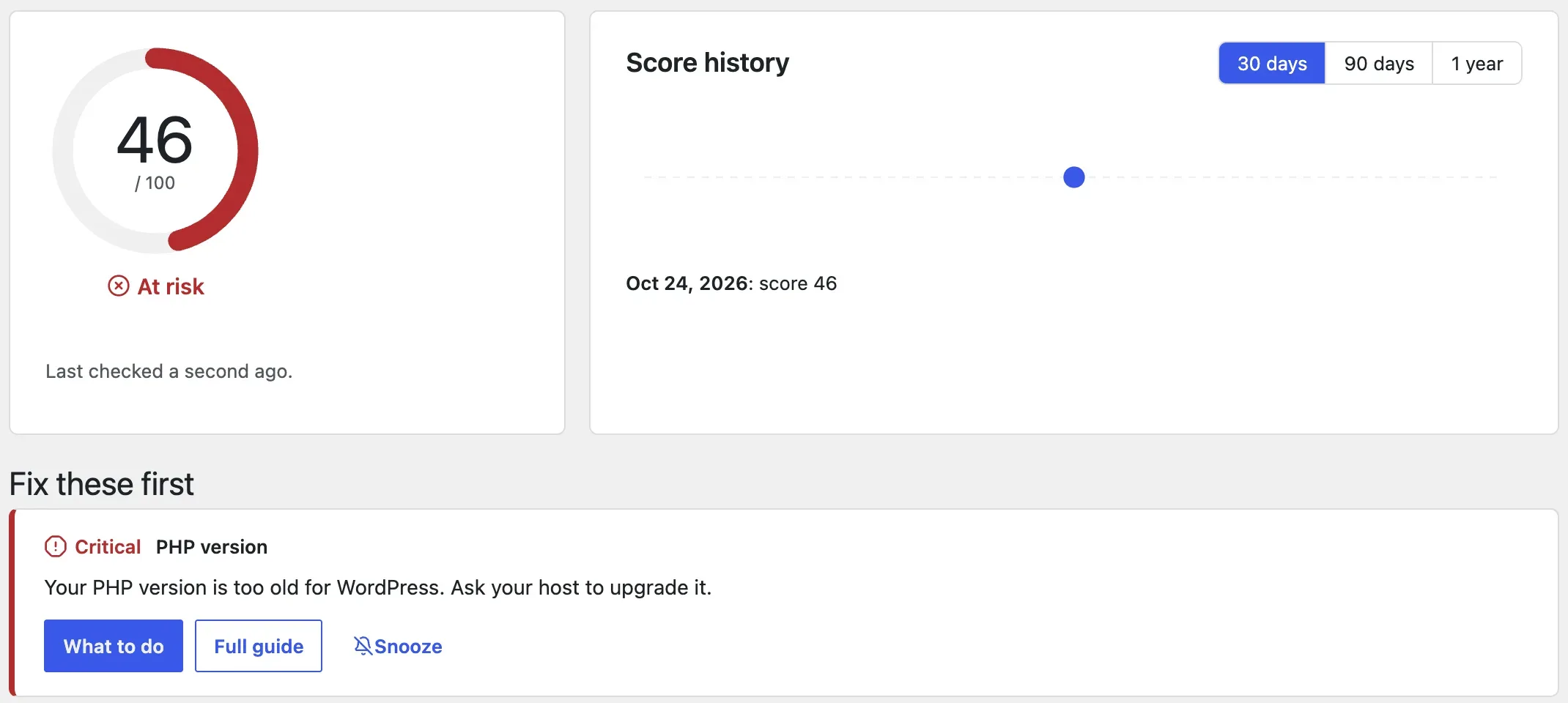
Its score works differently, so do not compare the numbers. On the same site it gave 46 out of 100, "At risk", where WordPress's own ring would be at 87. Its rule caps the score at 69 when any check is critical, and it counts some things WordPress does not, such as free disk space and how long updates have waited. Each result has a What to do button with the steps and a link to a guide. From the command line:
wp awc health statusHealth score: 46 / 100 (At risk)id status critical messageupdate_plugins warn no 1 plugin has an update waiting. Updates often fix security problems.update_themes warn no 3 themes have updates waiting.php_version fail yes Your PHP version is too old for WordPress. Ask your host to upgrade it.Note the first line: it reports the waiting plugin update that WordPress's own screen folded into "You should remove inactive plugins". It does not replace Site Health, and it cannot tell you whether your site is down, since it runs inside the site. Use the core screen for a quick look and the plugin when you want the log, the history and a warning when something changes.
WellTend Health Monitor checks errors, scheduled tasks, updates, PHP and storage, and says in plain words what each result means and how to fix it.
FAQ
Why does Site Health say Should be improved when only one thing is wrong?
Because any critical item forces that label. WordPress works out a score from the results, but the label only says Good when the score is 80 or more and there are no critical items at all. On my test site one critical item (an old PHP version) kept the label at Should be improved with a score of 87.
Do I need to fix every recommended improvement?
No. Recommended items are suggestions. Some, like HTTPS on a live site, are worth doing soon. Others, like a missing page cache on a small, fast site, can wait or be left alone. Read the item's description before acting: it often says why the test failed.
How often does Site Health run?
Every time you open Tools → Site Health, and once a week in the background through a WordPress scheduled task. The dashboard widget shows the result saved from the last of those runs, so it can be out of date.
Is it safe to share the Site Health info with support?
The Copy site info to clipboard button on the Info tab leaves out fields that WordPress marks as private, such as the site address, the database name and username, and the server path. It still lists your plugins, theme and server versions, so share it with people you trust, such as your host or a plugin's support team.
Can I hide a Site Health check I do not care about?
Not from the screen. Developers can remove tests with the site_status_tests filter in code, but for an owner the simpler answer is to read the item, decide it does not apply, and ignore it. The label may then stay at Should be improved, which does not harm the site.
One email when something breaks or changes.
New plugins and re-tested guides, about twice a month. Never a sales pitch.