Why it happens
- The plugin calls a function or class that does not exist. The usual reason is a missing file or a missing companion plugin, such as a Pro plugin that needs its free version, or a
vendorfolder that did not upload. - The zip was damaged or only partly uploaded, so some of the plugin's files are missing.
- A second copy of the same plugin, or another plugin with the same function name, is already active. PHP reports "Cannot redeclare".
- The plugin's code is not valid for the PHP version on your server, or needs a PHP extension the server does not have.
- The plugin's own activation code (the function it runs once on activation) crashes, for example while creating its database tables.
- The plugin uses more memory than PHP allows while it loads.
How to fix it
Try the fixes in this order. Each one is independent: stop as soon as the error is gone.
Read the real error first
- The red notice does not say why. On WordPress 7.1.4 it is only the one line. The reason is in the PHP error log, and WP-CLI prints it straight away.
- With WP-CLI, run
wp plugin activate PLUGIN-FOLDER. The last lines name the file, the line and the problem, for exampleCall to undefined function awc_missing_helper() in .../awc-broken.php:5. - Without WP-CLI, turn on the log: in
wp-config.php, above the line "That's all, stop editing!", adddefine( 'WP_DEBUG', true );,define( 'WP_DEBUG_LOG', true );anddefine( 'WP_DEBUG_DISPLAY', false );. Click Activate again, then openwp-content/debug.log. The newest "PHP Fatal error" line is yours. Take the three lines out again afterwards. - Ask your host for the PHP error log if you cannot edit
wp-config.php. Most hosts show it in their control panel.
Install what the plugin is missing
- If the error says "Call to undefined function" or "Class ... not found" and the name starts with another plugin's prefix, that plugin is missing or off. Install and activate it first, then activate this one.
- If it says "Failed opening required ... vendor/autoload.php" or names another file inside the plugin's own folder, the upload is incomplete. Delete the plugin and install it again from a fresh zip (next fix).
- I tested the
vendor/autoload.phpcase. Once the file existed, activation worked.
Delete the plugin and install a fresh copy
- A failed plugin is not active, so you can delete it from Plugins → Installed Plugins → Delete, or with
wp plugin delete PLUGIN-FOLDER. - Download the zip again from the plugin's own page, and upload it with Plugins → Add Plugin → Upload Plugin.
- If you cannot reach the Delete link, rename the plugin's folder in
wp-content/pluginsover SFTP or your host's file manager, for example toPLUGIN-FOLDER.off.
Remove the duplicate copy
- If the error says "Cannot redeclare some_function() (previously declared in ...)", the path after "previously declared in" is the copy that is already active.
- Deactivate that one, then activate the new one. I tested it: after deactivating the first copy, the second activated.
- Delete the copy you do not need. Folders called
plugin-name-1orplugin-name-copyare usually leftovers. See Cannot redeclare function.
Match the PHP version
- A syntax error or a call to a function your PHP does not have, such as an old PHP running a plugin written for a newer one, produces this notice too. The log names the file and line.
- In your host's control panel, change the PHP version for the site to one the plugin supports, which is listed on its wordpress.org page under Requires PHP. Or install an older version of the plugin.
- A plugin that declares a PHP or WordPress version your site does not meet is blocked earlier, with no Activate link, and gives a different message. See "Two look-alike messages" below.
Memory: lift it for the plugin, not just for activation
- If the log says "Allowed memory size of ... bytes exhausted", the plugin needs more memory than PHP gives it. See Allowed memory size exhausted.
- Be careful with
WP_MAX_MEMORY_LIMIT. WordPress lets the admin side use more memory than the front end. In my test a plugin that needed about 300 MB failed to activate at 256 MB. At 512 MB it activated, and then the front end and WP-CLI crashed with "There has been a critical error on this website" at the normal 128 MB limit. Raise the plugin's memory need or the real PHPmemory_limit, or choose a lighter plugin.
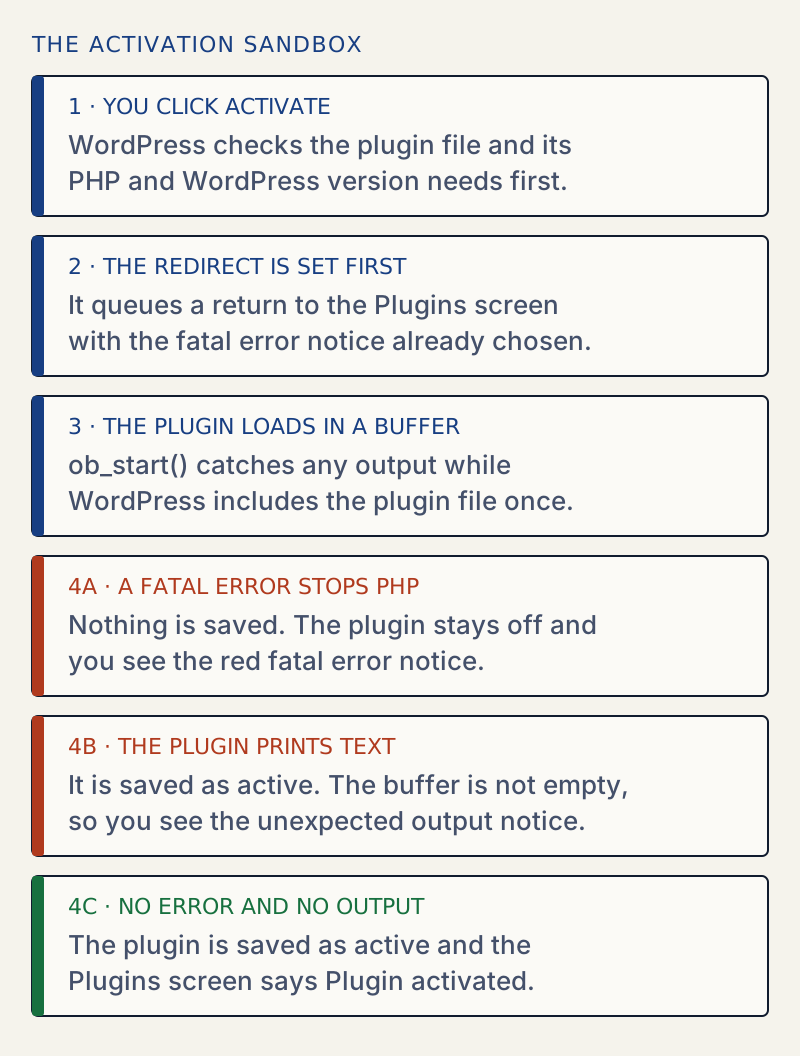
You clicked Activate and WordPress loaded the plugin once as a test. PHP crashed while the file was loading, so WordPress left the plugin off and sent you back to the Plugins screen with this notice. The rest of the site keeps working. To fix it, read the real PHP error, which the notice does not show, and then fix what it names.
What you see#
The notice appears at the top of Plugins → Installed Plugins after you click Activate, or after a bulk activation. The plugin row is still inactive.

This is not the site-wide critical error. Nothing was saved, nobody is locked out, and the front end answered with status 200 straight after. I also checked that WordPress did not create recovery mode keys for it.
The notice gives no reason. WordPress still tries to add a small frame to the notice that would show the PHP error. On 7.1.4 the frame never appears: the notice goes through wp_kses_post(), which removes iframe tags, and the browser made no request for it in my test. That is why the log or WP-CLI matters here.
How it works#
Clicking Activate runs activate_plugin(). Before it loads anything, WordPress queues a redirect to plugins.php?error=true&plugin=.... Then it turns on output buffering and includes the plugin file (plugin_sandbox_scrape()). If PHP dies, the queued redirect is all the browser gets, and that page shows this notice. If PHP survives, WordPress runs the plugin's activation hooks, saves it in the active_plugins option, and replaces the redirect with the success one.
The activation hook, which is the function a plugin registers with register_activation_hook(), runs before the plugin is saved too. I tested a plugin whose activation function called a missing function. It crashed the same way and stayed inactive.
The same crash from WP-CLI prints the whole error (shortened here) and exits with code 255:
wp plugin activate awc-brokenPHP Fatal error: Uncaught Error: Call to undefined function awc_missing_helper() in /var/www/html/wp-content/plugins/awc-broken/awc-broken.php:5Stack trace:#0 /var/www/html/wp-admin/includes/plugin.php(2388): include_once()#1 /var/www/html/wp-admin/includes/plugin.php(679): plugin_sandbox_scrape('awc-broken/awc-...')... thrown in /var/www/html/wp-content/plugins/awc-broken/awc-broken.php on line 5With WP_DEBUG_LOG on, the click in the browser leaves the same error in wp-content/debug.log. The trace shows the path: plugins.php called activate_plugin(), which called plugin_sandbox_scrape(), which included the file.
[30-Oct-2026 07:19:19 UTC] PHP Fatal error: Uncaught Error: Call to undefined function awc_missing_helper() in /var/www/html/wp-content/plugins/awc-broken/awc-broken.php:5Stack trace:#0 /var/www/html/wp-admin/includes/plugin.php(2388): include_once()#1 /var/www/html/wp-admin/includes/plugin.php(679): plugin_sandbox_scrape('awc-broken/awc-...')#2 /var/www/html/wp-admin/plugins.php(60): activate_plugin('awc-broken/awc-...', 'http://localhos...', false)#3 {main} thrown in /var/www/html/wp-content/plugins/awc-broken/awc-broken.php on line 5What I found for each cause#
All of these were tried on a fresh WordPress 7.1.4 site with PHP 8.3.
| Plugin does this on load | Log or WP-CLI says | Plugin saved? | Fix that worked |
|---|---|---|---|
| Calls a missing function | Call to undefined function ... | No | Install what defines it, or delete the plugin |
| Requires a file that is not there | Failed opening required '.../vendor/autoload.php' | No | Added the file, which is what a fresh zip does |
| Declares a function that an active plugin already declared | Cannot redeclare awc_shared_helper() (previously declared in ...) | No | Deactivated the first copy |
| Activation function calls a missing function | Call to undefined function awc_create_tables() | No | Fixed or replaced the plugin |
| Needs more than the 256 MB admin memory | Allowed memory size of 268435456 bytes exhausted | No | See the memory fix, and its warning |
| Prints text | "unexpected output" notice, no fatal error | Yes | Remove the text, see below |
The first column describes simple test plugins I wrote. Real plugins fail in the same ways, only with longer file paths.
The "unexpected output" notice#
The other notice on the same screen looks alike and is not the same problem:
The plugin generated 5 characters of unexpected output during activation. If you notice "headers already sent" messages, problems with syndication feeds or other issues, try deactivating or removing this plugin.

Here there was no crash. The plugin printed something while it loaded, and WordPress counted the characters in its output buffer. The count is exact. My test plugin printed debug, which is 5 characters, and a plugin file that starts with a byte order mark printed 3. The plugin was saved as active before WordPress checked the buffer, so the plugin stays on even though you see a red notice. Read the order in activate_plugin(): it saves the plugin first and only then reports the output.
That matters, because the output then repeats on every page load. With the 5-character plugin active, wp-login.php showed a "headers already sent" warning and did not set the login cookie, so a fresh login failed. The debug log named the culprit:
PHP Warning: Cannot modify header information - headers already sent by (output started at /var/www/html/wp-content/plugins/awc-echo/awc-echo.php:5) in /var/www/html/wp-login.php on line 525WP-CLI shows the same state. It prints the warning, exits with code 1, and wp plugin get still says active:
Warning: Failed to activate plugin. The plugin generated unexpected output.Error: No plugins activated.Find and remove a byte order mark#
A byte order mark (BOM) is three invisible bytes, ef bb bf, that some editors add at the start of a UTF-8 file. PHP prints them before the <?php tag. Check a file and strip the mark:
grep -rl $'\xEF\xBB\xBF' wp-content/plugins/awc-bomhead -c 3 wp-content/plugins/awc-bom/awc-bom.php | od -An -tx1sed -i '1s/^\xEF\xBB\xBF//' wp-content/plugins/awc-bom/awc-bom.phpwp-content/plugins/awc-bom/awc-bom.php ef bb bfAfter that, wp plugin activate awc-bom printed "Success: Activated 1 of 1 plugins." Other sources of output are a space or blank line before <?php, spaces after a closing ?>, and a leftover echo or var_dump. For the same problem on a page, see headers already sent. To fix a plugin that is already on, deactivate it with wp plugin deactivate PLUGIN-FOLDER or by renaming its folder. If you cannot log in, rename the folder.
Two look-alike messages#
| Message | What it means |
|---|---|
| "Plugin could not be resumed because it triggered a fatal error." | The same test, run when WordPress tries to resume a plugin that recovery mode paused. |
| No Activate link, Cannot Activate in the row | The plugin says it needs a newer PHP or WordPress than you have (Requires PHP: or Requires at least: in its header). Nothing was loaded. WP-CLI says: "Current PHP version (8.3.36) does not meet minimum requirements for AWC Needs PHP. The plugin requires PHP 9.0." |
Activating several plugins at once#
With Bulk actions → Activate, WordPress goes through the list in order. I selected three plugins with the broken one in the middle. The one before it was activated. The broken one showed this notice. The one after it was never tried and stayed inactive. After a failed bulk activation, check which plugins are really active.
If it keeps happening#
If the error is new on a plugin that used to activate, a PHP version change on the server is the first thing to check. A plugin that states its own minimum gets a different message: current PHP version does not meet minimum requirements. If it happens with many plugins, read the log for a shared cause such as memory. For plugin updates that break a site, see how to update plugins safely, and for the log itself, the WordPress debug log. If a plugin that was already active crashes the whole site, that is the critical error, and a call to a missing function is covered in Call to undefined function.
Sources
- plugin_sandbox_scrape() — WordPress Developer Resources · loads the plugin file to test it during activation
- activate_plugin() — WordPress Developer Resources · order of the checks, the hooks, saving, and the unexpected_output error
- wp-admin/plugins.php (trunk) — WordPress/wordpress-develop · the notice strings and the error_scrape case
- Debugging in WordPress — WordPress Advanced Administration Handbook · WP_DEBUG, WP_DEBUG_LOG, debug.log
- ob_start() — PHP manual · output buffering
One email when something breaks or changes.
New plugins and re-tested guides, about twice a month. Never a sales pitch.