Why it happens
- The plugin's header says
Requires PHP: X, and the PHP version your site runs is lower than X. This is the message in the title. - The plugin's header says
Requires at least: X, and your WordPress is older than X. The message then starts "Current WordPress version (...)" instead. - Both are too low. WordPress then gives one combined message: "Current versions of WordPress (...) and PHP (...) do not meet minimum requirements for ...".
- Your host never changed your PHP. A site that is years old often still runs the PHP version it started with.
- The plugin was just updated. A newer release raised its minimum, so the version you had worked and the new one does not.
How to fix it
Try the fixes in this order. Each one is independent: stop as soon as the error is gone.
Find out which number is too low
- The message names the plugin, the PHP version your site runs now (in brackets), and the version the plugin wants. Compare the two numbers.
- To see the PHP version yourself, open Tools → Site Health → Info, open the Server section and read PHP version. With WP-CLI, run
wp eval 'echo PHP_VERSION;'. On the test site both printed 8.3.36. - If the plugin asks for WordPress and not PHP, look at Dashboard → Updates for your WordPress version.
Change the PHP version at your host
- PHP belongs to the server, so you change it where you host the site: the hosting control panel, usually under a name like PHP version, PHP settings or Select PHP. If you cannot find it, ask your host's support to switch the site to the version the plugin needs.
- Make a backup first. A newer PHP can break an old theme or plugin that was written for an older one. If the site breaks, ask the host to switch back.
- Reload Plugins → Installed Plugins. The Cannot Activate link is replaced by Activate once your PHP is high enough. I tested the rule with header values on PHP 8.3.36: a plugin that asks for 8.3 or 8.3.36 activated, one that asks for 8.3.37 or 8.4 did not.
- I could not switch PHP on the lab site, so the host panel steps are general, not a recording of a particular host.
Update WordPress when the plugin asks for a newer WordPress
- Go to Dashboard → Updates and click Update Now, or run
wp core update. Take a backup first. - The match is by number. On WordPress 7.1.4, a plugin that asked for 7.1.4 activated and one that asked for 7.1.5 or 7.2 did not.
- If WordPress says it is up to date and the plugin still wants more, the plugin asks for a version that does not exist yet. Contact its author.
Install an older version of the plugin
- Use this when you cannot change PHP or WordPress now. Pick a plugin version from before it raised its minimum. The plugin's changelog says which release did.
- With WP-CLI:
wp plugin install PLUGIN-SLUG --version=OLDER-VERSION --force. I tested this with a real plugin and it replaced the installed copy with the older one. - Without WP-CLI, download the older zip from the plugin's own page and use Plugins → Add Plugin → Upload Plugin.
- Older versions may have security holes that were fixed later. Treat this as a stop-gap, and plan the PHP or WordPress update.
Do not edit the plugin's header to get past the check
- It is tempting to change
Requires PHP: 8.4to a lower number. The check then passes, but the plugin was written for the newer PHP. - I tried it with a plugin that uses a PHP 8.4 feature on PHP 8.3. After I lowered the number, activation failed with
PHP Parse error: syntax error, unexpected token "=>". The requirement was true. - On a real site that is the fatal error on activation or a broken page. Update PHP instead.
Choose another plugin, or remove this one
- If the host cannot give you the PHP version and no older release suits you, look for a plugin that does the same job and supports your PHP.
- A plugin that cannot be activated does nothing. You can remove it with Delete in its row, or with
wp plugin delete PLUGIN-FOLDER.
WordPress reads two lines in the plugin's header, Requires PHP and Requires at least, and compares them with the PHP and WordPress your site runs. If either is too low, it refuses to activate the plugin and says which one. Nothing is broken and the plugin is not loaded. To fix it, raise PHP or WordPress to what the plugin asks for, or use an older version of the plugin.
What you see#
On Plugins → Installed Plugins the plugin has no Activate link. The row says Cannot Activate, and a red line under it says which side is too old:
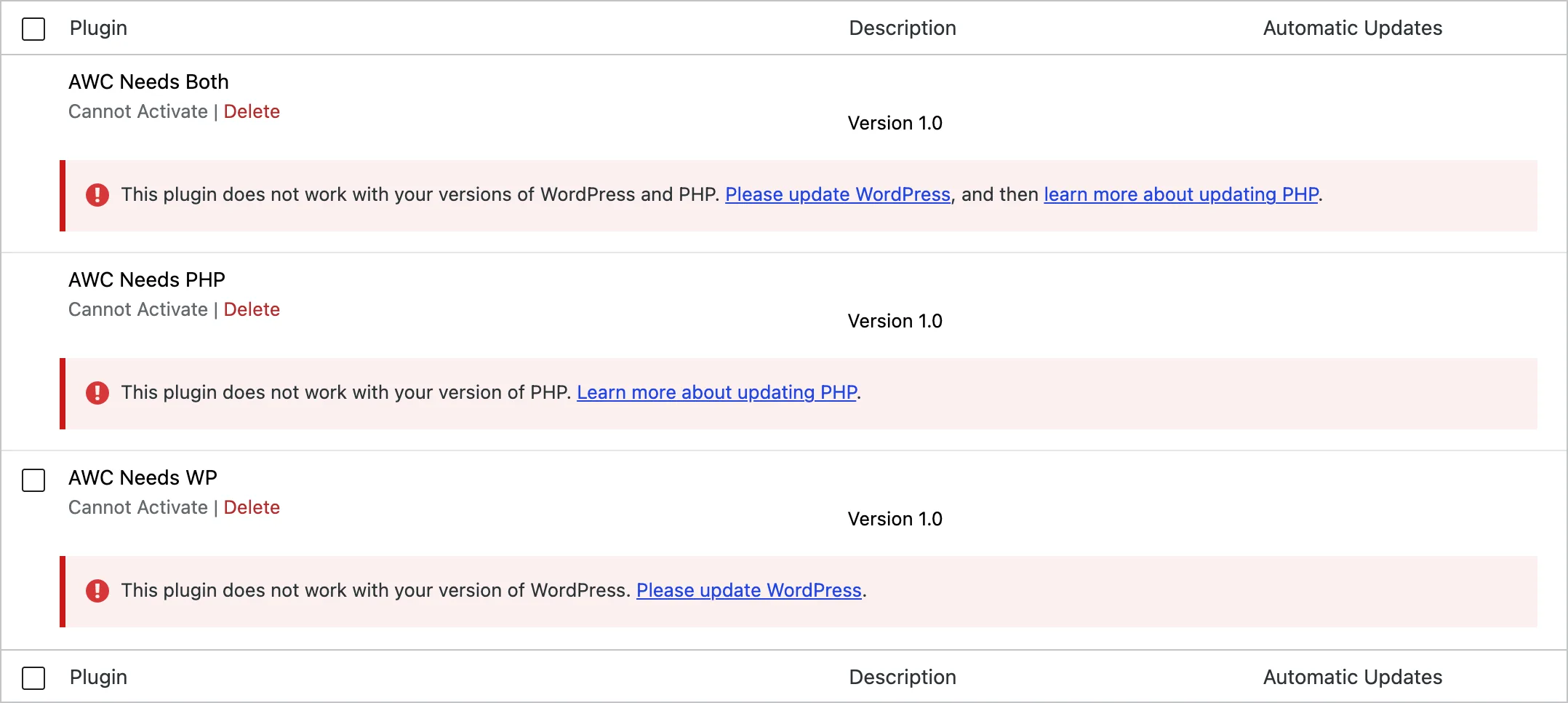
The full message in the title appears when something tries to activate the plugin anyway. The usual way is a page you opened before the problem existed: an old browser tab, or a bookmarked Activate link. WP-CLI shows it too. I made it appear in the browser by loading the Plugins screen while the plugin still passed, then raising its requirement and clicking the Activate link that was already on the screen:
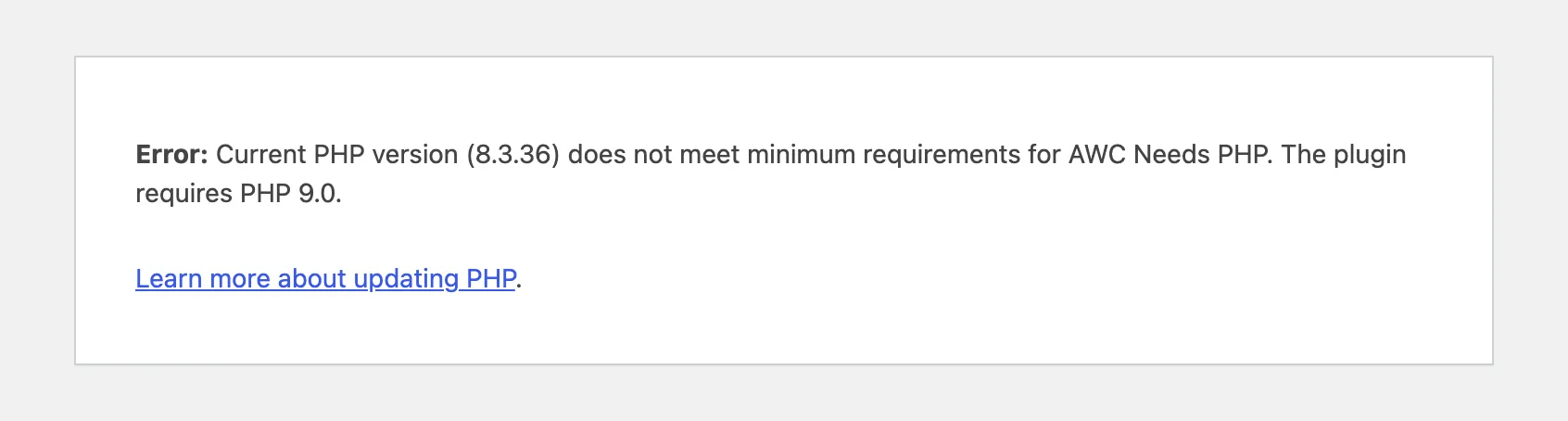
The number in brackets is the PHP your site runs. The last number is what the plugin asks for. The link goes to the WordPress page about updating PHP.
The three messages#
WordPress picks one of three messages. I produced each one with a test plugin on WordPress 7.1.4 and PHP 8.3.36, using WP-CLI:
| Plugin header asks for | What WP-CLI printed |
|---|---|
| PHP 9.0 | Warning: Failed to activate plugin. Current PHP version (8.3.36) does not meet minimum requirements for AWC Needs PHP. The plugin requires PHP 9.0.. |
| WordPress 99.0 | Warning: Failed to activate plugin. Current WordPress version (7.1.4) does not meet minimum requirements for AWC Needs WP. The plugin requires WordPress 99.0. |
| Both | Warning: Failed to activate plugin. Current versions of WordPress (7.1.4) and PHP (8.3.36) do not meet minimum requirements for AWC Needs Both. The plugin requires WordPress 99.0 and PHP 9.0.. |
Every one ends with Error: No plugins activated. and exit code 1. The double period after the PHP versions is real. The message ends in a full stop, and WP-CLI adds another after it.
How the check works#
When you activate a plugin, activate_plugin() first runs validate_plugin_requirements(). It reads the plugin's header lines as plain text from the main plugin file. It does not run the plugin. It compares them with the PHP your server runs now (PHP_VERSION) and with the WordPress version. Only if both pass does WordPress go on to load the file and save the plugin as active.
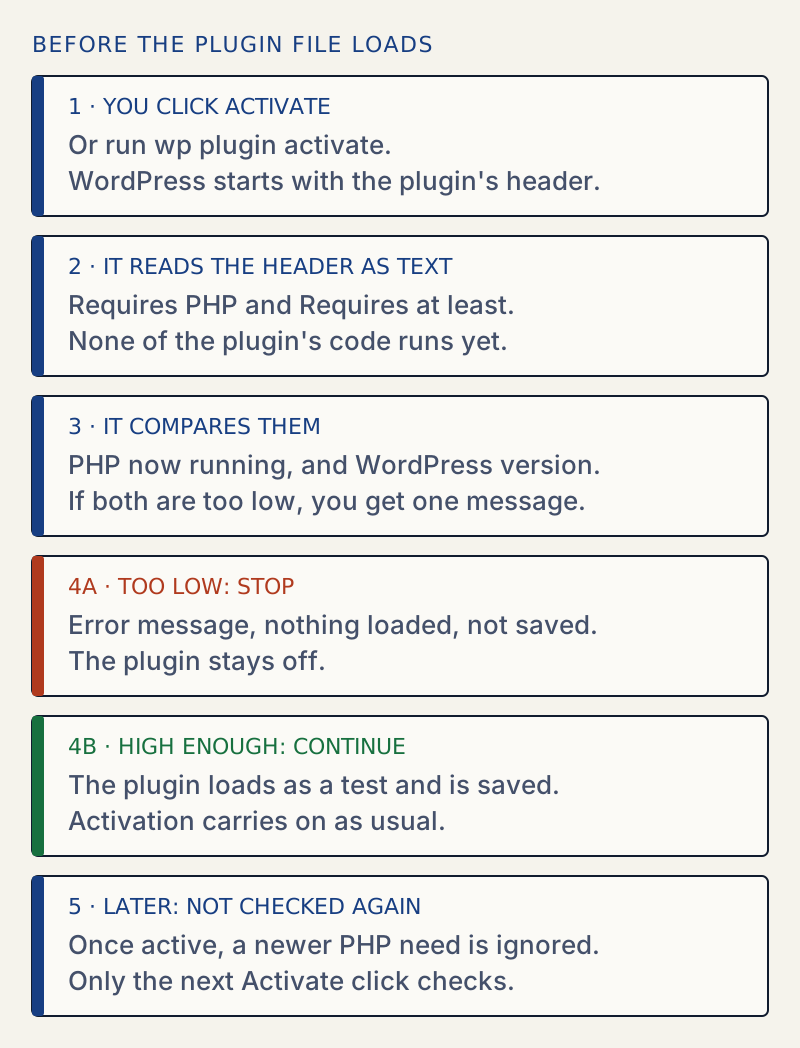
The plugin list runs the same comparison, which is why the Activate link is replaced by Cannot Activate. The message in the title is what is left when the check runs without that link in the way. WordPress has had this check since version 5.2.
Tested edge cases#
The match is exact to the patch number. PHP compares versions piece by piece. On PHP 8.3.36, these header values gave:
Requires PHP: | Result |
|---|---|
7.4, 8, 8.1.0, 8.3, 8.3.36 | Activated |
8.3.37, 8.4 | Blocked: "The plugin requires PHP 8.3.37" or "8.4" |
WordPress versions behave the same, with one extra rule: a trailing .0 on a three-part number is dropped. On 7.1.4, 7.1, 7.1.0 and 7.1.4 activated, and 7.1.5, 7.2 and 7.2.0 did not.
An active plugin is not checked again. I activated a plugin, then raised its Requires PHP to 9.0. The front end still ran the plugin, and wp plugin list still said active. Only a new Activate click or wp plugin activate runs the check. If you roll PHP back and a plugin then crashes, that is a fatal error, not this message.
Bulk activate hides it. When a plugin only fails on WordPress, its row still has a checkbox. I ticked it together with a working plugin and chose Bulk actions → Activate. WordPress showed "Selected plugins activated." The working plugin was active. The blocked one was still off, with no error. After a bulk activation, check the list, not the notice.
Uploads are blocked earlier, with different words. A zip whose plugin asks for PHP 9.0 is never installed. In Plugins → Add Plugin → Upload Plugin I got:
The package could not be installed. The PHP version on your server is 8.3.36, however the uploaded plugin requires 9.0.Plugin installation failed.WP-CLI printed the same sentence for wp plugin install file.zip. See the package could not be installed for the other reasons that message appears.
Why the fixes work#
The check compares two numbers and nothing else. It does not look at whether the plugin would really run. So the only honest ways to pass are to raise your number (update PHP or WordPress), or to lower the plugin's number by choosing a release that asks for less. Editing the header also lowers it, but the plugin's code is unchanged, as the parse error above shows.
For a routine that catches this before an update goes live, read how to update plugins safely. For where to read your PHP version on a running site, see Site Health explained.
Sources
- Header Requirements — Plugin Handbook · the Requires at least and Requires PHP headers
- validate_plugin_requirements() — WordPress Developer Resources · what is checked, in which order, since which version
- is_php_version_compatible() — WordPress Developer Resources · the PHP comparison
- version_compare() — PHP manual · how version strings are compared
- Update PHP — WordPress.org Support · where to find the PHP version, and asking your host to change it
One email when something breaks or changes.
New plugins and re-tested guides, about twice a month. Never a sales pitch.