Why it happens
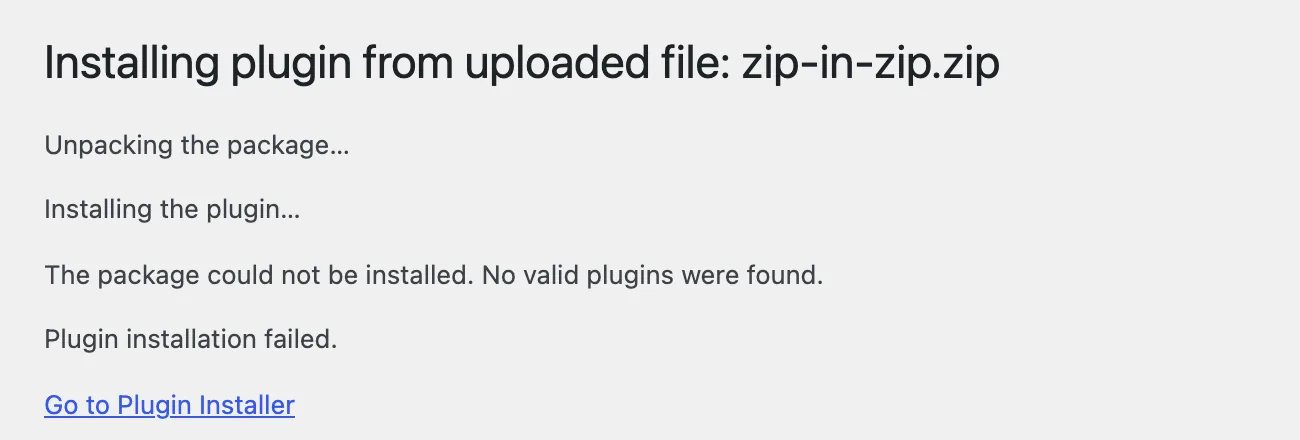
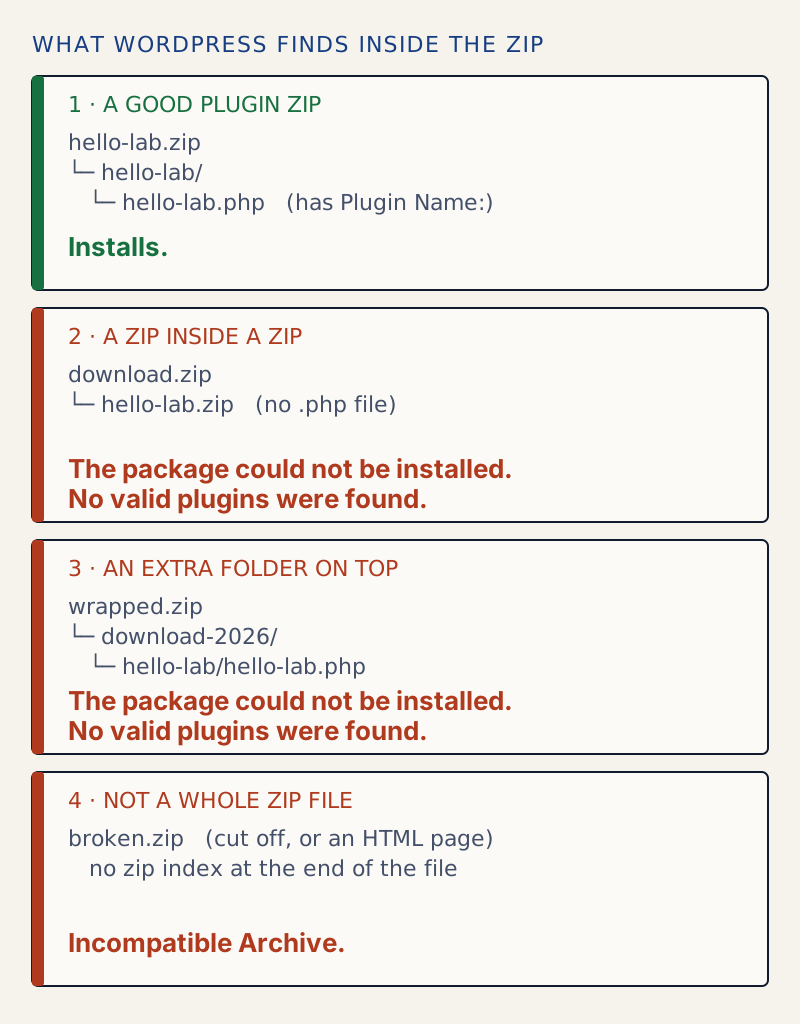
- You uploaded a zip that has another zip inside it. Marketplaces and some vendors hand out a download that holds the real plugin zip plus documentation. WordPress unpacks the outer zip, finds no PHP file, and says No valid plugins were found.
- The zip has an extra folder on top, such as
download-2026/hello-lab/hello-lab.php. WordPress looks for the plugin file one level down, not two. - The file is not a whole zip. The download was cut off, a firewall or login page answered with HTML, or the file was renamed to
.zip. WordPress cannot read it and says Incompatible Archive. - The zip holds something that is not a plugin, such as a theme, or PHP files with no
Plugin Name:header. - The zip is a good plugin, but it needs a newer PHP or WordPress than your site has. The message starts the same way and ends with the version that is missing.
How to fix it
Try the fixes in this order. Each one is independent: stop as soon as the error is gone.
Look inside the zip before you upload it
- Unzip the file on your computer, or run
unzip -l your-plugin.zipin a terminal. It lists every file in the zip without unpacking it. - A good plugin zip shows one folder, and a PHP file with the plugin's name inside that folder, for example
hello-lab/hello-lab.php. - If you see another
.zip, go to the next fix. If you see two folders deep before any.phpfile, go to the fix after it. Ifunzip -litself says it cannot find the zip directory, go to the fix for a broken file.
Upload the inner zip (zip inside a zip)
- Unzip the file you downloaded. Find the
.zipinside it. Vendors often call it by the plugin name or put it in a folder namedinstallableorplugin. - In Plugins → Add Plugin → Upload Plugin, choose that inner zip and click Install Now.
- I tested this: the outer file stopped with "The package could not be installed. No valid plugins were found." The inner zip installed with "Plugin installed successfully."
Remove the extra folder and zip it again
- Unzip the file. Open the folders until you reach the one that holds the main PHP file. That is the plugin folder.
- Zip that folder, not the one above it. On a Mac, right-click the plugin folder and choose Compress. On Windows, right-click it and choose Send to → Compressed (zipped) folder. In a terminal:
zip -r hello-lab.zip hello-lab. - Check the new zip with
unzip -l hello-lab.zip. The first entry should behello-lab/. - Upload it. In my test the re-zipped file passed this check. (It then stopped at "Destination folder already exists" only because the plugin was already installed on the lab site.)
Download the file again if it is damaged
- If
unzip -t your-plugin.zipsays "End-of-central-directory signature not found", the file is cut off or is not a zip at all. - Open the file in a text editor. If you see HTML such as a login page or an error page, your download was blocked or your session ended. Log in to the vendor's site and download it again.
- Compare the file size with the size the vendor lists. If it is smaller, download it again on a steadier connection or another browser.
- If it is still broken, send the vendor the output of
unzip -t.
Use the right uploader for the kind of zip
- A plugin zip goes in Plugins → Add Plugin → Upload Plugin. A theme zip goes in Appearance → Themes → Add Theme → Upload Theme.
- A theme zip sent to the plugin uploader gives "No valid plugins were found." A plugin zip sent to the theme uploader gives "The theme is missing the style.css stylesheet." I tested both.
- If the plugin has PHP files but no
Plugin Name:line at the top of the main one, the zip is not a complete plugin. Ask the author for the real download.
Meet the version the plugin asks for
- When the message ends with "The PHP version on your server is 8.3.36, however the uploaded plugin requires 99.0.", the zip is fine. Your site is too old for it. The wording for WordPress is "Your WordPress version is …, however the uploaded plugin requires …".
- Update WordPress, or ask your host to switch the site to a newer PHP version, then upload the same zip again. Do not edit the plugin's
Requires PHP:line to get past it.
Install by hand with FTP only as a last choice
- Unzip on your computer. Make sure you have the folder that holds the main
.phpfile (see the first fix). - Upload that folder to
wp-content/plugins/with FTP or your host's file manager. Then activate it in Plugins → Installed Plugins. - This skips the checks above, so a wrong folder will simply not show up in the plugin list. It does not fix a damaged file.
"Incompatible Archive" means WordPress could not use the zip you gave it. There are three different checks behind the message, and each stops at a different place. If the message ends with No valid plugins were found, WordPress opened the zip fine but did not find a plugin file in the right place. The zip may hold another zip, or the plugin may sit in an extra folder. If the message is only Incompatible Archive., the file is damaged or not a zip.
What you see#
There are four versions of the message. I produced each one on WordPress 7.1.4.
1. "The package could not be installed. No valid plugins were found." This appears on the page that unpacks the upload, under "Installing plugin from uploaded file".
2. "Incompatible Archive." alone, on a plain white error page. This is the upload check. The file was not a readable zip, so nothing was unpacked.

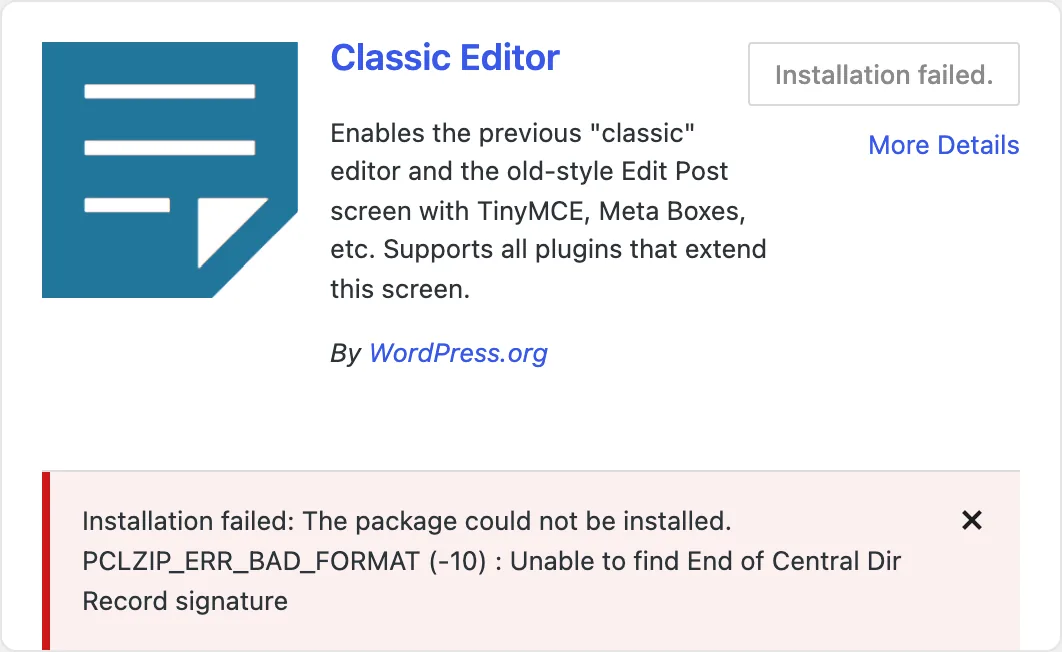
3. "Installation failed: The package could not be installed. PCLZIP_ERR_BAD_FORMAT (-10) : Unable to find End of Central Dir Record signature". This is what you see when WordPress downloads the zip itself, from the plugin directory or from an update, and the download is damaged. The text is added to the plugin's card on Plugins → Add Plugin. I produced it by making a lab site hand WordPress a cut-off file in place of the real download.
4. "The package could not be installed. The PHP version on your server is 8.3.36, however the uploaded plugin requires 99.0." The same opening words, a different reason: the plugin is fine and your site is too old.
How WordPress checks the zip#
WordPress takes the zip through three gates, in this order. The message tells you which gate stopped it.
- Is it a zip? On an upload,
File_Upload_Upgradercallswp_zip_file_is_valid(), which triesZipArchivefirst and PclZip second, as gate 2 does. If the file does not open as a zip, you get the white box with "Incompatible Archive." and the file is deleted. Nothing is unpacked. - Can it be unpacked?
unzip_file()tries PHP'sZipArchivefirst, with its strictCHECKCONSoption. IfZipArchivecannot open the file, WordPress tries its own bundled library, PclZip. OtherZipArchiveerrors, such as a failed write, are returned as they are. If PclZip cannot open it either, you get "The package could not be installed." plus the PclZip error text. - Is there a plugin in it? After unpacking,
Plugin_Upgrader::check_package()looks at the PHP files at the top of the unpacked folder (or in the one folder it holds, if there is only one). At least one must have aPlugin Name:header. If none does, you get "No valid plugins were found." It then checksRequires PHP:andRequires at least:against your site.
When ZipArchive cannot open a file, WordPress throws its error code away and runs PclZip on the same file. So the technical text for a damaged file comes from PclZip, even on servers that have ZipArchive. I checked this by calling unzip_file() on a cut-off zip and on a text file renamed to .zip, first normally and then with PclZip forced on. Both runs gave the same result:
truncated: incompatible_archive | Incompatible Archive. | "PCLZIP_ERR_BAD_FORMAT (-10) : Unable to find End of Central Dir Record signature"notzip: incompatible_archive | Incompatible Archive. | "PCLZIP_ERR_BAD_FORMAT (-10) : Unable to find End of Central Dir Record signature"So PCLZIP_ERR_BAD_FORMAT does not mean your host lacks ZipArchive. It means the file has no zip index at its end, which is the same thing unzip complains about. You cannot fix it by switching libraries. The unzip_file_use_ziparchive filter changes which library runs first, and neither can read a file that is not a whole zip.
Check the zip from the terminal#
The two commands below show what WordPress will see. unzip -l lists the files. unzip -t tests the file.
unzip -l zip-in-zip.zipArchive: zip-in-zip.zip Length Date Time Name--------- ---------- ----- ---- 398 10-30-2026 18:11 hello-lab.zip--------- ------- 398 1 fileOne entry, and it ends in .zip. That is the zip-in-zip case. For the extra folder:
unzip -l wrapped.zipArchive: wrapped.zip Length Date Time Name--------- ---------- ----- ---- 0 10-30-2026 18:11 download-2026/ 0 10-30-2026 18:11 download-2026/hello-lab/ 56 10-30-2026 18:11 download-2026/hello-lab/hello-lab.php--------- ------- 56 3 filesThe plugin file sits two folders down. WordPress opens download-2026/ as the single top folder and looks for .php files directly in it. It finds none. A damaged file fails the test:
unzip -t truncated.zipArchive: truncated.zip End-of-central-directory signature not found. Either this file is not a zipfile, or it constitutes one disk of a multi-part archive. In the latter case the central directory and zipfile comment will be found on the last disk(s) of this archive.unzip: cannot find zipfile directory in one of truncated.zip or truncated.zip.zip, and cannot find truncated.zip.ZIP, period.Same file, different message#
I ran the same set of zips through the plugin uploader and through WP-CLI. The upload checks the file first, WP-CLI does not, so a damaged file gives different text.
| Zip | Plugin upload (browser) | wp plugin install file.zip |
|---|---|---|
| Zip inside a zip | The package could not be installed. No valid plugins were found. | The package could not be installed. "No valid plugins were found." |
| Extra folder on top | The package could not be installed. No valid plugins were found. | The package could not be installed. "No valid plugins were found." |
PHP file with no Plugin Name: header | The package could not be installed. No valid plugins were found. | (not run) |
| A theme zip | The package could not be installed. No valid plugins were found. | The package could not be installed. "No valid plugins were found." |
Cut off, or text renamed to .zip | Incompatible Archive. (white page) | The package could not be installed. "PCLZIP_ERR_BAD_FORMAT (-10) : Unable to find End of Central Dir Record signature" |
| Zip with no files in it | Empty archive. | Empty archive. |
| Plugin needs PHP 99.0 | The package could not be installed. The PHP version on your server is 8.3.36, however the uploaded plugin requires 99.0. | (not run) |
| A file of 0 bytes | "File is empty. Please upload something more substantial. This error could also be caused by uploads being disabled in your php.ini file or by post_max_size being defined as smaller than upload_max_filesize in php.ini." | (not run) |
The last row is a different problem. WordPress never gets as far as reading the zip.
Edge cases I tested#
Files at the top of the zip with no folder. A zip with hello-lab.php directly at its top, no folder, installs. WordPress makes a folder from the name of the uploaded file. I got a folder called loose- followed by random letters. So loose files work, but the plugin ends up in an odd folder. Put the plugin in a named folder instead.
A Mac zip with a __MACOSX folder. The Finder adds a __MACOSX folder at the top of a zip. WordPress ignores a __MACOSX folder at the root of the zip, so a Finder zip of a plugin folder installs. A folder with that name next to the plugin folder does not cause "No valid plugins were found."
Plugin and theme in the wrong uploader. A plugin zip in the theme uploader says "The theme is missing the style.css stylesheet." It is the same check on the other side.
Zip inside a zip in the theme uploader. It also gives "The theme is missing the style.css stylesheet." The same fix applies: upload the inner zip.
An empty zip. I made a valid zip with no files. The unpacker says "Empty archive." and stops. The plugin check does not run.
If the plugin is already installed#
If the fixed zip holds a plugin whose folder already exists in wp-content/plugins/, WordPress stops with a screen titled "Destination folder already exists" and a Replace current with uploaded button. That is not this error; see destination folder already exists. Back up the site before you replace a plugin; the routine is in how to update plugins safely.
If the error keeps coming back#
If unzip -t is clean on your computer but the same file fails on one site, the file is not arriving whole in the browser upload. If the same zip installs with WP-CLI (wp plugin install your-plugin.zip) or FTP (the last fix above), the problem is in the transfer, not in the zip. If the install gets as far as copying files and then fails with a write error, that is a different problem: see could not create directory.
Sources
- unzip_file() - WordPress Developer Resources · ZipArchive first, PclZip as the fallback.
- Plugin header requirements - Plugin Handbook · Plugin Name is the one required header.
- class-plugin-upgrader.php (Plugin_Upgrader::check_package) - wordpress-develop · Where "No valid plugins were found." and the PHP and WordPress version checks come from.
- class-file-upload-upgrader.php - wordpress-develop · The uploader that stops a damaged zip with "Incompatible Archive." before any unpacking.
- ZipArchive::open - PHP manual · The CHECKCONS flag and the ER_NOZIP and ER_INCONS codes.
One email when something breaks or changes.
New plugins and re-tested guides, about twice a month. Never a sales pitch.