Why it happens
- The plugin or theme is already installed, and you uploaded its zip again or clicked Install Now on it.
- A folder with files was left behind, for example by a delete that did not finish or a manual copy. It is not a working plugin, so it never shows on the Plugins screen.
- You copied or renamed a plugin folder by hand, for example with FTP, and its name now matches the one you want to install.
How to fix it
Try the fixes in this order. Each one is independent: stop as soon as the error is gone.
Upload the zip and choose Replace current with uploaded
- Use this when the plugin is installed and you want the version in the zip. Go to Plugins → Add Plugin → Upload Plugin, choose the zip and click Install Now.
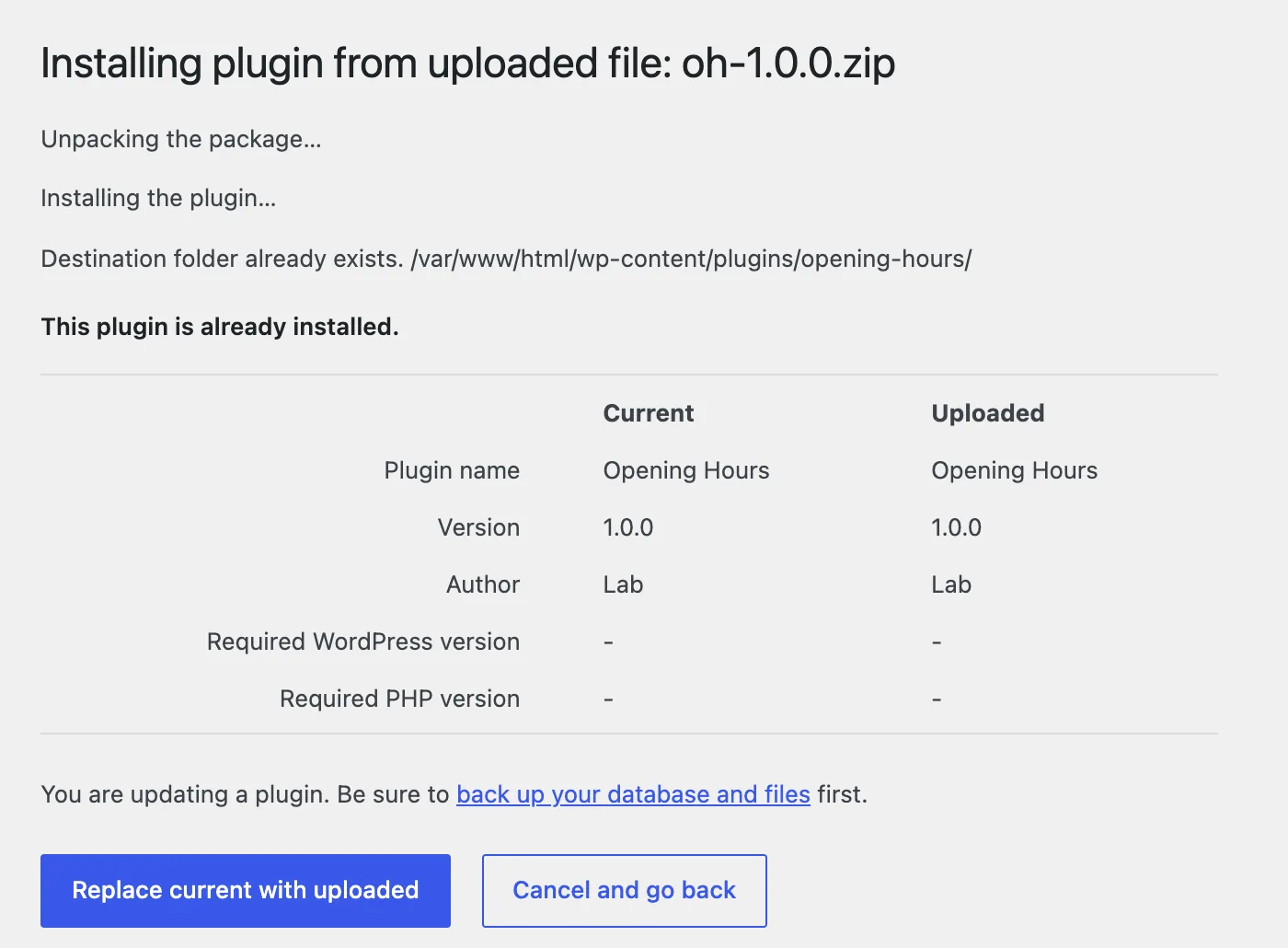
- If the folder holds a plugin WordPress knows, the page prints "This plugin is already installed." and a table with the Current and Uploaded version. Click Replace current with uploaded.
- For a theme, the same screen is under Appearance → Themes → Add Theme → Upload Theme and the button says Replace installed with uploaded.
- This works for a plugin and a theme. An active plugin stays active after the replace.
- Back up first. WordPress deletes the old folder before it moves the new one in, so any file you added inside it is gone.
Look inside the folder before you touch it
- Use SFTP, your host's file manager, or SSH. Open
wp-content/plugins(orwp-content/themes) and find the folder with the same name as the one in the error. The error on the upload screen prints the full path. - If the folder has a
.phpfile with aPlugin Name:line, it is a real plugin. Go back to the first fix. - If it holds only odd files, such as a
readme.txt, a.gitfolder or one stray file, it is a leftover. Download a copy of anything you want to keep, then use the next fix.
Move the leftover folder out of plugins
- Move the folder to a place outside
wp-content/plugins, for example intowp-content, or download it and delete it. With SSH:mv wp-content/plugins/ghost wp-content/ghost-old. - Do not just rename it inside
plugins. WordPress reads every folder there as a plugin. Rename an installed plugin's folder toghost-old, install the zip again, and the Plugins list shows two "Ghost Plugin" entries. - Upload the zip or click Install Now again. The install then says "Plugin installed successfully."
- Never delete the
pluginsorthemesfolder itself. Only the one folder named in the error.
With WP-CLI, add --force only when you mean to overwrite
wp plugin install ./opening-hours.zipfails when the folder has files.wp plugin install ./opening-hours.zip --forceremoves the old folder and installs the zip. The WP-CLI docs say it overwrites "without prompting for confirmation".- It also deletes anything you put in the old folder. A leftover
old.txtis gone after--force. - A plugin that was active before is still active after
--force. - Theme commands work the same way:
wp theme install ./theme.zip --force.
Clear a leftover folder after Install Now
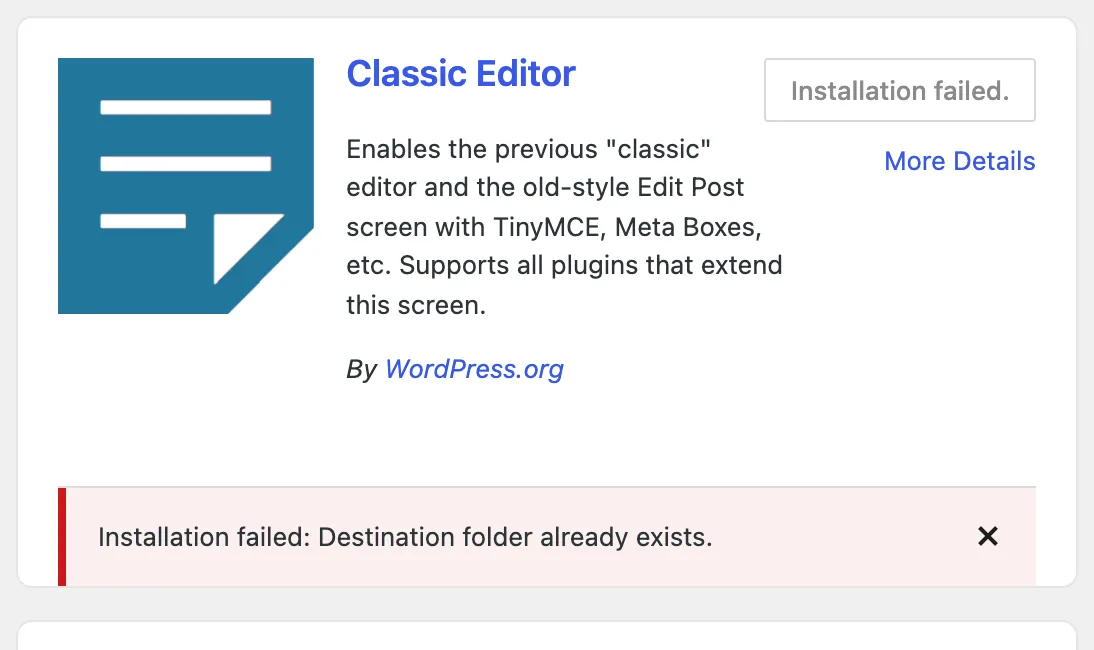
- If Install Now on a directory plugin shows "Installation failed: Destination folder already exists." and the plugin is not in your list, a leftover folder with that name is in the way.
- Move the folder named after the plugin's slug out of
wp-content/plugins, then click Install Now again. - Tested with Classic Editor: after the leftover folder was moved away, the button changed to Activate.
WordPress installs a plugin by moving its files into a folder named after it. If that folder already holds files, WordPress stops instead of mixing old and new files. Your site is not harmed. If you want the zip to replace what is there, use the Replace current with uploaded button, or --force in WP-CLI. If the folder is a stale leftover, move it away.
What you see#
It depends on where you started. The words are the same, the page around them is not.
| Where you started | What it prints | Next step offered |
|---|---|---|
| Plugins → Add Plugin, Install Now | "Installation failed: Destination folder already exists." | None. Dismiss the notice. |
| Upload Plugin, folder is a known plugin | "Destination folder already exists." and the path, then a comparison table | Replace current with uploaded |
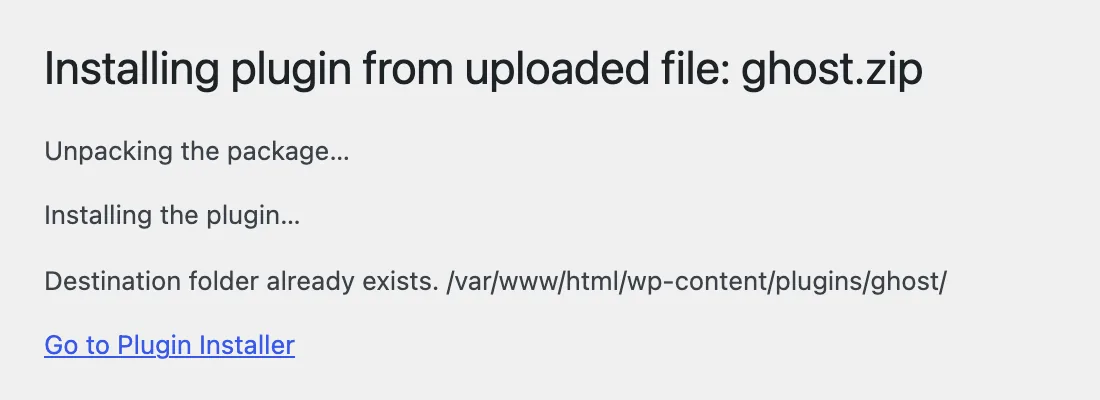
| Upload Plugin, folder is no known plugin | "Destination folder already exists." and the path | Go to Plugin Installer only |
wp plugin install without --force | "Warning: Destination folder already exists." and "Error: No plugins installed." | Add --force |
Only the Install Now button adds the words "Installation failed:". That prefix comes from the Add Plugin screen's JavaScript (wp.updates.installPluginError() in wp-admin/js/updates.js), not from the upload page or WP-CLI.
On the Upload Plugin screen, when the folder is a plugin WordPress knows, you get a choice instead of a dead end:
When the folder is not a plugin WordPress recognises, there is no table and no button:
How the check works#
Every install runs through WP_Upgrader::install_package(). WordPress unzips the file into wp-content/upgrade. The top folder inside the zip gives the plugin's folder name. Then WordPress looks for that folder in wp-content/plugins.
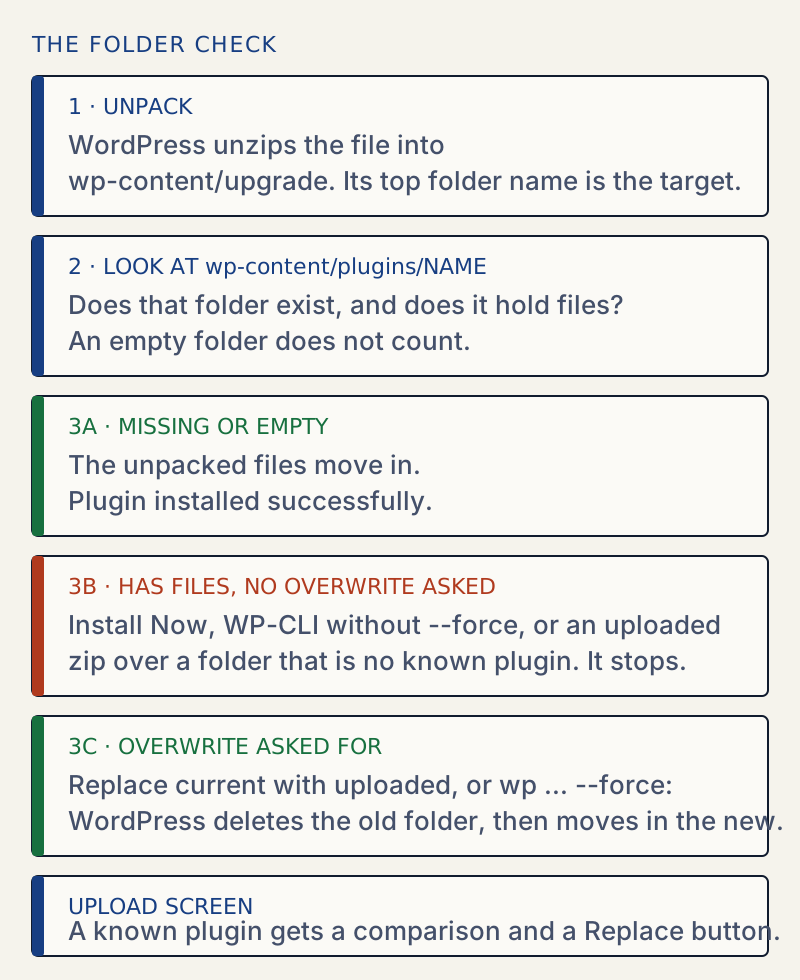
Two details in the code explain the results:
- Only a folder with files counts. The code reads the folder's contents, and only stops when the list is not empty. With an empty
plugins/ghostfolder,wp plugin installgoes through with "Plugin installed successfully." - Overwriting is a separate switch. The Replace button and
--forcesetclear_destination. WordPress then deletes the old folder first and skips the check. This is why replace is safe for a clean upgrade and risky for a folder where you keep your own files.
On the upload screen, Plugin_Installer_Skin::do_overwrite() looks through the installed plugins for one whose file path starts with that folder name. This is a prefix match, not an exact one, so a leftover folder ghost also matches an installed ghost-pro/ghost.php, and you then get a table and a Replace button for the wrong plugin. If it finds none, there is nothing to compare, so you only get the error. That is why a leftover folder usually gives the dead end. Themes differ: a folder holding only a text file still got the comparison and the Replace installed with uploaded button, and clicking it gave "Theme updated successfully." So a stray theme folder is easier to clear than a stray plugin folder.
Try it yourself: terminal output#
A small test plugin, installed twice with WP-CLI on WordPress 7.1.4.
wp plugin install /tmp/opening-hours.zipwp plugin install /tmp/opening-hours.zipUnpacking the package...Installing the plugin...Plugin installed successfully.Success: Installed 1 of 1 plugins.Unpacking the package...Installing the plugin...Warning: Destination folder already exists. "/var/www/html/wp-content/plugins/opening-hours/"Plugin installation failed.Warning: The '/tmp/opening-hours.zip' plugin could not be found.Error: No plugins installed.The second warning, "could not be found", is a side effect. WP-CLI looks for the plugin after the failed install and cannot find the files it expected. The real error is the first warning. Directory installs print the same warning:
wp plugin install classic-editor --forceUnpacking the package...Installing the plugin...Removing the old version of the plugin...Plugin updated successfully.Success: Installed 1 of 1 plugins.Why renaming inside plugins is a trap#
Several guides say to rename the folder instead of deleting it. That clears the error, but it leaves a second copy of the plugin in the same place, and WordPress treats each folder in plugins as its own plugin:
name title statusakismet Akismet Anti-spam: Spam Protection inactiveghost Ghost Plugin inactiveghost-old Ghost Plugin inactiveTwo copies with one name and two sets of functions can break the site if both are active. Move the old folder outside plugins, or delete it after you have copied out what you need.
A zip with no folder inside#
Some zips put the plugin file at the top, with no folder around it. On WordPress 7.1.4 these never hit this error. The upgrader names its unpacking folder after the zip plus 16 random characters (get_working_dir_name(), added in 7.1.4), and that name becomes the plugin folder. Installing the same flat zip twice gives two separate folders:
flat-one-EIG1tpL1Q0g2vgKmflat-one-XP4Je9Zs2f80tbAESo you get duplicates, not an error. Older WordPress versions were not tested; they name the folder after the zip file. If a zip from GitHub installs under an odd folder name, unpack it, put the files in one folder with the right name, and zip that folder.
If it keeps happening#
If the install still fails after you clear the folder, the message will be different. A folder that WordPress cannot write to is covered in could not create directory. A zip that holds no plugin file gives an "Incompatible Archive" message instead. If the old folder cannot be removed, see could not copy file and could not remove the old plugin. If the plugin installs but will not switch on, see plugin could not be activated. For a calmer routine on updates, read how to update plugins safely.
Sources
- WP_Upgrader::install_package() reference · clear_destination and abort_if_destination_exists
- wp plugin install, WP-CLI handbook · the --force option
- class-wp-upgrader.php in WordPress core · install_package() and the folder_exists check; get_working_dir_name()
- updates.js in WordPress core · wp.updates.installPluginError() adds the words Installation failed:
- class-plugin-installer-skin.php in WordPress core · do_overwrite() builds the comparison table and the Replace button
One email when something breaks or changes.
New plugins and re-tested guides, about twice a month. Never a sales pitch.