Why it happens
- A blank line, space or other character sits before the opening
<?phptag in a PHP file, often inwp-config.phpor a theme'sfunctions.php. - The file was saved with a UTF-8 byte order mark (BOM), an invisible three-byte marker that PHP prints as output before anything else.
- Whitespace follows a closing
?>tag at the end of a PHP file. PHP prints anything after that tag, except a single newline. - A plugin or theme prints text with
echo,printorvar_dumpbefore WordPress finishes with headers, or leaves a debugging line in place. - A PHP notice or warning is displayed on the page before the headers are sent. The notice is then the output.
How to fix it
Try the fixes in this order. Each one is independent: stop as soon as the error is gone.
Read the message: two files are named
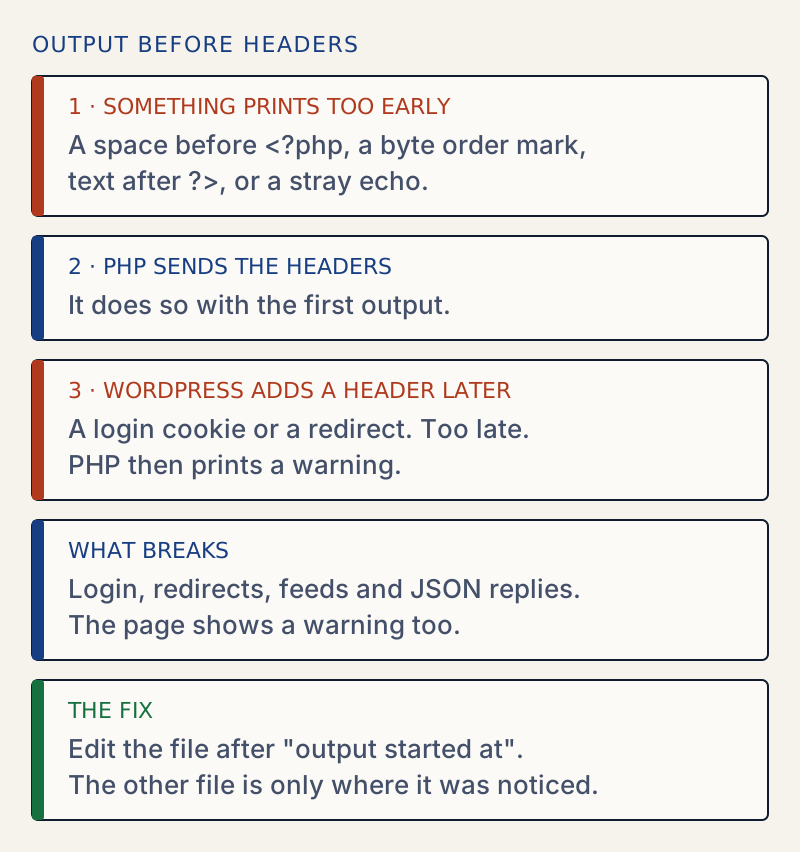
- The first file, after "output started at", is the culprit. It is the file that printed something, and the number after the colon is the line.
- The second file, after "in", only shows where PHP tried to send a header afterwards. Do not edit it. It is usually a WordPress core file such as
wp-login.phporwp-includes/functions.php. - If you cannot see the message because errors are hidden, set
WP_DEBUGandWP_DEBUG_DISPLAYtotrueinwp-config.phpfor a moment, load the page, and set them back. On a live site, useWP_DEBUG_LOGand readwp-content/debug.loginstead. - In the example above,
wp-config.php:1means that something is printed at the very first line ofwp-config.php.
Remove whitespace before the opening tag
- Open the named file over SFTP or in your host's file manager, in a plain text or code editor, not a word processor.
- The first characters in the file must be
<?php. Delete any blank line, space or tab above or before it. - Save the file and upload it again if you edited a local copy. Reload the page.
- I confirmed this by putting one blank line before
<?phpinwp-config.php. The front end looked fine, but the login page printed three of these warnings, all namingwp-config.php:1. Removing the line cleared them.
Remove a byte order mark
- A BOM does not show in most editors, so check with a command. Over SSH,
head -c 3 wp-config.php | od -An -tx1printsef bb bfif the BOM is present. - To find it in many files at once, run
grep -rlP '^\xEF\xBB\xBF' --include=*.php .from the WordPress folder. This needs GNU grep, which is standard on Linux hosts. - To remove it from one file, first copy it with
cp wp-config.php wp-config.php.bak, then runsed -i '1s/^\xEF\xBB\xBF//' wp-config.php. This needs GNU sed, which is standard on Linux hosts. BSD sed on macOS needs-i ''and does not read\xescapes the same way, so do not run it there. I tested it on a file with a BOM and the first bytes changed back to<?php. - In an editor, save the file again with the encoding "UTF-8 without BOM" (also called "UTF-8" as opposed to "UTF-8 with BOM").
Remove the closing tag and trailing whitespace
- At the bottom of the named file, look for a
?>followed by blank lines or spaces. - Delete the
?>and everything after it. A PHP-only file does not need a closing tag, and leaving it out cannot cause this error. - I tested a plugin file that ended with
?>and two newlines. WP-CLI refused to activate it and printed "Failed to activate plugin. The plugin generated unexpected output."
Remove stray output from a plugin or theme
- If the named file is in
wp-content/plugins/orwp-content/themes/, open it at the named line. Look forecho,print,print_rorvar_dumpthat is not inside a function that runs later, or for text outside the PHP tags. - If it is code you wrote or pasted, remove the line. If it belongs to a plugin or theme from someone else, update it, or deactivate it with
wp plugin deactivate name --skip-pluginsand report the line to its author. - If the error appears right after a plugin update, roll the plugin back or reinstall a fresh copy.
HTTP sends headers first, then the page. Headers carry things such as cookies, redirects and the content type. PHP sends them once output has actually been sent to the browser, not merely echoed into an output buffer, and after that moment it cannot change them. Output buffering, which many hosts enable, can hold early output back and delay the error until the buffer flushes. This warning is PHP telling you that WordPress tried to send a header after something had already printed.
One character is enough. A single blank line before <?php is output, and it begins the page before WordPress can start it properly.
What it breaks#
The warning often does not show on the front end, but other things stop working:
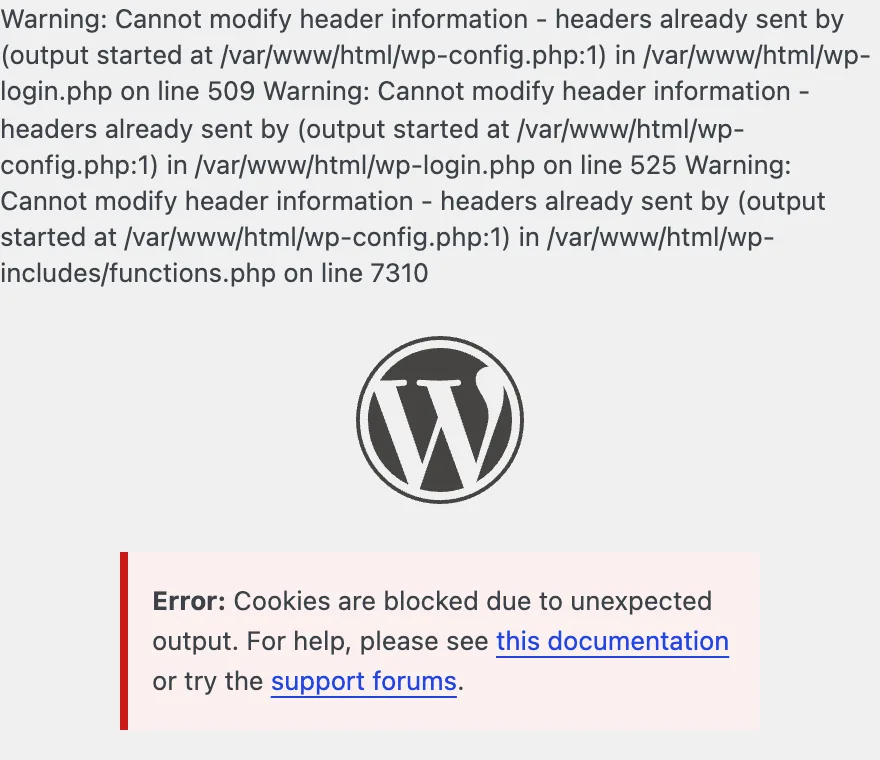
- Logging in. I got "Error: Cookies are blocked due to unexpected output. For help, please see this documentation or try the support forums." The login form accepted the right password, then refused to log in, because the login cookie could not be sent.
- Redirects. WordPress sends a redirect as a header. The redirect fails, and you stay on a page that should have moved on.
- RSS feeds and the REST API. I loaded a feed and the REST API with the blank line in place. Both started with the warning text. The feed came back as
text/htmlinstead of XML, and the JSON reply had text before the{, so it is not valid JSON. See the invalid JSON response error.
On the test site, WordPress 7.1.4 with WP_DEBUG off, the front end returned 200 and showed no warning at all. Only the login failed. That is why this error can go unnoticed until someone tries to log in.
Where the culprit usually is#
The file in "output started at" is most often one of these:
| File | Typical cause |
|---|---|
wp-config.php | A blank line or BOM from editing in a word processor or a bad editor |
functions.php in the active theme | A pasted snippet with text or a space before <?php or after ?> |
| A plugin's main file | Trailing whitespace after ?>, or a debugging echo |
wp-content/mu-plugins/ | A must-use file that nobody remembers adding |
The line number tells you where. Line 1 means the very first character of the file, which is the signature of a leading blank line or a BOM.
After it is fixed#
Log out and log in again, then reload the pages that were affected. Turn WP_DEBUG_DISPLAY back off if you turned it on. If the warning moves to another file, repeat the steps with the new name, since each file can print on its own.
A blank page instead of a message is covered in the white screen of death. A syntax error shows differently, as described in parse error: syntax error. If an earlier warning or notice is what printed first, fix that one: see undefined array key. The debug log guide shows how to read the log without printing to the page.
If settings changed along the way, see how to find and undo changed settings.
Sources
- PHP: header() · Headers must be sent before any output
- PHP: headers_sent() · Reports the file and line where output started
- PHP: ob_start() · While buffering is on, output is stored in a buffer instead of being sent
- PHP: opening and closing tags · Why a closing tag is optional and what follows it is printed
- PHP: instruction separation · The closing tag includes one newline directly after it
- WordPress: debugging · WP_DEBUG, WP_DEBUG_DISPLAY and WP_DEBUG_LOG
One email when something breaks or changes.
New plugins and re-tested guides, about twice a month. Never a sales pitch.