Why it happens
- The REST API address returns a 404 page instead of JSON. This happens when the web server is not passing pretty-permalink URLs to WordPress, for example a missing or broken
.htaccessfile. - Something prints text before the JSON, such as a PHP notice, a stray space in a file, or a plugin that echoes output. The editor reads the whole reply and cannot parse it.
- A security plugin, firewall or CDN rule blocks the request and returns an HTML page, often with a 403 status.
- The WordPress Address or Site Address in Settings → General does not match the address you use, so the editor sends its save request to the wrong place or gets redirected.
- The request is redirected, for example from
httptohttps, and the reply is a web page. - The save request times out or is cut off, so the reply is an error page from the server and not from WordPress.
How to fix it
Try the fixes in this order. Each one is independent: stop as soon as the error is gone.
See what the REST API actually returns
- Open
https://your-site.example/wp-json/in a browser tab, using your own address. A healthy site shows a block of JSON that starts with{"name":and your site title. - If you see your theme's 404 page, or a plain "Not Found" page, the REST routes are not reaching WordPress. Go to the permalinks fix.
- If you see readable text before the opening
{, something is printing output. Go to the stray output fix. - If you see a security or firewall page, or a login page, go to the blocking rule fix.
- To check the headers too, run
curl -i https://your-site.example/wp-json/and look forContent-Type: application/json. HTML here means the reply is not JSON.
Re-save permalinks and check .htaccess
- Open Settings → Permalinks and click Save Changes without changing anything. This rebuilds the rewrite rules and, on Apache, rewrites the WordPress block in
.htaccess. - If WordPress shows "You should update your .htaccess file now", it cannot write the file. Copy the rules it shows into
.htaccessin the WordPress root by hand. - With WP-CLI,
wp rewrite flushrebuilds the rules. It only writes.htaccessifapache_modules: - mod_rewriteis set inwp-cli.yml, otherwise it prints a warning and leaves the file alone. On nginx, the site config needstry_files $uri $uri/ /index.php?$args;. - Test the fallback address
https://your-site.example/?rest_route=/. If that returns JSON while/wp-json/does not, the cause is rewrite rules or server config, not WordPress itself. I confirmed that split on a test site with.htaccessremoved. - Reload the editor and save again.
Find what prints output before the JSON
- Look at the text before the opening
{in/wp-json/. A PHP notice names the file and line, such asNotice: Undefined variable in .../wp-content/plugins/name/file.php on line 12. - If it names a plugin or theme file, deactivate that plugin or switch themes, then update it or contact its author. See the critical error guide for turning plugins off without the dashboard.
- If there is blank space or a hidden character instead, check the start of
wp-config.phpand of your theme'sfunctions.php. Anything before the first<?php, including a blank line or a byte order mark, is printed on every request. Headers already sent shows how to find it. - Set
WP_DEBUG_DISPLAYtofalseinwp-config.phpand keepWP_DEBUG_LOGon. Notices then go towp-content/debug.logand no longer break the JSON. This only hides notices WordPress controls, notdisplay_errorsset inphp.ini. It is a stopgap: fix the notice itself. When you are done, turnWP_DEBUG_LOGoff and deletedebug.log, because anyone who guesses its address can download it. - I confirmed the failure by adding a plugin that printed one line of text in its REST setup.
/wp-json/came back astext/htmlwith the text in front of the JSON, and the editor showed this error.
Check for a blocking rule
- Deactivate security, firewall and caching plugins one at a time. Reload the editor and save after each.
- If a CDN or host firewall sits in front of the site, look in its log for a blocked request to
/wp-json/wp/v2/posts/or toadmin-ajax.phpat the time you pressed Save. - A rule that blocks the REST API for logged-out visitors should still allow it for logged-in users. If the rule blocks everything under
/wp-json/, the editor cannot save. - Ask your host whether ModSecurity or a similar filter rejected the request. Quote the time and the URL. If Tools → Site Health also reports that the site could not complete a loopback request, the same rule is probably behind both: see your site could not complete a loopback request.
Check the site address settings
- Open Settings → General and compare WordPress Address (URL) and Site Address (URL) with the address in your browser bar. Scheme (
httporhttps) andwwwmust match. - With WP-CLI, run
wp option get homeandwp option get siteurl. - Write down both values first so you can put them back. A wrong
siteurlcan lock you out of wp-admin. - If either value is wrong, fix it with
wp option update home 'https://your-site.example'andwp option update siteurl 'https://your-site.example'. - If a loop or lockout follows, see too many redirects. If the address changed from
httptohttps, also read mixed content for oldhttp://addresses left in the database.
The block editor saves your post by sending a request to the WordPress REST API and waiting for a JSON reply. This message means a reply came back, but the editor could not read it as JSON. "Updating" appears when you save an existing post or a draft. "Publishing" appears when you publish.
The error is generic. It does not say what came back instead. That is why the first step is to look at the reply yourself.

The three replies that cause it#
- An HTML page where JSON should be. A 404 or 403 page, a login page, a redirect target. The REST address is not being served by WordPress.
- JSON with extra text in front. WordPress did answer, but something wrote output first. The reply starts with a notice or a space, and a strict parser rejects it.
- No usable reply at all. A timeout or a dropped connection. That one usually points at the server or a limit.
I reproduced the first two on WordPress 7.1.3 and got this exact message both times. For the first I removed .htaccess on a site with pretty permalinks. For the second I added a plugin that printed a line of text.
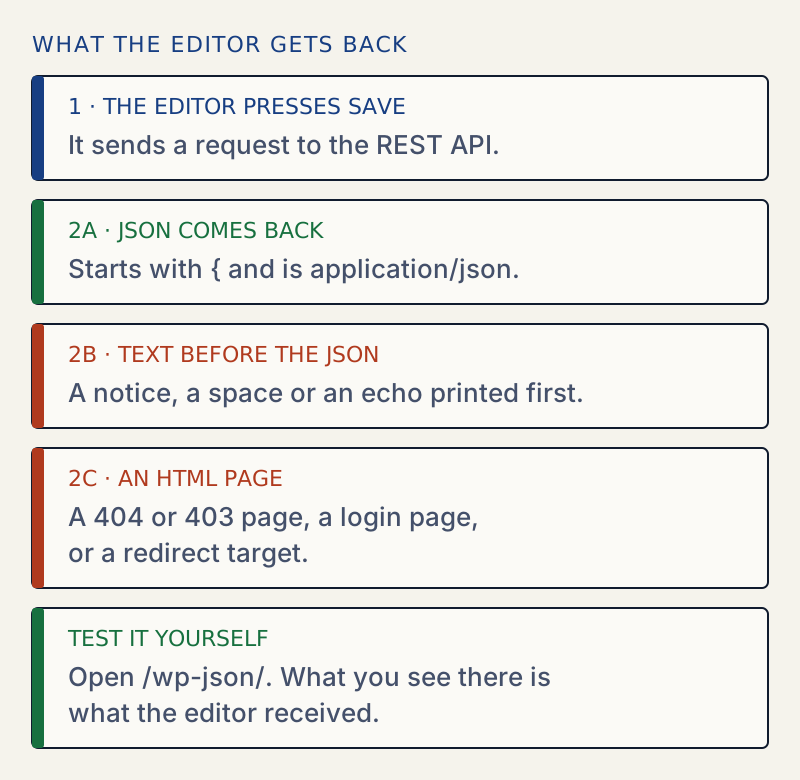
Why /wp-json/ is the right test#
The editor builds the save address from rest_url(), which normally gives https://your-site.example/wp-json/. Opening that address in a browser removes the editor from the picture. Whatever you see there is what the editor received.
What /wp-json/ shows | What it means |
|---|---|
JSON starting with {"name": | The API works. Look at the specific save request in the browser's Network tab. |
| An Apache or nginx "Not Found" page | The server is not handing the URL to WordPress. Fix permalinks or server rules. |
| Your theme's "Page not found" page | WordPress is running but has no matching rewrite rule. Re-save permalinks. |
| Text, then JSON | A plugin, theme or file is printing output. Find it from the text. |
| A login, security or error page | A plugin, firewall or redirect is intercepting the request. |
Why Classic editor or Quick Edit still works#
The Classic editor and Quick Edit do not use the REST API for saving. If those work while the block editor fails, that points to the REST route as the problem, not to the post content.
After it is fixed#
Save a post and reload it to confirm that the change stuck. If you changed rewrite rules or the site address, also check the front end and the dashboard. If you changed .htaccess, keep a copy of the working version.
If settings changed along the way and you want to see what, see how to find and undo changed settings. Permalink problems that show up as 404s are covered in posts return 404.
Sources
- WordPress: REST API handbook · The routes and the JSON replies the editor depends on
- WordPress: REST API key concepts · Routes, endpoints and the ?rest_route= fallback
- WordPress core: rest_url() · Builds the address the editor saves to
- MDN: Content-Type header · application/json against text/html
- MDN: JSON.parse() · Why text before the opening brace makes parsing fail
One email when something breaks or changes.
New plugins and re-tested guides, about twice a month. Never a sales pitch.