Why it happens
- Posts, pages, widgets or theme settings still hold addresses that start with
http://, written back when the site used HTTP. WordPress stores them as typed and does not rewrite them when you move to HTTPS, except in a few cases listed below. - The WordPress Address or Site Address in Settings → General still starts with
http://, or only one of the two was changed. - A theme or plugin file has an
http://address written into its code, for example a script or stylesheet added infunctions.php. - The page loads a script, font or embed from another site by an
http://address. Only that site, or your link to it, can change.
How to fix it
Try the fixes in this order. Each one is independent: stop as soon as the error is gone.
Read the console to find the exact address
- Open the page in Chrome, press F12, and open the Console tab. Reload the page.
- Each problem is one line. Copy the address between the quotes after "requested an insecure". The word after it (image, script, stylesheet) says what kind of file it is.
- From a terminal you can list every
http://address in a page:curl -s https://your-site.example/ | grep -o 'http://[^"]*' | sort -u. Ignorehttp://www.w3.org/2000/svg. It is a name inside SVG code, not a file the browser fetches. - Look at where each address points. If it is your own domain, fix it with the steps below. If it is another site, see the last fix.
Make both site addresses start with https
- Open Settings → General. Check WordPress Address (URL) and Site Address (URL). Both must start with
https://. - If you cannot open the dashboard, use WP-CLI. First note the old values with
wp option get homeandwp option get siteurl. Then runwp option update home 'https://your-site.example'andwp option update siteurl 'https://your-site.example'. - Change the addresses only after the site answers on HTTPS. A wrong
siteurlcan lock you out of wp-admin. - After this, WordPress rewrites old addresses of your own site on the fly, in post content, excerpts, text widgets and custom CSS, unless WordPress still counts the site as new. See "What WordPress fixes by itself" below. It does not touch options, theme files, plugin output or other hosts, so continue with the next fixes if the console still complains.
Replace the old address in the database
- Back up the database first. With WP-CLI:
wp db export before-https.sql. - Do a dry run. It changes nothing and lists how many replacements it would make:
wp search-replace 'http://your-site.example' 'https://your-site.example' --all-tables --skip-columns=guid --dry-run --report-changed-only. - If the table looks right, run the same command without
--dry-run. In the test it printed "Success: Made 2 replacements." The next page load had no console lines. In the dry run, theTypecolumn showsPHPfor the serialized setting andSQLfor plain text. - Use
wp search-replace, not a hand-written SQLREPLACE. Widgets and theme settings are stored as serialized data, which records the length of every string. A raw SQL replace changes the text and not the length, and WordPress then cannot read the setting. See the test below. - Without WP-CLI, a search-and-replace plugin that says it handles serialized data does the same job. Run its dry run or preview first.
Fix addresses written into theme or plugin files
- The database commands never see code. Search the files:
grep -rn "http://your-site.example" wp-content --include=*.php --include=*.js --include=*.css. - Change each match to
https://. For a plugin or a parent theme, update it first. If the address is still there, tell its author. Edits are overwritten on update. Put your own edits in a child theme or your own small plugin. - In the test, a script printed from a file in
mu-pluginsstayed blocked after the database fix. Changing the one line in the file cleared it.
Deal with files from other sites
- If the console address is another domain, open it in the browser with
https://in place ofhttp://. If it loads, change the address in your post, theme or plugin setting tohttps://. - If it does not load over HTTPS, that site cannot be used on an HTTPS page. Host the file yourself (upload it to your Media Library) or drop it. Browsers block it, and there is no setting in WordPress that changes that.
This is a browser message, not a WordPress one. WordPress prints nothing. Chrome (and other browsers) write it to the console when a page loaded over https:// asks for a file by an http:// address. After you move a site to HTTPS, old addresses saved in your content, settings and code cause it. The fix is to change those addresses to https:// where they are stored. A plugin that rewrites the page on the way out hides the problem and leaves the bad addresses in place.
What you see#
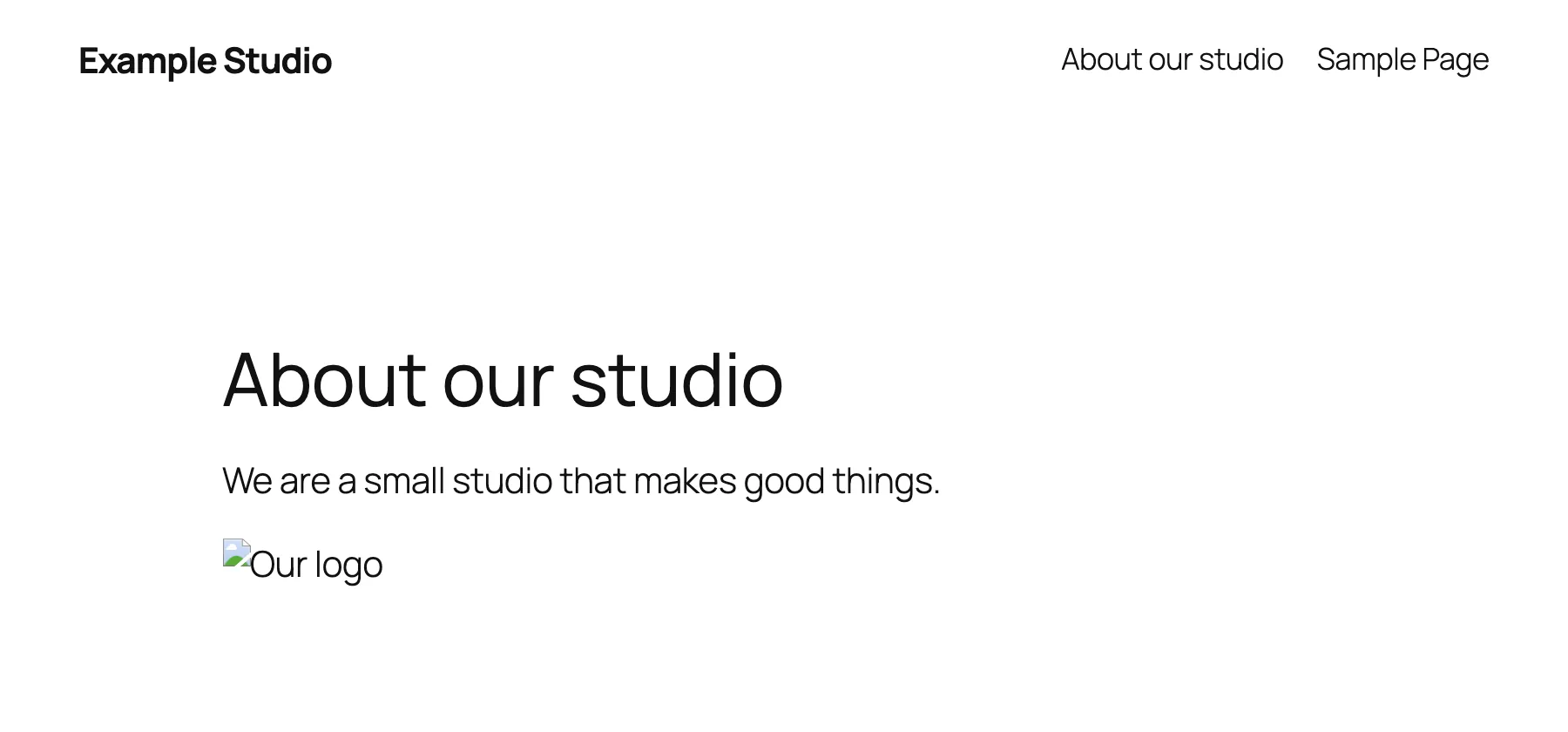
The padlock in the address bar is missing or shows a warning, and parts of the page are missing. In the test, a logo image did not appear, and a stylesheet and a script that the site adds to every page were blocked, so the page lost its styling. The console showed one line for each.
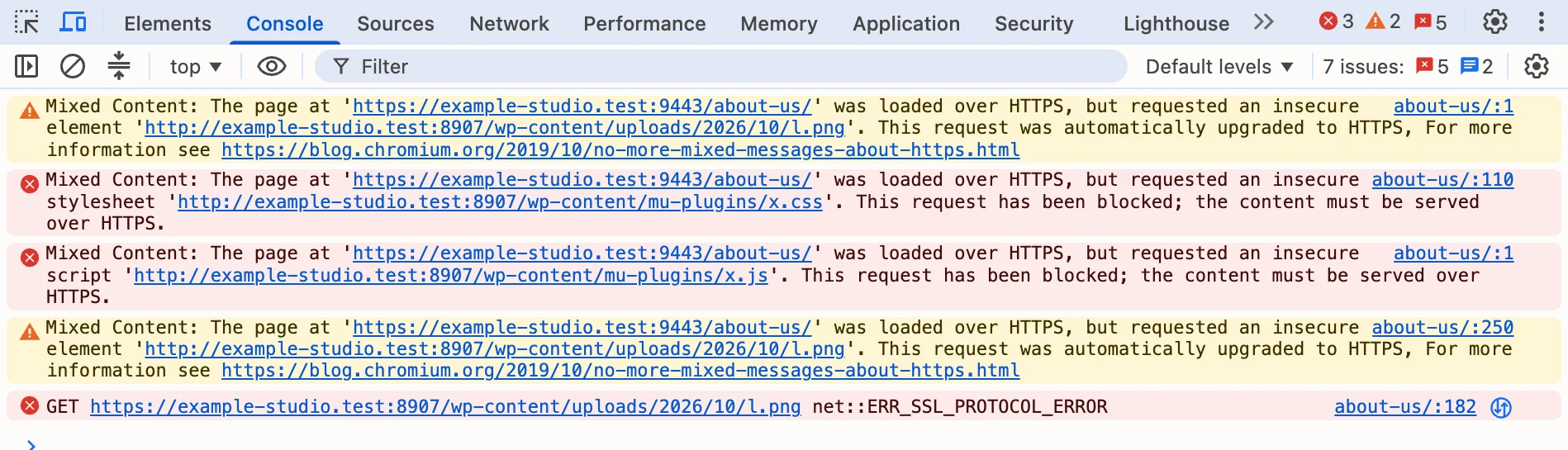
The same lines as text. The test host is a made-up name, example-studio.test, with the page on port 9443 and the old addresses on port 8907:
Mixed Content: The page at 'https://example-studio.test:9443/about-us/' was loaded over HTTPS, but requested an insecure stylesheet 'http://example-studio.test:8907/wp-content/mu-plugins/x.css'. This request has been blocked; the content must be served over HTTPS.Mixed Content: The page at 'https://example-studio.test:9443/about-us/' was loaded over HTTPS, but requested an insecure script 'http://example-studio.test:8907/wp-content/mu-plugins/x.js'. This request has been blocked; the content must be served over HTTPS.Mixed Content: The page at 'https://example-studio.test:9443/about-us/' was loaded over HTTPS, but requested an insecure element 'http://example-studio.test:8907/wp-content/uploads/2026/10/l.png'. This request was automatically upgraded to HTTPS, For more information see https://blog.chromium.org/2019/10/no-more-mixed-messages-about-https.htmlGET https://example-studio.test:8907/wp-content/uploads/2026/10/l.png net::ERR_SSL_PROTOCOL_ERRORTwo different wordings appear, and the difference matters:
| Kind of file | Chrome does | Wording |
|---|---|---|
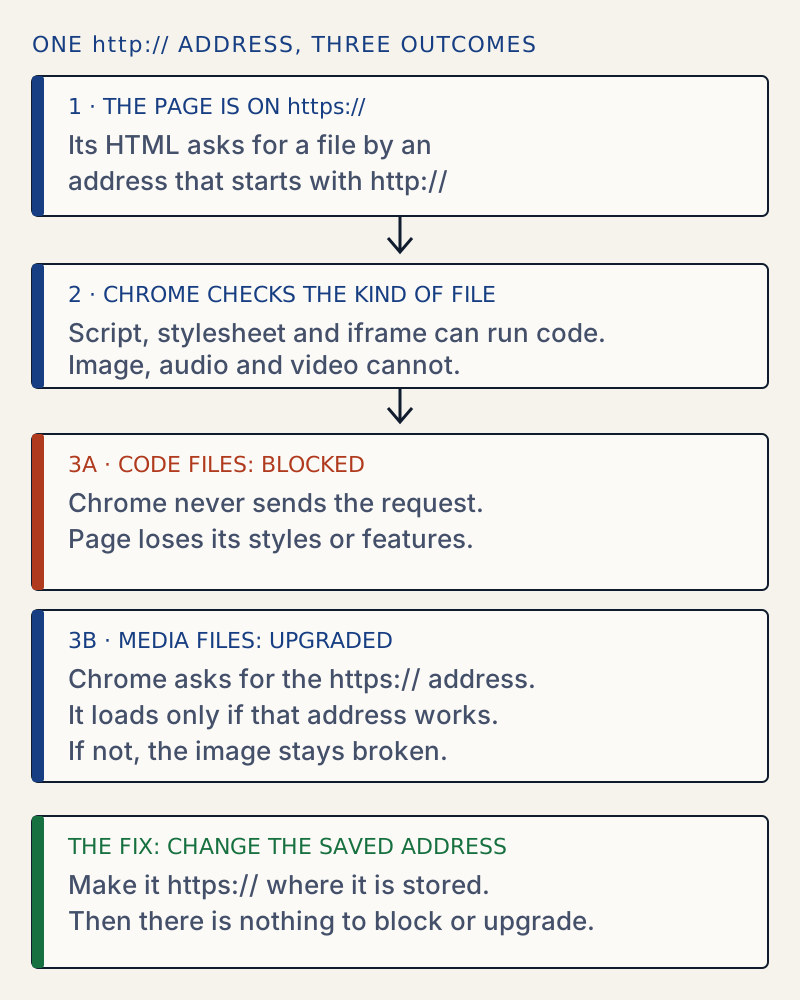
| Script, stylesheet, iframe | Blocks it | "This request has been blocked; the content must be served over HTTPS." |
| Image, audio, video | Tries the https:// address instead | "This request was automatically upgraded to HTTPS" |
The older wording that many guides quote, "requested an insecure image ... This content should also be served over HTTPS", did not appear in the Chrome used for this test (2026-10-30). An upgraded image only loads if the same address works over HTTPS. In the test it did not (the old address had no HTTPS), so the image stayed broken, with an ERR_SSL_PROTOCOL_ERROR line after the warning. MDN describes the split between upgradable and blockable content. The exact console wording is Chrome's own and is not in MDN.
Test setup: WordPress 7.1.4, created on http://example-studio.test:8907 and then moved to https://example-studio.test:9443 behind a TLS proxy by changing home and siteurl. Use your own domain in every command on this page.
Where an http:// address hides#
When WordPress saves a post, it stores the image address as you typed it. Changing the site address later does not change what is already saved. There are five places to look, and each has its own tool:
| Where the address is | How to find it | How to fix it |
|---|---|---|
| Posts and pages | wp db search | wp search-replace |
| Options, widgets, theme settings | wp db search | wp search-replace, never a raw SQL REPLACE |
| Theme and plugin files | grep on wp-content | Edit the file, or ask its author |
| The site address | wp option get home and siteurl | Settings → General |
| Another site's server | curl and grep on the page | Use its https:// address, host the file yourself, or drop it |
Chrome treats the kinds of file differently:
wp db search finds the addresses in the database. In the test it listed the post body, the guid column of the attachment and the post, and an option:
wp db search 'http://example-studio.test:8907' --all-tables --before_context=0 --after_context=0 --one_linewp_options:option_value:128:http://example-studio.test:8907wp_posts:post_content:6:http://example-studio.test:8907wp_posts:guid:4:http://example-studio.test:8907wp_posts:guid:6:http://example-studio.test:8907It found nothing in the theme and plugin files, because it only reads the database. The plugin file with the stylesheet and script was found by grep:
wp-content/mu-plugins/hardcoded.php:3: echo "<link rel=\"stylesheet\" href=\"http://example-studio.test:8907/wp-content/mu-plugins/x.css\">\n";wp-content/mu-plugins/hardcoded.php:4: echo "<script src=\"http://example-studio.test:8907/wp-content/mu-plugins/x.js\"></script>\n";What WordPress fixes by itself#
Since WordPress 5.7, a site that moves from http:// to https:// gets an automatic fix for its own old addresses. When home changes to the HTTPS version of the old home, WordPress sets an option named https_migration_required. While it is set, wp_replace_insecure_home_url() replaces the old address with the new one whenever it prints post content, excerpts, text widgets and custom CSS. Tested on WordPress 7.1.4:
wp option update home http://example.com # old statewp post create ... '<img src="http://example.com/wp-content/uploads/2026/10/l.png">'wp option update home https://example.com # the movewp option get https_migration_required1The saved post still contained http://, but the page sent to the browser had src="https://example.com/...". When add_filter( 'wp_should_replace_insecure_home_url', '__return_false' ); was added, the page sent http:// again. So the filter works, and it is the switch to turn it off.
The automatic fix is narrow, and that is why mixed content still happens:
| Case | Replaced by WordPress? |
|---|---|
| Same host and port, in post content, excerpt, text widget, custom CSS | Yes |
Same host, different port (for example :8907 against :9443) | No |
A different host, such as an old domain or a www change | No |
| Options, theme settings, block theme templates, plugin output | No |
| Files with the address written in code | No |
home and siteurl on different hosts | No, the check requires the same host |
The site is still marked as new (the fresh_site option is 1, which WordPress sets on install and clears when the first post is saved) | No, the flag is set to false |
Site moved with wp option update of only one of the two options | The flag is only set when home changes from the HTTP to the HTTPS form of the same address |
The first three rows were tested directly (for the third, http://other.test/a.png was left alone). The rest follow from the code in wp-includes/https-migration.php and default-filters.php as shipped in WordPress 7.1.4, where the filter is added to only the_content, the_excerpt, widget_text_content and wp_get_custom_css. A rewrite on the way out also does not change what is stored, so an export or a different theme brings the old addresses back. The database fix is still the right one.
Why a raw SQL replace breaks settings#
WordPress saves arrays as serialized text. Each string carries its length. Here an option was saved, then the address was replaced the address with a plain SQL REPLACE():
a:2:{s:4:"logo";s:37:"http://example-studio.test:8907/a.png";s:1:"n";i:1;}a:2:{s:4:"logo";s:37:"https://example-studio.test:9443/a.png";s:1:"n";i:1;}The text is now 38 characters but still says s:37. In a fresh PHP process get_option() returned bool(false), so the whole setting was gone. wp search-replace reads the data, changes the string, and writes it back with the right length. On a similar option it wrote a correct value, {"logo":"https:\/\/example-studio.test:9443\/wp-content\/uploads\/a.png","columns":2}. The WP-CLI manual says it "intelligently handles PHP serialized data". In its dry run, the Type column says PHP when it unpacked serialized data and SQL for plain text:
Table Column Replacements Typewp_options option_value 1 PHPwp_posts post_content 1 SQLThe guid column#
By default, wp search-replace also changes the guid column of posts and attachments (2 more replacements in the test). The guid is an identifier, not an address to load. It does not cause mixed content, and changing it can make feed readers show old posts as new. The command above uses --skip-columns=guid. The dry-run count fell from 4 to 2, and the images still loaded.
After the fix#
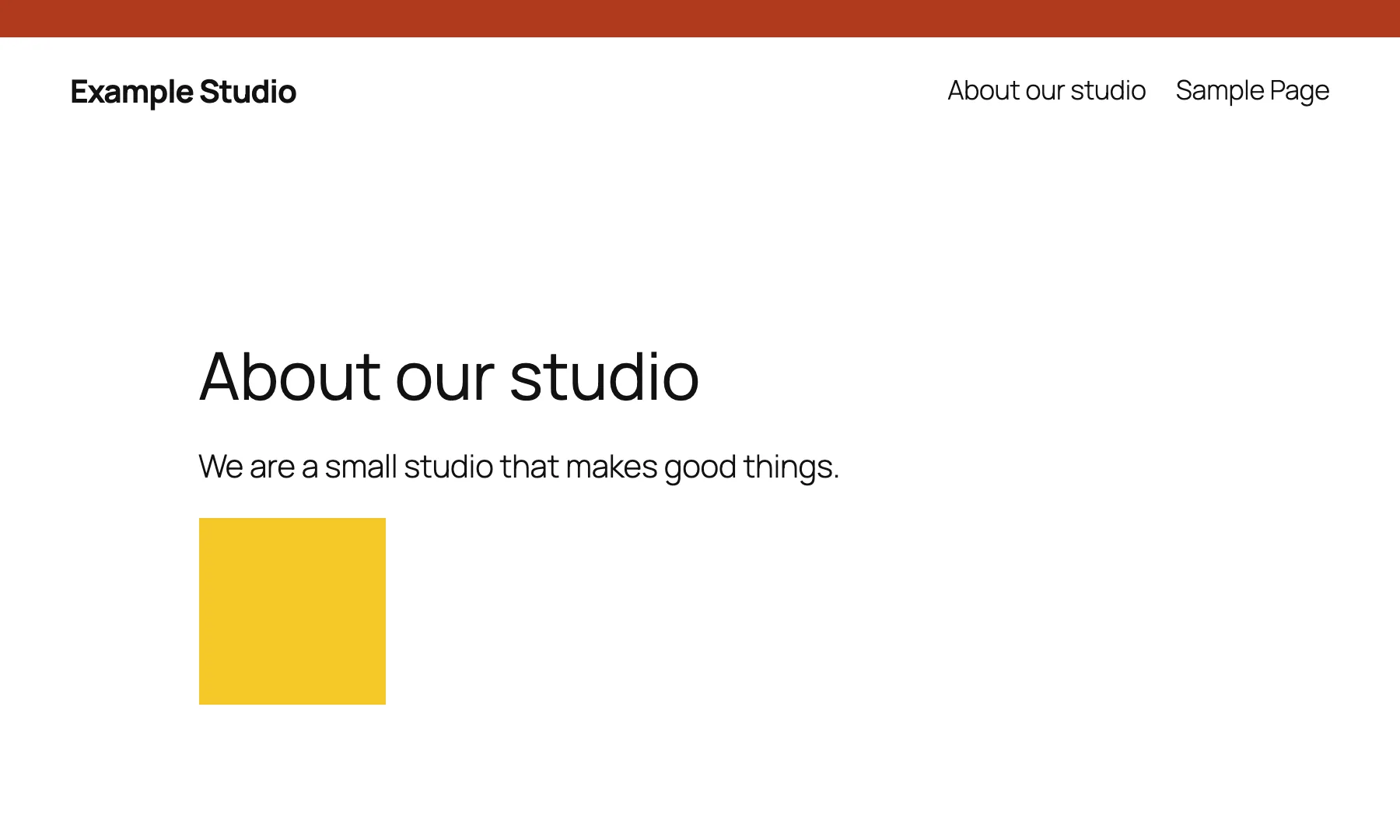
curl on the fixed page found only http://www.w3.org/2000/svg in the page, which is a name inside the SVG code and not a file the browser asks for.
If it keeps happening#
A redirect loop right after the move is a different problem. See ERR_TOO_MANY_REDIRECTS. If the block editor says "The response is not a valid JSON response" after the move, the site address and the real address do not match: see Updating failed: The response is not a valid JSON response. For the wider list of settings to review once HTTPS works, read how to harden WordPress. If the old and new addresses differ after a move, how to move settings from staging to live lists what else to check, and posts and pages return 404 covers links that stop working after the address change.
Sources
- Mixed content - MDN Web Docs · upgradable vs blockable content, what browsers do
- HTTPS - WordPress Advanced Administration Handbook · FORCE_SSL_ADMIN, reverse proxy setup and admin redirects; background for the lock-out warning, not for mixed content itself
- wp search-replace - WP-CLI Commands · dry run, serialized data, skip-columns
- wp-includes/https-migration.php (trunk) · wp_replace_insecure_home_url() and wp_should_replace_insecure_home_url()
One email when something breaks or changes.
New plugins and re-tested guides, about twice a month. Never a sales pitch.