Why it happens
- The address in Settings → General does not reach this server from the inside. The port is closed, the name does not resolve, or the server's own firewall drops the call. Site Health shows
cURL error 7,6or28, and the item is critical. - A password on the whole site (HTTP Basic authentication, often set in the host panel as password protection) refuses the site's own call. Site Health shows
unexpected http status code, 401. - A firewall, security plugin, CDN or server rule refuses requests that look like WordPress calling itself. Site Health shows
unexpected http status code, 403. - A plugin or theme starts a PHP session and never closes it, so the site's call waits for the lock and times out with
cURL error 28. - The site's own address resolves to the CDN or the host's public IP, and the server cannot loop back through it.
How to fix it
Try the fixes in this order. Each one is independent: stop as soon as the error is gone.
Read the line under the title and match it
- Open Tools → Site Health, click Your site could not complete a loopback request, and read the last line. It is either
Error: cURL error N: ...orunexpected http status code, NNN. cURL error 7(could not connect) andcURL error 6(could not resolve host): go to the address fix.cURL error 28(timed out after about 10000 milliseconds; the cURL error 28 page explains the number): go to the session fix, then ask your host about a firewall that drops the call.401: go to the password fix.403: go to the blocking rule fix.- Also look at the other items. The REST API encountered an error with the same cURL text, or A scheduled event has failed, usually has the same cause.
Make the site's own address reachable from the server
- Compare WordPress Address (URL) and Site Address (URL) in Settings → General with what visitors type. A port such as
:8908, awwwthat only exists in the CDN, or a name that only resolves outside the server all producecURL error 7or6. - Do not change these two values just to quiet this item. A wrong value can lock you out of wp-admin. If you must, copy both values first (
wp option get siteurlandwp option get home). - If the address is right but the server cannot reach it, tell the server where it is. Ask your host to add a line to the server's
/etc/hoststhat maps your domain to127.0.0.1(or the server's private IP). I tested this: a name that failed withcURL error 6: Could not resolve hostpassed once it was mapped to127.0.0.1, and Site Health said "The loopback request to your site completed successfully." - If the site runs behind a proxy or in Docker on a different port than the public one, the web server must also answer on the port in the Site Address. On my test site the site address used port 8908 while Apache listened on 80, giving
cURL error 7: Failed to connect to localhost port 8908. AddingListen 8908to Apache made the item pass.
Let the site call itself past the password
- Open
.htaccessin the WordPress folder and find theAuthType Basiclines, or turn off password protection for the whole site in your host panel. - Keep the password, but allow wp-cron.php without it. Add this under the password lines:
<Files "wp-cron.php">thenRequire all grantedthen</Files>. On my test site the call returned 200 with no password, the home page still returned 401, andwp cron testprinted "Success: WP-Cron spawning is working as expected." - Or let the server's own calls through and keep every other visitor behind the password: replace
Require valid-userwith<RequireAny>,Require valid-user,Require local,</RequireAny>.Require localmatches connections from 127.0.0.0/8,::1, or where the client and server address are the same. I tested it: a call from inside the server got 200 and a call from my laptop got 401. - Back up
.htaccessfirst. A typo in it returns a 500 error for the whole site.
Find and loosen the blocking rule
- Run
curl -i -X POST https://your-site.example/wp-cron.phpfrom your own computer. A healthy site answersHTTP/1.1 200 OKwith an empty body. If your computer gets 200 and Site Health says 403, the rule only blocks requests that look like WordPress, for example by theWordPress/7.1.4user agent. - Check in this order: your security plugin's firewall log, your CDN's firewall events, then your host's firewall or ModSecurity log. Look for the server's own IP address calling
/wp-cron.phpor/wp-json/. - Add an allow rule for the server's own IP and for
/wp-cron.php. Do not turn the firewall off. - I tested a rule that returned 403 to any request whose user agent starts with
WordPress/forwp-cron.phpandwp-json. The loopback item saidunexpected http status code, 403and the REST item said(403) Forbidden. After I removed the rule, both passed.
Close the PHP session that holds the lock
- Open Tools → Site Health and look for An active PHP session was detected. If it is there beside a
cURL error 28timeout, a plugin or theme calledsession_start()and never closed it. - Update or replace that plugin or theme. Its author should call
session_write_close()before making HTTP requests. - I tested this with a one-line must-use plugin that starts a session on every request. The REST API item failed with
cURL error 28: Operation timed out after 10008 milliseconds with 0 bytes received. After I deleted the file, the session warning went away and the REST item passed.
Run scheduled events from the server when WP-Cron is off
- If
DISABLE_WP_CRONistrueinwp-config.php, the loopback item can be green and A scheduled event has failed can still appear. Nothing starts the scheduler on page visits. - Run the due events now:
wp cron event run --due-now. On my test site the failed item turned into "Scheduled events are running" afterwards. - Make it repeat. Ask your host for a cron job every 5 minutes that runs
wp cron event run --due-now, or that requestshttps://your-site.example/wp-cron.php. Full steps are in the missed schedule guide.
A loopback request is your site calling its own address from the server. Site Health tests it by sending a request to your own wp-cron.php. When that fails, the title is "Your site could not complete a loopback request". The line at the bottom of the item says why, and that line is the fix. WordPress needs the call to start scheduled events, and the plugin and theme editors use it to check that your edit did not break the site.
What you see#
Open Tools → Site Health. The item is in the critical list when the call could not connect, and in the recommended list when the server answered with something other than 200.
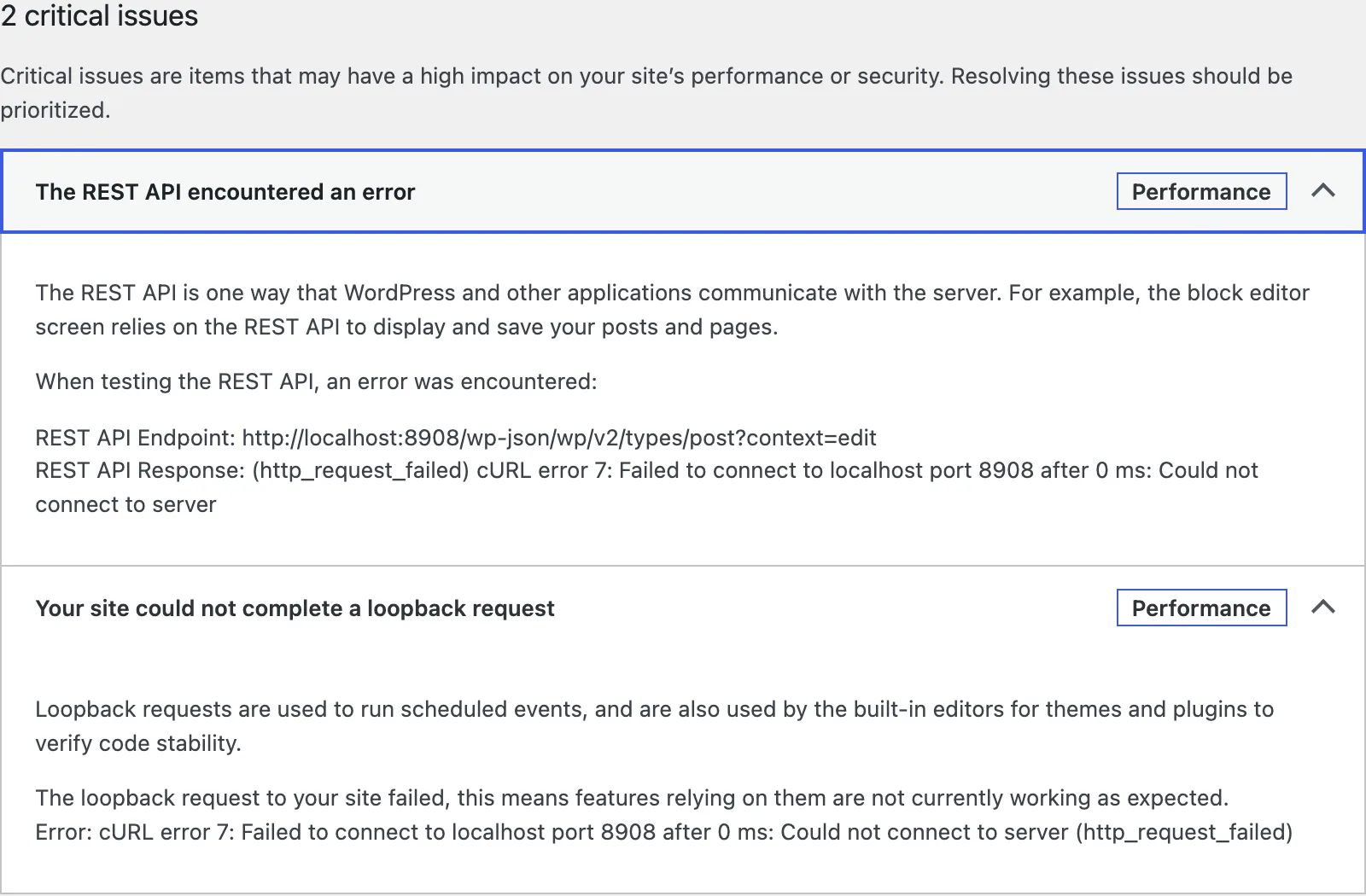
The same title shows for two different severities, and the difference matters:
| What the call got | Severity | Last line in the item |
|---|---|---|
| No connection at all | Critical | Error: cURL error 7: Failed to connect to localhost port 8908 after 0 ms: Could not connect to server (http_request_failed) |
| A name that does not exist | Critical | Error: cURL error 6: Could not resolve host: shop.example.invalid (http_request_failed) |
| No reply within 10 seconds | Critical | Error: cURL error 28: Operation timed out after 10004 milliseconds with 0 bytes received (http_request_failed) |
| A reply that is not 200 | Recommended | The loopback request returned an unexpected http status code, 401, it was not possible to determine if this will prevent features from working as expected. |
I produced the first three rows on WordPress 7.1.4 with a test that calls the same function Site Health uses. The cURL 28 row came from a local server that waits 15 seconds before replying. The last row came from a real password on the test site.
How the test works#
The code is WP_Site_Health::can_perform_loopback(). It sends a POST to site_url( 'wp-cron.php' ) with a 10 second timeout and your current cookies. A POST makes wp-cron.php stop early, so the test does not run your scheduled events. Only a plain 200 is good. Any connection error is critical, and any other status is recommended.
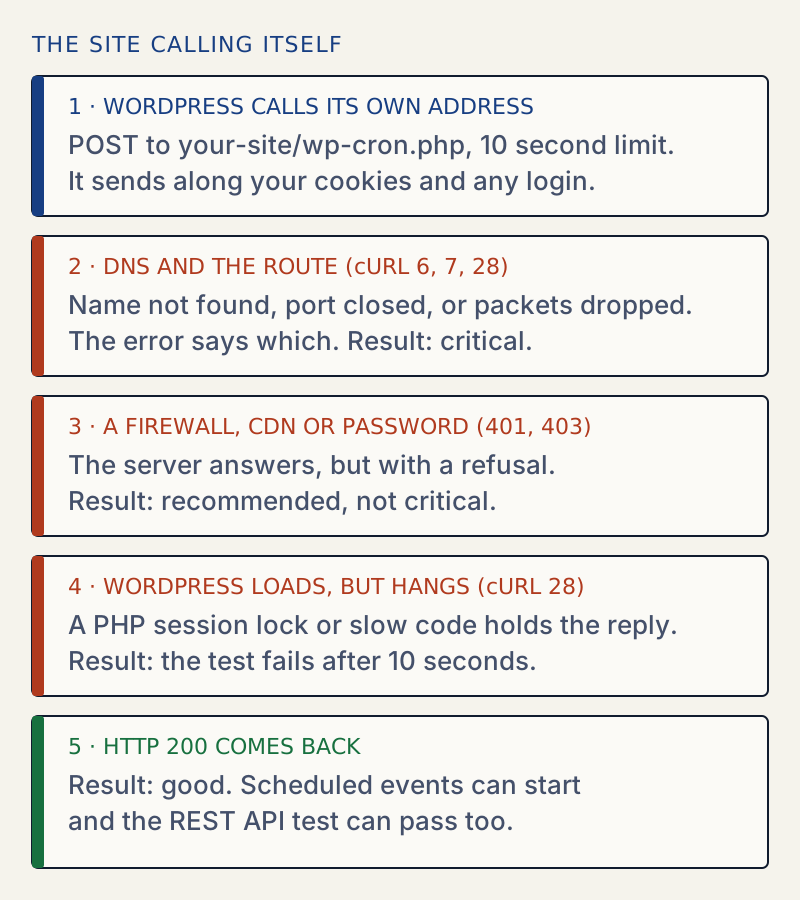
The test also passes your own login along. If the whole site has a password and you open Site Health with that password in your browser, WordPress forwards it. That is why the screen can look fine while the real scheduler is failing. See the next section.
The password case: green on screen, red in the log#
I put HTTP Basic authentication on a test site. Then I checked three things.
From the server, with no password, the call is refused:
curl -si -X POST -d site-health=loopback-test http://localhost:8908/wp-cron.php | head -4HTTP/1.1 401 UnauthorizedDate: Fri, 30 Oct 2026 07:24:13 GMTServer: Apache/2.4.69 (Debian)WWW-Authenticate: Basic realm="Private"WP-CLI says the same:
wp cron testError: WP-Cron spawn returned HTTP status code: 401 UnauthorizedThen I opened Site Health in a browser that held the password. Your site can perform loopback requests and The REST API is available both passed. The server's log shows why (times and cron keys shortened):
127.0.0.1 - - [07:24:21] "POST /wp-cron.php?doing_wp_cron=1793345061.33 HTTP/1.1" 401127.0.0.1 - owner [07:24:26] "POST /wp-cron.php HTTP/1.1" 200127.0.0.1 - - [07:24:44] "POST /wp-cron.php?doing_wp_cron=1793345084.35 HTTP/1.1" 401The two lines with doing_wp_cron are the real scheduler, started by page visits. They carry no password and get 401. The line in the middle is the Site Health test, which forwards the user owner and gets 200. The core code says the same: its page-cache test comment notes that a site that requires Basic auth "will fail when it runs in WP Cron as part of wp_site_health_scheduled_check".
So a green item does not prove the scheduler works. Check with wp cron test, or look for requests to wp-cron.php in your access log.
The REST API encountered an error#
This item runs next to the loopback one and fails for the same reasons, with its own text. The titles in the WordPress 7.1.4 code are:
| Title | Severity | When |
|---|---|---|
| The REST API encountered an error | Critical | The call did not connect, or timed out |
| The REST API encountered an unexpected result | Recommended | The reply was not 200, for example (403) Forbidden |
| The REST API did not behave correctly | Recommended | The reply was 200 but ignored the context parameter |
The test calls /wp-json/wp/v2/types/post?context=edit with your cookies and a nonce. That means it only gives a fair result from the screen in your browser. When I ran the same test from WP-CLI, with no cookies, it showed "unexpected result" on a healthy site. Do not trust it from the command line.
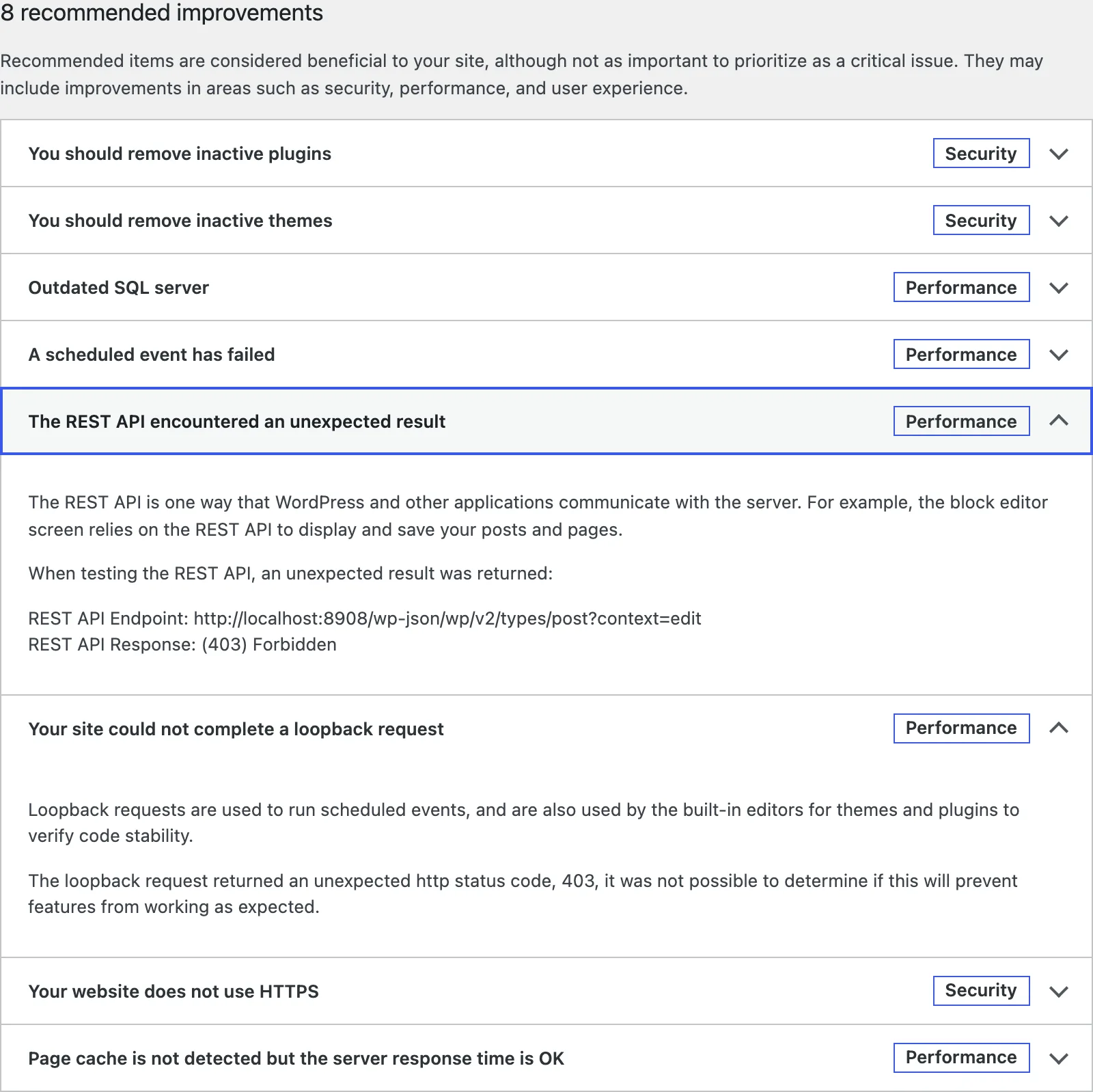
If the editor also says "Updating failed", see the invalid JSON response page. For a plain 403 from your own browser, see 403 Forbidden.
A scheduled event has failed#
WordPress compares each scheduled event's time with the clock. An event more than 5 minutes overdue gives A scheduled event has failed ("The scheduled event, awc_probe3, failed to run."). An event overdue by less than 5 minutes gives A scheduled event is late. Both are recommended items. They show what a broken loopback does to the site, so fix the loopback first.
I found something the usual advice skips. Calling wp-cron.php yourself runs every due event, even with DISABLE_WP_CRON set. A single curl to it cleared a failed event on my test site. With the constant on, three page visits produced no wp-cron.php request in the log and the event stayed overdue. The loopback item stayed green throughout, because the test does not care about the constant. That is the case in the last fix above.
What I tested and how each fix held#
| Cause | How I made it | Site Health said | Fix | After the fix |
|---|---|---|---|---|
| Port the server does not listen on | Site address localhost:8908, Apache on 80 | Critical, cURL error 7 | Listen 8908 | Good |
| Name the server cannot resolve | Request to shop.example.test with no DNS entry | Critical, cURL error 6 (tested with shop.example.invalid) | Hosts line mapping it to 127.0.0.1 | Good |
| Password on the whole site | AuthType Basic in .htaccess | Recommended, 401 | Files block or Require local | wp cron test succeeded |
| Blocking rule | 403 for user agents starting WordPress/ | Recommended, 403, and REST 403 | Rule removed | Good |
| PHP session left open | session_start() in a must-use plugin | REST critical, cURL error 28 | Plugin removed | Good |
| WP-Cron turned off | DISABLE_WP_CRON true, event 1 hour old | Event failed, loopback good | wp cron event run --due-now | Good |
I did not test a real CDN, a real host firewall or a self-signed certificate. WordPress turns certificate checking off for loopback calls by default (the https_local_ssl_verify filter), so a self-signed certificate on its own should not cause this error. I read that in the code and did not run it.
What not to do#
- Do not edit WordPress Address or Site Address to make the item go away. If the new value is wrong, you cannot sign in.
- Do not leave
Require all grantedon anything exceptwp-cron.php. Granting the whole site removes your password. - Do not ignore a 401 or 403 because the site still loads for visitors. Scheduled posts, automatic updates and backups rely on this call.
If the call times out, also read cURL error 28 and maximum execution time exceeded. For what the rest of Site Health means, read Site Health explained.
Sources
- WP_Site_Health::can_perform_loopback() · POST to wp-cron.php, 10 second timeout, Basic auth header, critical/recommended/good results
- class-wp-site-health.php in WordPress core · get_test_loopback_requests, get_test_rest_availability, get_test_scheduled_events and their exact titles
- Site Health Check in 5.2 · Why Site Health runs these tests
- Hooking WP-Cron into the system task scheduler · DISABLE_WP_CRON with a real cron job
- Apache mod_authz_host: Require local · What Require local matches
One email when something breaks or changes.
New plugins and re-tested guides, about twice a month. Never a sales pitch.