Why it happens
- A rule in
.htaccessor the server config denies the request, such asRequire all denied, aRequire ipallow list that does not include your address, or an oldOrder/Denyblock. The log line isAH01630orAH01797, "client denied by server configuration". - A file or folder cannot be read by the user Apache runs as. For a file the log line is
AH00132, "file permissions deny server access". For a folder it isAH00529, "unable to check htaccess file". - The address is a folder with no index file, and listing folders is turned off. The log line is
AH01276, "Cannot serve directory". On a site's front page this usually meansindex.phpis missing. - A symbolic link is not allowed, because
FollowSymLinksis off. The log line isAH00037. - A rewrite rule with the
[F]flag, often a block on a user agent. This writes no line to the error log, only to the access log. - A firewall, CDN or security plugin blocks the visitor and sends the 403 itself. The server error log has nothing for it.
How to fix it
Try the fixes in this order. Each one is independent: stop as soon as the error is gone.
Find out who said 403
- Open the page that fails and look at what it says. A plain white page headed "Forbidden" with the line "You don't have permission to access this resource." is from Apache. WordPress never ran. This page covers that case.
- On the command line,
curl -si https://example.com/wp-admin/ | head -12shows the headers. An Apache refusal hasContent-Type: text/html; charset=iso-8859-1and noX-Powered-Byline. A refusal sent by WordPress or a plugin hascharset=UTF-8, and on my test site it also hadX-Powered-By: PHP/8.3.36and aCache-Control: no-cache, must-revalidate, max-age=0, no-store, privateline. These headers are hints, not proof. A host or plugin can change the charset or remove them. I turnedX-Powered-Byoff to check, and theCache-Controlline stayed on my test site. The Apache error log is the real test. - If the page has a firewall's or CDN's name, or a block ID or ray ID, the CDN or firewall answered. Look in its dashboard for the blocked request. I did not reproduce this case.
- If WordPress shows a styled page, such as "Sorry, you are not allowed to access this page.", use that error page instead.
Read the Apache error log
- In your hosting panel look for Logs or Error log, or download
error_logover SFTP. On a server you manage it is often/var/log/apache2/error.logor/var/log/httpd/error_log. - Find the line with the time you loaded the page. The
AHcode and the path at the end tell you which fix to use. The table below lists what I produced. - If there is no line for your request, the 403 did not come from a deny rule or a permission. Check for a
RewriteRule ... [F]in.htaccess, then for a plugin or firewall.
Remove or correct a deny rule in .htaccess
- Connect by SFTP, turn on hidden files and open the
.htaccessfile named in the log path. Rules for/wp-admin/can be inwp-admin/.htaccess. WordPress does not ship that file, so someone or a plugin added it. - Copy the file first. Then delete the rule that denies the request, or rename the whole file to
.htaccess.off. On my test site, removingRequire all deniedfromwp-admin/.htaccesstook/wp-admin/back to a normal answer at once. - Moving the root
.htaccessaside also drops your permalink rules and any redirect or security rules in it. After the site loads again, open Settings → Permalinks and click Save Changes. WordPress writes its own block again. I did this after moving a root.htaccessaside:/hello-world/went from 404 to 200. - If you want to keep an allow list for the admin area, add your current address to it, for example
Require ip 203.0.113.5, and also allowadmin-ajax.php, as shown below. Home and office addresses change, so a list of one address locks you out later.
Fix a file or folder the server cannot read
- Log in by SSH or use your host's file manager. Run
ls -lon the file or folder from the log line, and on each folder above it. - Apache needs to read every file it serves and to enter every folder on the way. A file with mode 600 owned by another user, or a folder with mode 000, is refused. I tested a file owned by
rootwith mode 600 (403 withAH00132), thenchownto the site user (200). The same file owned by root with mode 644 was served normally. - The WordPress handbook gives 755 or 750 for folders, 644 or 640 for files, and 440 or 400 for
wp-config.php. These are its numbers for shared hosts that run PHP as your own user (suexec). Other setups can need different modes, so ask your host if unsure. Set the one that is wrong:chmod 755 folderorchmod 644 file. Avoid 777: it lets everyone write, which is more than reading needs. - If ownership is the problem, ask your host for the right user, or run
chownto the account that runs PHP. - A PHP file that Apache cannot read gives a different answer from a picture or style sheet. On my test site an unreadable
hello.phpreturned 500, not 403. See 500 Internal Server Error for that.
Give a folder an index file, or restore index.php
- If the front page of the site shows Forbidden, check that
index.phpis in the folder withwp-config.php. I renamed it and the home page returned 403 withAH01276. Putting it back returned 200. Uploadindex.phpfrom a fresh copy of WordPress of the same version. - A 403 for a folder such as
/wp-content/uploads/is on purpose. The server will not list a folder's files. Link to a file, not the folder. Do not turn listing on to remove the message. - If you do want a visible index page for a folder, add an
index.htmlto that folder.
Allow symbolic links, or stop blocking a visitor
- If the log says
AH00037for a file that is a symbolic link, removeOptions -FollowSymLinksfrom the.htaccessthat holds it. I tested+FollowSymLinks: the same link went from 403 to 200. - If the log has nothing and
.htaccesshas aRewriteCond %{HTTP_USER_AGENT}rule with[F], that rule is sending the 403. Remove it, or make the pattern narrower. - For a security plugin's block, open the plugin's own log or Blocked list and remove your address. Check the plugin's page, not this one, for the steps.
A 403 means the server understood the request and refuses to answer it. Signing in again does not change it. Most often it is one line in .htaccess, a file or folder the server cannot read, or a security tool that blocked you. On Apache, the error log names which one, and each case below has its own fix.
Everything on this page was tested on Apache 2.4.69 with WordPress 7.1.4 and PHP 8.3. I did not test nginx. It has no .htaccess, and its rules live in the server config, so the codes and files below do not apply there.
What you see#
When Apache refuses a request, the page is plain and unstyled. It has the heading "Forbidden" and one line under it. The footer shows the Apache version unless your host hides it.
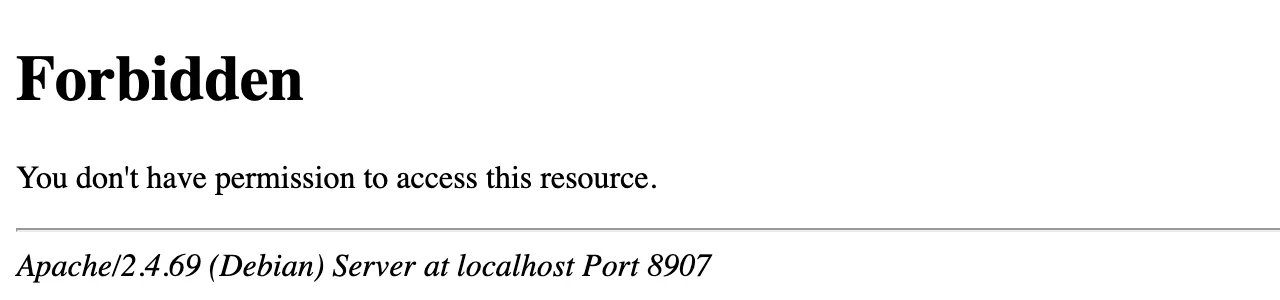
The same request in a terminal:
curl -si http://localhost:8907/wp-admin/ | head -12HTTP/1.1 403 ForbiddenDate: Fri, 30 Oct 2026 07:09:24 GMTServer: Apache/2.4.69 (Debian)Content-Length: 316Content-Type: text/html; charset=iso-8859-1<!DOCTYPE HTML PUBLIC "-//W3C//DTD HTML 4.01//EN" "http://www.w3.org/TR/html4/strict.dtd"><html><head><title>403 Forbidden</title></head><body><h1>Forbidden</h1><p>You don't have permission to access this resource.</p>Who can say 403#
Four different places can send a 403, and they need different fixes. The quickest way to tell them apart is the page, the headers and the server error log.
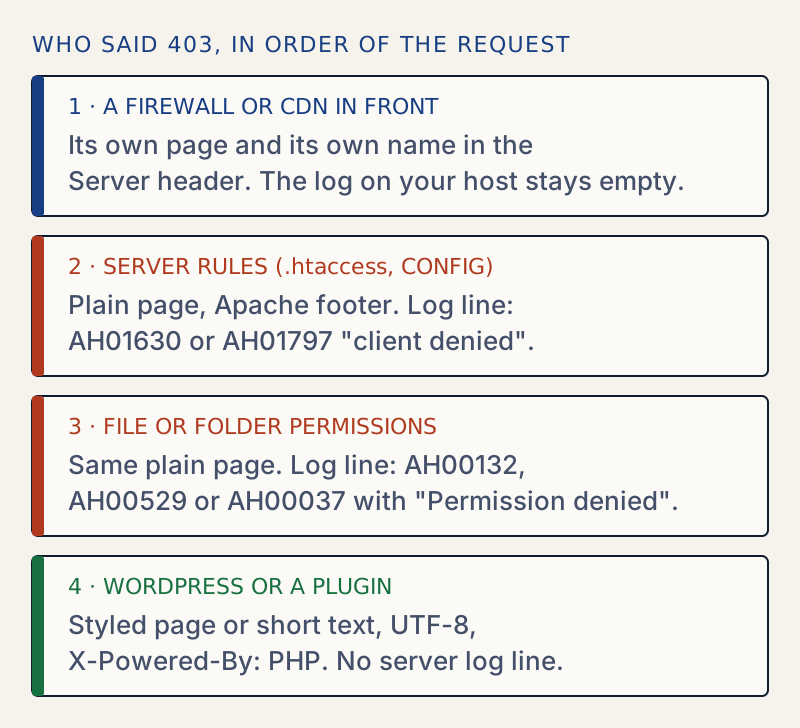
WordPress sends 403 too. A subscriber who opens Settings → General gets a styled page titled "WordPress › Error" that says "Sorry, you are not allowed to access this page." Core sends it with wp_die( ..., 403 ) in wp-admin/includes/menu.php. The REST API answers 403 with JSON such as {"code":"rest_cookie_invalid_nonce","message":"Cookie check failed","data":{"status":403}}. A security plugin that blocks a visitor does the same with wp_die() or status_header( 403 ). I wrote a small test plugin that does both. Neither wrote a line to the Apache error log, which is the clearest sign that the server did not refuse.
| Where | Page | Content-Type | X-Powered-By | Error log line |
|---|---|---|---|---|
| Apache rule or permission | Plain "Forbidden" with Apache footer | iso-8859-1 | none | yes, with an AH code |
wp_die() from WordPress or a plugin | Styled page, or short text | UTF-8 | PHP/8.3.36 (hosts can hide it) | none |
The log lines I produced#
Each row is one request, and the line it wrote to the Apache error log. Paths are shortened.
| What I did | Log code and text | Status |
|---|---|---|
Require all denied in wp-admin/.htaccess | AH01630: client denied by server configuration: /var/www/html/wp-admin/ | 403 |
Old Order deny,allow and Deny from all | AH01797: client denied by server configuration (the module is access_compat) | 403 |
Require ip 203.0.113.5 (not my address) | AH01630, same text | 403 |
| Same line with my address added | none | 200 |
index.php renamed, then home page | AH01276: Cannot serve directory /var/www/html/: No matching DirectoryIndex (index.php,index.html) found, and server-generated directory index forbidden by Options directive | 403 |
| Text file with mode 000 | AH00132: file permissions deny server access: …/a.txt with (13)Permission denied | 403 |
| Text file owned by root, mode 600 | AH00132, same text | 403 |
| Folder with mode 000 | AH00529: …/.htaccess pcfg_openfile: unable to check htaccess file, ensure it is readable and that '…/' is executable (level crit) | 403 |
Symbolic link with Options -FollowSymLinks | AH00037: Symbolic link not allowed or link target not accessible | 403 |
RewriteRule .* - [F,L] for a user agent | no error log line, only the access log | 403 |
| PHP file with mode 000 | PHP Fatal error: Failed opening required | 500, not 403 |
The folder case also changes the page. Apache adds a sentence to the same line: "You don't have permission to access this resource.Server unable to read htaccess file, denying access to be safe". That sentence means the server could not read a .htaccess file in a folder on the way.
[core:crit] (13)Permission denied: AH00529: /var/www/html/wp-content/uploads/.htaccess pcfg_openfile: unable to check htaccess file, ensure it is readable and that '/var/www/html/wp-content/uploads/' is executableWhy the fix works#
Apache checks three things before it serves a file. It reads every .htaccess file from the web root down to the folder. It applies the Require rules found there. Then it opens the file as the user it runs as. A refusal at any of these steps is a 403, and each step writes its own AH code, so the code tells you which step refused. Changing a mode on a file whose problem is a Require rule does nothing, and removing a rule does nothing for a folder Apache cannot enter.
Locking down wp-admin without locking yourself out#
People add Require ip or Require all denied to wp-admin/.htaccess to protect the admin. It works, but it also blocks wp-admin/admin-ajax.php. Some themes and plugins call that file from the public site, so visitors then get errors. With Require all denied in place, I got 403 on admin-ajax.php too. This version keeps it open and still locks the rest:
Require ip 203.0.113.5<Files admin-ajax.php>Require all granted</Files>On my test site, admin-ajax.php then answered 400, which is its normal answer when no action is sent, and /wp-admin/ stayed 403 for any other address. If your site sits behind a proxy or CDN, Apache sees the proxy's address, not the visitor's. Then an IP list either blocks everyone or nobody. Ask your host for the right setup before you use one.
The .htaccess generator builds rules like these with an undo for each step.
Edge cases I tested#
- Plugins that deny by file name. A
<Files "xmlrpc.php">block withRequire all deniedreturned 403 forxmlrpc.phpand leftwp-login.phpat 200. Blockingxmlrpc.phpon purpose looks exactly like an error. - Opcache can hide a bad mode. When I set
wp-login.phpto mode 000, the login page still returned 200. A brand-new PHP file with mode 000 returned 500 on its first request. So a wrongchmoddoes not always show up on the file you changed. Test the page after you change a mode, and test files you added recently. - Default folder listing differs. The Docker image I used turns folder listing off in its Apache config. A stock Debian Apache turns it on, and then a folder with no index file lists its files, not a 403. A 403 for a folder is not a fault.
- A 403 for a missing page. MDN notes that servers may answer 404 instead of 403 to hide that a file exists. If a file you know exists shows 404, look at the rules too.
If it keeps happening#
A rule that comes back after you remove it is being written by something else, such as a plugin or a host tool. Look at its settings, and see the hardening guide for what is worth blocking. If you hid the login page on purpose, changing the login URL explains why the old address now refuses you. If the log has nothing and the page is not from Apache, ask your host or CDN for the log entry for the blocked request. For a different failure that also stops the page from loading, see 500 Internal Server Error. If the Updates screen shows a JSON message rather than a refusal, see the response is not a valid JSON response.
Sources
- Apache HTTP Server: Access control · Require ip, Require all, and the 2.2 Order/Allow/Deny directives marked deprecated
- Apache HTTP Server: mod_authz_core · Require all denied: access is denied unconditionally
- Apache HTTP Server: core directives, Options · Options, Indexes and FollowSymLinks in .htaccess
- MDN: 403 Forbidden · What 403 means and how it differs from 401 and 404
- WordPress: file permissions · 755/750 for folders, 644/640 for files, 440/400 for wp-config.php, as given for suexec hosts
- WordPress core: wp-admin/includes/menu.php (6.8.3) · WordPress's own 403: wp_die() with Sorry, you are not allowed to access this page.
One email when something breaks or changes.
New plugins and re-tested guides, about twice a month. Never a sales pitch.