Why it happens
- The server WordPress called is slow or overloaded. It accepted the request and did not answer before the limit. This gives "with 0 bytes received". It can be another website, a plugin's own service, or your own site (a loopback request).
- The connection never opened. A firewall, a full server or a bad route leaves the request unanswered. This gives "Connection timed out after N milliseconds".
- The reply started and stopped. The message says how many bytes arrived, for example "with 100 out of 1000 bytes received".
- The limit is simply short. WordPress waits 5 seconds by default, Site Health waits 10, and a plugin can ask for less.
How to fix it
Try the fixes in this order. Each one is independent: stop as soon as the error is gone.
Read what the message tells you
- The number after "after" is the limit that ran out, in milliseconds, plus a few. 5003 means a 5 second limit. 10005 means 10 seconds, which is what Site Health uses.
- "Connection timed out" means the other server never answered the first knock. "with 0 bytes received" means it accepted the request and sent nothing back. "with 100 bytes received" or "100 out of 1000 bytes received" means it started to answer and stalled.
- The message does not name the website that was slow. The next fix finds that.
Log the web address that timed out
- Turn on the debug log (see the WordPress debug log): set
WP_DEBUGandWP_DEBUG_LOGtotrueandWP_DEBUG_DISPLAYtofalseinwp-config.php. - Core does not write failed requests to the log, so add a small file at
wp-content/mu-plugins/log-http-errors.phpwith the code shown under the log file code below. It writes the address, the limit and the message for every failed request. - Load the screen that fails, then read the end of
wp-content/debug.log. The line names the address. Now you know whether it is WordPress.org, a plugin vendor, a payment service or your own site. - Delete the file when you are done. It is only for finding the address.
Test that address from the server, not your laptop
- Your own browser can reach a site that your server cannot. Run the test on the server over SSH:
curl -sS -o /dev/null --max-time 10 -w "dns=%{time_namelookup} connect=%{time_connect} first_byte=%{time_starttransfer} total=%{time_total}\n" https://example.com/. Use the address from the log. - The four numbers are seconds from the start. Big
dnsmeans name lookup is slow. Bigconnectmeans the connection is slow or blocked. A big gap betweenconnectandfirst_bytemeans the other server is slow to answer. - If it ends with
curl: (28), the server really cannot get an answer in time. That is a problem for your host (if it is a network problem) or the service owner (if it is a slow service). WordPress is only the messenger.
Fix your own site if the address is your own site
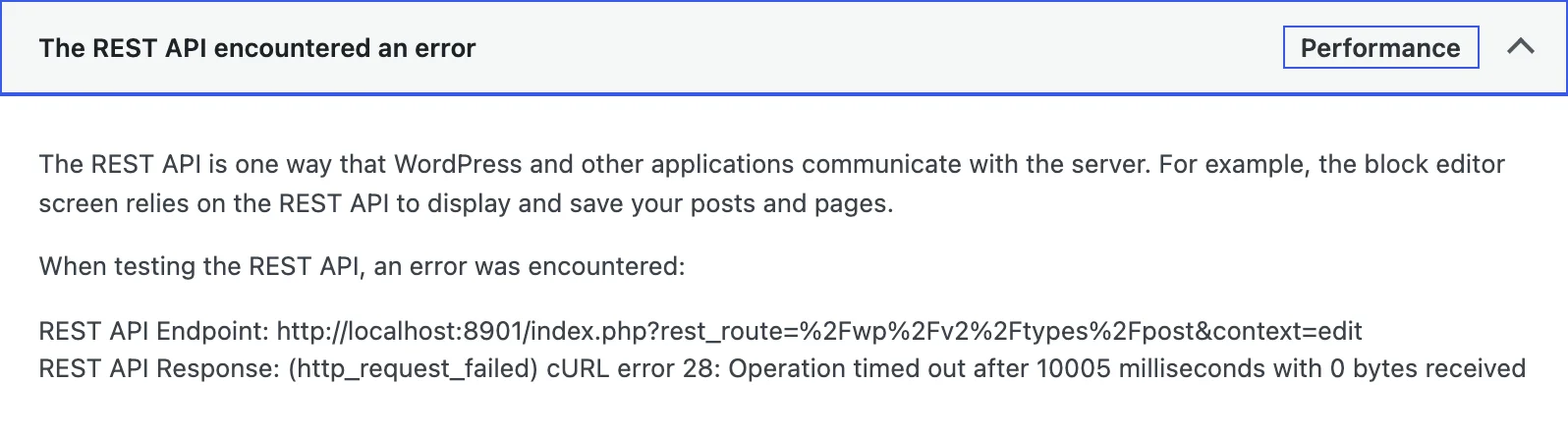
- When the log shows your own address, the site is calling itself and its answer is slow. On my test site Site Health showed "The REST API encountered an error" with this message, because a request to the site's own REST API took 12 seconds. That item and the loopback item share causes: see your site could not complete a loopback request.
- Look for what makes your own pages slow: a heavy plugin, a busy server, or a firewall that holds requests from the server's own IP. Turn plugins off one at a time and run Tools → Site Health again.
- For the other messages Site Health can show here, see the Site Health guide.
- After I removed the slow code, Site Health listed "The REST API is available" again.
Raise the limit for one request or all requests
- Use this when the other server is slow but works. It is a patch, not a cure, and every second you add is a second a page or the dashboard can hang.
- Many WordPress calls pass their own limit, such as 10 for Site Health or 3 for the plugin update check. The
http_request_timeoutfilter does not change those. It only changes the default of 5. In my test, a 3 second request kept its 3 second limit with that filter active and still timed out. - To change every request, use the
http_request_argsfilter:add_filter( 'http_request_args', function ( $args ) { $args['timeout'] = max( $args['timeout'], 20 ); return $args; } );Put it in a small plugin or a mu-plugin, not in the theme. With it, a request that took 7 seconds finished with HTTP 200 instead of failing at 3. - Do not set one very high number for everything. A request that waits 60 seconds holds a PHP worker for 60 seconds.
Check the firewall and blocked requests
- Some hosts and security plugins hold back or slow outgoing requests. I did not test any firewall, so this step is a check, not a proven fix: turn the security plugin's firewall off for a minute, repeat the failing action, and see whether the message changes.
- If the host runs an outgoing firewall, ask them to allow the address from your log. Give them the address, the time and the message.
- A fast 28 on one address and normal requests everywhere else points to that address, not to WordPress.
Run the job somewhere else if it cannot be fast
- A task that really needs a long reply, such as a big import from an outside service, should not run while a visitor or admin screen waits. Use the plugin's background or WP-CLI mode if it has one.
- WP-CLI uses the same 5 second default for
wp_remote_get(), so it does not make a slow service faster. It only removes the page that hangs.
WordPress asked another server for something and did not get a complete answer in time. The message is cURL's, passed on by WordPress. Nothing on your site is damaged. The server on the other end, or the road to it, was too slow for the limit set on that request.
What you see#
The text appears wherever WordPress reports a failed outgoing request. The most direct place is Tools → Site Health, where a failed test prints the whole message:
Other screens hide it. When the plugin directory cannot be reached, Plugins → Add Plugin shows only a generic notice:

I checked the code behind it. plugins_api() puts the cURL message in the error's data and shows the generic text. The core update checks (wp_update_plugins() and the theme and core versions) do not show an error at all. They return and leave the old list of updates. In debug mode the log gets one line that reads "WordPress could not establish a secure connection to WordPress.org", even when the real cause was a timeout. Do not trust that wording. Log the real error as in the second fix above.
How the timer works#
cURL has one clock for the whole request. It starts at the name lookup and stops when the answer is complete. If it runs out, cURL stops and reports error 28. The text after the number says which step was running.
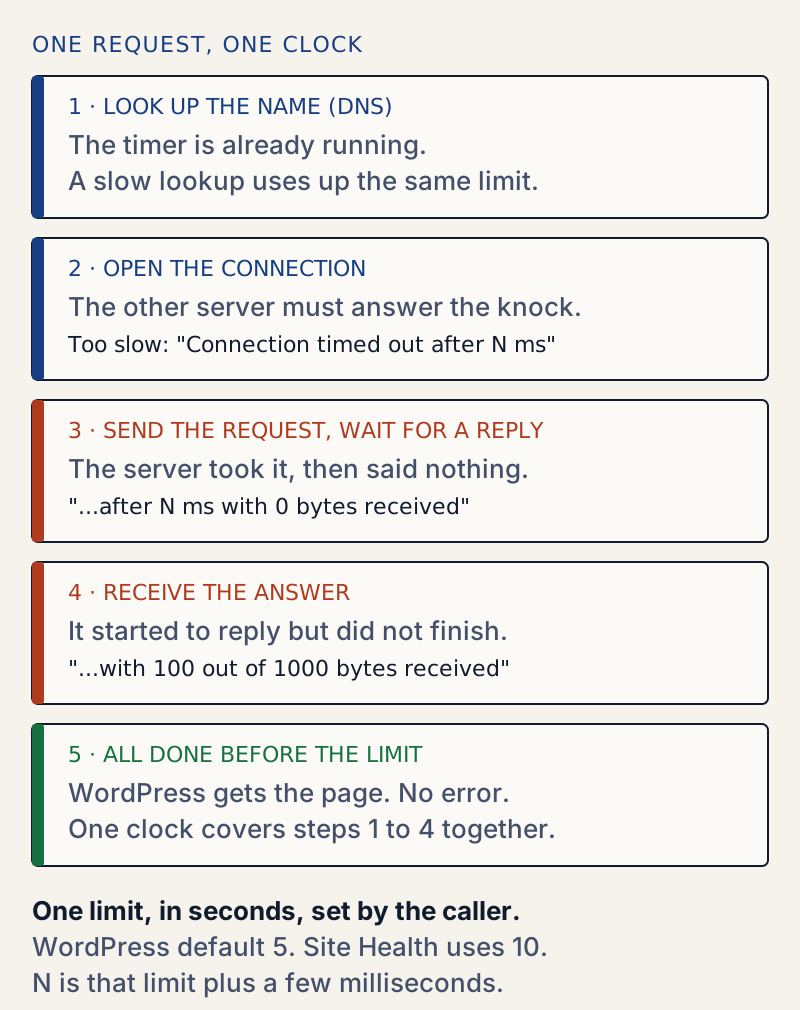
WordPress sets the limit in WP_Http::request(): 'timeout' => apply_filters( 'http_request_timeout', 5, $url ). Callers can pass their own number. Core does: Site Health uses 10, the plugin and theme update checks use 3 plus one second for every 10 items (30 when run by cron), and the core update check also passes its own. The Requests library that WordPress uses converts the number to a cURL setting in milliseconds and never lets it go below 1 second.
I reproduced each message#
The lab is WordPress 7.1.4 on PHP 8.3 with cURL 8.14.1. A local test server answers after 8 seconds. I called it with wp_remote_get() and different limits:
timeout=2 sleep=8 took 2.01s -> http_request_failed: cURL error 28: Operation timed out after 2004 milliseconds with 0 bytes receivedtimeout=5 sleep=8 took 5.01s -> http_request_failed: cURL error 28: Operation timed out after 5005 milliseconds with 0 bytes receivedtimeout=10 sleep=12 took 10.01s -> http_request_failed: cURL error 28: Operation timed out after 10010 milliseconds with 0 bytes receivedtimeout=2.5 sleep=8 took 2.51s -> http_request_failed: cURL error 28: Operation timed out after 2504 milliseconds with 0 bytes receivedtimeout=2 sleep=0.5 took 0.53s -> HTTP 200default args took 5.01s -> cURL error 28: Operation timed out after 5003 milliseconds with 0 bytes receivedThe number is the limit plus a few milliseconds. The last request used no timeout at all and gave 5003, which confirms the default. A fast server (the fifth line) is not affected.
The other two wordings need a different server behaviour. I made the server send 100 bytes and then stop, with and without a promised length of 1000 bytes:
part.php?m=len -> cURL error 28: Operation timed out after 2002 milliseconds with 100 out of 1000 bytes receivedpart.php?m=chunk -> cURL error 28: Operation timed out after 2002 milliseconds with 100 bytes receivedFor "Connection timed out" I filled a listening socket's queue so new connections were never accepted:
took 3.01s: cURL error 28: Connection timed out after 3005 millisecondsSo the four forms mean four different things: "Connection timed out", "with 0 bytes received", "with N bytes received" and "with N out of M bytes received". A host name pointed at a dead address gave a fast cURL error 7 in my lab test, not 28.
The log file code#
Save this as wp-content/mu-plugins/log-http-errors.php. Create the mu-plugins folder if it is not there. On my lab site it wrote HTTP request failed: ... (timeout 3) -> cURL error 28 ... to the debug log.
<?phpadd_action( 'http_api_debug', function ( $response, $context, $class, $args, $url ) { if ( is_wp_error( $response ) ) { error_log( sprintf( 'HTTP request failed: %s (timeout %s) -> %s', $url, $args['timeout'], $response->get_error_message() ) ); }}, 10, 5 );Test the address from the server#
Run curl on the server with the address from your log. It shows where the time goes:
curl -sS -o /dev/null --max-time 10 -w "dns=%{time_namelookup} connect=%{time_connect} first_byte=%{time_starttransfer} total=%{time_total}\n" "http://127.0.0.1:9999/?s=7"dns=0.000013 connect=0.000186 first_byte=7.008316 total=7.008756Name lookup and connection took almost no time. The first byte came 7 seconds later. That is a slow answer, so the fault is in the server answering. With --max-time 3 the same command stops with the same words WordPress prints:
curl: (28) Operation timed out after 3002 milliseconds with 0 bytes receivedThis matters because it separates "WordPress is misconfigured" from "the other side is slow". If curl fails the same way, no WordPress setting will fix it.
Which fixes worked#
Each of these cleared the error on the lab site:
| Change | Result |
|---|---|
| Nothing changed (5 second default, 7 second server) | cURL error 28 after 5002 ms |
http_request_timeout filter set to 10 | HTTP 200 after 7 seconds |
Same filter, request with its own timeout of 3 | Still error 28 after 3007 ms |
http_request_args filter sets timeout to 10 on that 3 second request | HTTP 200 after 7 seconds |
| Site Health with the slow code in place | "The REST API encountered an error", 28 after 10 seconds |
Same site with http_request_args raising every limit to at least 20 | "The REST API is available" |
| Same site with the slow code removed | "The REST API is available" |
The third row is the one most guides miss. The http_request_timeout filter only supplies the default. A call that passes its own limit ignores it, so on Site Health, update checks and most plugins it does nothing.
Raising a limit does not make the other server faster. It trades a quick error for a slow page. Use it for a service you cannot change and know is slow. When the slow side is yours, speed it up.
What it is not#
- It is not the PHP time limit.
max_execution_timecounts the time PHP itself is working. On Linux, time spent waiting for another server does not count (see maximum execution time exceeded). None of my tests needed a change to a PHP memory or time limit. - It is not the message "Download failed. cURL error 28..." on a plugin or theme install. That one has its own page: Download failed: cURL error.
- It is not a 504 from your web server. A 504 comes from the server in front of PHP, and no cURL message is shown: see 504 Gateway Time-out.
- It is not cURL error 7 or 35. Those fail at once: 7 is a refused connection, 35 is a failed secure handshake. I saw both on the lab site while testing: 7 when the site's own address pointed at a port nothing listened on, 35 when WordPress tried https on a plain http port. Only 28 is about waiting.
- It is not a missing cURL extension. The message comes from cURL itself, so cURL is installed and working.
Sources
- libcurl error codes (CURLE_OPERATION_TIMEDOUT, 28) · Code 28 means the time-out period was reached
- CURLOPT_TIMEOUT · The limit covers the whole transfer, from start to end
- http_request_timeout hook · Default of 5 seconds
- http_request_args hook · Changes the arguments of any outgoing request
- HTTP API (developer handbook) · wp_remote_get() defaults, including timeout
- WP_Http::request() in wordpress-develop · Where the 5 second default is set
- WP_Site_Health in wordpress-develop · Site Health requests pass a 10 second timeout
- wp_update_plugins() in wordpress-develop · Plugin update check: 3 seconds, 30 under cron
- plugins_api() in wordpress-develop · Keeps the cURL message in the error data and shows a generic text
- Requests cURL transport · Converts the timeout to milliseconds with a 1 second minimum
One email when something breaks or changes.
New plugins and re-tested guides, about twice a month. Never a sales pitch.