Why it happens
- A code snippet pasted into
functions.php, a snippets plugin or a file editor has a missing or extra bracket, quote, semicolon or comma. - A file upload or edit was cut short, so the file ends in the middle of a statement.
- The code uses syntax that the server's PHP version does not understand, for example
match,?->or union types on PHP 7.4. - A copy from a web page brought curly quotes, non-breaking spaces or HTML entities into the code.
- A manual edit to
wp-config.phpbroke adefine()line.
How to fix it
Try the fixes in this order. Each one is independent: stop as soon as the error is gone.
Read the file and the line
- Find the message. A parse error in
wp-config.phpshows as plain text on the page if PHP displays errors, or as a blank page if not. One in a plugin or theme normally shows "There has been a critical error on this website", and the details go to the recovery email and the log. - The recovery email says, for example, "An error of type E_PARSE was caused in line 162 of the file .../functions.php. Error message: syntax error, unexpected variable "$y", expecting "]"". The debug log has the same line. See the critical error guide for turning it on.
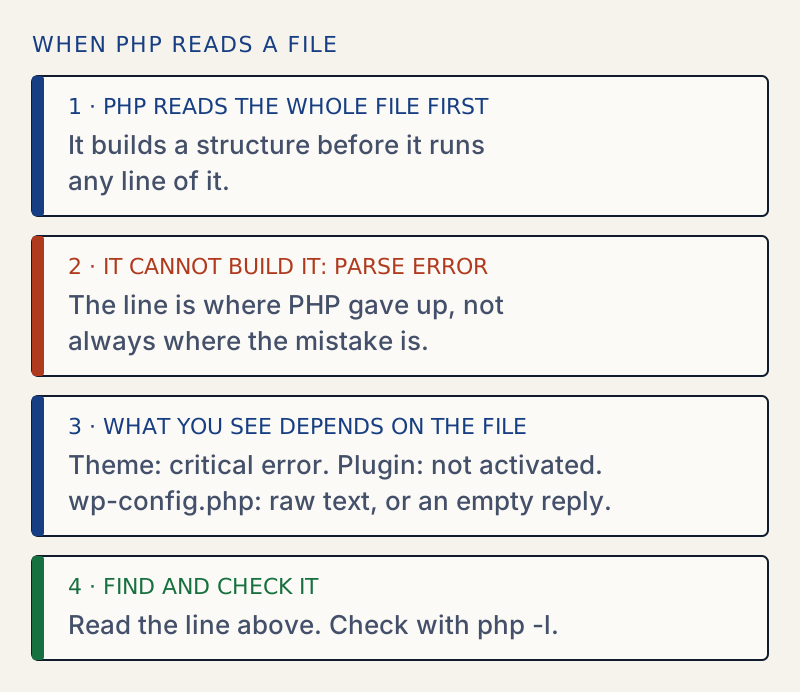
- Open the file named and go to the line. Look at that line and the lines just above it. PHP reports the point where it noticed the problem, not always where the mistake is. A missing comma at the end of line 2 is reported on line 3.
- If the file is
wp-config.php, the message appears on the page or in the host's PHP error log, not inwp-content/debug.log, because WordPress has not started yet.
Undo the last change
- If you pasted code or edited the file just before the error, remove that code or restore your copy of the file.
- On a host with backups, restore only that one file from the last working backup.
- If it is a plugin or theme file from someone else, reinstall a fresh copy of the plugin or theme. Custom changes to
functions.phpare lost, so copy yours first. - Upload the fixed file with SFTP and reload.
Get the site back first if you cannot edit now
- For a plugin, rename its folder over SFTP, or run
wp plugin deactivate name --skip-plugins. For a theme, runwp theme activate twentytwentyfive --skip-themes. I used the theme command on a site with a syntax error in the active theme'sfunctions.php, and the site returned at once. - Use recovery mode from the email to log in and deactivate the plugin or theme from the dashboard.
- Edit and test the file offline, then upload the corrected one.
Check the file with php -l
- Run
php -l path/to/file.phpover SSH, or on your computer. It reads the file without running it and printsNo syntax errors detectedor the same error with the line number. - Run it on the server with the same PHP version as the site if you can, since messages and rules differ between versions. The table in this page shows the differences I saw.
- Check every file you changed.
find wp-content/themes/your-theme -name '*.php' -exec php -l {} \;lints a whole theme and prints a line for each file. Look for lines that do not sayNo syntax errors detected.
Match the PHP version to the code
- If the code is correct but fails on your server, check the PHP version in the hosting panel or under Tools → Site Health → Info → Server.
- Code written for PHP 8 may fail on 7.4, with an "unexpected" message pointing at
=>,->or|. Upgrade PHP, or rewrite the snippet in older syntax.
Edit in the dashboard editor with care
- The built-in theme and plugin file editors check a PHP file after you save it. WordPress's source contains the message "Your PHP code changes were not applied due to an error on line N of file F. Please fix and try saving again." That is a safety net, not a replacement for a backup. The check is a loopback request made after the file is written, so it can be skipped or fail on sites where loopbacks are blocked, and a broken file can stay live. Edit a copy in a code editor and upload it over SFTP instead.
- I did not test the file editor for this page. This step comes from reading the WordPress source.
PHP reads a file from top to bottom and builds a structure from it before running any of it. A parse error means it could not build that structure. Nothing in the file ran, and the rest of the site cannot load the file either.
The message has three parts: what PHP expected, what it found instead, and where. Start with the last part: the file and the line.
What the message looks like on each PHP version#
The wording changed between PHP 7.4 and PHP 8. I ran php -l on the same files with 7.4 and 8.3:
| The mistake | PHP 7.4 | PHP 8.3 |
|---|---|---|
A missing ] before the next line | unexpected '$b' (T_VARIABLE), expecting ']' | unexpected variable "$b", expecting "]" |
| A word where a value should be | unexpected 'world' (T_STRING) | unexpected identifier "world" |
One } too many | unexpected '}', expecting end of file | Unmatched '}' |
A { never closed | unexpected end of file | Unclosed '{' on line 2 |
$user?->name | unexpected '->' (T_OBJECT_OPERATOR) | No error |
match(1) { 1 => "a" } | unexpected '=>' (T_DOUBLE_ARROW) | No error |
function f(int|string $a) | unexpected '|', expecting variable (T_VARIABLE) | No error |
Older advice online talks about T_STRING and T_VARIABLE, which are the PHP 7 names. PHP 8 uses words such as "identifier" and "variable". They describe the same kinds of mistake.
The last three rows are the version case. The code is valid on PHP 8 and a parse error on 7.4. If an error appears after moving a site to an older PHP, or after pasting code from a modern tutorial into an older server, this is the likely cause.
What a visitor sees depends on the file#
I tested these on WordPress 7.1.4 with PHP 8.3:
| Where the mistake is | Result |
|---|---|
The active theme's functions.php | "There has been a critical error on this website", HTTP 500, and a recovery email naming the theme and the line |
| A plugin file, on activation | "Plugin could not be activated because it triggered a fatal error" (see that page). The plugin stays inactive. With WP-CLI, wp plugin activate prints the Parse error line and does not activate it |
wp-config.php, PHP error display on | The raw line, for example Parse error: syntax error, unexpected token "require_once", expecting "]" in /var/www/html/wp-config.php on line 142, with HTTP 200 |
wp-config.php, PHP error display off | An empty reply with HTTP 500. See the white screen of death |
Note the unexpected token in the third row. PHP found require_once where it still expected a ], because a bracket opened on the line above was never closed.
![Plain text on a white page: Parse error: syntax error, unexpected token "if", expecting "]" in /var/www/html/wp-config.php on line 135](/errors/parse-error-syntax-error/parse-error-on-page.webp)
Prevent it#
- Keep a copy of any file before you edit it, and edit a copy, not the live file, whenever you can.
- Run
php -lon the file before you upload it. - Paste code into a code editor, not a word processor, so that curly quotes do not come along.
- Test PHP version upgrades on a staging copy first.
- If you build
wp-config.phplines by hand, the wp-config.php generator writes them for you to paste, so you do not type the brackets and quotes yourself.
If settings changed along the way, see how to find and undo changed settings.
Sources
- PHP: command line options (-l) · php -l checks syntax without running the file
- PHP: new features in 8.0 · match, the nullsafe operator and union types arrived in 8.0
- PHP: display_errors · Why errors show as text on one server and not on another
- WordPress: debugging · WP_DEBUG_LOG and where the log goes
- WordPress core: wp-admin/includes/file.php · wp_edit_theme_plugin_file() checks a saved PHP file with a loopback request
One email when something breaks or changes.
New plugins and re-tested guides, about twice a month. Never a sales pitch.