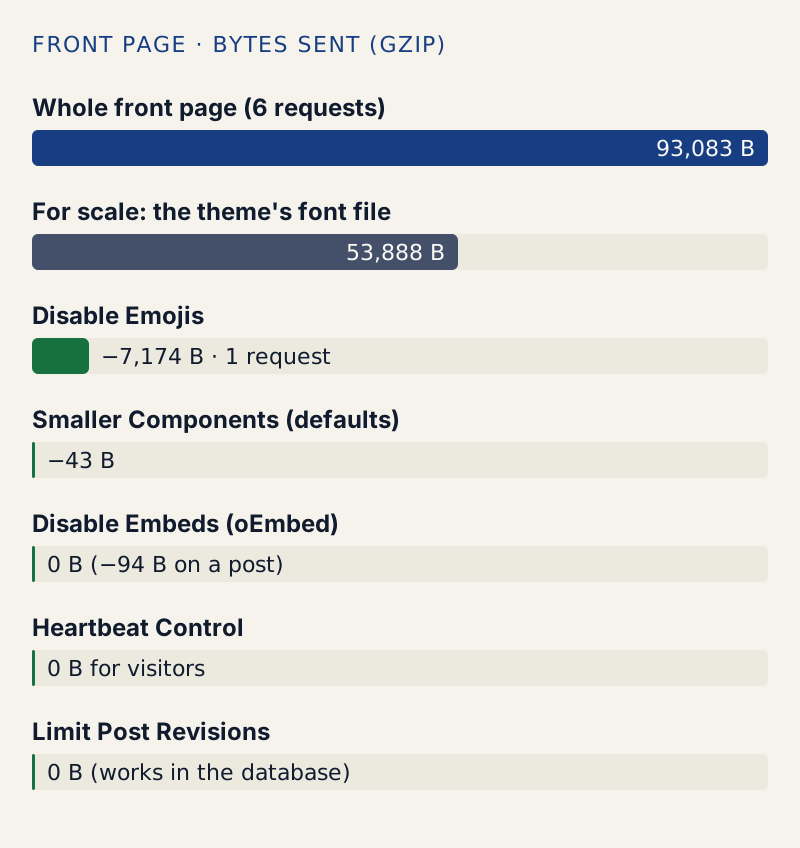
Most WordPress "speed settings" save very little. On my test site, switching off emojis removed one request and 7,174 bytes from a 93 KB front page; the other small switches saved between 0 and 110 bytes. A page cache, on the same site, made the server answer 24 times faster. Turn the small switches on if you like, but fix caching, images and hosting first.
This page shows every number I measured, how I measured it, and what each switch costs you in features.
How I measured#
The test site runs WordPress 7.1.3 with the default Twenty Twenty-Five theme, six short posts, PHP 7.4 and Apache with gzip on. I loaded the front page in Chrome with an empty cache and added up every request and the bytes sent over the network, three times per setting. The three runs never differed by more than one byte.
The baseline front page:
12,902 B / (the HTML page)15,557 B /wp-includes/js/dist/script-modules/interactivity/index.min.js 1,473 B /wp-includes/js/dist/script-modules/block-library/navigation/view.min.js53,888 B /wp-content/themes/twentytwentyfive/assets/fonts/manrope/Manrope-VariableFont_wght.woff2 3,526 B /wp-includes/images/w-logo-gray-white-bg.png (the default site icon) 5,737 B /wp-includes/js/wp-emoji-release.min.js-------93,083 B in 6 requestsI then turned on each speed-related module of WellTend Site and Admin Toolkit by itself and measured again. Activating the plugin with every module off changed nothing: the page was 93,083 bytes before and after. The switches are the same ones every "speed tweaks" plugin offers, and you can do most of them with a few lines of code instead; the numbers apply either way.
Emojis: one request, about 7 KB#
WordPress adds a small loader to every page. It checks whether the visitor's device can draw the newest emoji, and if not, it fetches wp-emoji-release.min.js to swap them for images from WordPress.org. Chrome on my Mac fetched it.
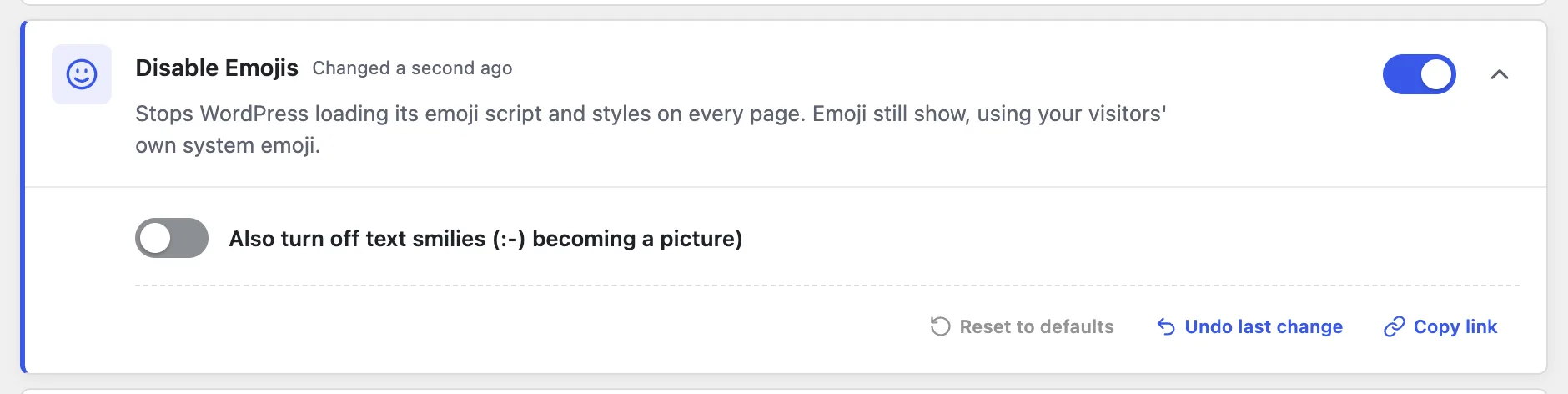
Turning on Disable Emojis removed:
- the 5,737-byte script request,
- an inline style block (
wp-emoji-styles-inline-css), - the inline loader script and its settings.
Together that is 1 request and 7,174 bytes on the front page (7,152 bytes on a single post). It is the only switch on this page with a saving worth printing in kilobytes. Your visitors still see emoji; they are drawn by their own device instead of being swapped for images.
Head tags and the smaller extras: 43 bytes#
Disable Smaller Components is a checklist. Its defaults removed two tags from the page head: the "Really Simple Discovery" link (EditURI) and the short link (?p=4). That saved 43 bytes on the front page and 110 bytes on a post, compressed. A third option, for the Windows Live Writer tag, is off by default, because WordPress 6.3 and later no longer print that tag.
Two options in the list can save a whole request on older themes: Do not load Dashicons for visitors who are not logged in and Remove jQuery Migrate on the public site. Both are off by default, and on Twenty Twenty-Five they save nothing, because the theme loads neither file for visitors. To see whether your theme loads them, open your home page while logged out, view the source, and search for dashicons and jquery-migrate. Test the site after removing jQuery Migrate; old plugins can depend on it.
Embeds: 0 bytes on the home page, 94 on a post#
Disable Embeds (oEmbed) removed two <link rel="alternate"> tags from single posts, 94 bytes, and nothing from the home page, which had no such tags. The real effect is a feature change, not speed:
- Other sites can no longer embed your posts as cards. The address that serves the card answered 200 before and
404 rest_no_routeafter. - The Embed block is removed from the editor.
Turn it on if you do not want either. Do not turn it on for speed.
Heartbeat: requests from the editor, not from visitors#
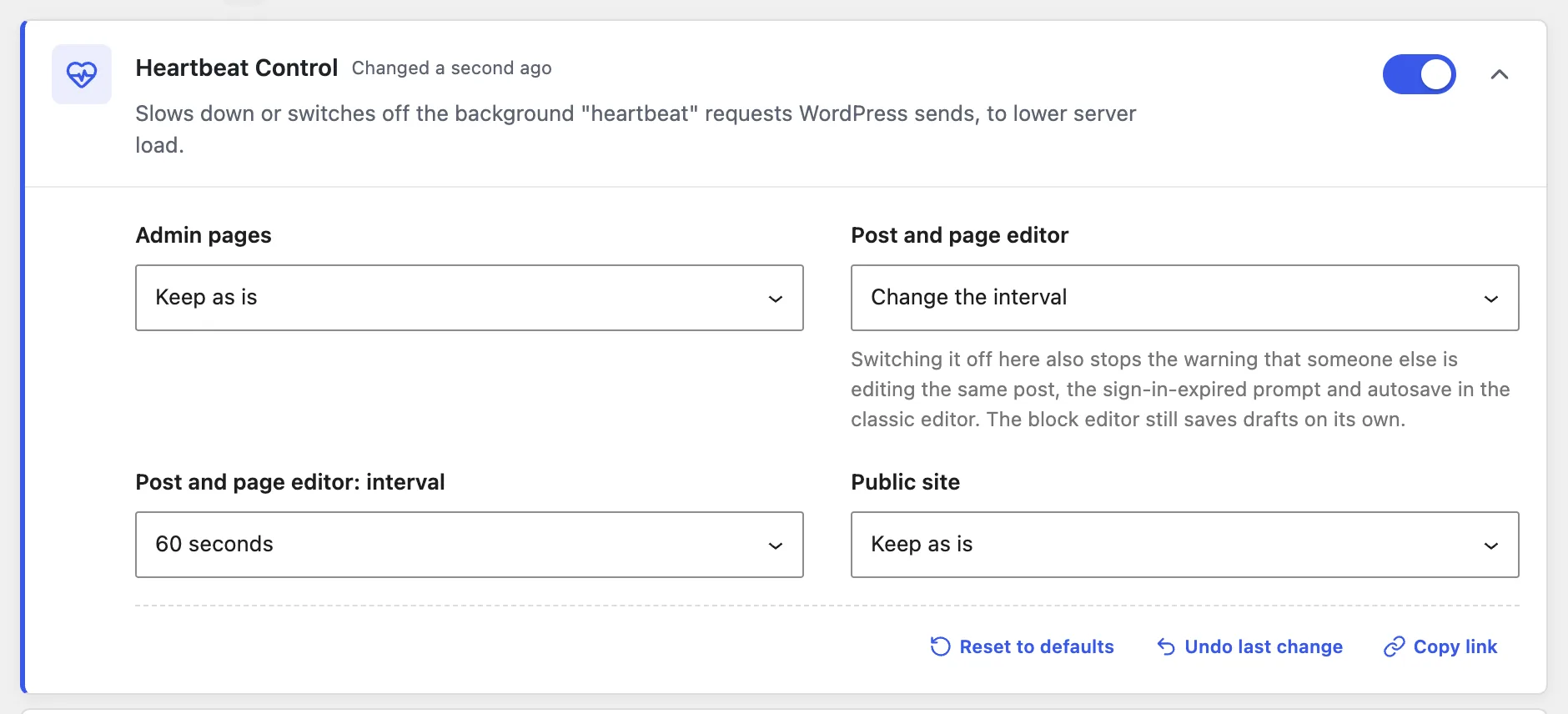
The Heartbeat is a background request that WordPress sends from open admin screens to admin-ajax.php. It keeps post locks fresh (the "someone else is editing" warning), shows the login prompt when your session expires, and runs autosave in the classic editor. Each beat is a full WordPress request on your server.
Visitors on my test site sent no heartbeat requests: the script is not loaded on the public pages of this theme, so the module's Public site setting had nothing to change.
The post editor is where it adds up. WordPress sets the interval to 10 seconds there whenever post locking is on (wp-admin/js/post.js). I opened one post in the editor and counted for two minutes:
WordPress default (every 10 s): 11 requestsPost and page editor: 60 seconds: 2 requestsPost and page editor: Switch off: 0 requestsWith the heartbeat switched off, the editor still loaded with no errors in the browser console. Core also slows the heartbeat to 120 seconds by itself when the tab is in the background (wp-includes/js/heartbeat.js), so the 10-second rate applies to the tab someone is looking at.
A slower heartbeat matters on a site with many editors who leave tabs open, or on a small hosting plan that limits PHP processes. For a site with one or two authors, it is a few requests a minute while you write.
Revisions: database space, not page speed#
Every time you update a post, WordPress keeps the previous version as a revision. Visitors never load revisions, so a limit does not change page speed. It keeps the wp_posts table smaller.
I made 20 small edits to a 9 KB post:
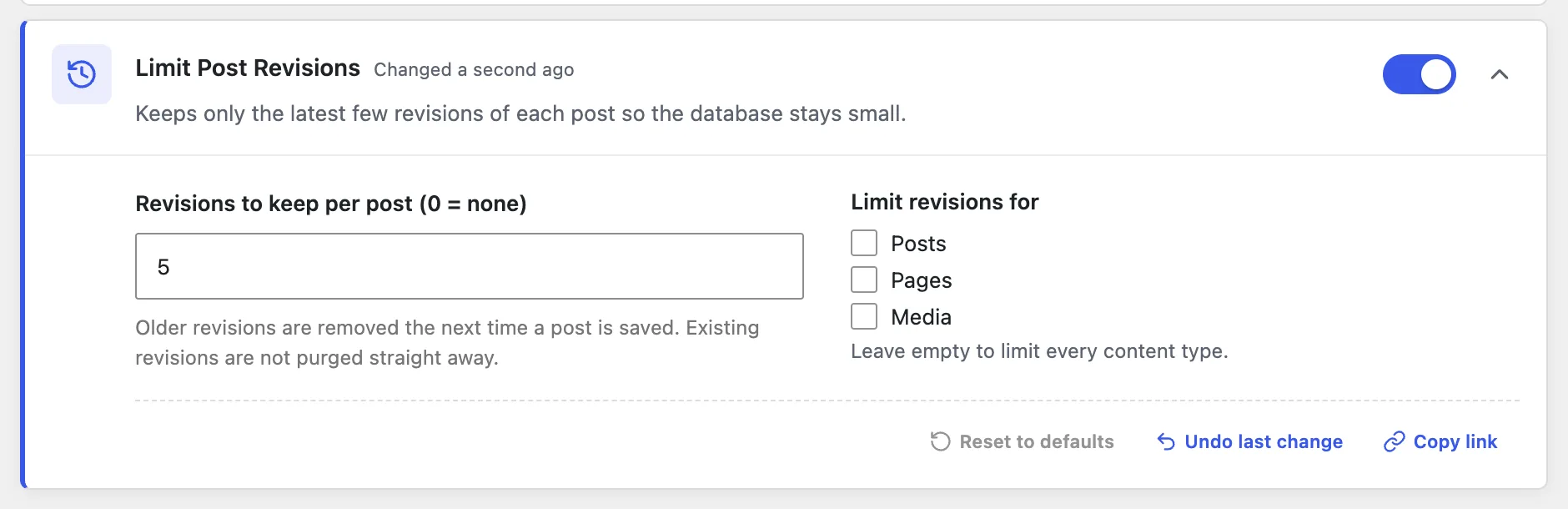
wp post list --post_type=revision --format=count20The 20 revisions held 184,791 bytes of old content. Then I set Revisions to keep per post to 5 and checked again. The count stayed at 20 until I saved the post once more; then it dropped to 5 (46,136 bytes). The module says the same thing on screen: older revisions are removed the next time a post is saved.
You can do the same without a plugin. Add this to wp-config.php above the line that says to stop editing:
define( 'WP_POST_REVISIONS', 3 );With the module off, the next save trimmed my post to 3 revisions. If both are set, the plugin's number wins: WordPress reads the constant first and then lets plugins change the number through the wp_revisions_to_keep filter. With the constant at 3 and the module at 5, the post grew back to 5 revisions.
The switches did not change server time#
Time to first byte (TTFB) is how long the server takes to start sending the page. I measured it with curl, 15 to 30 times per setting, after a few warm-up requests:
curl -s -o /dev/null -w '%{time_starttransfer}\n' https://example.com/All switches off: 26.1 msEmojis, embeds, extras on: 28.5 msThat difference is noise: repeated runs of the same setting moved by 2 to 5 ms. None of these switches change the PHP work WordPress does to build a page. They only trim what the browser downloads afterwards.
My test runs on my own computer, so the absolute times are far lower than any real host. Compare the ratios, not the milliseconds.
What moves the numbers#
A page cache#
A page cache saves the finished HTML of each page and sends that copy to the next visitor without running WordPress. I installed a free caching plugin (Cache Enabler) on the test site, loaded the home page once to fill the cache, and measured again:
Without the page cache: 31.2 msFrom the page cache: 1.3 msThat is 24 times faster, on a tiny site. The cached copy is sent before WordPress, its plugins and the database run at all, which is why it came close to the 0.8 ms my server took to send a plain static file. Cache Enabler skips the cache for anyone with a WordPress login cookie, so test while logged out. Many hosts include a page cache; check theirs before adding a plugin, so you do not run two.
Image sizes#
I uploaded one large photo, 8000 × 4500 pixels:
3,020,775 B photo.jpg (the original, kept but not shown) 285,601 B photo-scaled.jpg (2560 px, used as "Full Size") 68,281 B photo-1024x576.jpg ("Large") 44,980 B photo-768x432.jpgWordPress already shrinks big uploads to 2560 pixels and uses that copy as Full Size. Even so, one photo inserted at Full Size is 40 times the emoji saving; at Large it is still more than 9 times. Choosing Large in the image block, or resizing photos before upload, saves more than every switch on this page together. If an image was uploaded over FTP or linked from its original file name, check that the page uses a resized copy.
Hosting and plugins#
Slow hosting raises TTFB for every uncached page, and no setting inside WordPress can fix that. Plugins add work to every page they run on, but the count matters less than what each one does. On my test site, five active plugins, Yoast SEO among them, had a median TTFB of 31.1 ms against 25.6 ms with none. A shop plugin, a page builder or a plugin that calls an outside service on every page load can cost far more than that. Deactivate plugins one at a time on a staging copy and measure, rather than guessing.
Check your own site#
- Open your home page in a private window, so you are logged out.
- Open the browser's developer tools (F12 on Windows, Option Command I on a Mac), go to Network, tick Disable cache and reload.
- Read the request count and the "transferred" total at the bottom. Sort by size to see your biggest files. They are usually images and fonts.
- Turn on one switch, reload, and compare. Keep the switch only if the number moved, or if you want the feature change.
To check server time, run the curl command above ten times and look at the middle value, not the fastest one.
Turning a switch back off#
Each of these switches only adds or removes WordPress hooks while it is on. Turning it off puts the WordPress default back on the next page load. Revisions already deleted by a limit do not come back, so take a backup before you set a low number on a site where old versions matter. To turn off one WellTend Site and Admin Toolkit module from a terminal, run wp awc toolkit disable disable_emojis (or the module's id).
Once the basics are right, the Site Health screen is a good next stop, and if your posts miss their scheduled time, the cause is WP-Cron, covered in missed schedule.
WellTend Site and Admin Toolkit can turn off emojis and embeds, slow the heartbeat and cap revisions. All off by default, all reversible.
FAQ
Does disabling emojis make WordPress faster?
A little. On my test site it removed one request and 7,174 bytes from the front page, about 8% of the page. It did not change how long the server took to answer. It is a reasonable switch to turn on, but it will not fix a slow site.
Should I turn off the WordPress Heartbeat?
Only if you have a reason, such as a host warning about admin-ajax.php load from editors who leave tabs open. Visitors do not load it. In the post editor it fires every 10 seconds; slowing it to 60 seconds cut 11 requests in two minutes to 2. Switching it off in the editor also removes the warning that someone else is editing the same post.
How many post revisions should I keep?
Five to ten is plenty for most sites. Revisions do not slow down pages for visitors; they take database space. On my test site 20 edits of a 9 KB post stored about 180 KB of old copies, and a limit of 5 cut that to about 45 KB on the next save.
What makes the biggest difference to WordPress speed?
A page cache, image sizes and the hosting. In my test a page cache cut the time to first byte from 31.2 ms to 1.3 ms, and one large photo, even after WordPress shrank it, weighed 40 times what the emoji switch saves.
Do these switches break anything?
Disable Embeds stops other sites embedding your posts and removes the Embed block. Heartbeat off in the editor removes post-lock warnings. jQuery Migrate removal can break old themes. Emojis and the head tags only remove things from the page. A revision limit deletes old revisions on the next save. Turning a switch off puts the WordPress default back.
One email when something breaks or changes.
New plugins and re-tested guides, about twice a month. Never a sales pitch.