Why it happens
- The database name, username, password or host in wp-config.php is wrong, often after a migration, a password change or a host move.
- The database server is down, overloaded or restarting, so no connection can be made. On shared hosting this can affect many sites at once.
- The database host value is wrong for this server, for example localhost where the host needs an address, port or socket.
- The database user lost its permissions on the database, or the database was deleted or renamed.
- Database tables are missing or corrupted. WordPress then shows the bare heading to visitors and, in the admin, a message that one or more database tables are unavailable.
- The server has hit its limit on database connections, usually from a traffic spike or a runaway plugin.
How to fix it
Try the fixes in this order. Each one is independent: stop as soon as the error is gone.
Check whether it is a connection problem or a table problem
- Load the front page. Visitors normally see only the bare heading, with the browser tab titled Database Error, for either cause. The front end cannot tell you which one you have.
- Load
/wp-admin/next. A paragraph about the username and password inwp-config.phpand a three-item checklist means WordPress could not connect at all. Start with the credentials fix below. - A message in the admin that one or more database tables are unavailable means WordPress connected but its tables are missing or unreadable. Go to the repair fix below.
- If
WP_DEBUGandWP_DEBUG_DISPLAYare both on, the front end shows the full checklist as well. - Check your host's status page and dashboard for a database or server incident, and wait a few minutes before changing anything if one is reported.
Verify the credentials in wp-config.php
- Open
wp-config.phpin the WordPress root over SFTP or your host's file manager, and keep a copy of the original. - Note the values of
DB_NAME,DB_USER,DB_PASSWORDandDB_HOST. With WP-CLI, runwp config get DB_HOSTto read one without opening the file. - In your host's control panel, open the database section and confirm that the database name, the user and the password match those four values.
- If the password is in doubt, set a new one in the control panel, then paste the same value into
DB_PASSWORD. Wrap it in single quotes and check for stray spaces. - Reload the site.
Test the connection outside WordPress
- Prefer SSH. Create a file named
dbtest.phpin your home folder, outside the WordPress folder, containing a smallmysqli_real_connect()call, withmysqli_report( MYSQLI_REPORT_OFF )at the top so errors are not thrown. Printmysqli_connect_errno()andmysqli_connect_error()on failure. Better still, have the script readDB_HOST,DB_USER,DB_PASSWORDandDB_NAMEfromwp-config.phpwithwp config get, so the password is not written into the file. - Run
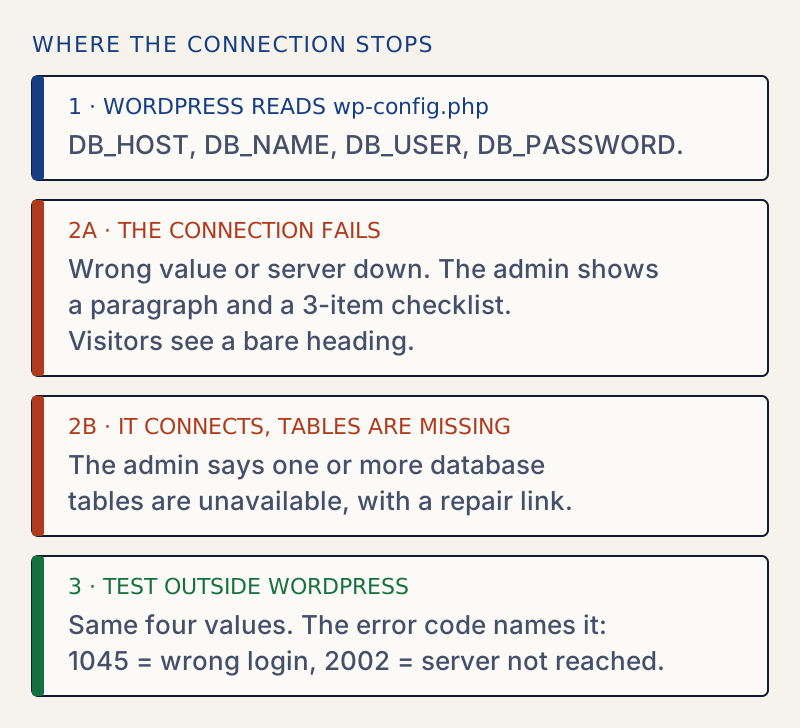
php ~/dbtest.phpover SSH. Without SSH, the only option is to put the file in the site root under a random name such asdbtest-k39xq7.php, open it once in your browser, and delete it at once. - Read the result. Error 1045 means the username or password is wrong. Error 1044 means the user has no permission on that database. Error 1049 means the database name does not exist. Error 2002 means the server could not be reached, which points to the host value or a stopped server.
- Delete
dbtest.phpstraight away. It may hold your database password.
Fix the database host
- Find the correct host in your host's documentation or database screen. Many hosts use
localhost. Others give a separate hostname, and some need a port, as indb.example.com:3306. - Set
DB_HOSTinwp-config.phpto that value, then reload the site. - If
localhostfails and you know the server runs locally, try127.0.0.1, which forces a network connection instead of a socket.
Check the database server is running
- On shared hosting, open a support ticket stating the exact error and the time it began. The database server is out of your hands.
- On a VPS or your own server, check the service. On most Linux systems,
sudo systemctl status mysqlorsudo systemctl status mariadbshows whether it is running. - If it stopped, start it, then look at the server's error log for the reason. A common cause is running out of memory.
- In Docker or Dokploy, confirm the database container is running, healthy, and on the same network as the WordPress container, and that
DB_HOSTis the database service name.
Repair corrupted tables
- Take a backup of the database first, if the server lets you.
- Add
define( 'WP_ALLOW_REPAIR', true );towp-config.php, above the line that says to stop editing. - Visit
/wp-admin/maint/repair.phpin your browser and choose Repair Database. The page needs no login, so anyone who knows the address can use it while the constant is set. - Remove the
WP_ALLOW_REPAIRline fromwp-config.phpwhen it finishes. - With WP-CLI and the MySQL client tools installed,
wp db checkandwp db repairdo the same job from the command line.
Show visitors a friendly page meanwhile
- Create a file named
db-error.phpinwp-content. WordPress loads it instead of the default message when the connection fails. - Keep the file static: no WordPress functions, since the database is not available. Send a 503 status with
http_response_code( 503 );so search engines know the outage is temporary.
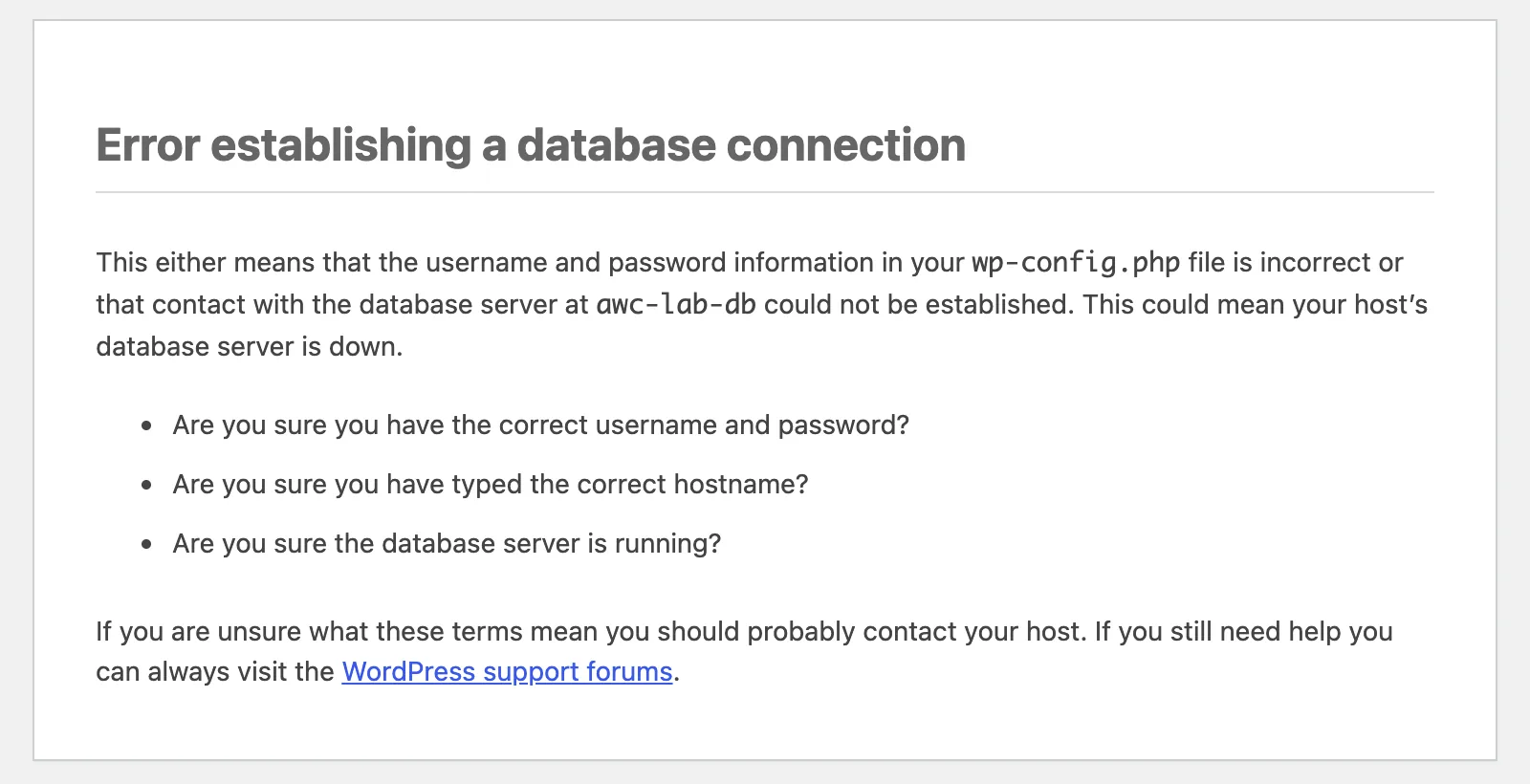
WordPress shows this message when it cannot open a connection to the database server. Nothing is lost by the message itself. Your content is in the database, and it is almost always still there.
On the front end, visitors normally see only the bare heading, with the browser tab titled Database Error, whatever the cause. To tell the causes apart, load /wp-admin/.
- A paragraph and a checklist in the admin. WordPress could not connect. The paragraph says that either the username and password in
wp-config.phpare wrong, or the database server at your host could not be reached. The checklist asks about the username and password, the hostname, and whether the server is running. - "One or more database tables are unavailable" in the admin. WordPress connected, but its tables are missing or unreadable. The page offers a repair link.
With WP_DEBUG and WP_DEBUG_DISPLAY both on, the front end shows the full checklist for a failed connection too.
What the error actually means#
When a page loads, WordPress reads wp-config.php and tries to connect with DB_HOST, DB_USER and DB_PASSWORD. If that connection fails, it stops and prints the message. It is a connection failure, not a content failure. That is why working through the list from the most likely cause to the least works well.
In practice, wrong credentials and a stopped database account for most reports. Corrupt tables and exhausted connection limits are rarer.
The order to work in#
- Look for a known outage at your host.
- Check the four database values in
wp-config.php. - Test the connection outside WordPress, to see the real error code.
- Only then look at repair and server resources.
The connection test is the step people skip. It replaces guessing with a number. The same four values tried from a separate script return either "Connected" or a MySQL error code, and the code points straight at the cause.
If it started after a change#
Think about what changed just before:
- A migration or a restore. The new server often has a different database name, user or host. Update
wp-config.phpto match. - A password change. Changing the database password in the hosting panel does not change
wp-config.php. Update both. - A host move or plan change. The host value may be new.
- A staging copy. The staging
wp-config.phppoints at the staging database. Do not copy it over live. The staging-to-live guide covers what to carry across and what to leave.
If you restored a backup and the error appeared, the database may be empty or missing tables (see table doesn't exist). In that case the connection works but the site is gone. Restore the database again and confirm that it contains your tables.
If the message is about PHP and not the database, see your PHP installation appears to be missing the MySQL extension.
When your host is the cause#
If the test script cannot connect with correct credentials, and the server is up, ask your host about connection limits and recent maintenance. The wording to send is short: the exact message, the time it started, and what you tried. Attach the error code from the test.
After it is fixed#
Check the admin, a few pages and any forms. If you changed the password, make sure any other tool that connects to that database, such as a backup script, has the new one. Then keep a copy of wp-config.php somewhere private so a future migration starts from the working values.
Related: find and undo changed settings if settings look wrong after you recover, and moving settings from staging to live.
Sources
- WordPress: editing wp-config.php · WP_ALLOW_REPAIR and the repair page
- WordPress core: wp-config-sample.php · The DB_NAME, DB_USER, DB_PASSWORD and DB_HOST settings, at the 6.8.3 tag
- WordPress core: wpdb class · db_connect() builds the connection message; bail() sends it with status 500. 6.8.3 tag
- MariaDB: error codes 1000 to 1099 · 1044, 1045 and 1049 with their meanings
- MariaDB Connector/C: errmsg.h · 2002 is CR_CONNECTION_ERROR, a client-side connection failure
- PHP: mysqli_connect_errno() · The error number a connection test prints
One email when something breaks or changes.
New plugins and re-tested guides, about twice a month. Never a sales pitch.