Why it happens
- The table name differs in letter case, for example WP_Options instead of wp_options. On a server where table names are case-sensitive, which is the Linux default, these are two different tables.
- A table was lost: a partial import, a backup that skipped it, a failed plugin uninstall or a manual DROP TABLE.
- A plugin's own table is missing. The plugin created it once, on activation, and a migration or restore did not bring it along.
- The database was restored into the wrong database, or the DB_NAME in wp-config.php points at an empty one.
- The table_prefix in wp-config.php does not match the prefix of the tables in the database. This is common after a migration, a restore, or when someone changes the prefix for security. This one prints no message. Visitors get the install screen, so it is the cause to suspect when you see that screen.
How to fix it
Try the fixes in this order. Each one is independent: stop as soon as the error is gone.
Find out which table is missing
- Read the message. In
Table 'lab_db.wp_postmeta' doesn't exist, the part after the dot is the table WordPress asked for. The prefix is everything before the table's own name. - If you cannot see the message on screen, open
wp-content/debug.log. See the debug log guide to switch it on. - Print the prefix WordPress uses:
wp config get table_prefix. Without WP-CLI, find the$table_prefixline inwp-config.php. - List the tables that really exist. In phpMyAdmin, open the site's database. With WP-CLI,
wp db tables --all-tables-with-prefixlists every table that starts with your prefix. With a wrong prefix it says "The site you have requested is not installed." and names the prefix it did find, so you can match it. If the options table is the one that is missing, WP-CLI cannot start WordPress at all and answers "Error establishing a database connection." Use phpMyAdmin then. - Compare the two. The next fixes depend on what you find.
Prefix mismatch: point wp-config.php at the real prefix
- Look at the real table names in phpMyAdmin. If they are
abc_posts,abc_optionsand so on, the prefix isabc_. - Set it with
wp config set table_prefix abc_, or edit the$table_prefix = 'wp_';line inwp-config.phpby hand. Keep the trailing underscore. - Reload the site. I tested this: with tables named
WP_...and the config sayingwp_, the site redirected to the install screen. After setting the config toWP_, the site loaded with its content.wp config setandwp config getonly edit and read the file, so they work even when the database is broken. - Do not click through the install screen to see what happens. See the warning below.
Letter case: rename the tables or change the prefix to match
- Check how your server treats case: run
SELECT @@lower_case_table_names;. 0 means names are case-sensitive, 1 means MySQL lowercases them, 2 means they are stored as written but compared in lower case. - If the tables are
WP_Optionsand WordPress asks forwp_options, rename them:RENAME TABLE WP_Options TO wp_options;. Repeat for each table, taking a database backup first. - The alternative is to leave the tables and set
$table_prefixto the case that matches, if every table uses the same one. - In my test, one table named
WP_Optionsamong lowercase ones gave "Error establishing a database connection" for visitors.RENAME TABLE WP_Options TO wp_options;fixed it at once.
A plugin's table is missing: let the plugin create it again
- The log line ends with a
made by ...list of function names. It shows what asked for the table. Search the plugin and theme folders for the table name:grep -rl "dvl_visits" wp-content/plugins wp-content/themesprints the file that uses it. - Deactivate the plugin, then activate it again from Plugins. Most plugins create their tables on activation. With WP-CLI:
wp plugin deactivate <slug>andwp plugin activate <slug>. - In my test with a small plugin that creates its table on activation, the table was back after activation and the error stopped. Plugins that create tables in another way may need their own repair or reset button. Check the plugin's documentation.
- Data that was in the table is gone unless you restore it from a backup. Reactivating gives an empty table.
A WordPress core table is missing: restore it from a backup
- Restore the table from the last backup that has it. In phpMyAdmin, import only that table's part of the dump. With WP-CLI,
wp db import file.sqlimports a whole dump, so use it only when you mean to replace the database. - A last resort for a table other than
wp_options, if you have no backup and the site still loads:wp eval 'require_once ABSPATH . "wp-admin/includes/upgrade.php"; make_db_current_silent();'creates any missing core table, empty. I tested it withwp_postmetadropped: the table came back with 0 rows. - This does not work for a missing
wp_options. Without that table WordPress cannot start, sowp evalanswers "Error establishing a database connection." and so does a script that loadswp-load.phpwithWP_INSTALLINGset. I tried both. For a missing options table the ways back are a backup, a table that only has the wrong name (RENAME TABLE, see the letter-case fix) or a wrong prefix. - An empty table means lost data. A missing
wp_postmetaloses custom fields, featured images and most page-builder content. A missingwp_optionsloses every setting, including which plugins are active. wp core update-dbdoes not do this. On my test site it only said "WordPress database already at latest db version" and created nothing.
Check you are in the right database
- Read
DB_NAMEwithwp config get DB_NAMEand open that exact database in phpMyAdmin. - If it holds no WordPress tables at all, the restore went into a different database. Import into this one, or change
DB_NAME. - Once the site loads, check Settings → General and a few pages.
WordPress built a table name from the prefix in wp-config.php and the database says that table is not there. Either the table is really missing, or it exists under a different prefix or letter case. Compare the prefix and the real table names first. The rest follows from that.
The message you search for is only one of three things owners see. Which one depends on which table is missing and whether WordPress is allowed to print errors.
What you see#
I broke a lab site (WordPress 7.1.4, MariaDB 10.6) in four ways and recorded what a visitor sees each time.
| What is wrong | Visitor sees | Where the "Table doesn't exist" line shows |
|---|---|---|
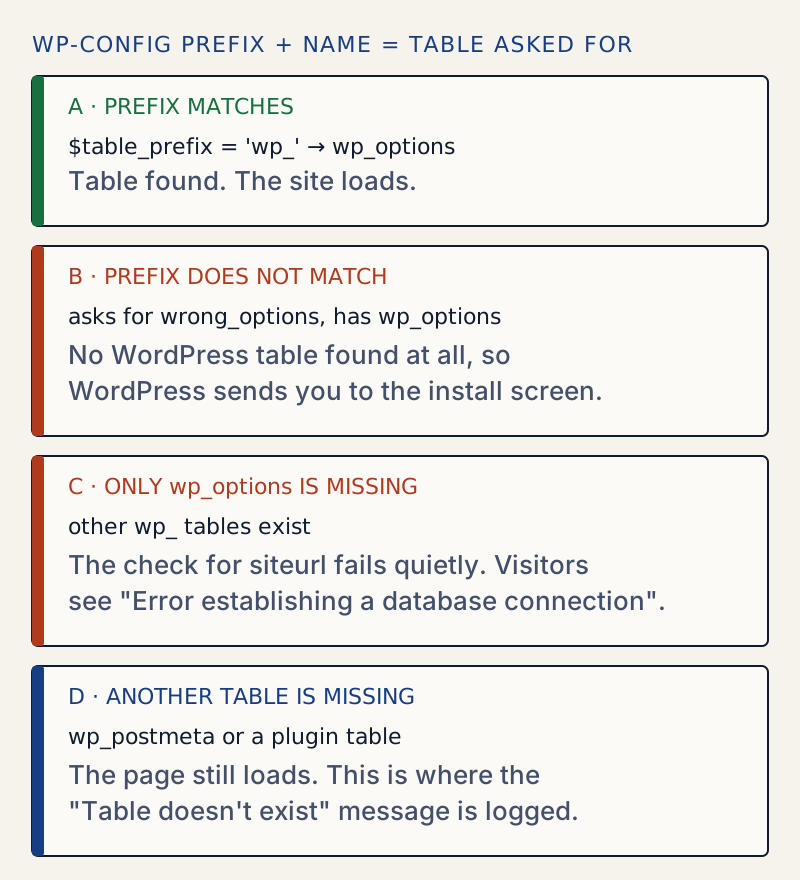
Prefix in wp-config.php matches no table | Redirect to /wp-admin/install.php (HTTP 302) | Nowhere |
| Only the options table is missing | "Error establishing a database connection" (HTTP 500). /wp-admin/ says "One or more database tables are unavailable." | Nowhere |
wp_postmeta or a plugin table is missing | The page loads (HTTP 200) | debug.log. On screen only with WP_DEBUG and WP_DEBUG_DISPLAY on. |
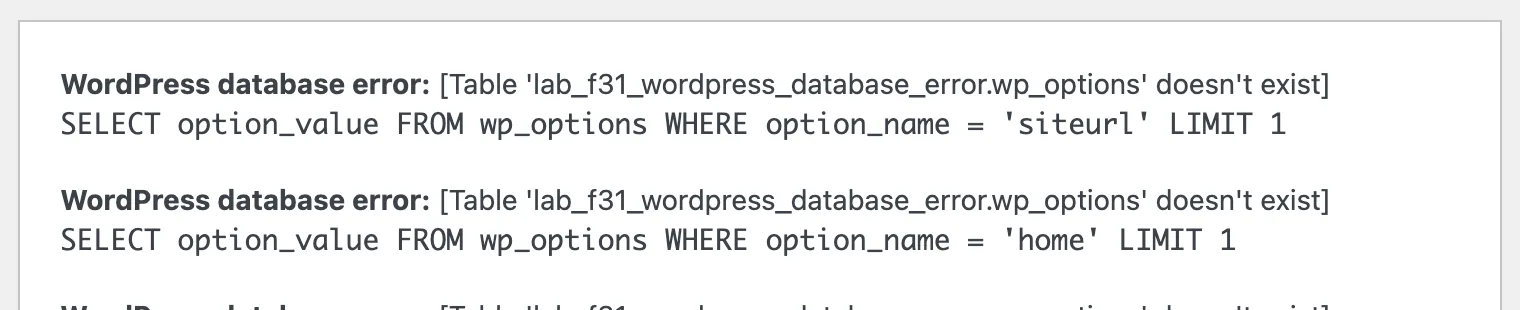
Options table missing, repair page open (WP_ALLOW_REPAIR) | The repair page, with the message printed above it | On screen and in the log |
So the search-engine version of this error is mostly a log line. A site that is down with a missing options table never prints it. If your site shows a blank heading, read Error establishing a database connection as well.
This is the message in wp-content/debug.log, from a lab site where I renamed wp_postmeta:
[30-Oct-2026 12:41:34 UTC] WordPress database error Table 'lab_f31_wordpress_database_error.wp_postmeta' doesn't exist for query SELECT post_id, meta_key, meta_value FROM wp_postmeta WHERE post_id IN (1) ORDER BY meta_id ASC made by require('wp-blog-header.php'), wp, WP->main, WP->query_posts, WP_Query->query, WP_Query->get_posts, _prime_post_caches, update_postmeta_cache, update_meta_cacheThe page still answered 200. With WP_DEBUG and WP_DEBUG_DISPLAY both on, the same error also printed at the very top of the page, above the doctype:
<div id="error"><p class="wpdberror"><strong>WordPress database error:</strong> [Table 'lab_f31_wordpress_database_error.wp_postmeta' doesn't exist]<br /><code>SELECT post_id, meta_key, meta_value FROM wp_postmeta WHERE post_id IN (1) ORDER BY meta_id ASC</code></p></div>A wp_options / siteurl version of the message appears when WordPress is not allowed to stop. That happens on the repair page, which a lot of guides tell you to open:
How WordPress picks the table name#
Every core table name is the prefix from wp-config.php plus a fixed name: posts, postmeta, options, and so on. WordPress sends that name to the database exactly as built. If the database cannot find it, it answers that the table does not exist, and WordPress logs the text above. Nothing is guessed or retried.
Before the page runs, is_blog_installed() reads siteurl from the options table with errors muted. If it finds a value, the site is installed. If not, it describes each core table. No table at all means a fresh site, so you get the install screen. At least one table found means a damaged site, so you get the unavailable-tables message. That is why a wrong prefix and a missing options table look so different to visitors.
The prefix may use only letters, numbers and underscores, as the comment in wp-config.php says. If it has anything else, WordPress stops with an error about the prefix.
Do not click through the install screen#
A wrong prefix sends the site to the install screen. If you finish the installer, WordPress creates a full new set of tables with the wrong prefix next to your real ones. I did this on the lab site with wp core install and a wrong prefix:
wp core install --url=http://localhost:8903 --title="Fresh install" --admin_user=admin2 --admin_email=a@example.com --admin_password=...Success: WordPress installed successfully.The database then held both wp_posts and wrong_posts, each with its own users and options. Setting the prefix back to wp_ brought the original site back unharmed, so nothing was lost. The new tables stay behind until you delete them.
WP-CLI is more helpful than the browser here. With the same wrong prefix, wp db tables --all-tables-with-prefix says which prefix it found:
Error: The site you have requested is not installed.Your table prefix is 'wp_'. Found installation with table prefix: WP_.Or, run `wp core install` to create database tables.That one line is the answer. Use wp config set table_prefix WP_ to match it.
Letter case and migrations#
MySQL's lower_case_table_names setting decides whether wp_options and WP_Options are the same table. The default is 0 on Linux, 1 on Windows and 2 on macOS. On the Linux lab database it was 0, so after RENAME TABLE wp_options TO WP_Options WordPress could not find wp_options.
The usual path to this problem: a site is built on a Windows or Mac laptop where the case did not matter, then moved to a Linux server where it does. Any table whose case differs from what WordPress builds is simply missing. WordPress core and most plugins write names in lower case, but some plugins use mixed case. Rename the tables, as in the fix above, or set the prefix to the case used in the database. Do not change lower_case_table_names on a live server. MySQL does not allow changing it after the server is first set up.
Missing plugin tables#
Plugins that keep their own data create their tables once, when you activate them. A migration that skips those tables, or a restore from a partial backup, leaves the plugin running with no table. Every page view then logs the error. The page still loads, because WordPress cannot tell the plugin is broken.
To test it I wrote a small plugin that creates wp_dvl_visits when you activate it and writes one row on every page view, in the wp_footer hook. After I dropped the table, the log said:
[30-Oct-2026 12:41:08 UTC] WordPress database error Table 'lab_f31_wordpress_database_error.wp_dvl_visits' doesn't exist for query SHOW FULL COLUMNS FROM `wp_dvl_visits` made by require('wp-blog-header.php'), require_once('wp-includes/template-loader.php'), include('wp-includes/template-canvas.php'), wp_footer, do_action('wp_footer'), WP_Hook->do_action, WP_Hook->apply_filters, {closure}The table name is the clue, and the made by chain shows when the query ran (here, in the footer). Searching the plugin and theme folders for the name finds the file:
$ grep -rl "dvl_visits" wp-content/plugins wp-content/themeswp-content/plugins/dvl-visits/dvl-visits.phpAfter wp plugin deactivate dvl-visits and wp plugin activate dvl-visits, the table was back and the log stayed empty.
To see every core table WordPress expects that the database lacks, run this on a site that still loads:
wp eval 'global $wpdb; $have = $wpdb->get_col( "SHOW TABLES" ); foreach ( $wpdb->tables( "all" ) as $t ) { if ( ! in_array( $t, $have, true ) ) { echo "missing: $t\n"; } } echo "done\n";'done"done" with no missing: lines means every core table is there. This only looks at core tables, not plugin tables.
Back up first, then restore one table#
Before any repair, back up the database as it is. A broken database is still the best copy you have of what survived. With WP-CLI: wp db export before-fix.sql. In phpMyAdmin: open the database, choose Export and keep the default settings. WP-CLI cannot do this when the options table is missing, so use phpMyAdmin then.
If you have a backup of the missing table, import only that table. In phpMyAdmin, open the backup file in a text editor, copy the CREATE TABLE and INSERT statements for that one table, and run them on the SQL tab. Importing a full dump over a working database replaces every table in it, and everything written since that backup is lost.
If you changed settings while repairing, find and undo changed settings helps you check them. If the database cannot be reached at all, see error establishing a database connection.
After it is fixed#
- Reload the front page and
/wp-admin/, then check the log is quiet: emptydebug.log, reload a few pages, and check that nothing new is written. - Remove
WP_ALLOW_REPAIRfromwp-config.phpif you added it. The repair page needs no login while it is set. - Turn
WP_DEBUGoff again on a live site.
Sources
- wpdb::print_error() reference · Every database error is logged. It shows on screen only when show_errors is on.
- MySQL: Identifier Case Sensitivity · lower_case_table_names 0, 1 and 2, and the default for each operating system. The lab database is MariaDB 10.6, which has the same setting. Its value there was 0.
- Editing wp-config.php: table_prefix and WP_ALLOW_REPAIR · What the prefix is for, and that the repair page needs no login.
- WordPress core: is_blog_installed() · Search for is_blog_installed. It looks for siteurl with errors muted, then shows the install screen or the unavailable-tables message.
One email when something breaks or changes.
New plugins and re-tested guides, about twice a month. Never a sales pitch.