Why it happens
- A plugin or theme changed how one of its blocks writes its HTML, and the post was saved with the old version. The block's own code no longer produces what is stored. This is the usual cause after an update.
- Someone edited the post's HTML by hand, in the Code editor, in the database, or by a script, and the tags or attributes no longer match what the block expects. A heading whose comment says level 3 but whose tag is
h2is enough. - Something rewrote the HTML after the editor saved it, such as a search-and-replace, a paste from another tool, or a plugin that filters post content.
- A block of the right kind, from a page builder or a plugin that is now switched off, was saved in a shape that the current version of the block does not read.
How to fix it
Try the fixes in this order. Each one is independent: stop as soon as the error is gone.
Click Resolve and read the difference first
- Click the three dots next to Attempt recovery on the warning, then Resolve. A window called Resolve Block opens. Nothing is changed until you press a button in it.
- The left side, Current, shows your stored HTML. The right side, After Conversion, shows what WordPress would turn it into, with the changed letters marked in red and green.
- If the right side is missing text, a style or a link that the left side has, do not use Convert to Blocks. Close the window and use the next fix.
- Press F12 and open the Console tab for the exact difference. WordPress prints a line such as
Block validation: Expected tag name h3, instead saw h2.followed by the HTML the block would write and the HTML it found.
Use Convert to HTML to keep every character
- Click the three dots, then Convert to HTML. The block becomes a Custom HTML block that holds your stored HTML exactly as it was. In the tests the text, classes and styles were all still there afterwards.
- Click Update (or Save draft). The post now shows the same on the site as before, and the warning is gone.
- The cost: that part is no longer editable as a normal block. Use this when the content matters more than easy editing, or as a safe stop before you fix the block properly.
- If the menu only shows Resolve, the invalid block is inside a block that does not allow a Custom HTML block, such as a single button inside Buttons. Use the Code editor fix below.
Use Attempt recovery only when nothing important is lost
- Attempt recovery rebuilds the block from what the editor could read: the settings in the comment, plus the parts of the HTML that the block knows how to read (a heading's text, an image's alt text). It then writes fresh HTML. Anything the block does not read is dropped: extra wrappers, inline styles, unknown tags, or text that sat in a tag that is missing.
- In the tests it kept the text of a heading (and changed its tag), kept an image, dropped a button's rounded corners, and emptied a code block. See the table on this page.
- Copy the post first. Open the three dots at the top right, choose Code editor, select all and copy the text into a note. Then click Attempt recovery, look at the block, and click Update only if it is right.
- If it is wrong, do not save. Reload the page and the post is as it was, because the recovery is only in your browser until you click Update.
Fix the HTML by hand in the Code editor
- Open the three dots at the top right and choose Code editor. Find the block by its comment, such as
<!-- wp:code -->. - Make the HTML match what the Console said the block expects. For a code block that was missing its inner tag, change
<pre class="wp-block-code">text</pre>to<pre class="wp-block-code"><code>text</code></pre>. Switch back to Visual editor and the block opens as valid with the text in it. - For a heading, either change the tag to match the level in the comment, or change the level in the comment to match the tag.
- Click Update.
Undo with a revision if you saved the wrong thing
- Open the post, then Post in the right panel, then Revisions. Pick the version from before you saved and restore it. WordPress puts that version back into the post.
- A revision of the broken version only exists if that version was saved through WordPress earlier. In the test, a post created by WP-CLI and never saved in WordPress had no revision of the broken HTML, and Attempt recovery then replaced it for good. Once the post had been saved once, the old HTML was kept in a revision and restoring it brought the text back.
- So before you recover anything on a live site, save the post once as it is (the saved copy is a revision), or copy the Code editor text.
If a plugin update caused it, go back or update again
- If many posts show the warning right after a plugin or theme update, the new version changed its block output. In the test, changing a block's wrapper from
divtoasidemade the test post invalid. Putting the old version back made it open as valid again, because nothing had been saved. - Roll the plugin back to the previous version, or update it again if the author has shipped a fix. Do not click Attempt recovery on each post until you know the block's author has a fix.
- Tell the plugin author. Their fix is a
deprecatedentry that holds the oldsavefunction. With it, the same posts opened as valid on the test site, and the new HTML is only written when you next save the post.
The block editor stores each block as a comment with its settings plus the HTML. On load it builds the HTML again from the settings and compares the two. When they differ, it shows this warning in place of the block and changes nothing. The safe choices are Resolve to see the difference and Convert to HTML to keep everything. Attempt recovery is the big blue button, but it can delete content.
What you see#
On WordPress 7.1.4 the warning reads "Block contains unexpected or invalid content." Many guides quote it with "This" at the start, but that word is not in the 7.1.4 editor code, so the page title keeps "This" for search only. The big button is Attempt recovery, and the three dots next to it hold Resolve and Convert to HTML. I searched the 7.1.4 editor scripts and found no Convert to Classic Block option, which older guides list.
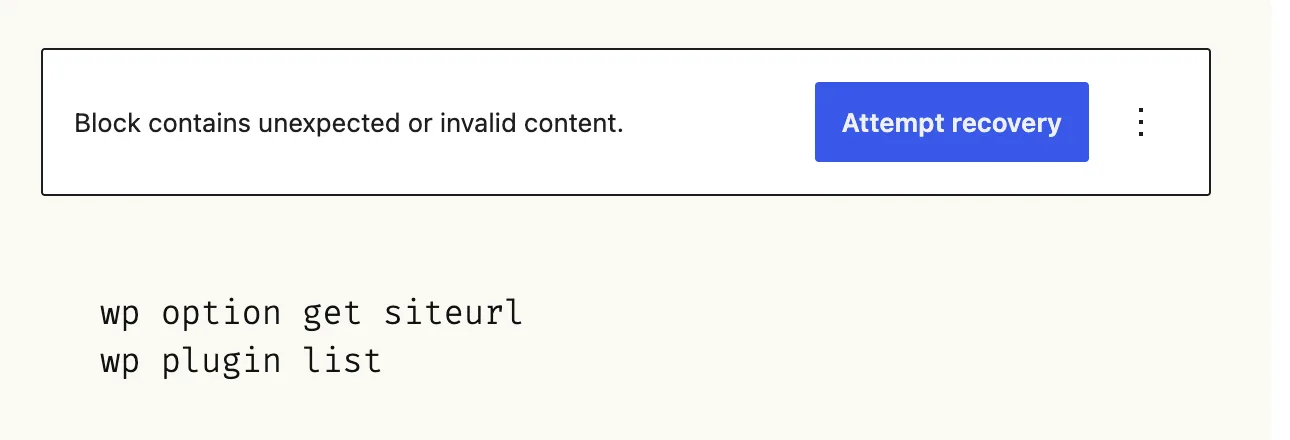
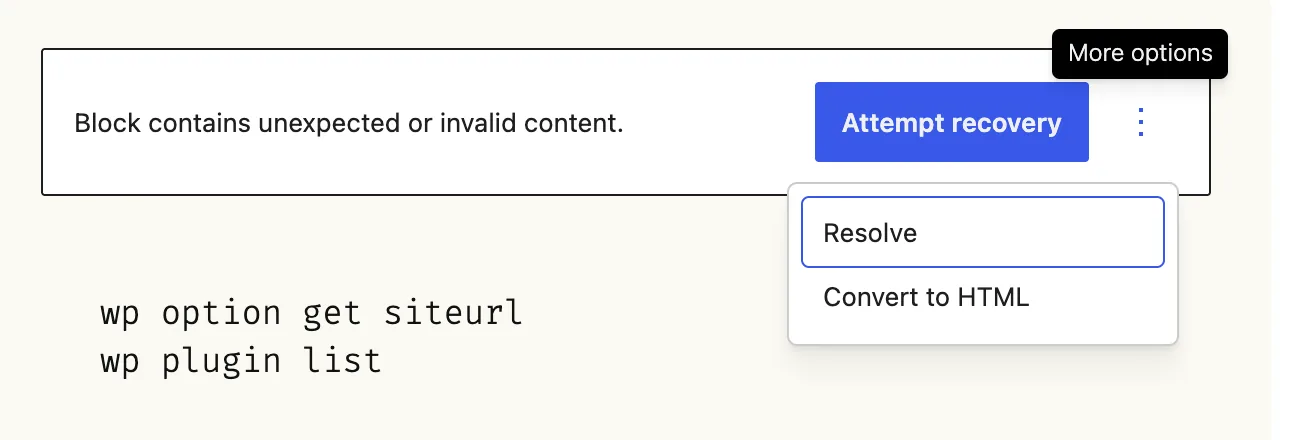
Visitors do not see the warning. It is an editor message only. I published a post with an invalid code block and the front end printed the stored text as it was. Opening the post and saving it without choosing a button also left the block as it was, because the editor writes an invalid block back with its original HTML.
How the editor decides a block is invalid#
The check runs every time you open the post. It does not read your database for a flag.
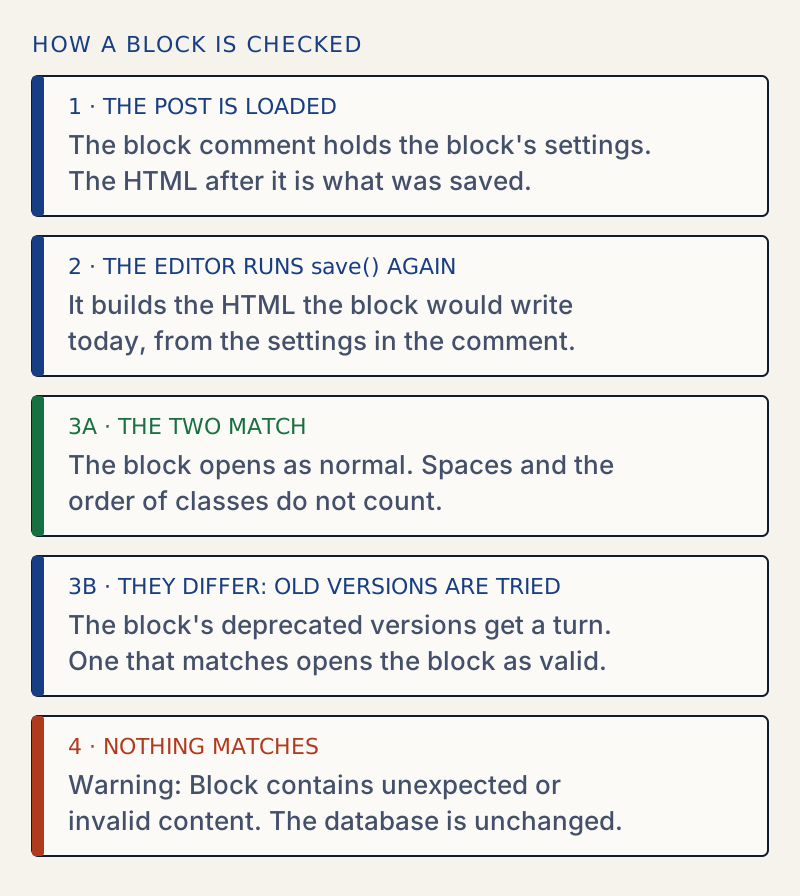
Here is the heading I used. The comment says level 3 and the tag says h2:
<!-- wp:heading {"level":3} --><h2 class="wp-block-heading">Opening hours</h2><!-- /wp:heading -->The browser console printed this for it:
Block validation: Expected tag name `h3`, instead saw `h2`.Block validation: Block validation failed for `core/heading`Content generated by `save` function:<h3 class="wp-block-heading">Opening hours</h3>Content retrieved from post body:<h2 class="wp-block-heading">Opening hours</h2>Note which side is trusted. The settings in the comment decide what the block should look like, and the HTML is what is checked against it. That decides what each button does.
What each button does to your content#
Attempt recovery rebuilds the block from what the editor could read (the comment settings plus the parts of the HTML the block reads) and writes fresh HTML, so anything else in the old HTML is dropped. Convert to HTML copies the stored HTML. Resolve, then Convert to Blocks, rebuilds blocks from the stored HTML and ignores the comment. Every option was run on a separate copy of each post, saved, and compared post_content before and after.
| Block, and what was wrong | Attempt recovery | Convert to HTML | Resolve, then Convert to Blocks |
|---|---|---|---|
Heading: comment says level 3, tag is h2 | <h3>, text kept | Custom HTML block, <h2> kept | Heading with <h2>, the level setting is gone |
Image: wrapped in an extra <div class="photo-wrap"> | Wrapper removed, its class moved onto the <figure>, image, alt text and caption kept | Custom HTML block, wrapper kept | Custom HTML block with the same HTML |
Button: style="border-radius:24px" in the HTML, not in the comment | style removed, text and link kept | Not offered (see below) | Saved HTML identical to the stored HTML, so the rounded corners stay |
Code: <pre> with text but no inner <code> | Text deleted: <pre class="wp-block-code"><code></code></pre> | Custom HTML block, text kept | Preformatted block, text kept |
For the code block the saved result of Attempt recovery was this, with the two command lines gone:
<!-- wp:code --><pre class="wp-block-code"><code></code></pre><!-- /wp:code -->The code block shows why. Its text is read from a <code> tag. Without that tag, the editor finds no text in the HTML, so the recovered block has none. The heading and image keep their text because the block reads it from tags that were still there. The Resolve Block window showed the difference before I saved anything:
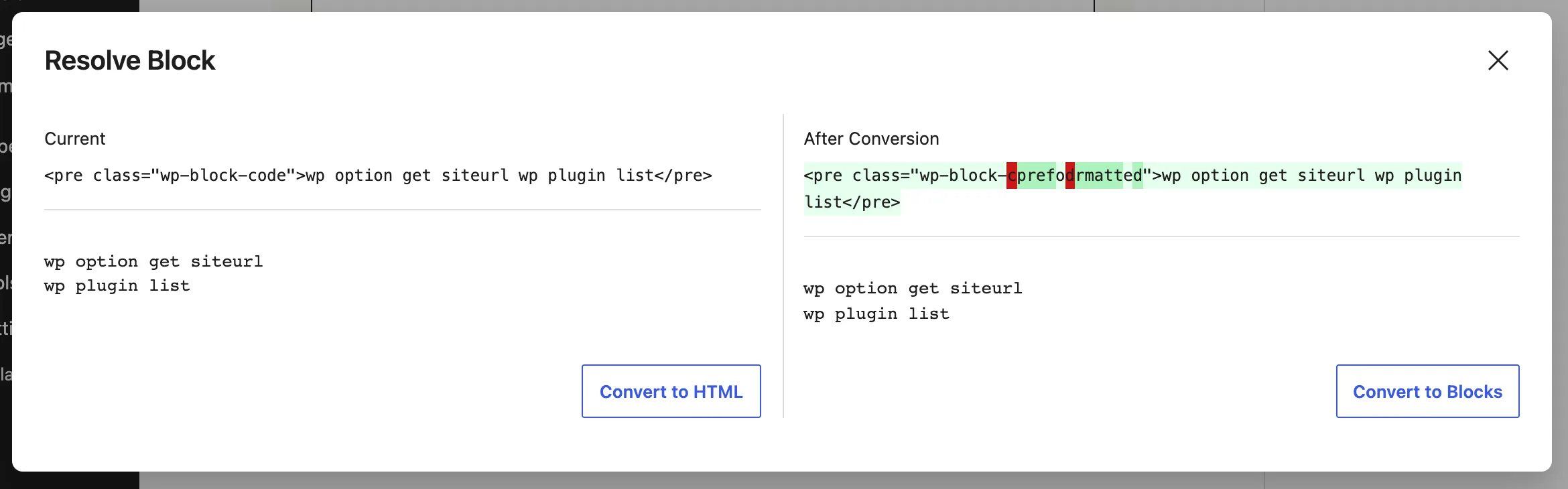
The window offers two choices that are not the same as the big button. Attempt recovery is not in it.
The button that is missing#
For a single button inside a Buttons block, the three-dot menu showed only Resolve. WordPress offers Convert to HTML only when a Custom HTML block is allowed at that spot, and it is not inside Buttons. There I fixed the HTML in the Code editor instead.
Undoing a recovery#
Every save makes a revision, and the newest revision always matches the current post. That means the revision of the broken version only exists if that version was saved before. I tested both cases:
$ wp post list --post_type=revision --post_parent=34 --fields=ID,post_titleID post_title35 code recover$ wp post get 35 --field=post_content<!-- wp:code --><pre class="wp-block-code"><code></code></pre><!-- /wp:code -->The only revision already holds the emptied block. Nothing holds the original text.
$ wp post list --post_type=revision --post_parent=42 --fields=ID,post_titleID post_title44 rev test saved once43 rev test saved once$ wp post get 43 --field=post_content<!-- wp:code --><pre class="wp-block-code">wp option get siteurlwp plugin list</pre><!-- /wp:code -->Revision 43 holds the text from before. I restored it with wp_restore_post_revision( 43 ), the function the Restore button in the editor uses, and the post had the text again.
A plugin update turned many posts invalid#
I registered a small block with a div wrapper, saved a post with it, then changed its save function to write an aside. The post went invalid, with this in the console:
Block validation: Expected tag name `aside`, instead saw `div`.Three more results from the same test:
- Switching the plugin script back to the
divversion made the post open as valid. Nothing had been saved, so nothing had changed. - Adding a
deprecatedentry with the oldsavefunction also made it open as valid. WordPress tried the old version, it matched, and the block opened. The newasideHTML is written only when the post is next saved. - In the test, the first deprecated entry did not work until
apiVersion: 3was repeated in it. The deprecation page does not say this; it is only what the test showed. This is for plugin authors, not owners.
If it keeps coming back#
The same block turning invalid after you recover it means something rewrites the HTML after the editor saves, or a plugin keeps changing its output. Turn plugins off in halves on a copy of the site to find it. A block that went invalid right after an update is a good reason to read how to update plugins safely before the next one. If the editor itself crashes instead of showing this warning, see the editor has encountered an unexpected error. If saving fails after you recover a block, see Updating failed, the response is not a valid JSON response.
Sources
- Block Editor Handbook: Edit and Save, validation · the editor compares regenerated markup with the stored markup; the names of the recovery options
- Block Editor Handbook: Deprecation · how a deprecated entry makes an old block valid again
- Gutenberg: block validation (validateBlock, isEquivalentHTML), trunk at time of writing · the comparison, and the class order rule
- Gutenberg: block parser (parseRawBlock, applyBlockValidation), trunk · validation, then deprecations, then the invalid state
- Gutenberg: BlockInvalidWarning component, trunk · the labels and what Attempt recovery, Convert to HTML and Resolve do
- WordPress developer reference: wp_save_post_revision() · every update is a revision, and the latest revision matches the current post
One email when something breaks or changes.
New plugins and re-tested guides, about twice a month. Never a sales pitch.