Why it happens
- The file's extension is not on WordPress's allow-list. SVG, JSON, fonts such as .woff2, and programs such as .exe are all off the list by default.
- The extension is on the list, but the file inside is not that kind of file. A text file renamed to .png, or an SVG renamed to .png, fails the content check. So does an SVG that starts with an HTML comment, even with svg allowed: PHP reads it as plain text.
- On a multisite network, the Super Admin's list of allowed file types (Network Admin, Settings) leaves the type out.
How to fix it
Try the fixes in this order. Each one is independent: stop as soon as the error is gone.
Find out which check failed
- Look at the file name. No extension, or one you do not recognise, means check 1 (the allow-list). A normal picture that still fails means check 2 (the content).
- Ask WordPress about the name alone:
wp eval 'print_r( wp_check_filetype( "logo.svg" ) );'. Ifextandtypecome back empty, the extension is not on the list. (You can also print the list withget_allowed_mime_types(), but its keys are grouped with a bar, such asjpg|jpeg|jpe, so one entry can cover several extensions.) - Run the check on the file itself:
wp eval 'print_r( wp_check_filetype_and_ext( "/path/to/file.png", "file.png" ) );'. Ifextandtypecome back empty, WordPress will refuse it.
Re-save a picture in its real format
- Open the file in an image editor and use Export or Save as. Choose JPG, PNG, GIF or WebP. Do not just rename it.
- Upload the new file. A genuine image with the wrong extension is not refused: I uploaded a PNG named fake.jpg and WordPress saved it as fake.png.
- Renaming does not turn an SVG into a PNG. logo.png that contained SVG text was refused.
Allow one extra type with a small snippet
- Use this when you need a type such as SVG or JSON and you know the files are safe. Add it to a small plugin or to your theme's
functions.php, or ask your developer to put it in a must-use plugin. - The snippet for SVG is
add_filter( 'upload_mimes', function ( $mimes ) { $mimes['svg'] = 'image/svg+xml'; return $mimes; } );. For JSON, use$mimes['json'] = 'application/json';. - To let only administrators do it, wrap the line in
if ( current_user_can( 'manage_options' ) ) { ... }. I tested this: an administrator uploaded logo.svg, an author got the same error. - Upload again. The error goes away because the extension is now on the list and the file's content matches its type.
If the type is on the list and still refused, look at the file's content
- Open the file in a text editor. An SVG must start with
<svgor<?xml. In my test, an SVG whose first line was an HTML comment was read as plain text and refused, even with svg allowed. - Delete anything before the first tag, save, and upload again. The same file without its comment line was accepted.
- Export the file again from your design tool with the option that leaves out comments, if it has one.
On multisite, ask the Super Admin
- In Network Admin → Settings → Network Settings, look at Upload file types. Only extensions in that box are allowed on every site. If the box is empty or unset, WordPress falls back to jpg, jpeg, png and gif.
- Only a Super Admin can change the box. Ask them to add the extension. A type that is not in WordPress's own list, such as svg, also needs the snippet above.
Avoid ALLOW_UNFILTERED_UPLOADS
- Many pages tell you to add
define( 'ALLOW_UNFILTERED_UPLOADS', true );towp-config.php. It works, and it is the riskiest fix. It turns off both checks for administrators. - On my test site, with it set, an administrator uploaded a .php file, a fake .jpg that held PHP code, and an .exe. The server ran the .php file when I opened its address in the browser.
- If you set it to upload one file, remove the line straight after, and delete anything you do not need from Media.
WordPress keeps a list of file types it accepts. When you upload something that is not on it, or something that is not really what its name says, it stops with this message. Nothing is saved. The safest fix is to change the file (a real PNG or JPG), or to allow one extra type with a short upload_mimes snippet.
What you see#
On Media → Add New the message appears under the file name. In the block editor it appears as a pop-up at the bottom with the file name in front.

In the block editor the same sentence comes from the browser itself, before anything is sent: company-logo.svg: Sorry, you are not allowed to upload this file type. WP-CLI shows it too:
wp media import /tmp/t/logo.svg --user=adminWarning: Unable to import file '/tmp/t/logo.svg'. Reason: Sorry, you are not allowed to upload this file type.Error: No items imported.Many older pages talk about "Sorry, this file type is not permitted for security reasons". I searched WordPress 7.1.4 (wp-admin and wp-includes) and that sentence is not there. It is an older wording. The message in this page is the one you get now.
How WordPress decides#
Two checks run, one after the other. Both end in the same message, so the text does not tell you which one failed.
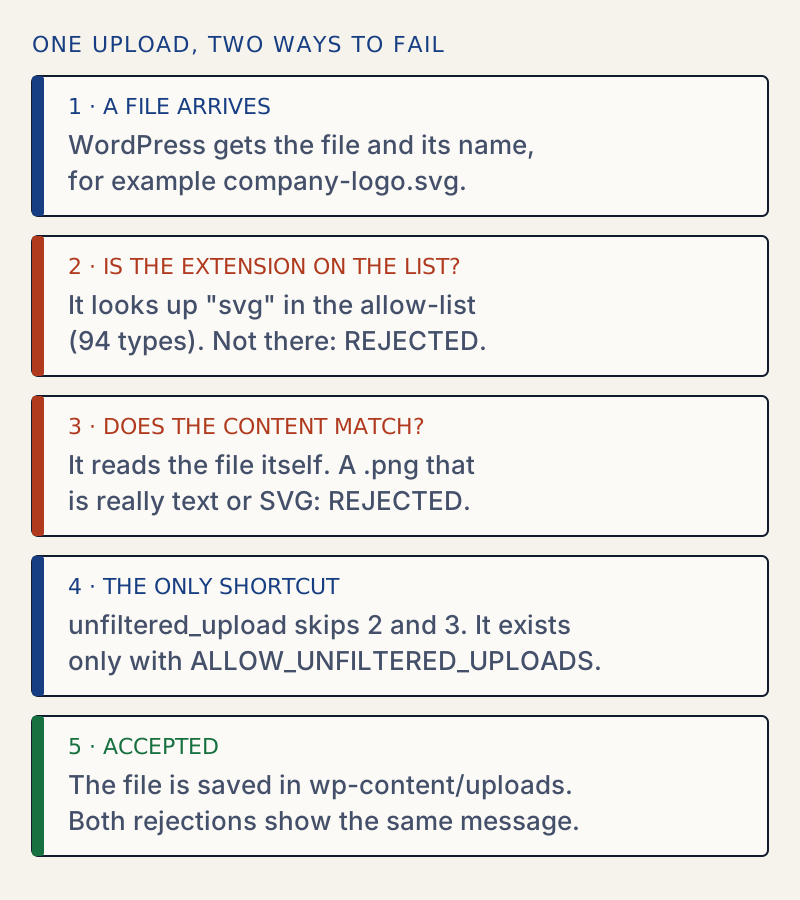
Check 1, the name. wp_check_filetype_and_ext() looks at the text after the last dot and finds its type in get_allowed_mime_types(). On a default 7.1.4 install that list has 94 entries: common images, video, audio, documents (PDF, Word, Excel, PowerPoint, OpenDocument), txt, csv, zip and a few more. A file with no extension, such as noext, gets no type at all.
Check 2, the content. For images, WordPress reads the file header and, if it is a different image type than the name says, renames the file to match. For everything else it asks PHP's fileinfo what the file really is. For most types the answer must equal the type from the name. Plain-text files get a few allowed exceptions, and .html and .js are taken off the list unless the user may post unfiltered HTML.
Then _wp_handle_upload() raises the error only when the type or extension is empty and the user does not have the unfiltered_upload permission. A few other core paths, such as wp_upload_bits() and the font upload route in the REST API, raise the same message when the extension is not allowed. That permission is never given by default. WordPress grants it only when ALLOW_UNFILTERED_UPLOADS is set in wp-config.php, and on multisite only to Super Admins.
What I tested#
All on WordPress 7.1.4, PHP 8.3, uploaded as an administrator with wp media import --user=admin, with default settings:
| File | What it is | Result |
|---|---|---|
logo.svg | a real SVG | Refused |
data.json | real JSON | Refused |
tool.exe | a fake program | Refused |
shell.php | one line of PHP | Refused |
f.woff2 | a font | Refused |
noext | a PNG with no extension | Refused |
notes.txt, list.csv | real text and CSV | Saved |
real.png, REAL2.PNG | a real PNG, lower and upper case | Saved |
fake.jpg | a real PNG named .jpg | Saved, renamed to fake.png |
fake.png | a text file named .png | Refused |
logo.png | an SVG named .png | Refused |
evil.jpg | PHP code named .jpg | Refused |
With svg and json added through upload_mimes, both were saved. Variants of the SVG file made a difference:
| SVG variant | What PHP fileinfo said | Result with svg allowed |
|---|---|---|
starts with <svg | image/svg+xml | Saved |
starts with <?xml ...?> | image/svg+xml | Saved |
| starts with a DOCTYPE | image/svg+xml | Saved |
starts with <!-- comment --> | text/plain | Refused |
| same file, comment line removed | image/svg+xml | Saved |
The comment case is the one that bites: you did the right thing, the type is allowed, and it still fails. This depends on the fileinfo library on your server, so another host can give another answer. Check with wp_check_filetype_and_ext() as in the first fix.
Multisite#
I converted a lab site to multisite to test the network list. With upload_filetypes set to jpg jpeg png gif txt, notes.txt was saved and a real .png was refused as soon as I removed png from the list. WordPress cuts the list down to the network list with a filter on upload_mimes at priority 10. A snippet at the same priority runs after it, because core adds its filter first, so it can add a type back. A snippet at an earlier priority (lower than 10) is cut by the network list. I read this in the core code; I did not test both priorities. If a snippet does not work on multisite, check the priority first.
The risk of SVG#
An SVG is code, not a picture. WordPress does not clean it. I uploaded an SVG with a <script> tag inside, and it was saved and served untouched as image/svg+xml, so the script is still there if someone opens the file's address.
HTTP/1.1 200 OKContent-Type: image/svg+xml<svg xmlns="http://www.w3.org/2000/svg" ...><script>alert(document.domain)</script>...Allow SVG only for people you trust, with the manage_options check from the fix above, and open files from others in a text editor first. A plugin that cleans SVG files on upload is a reasonable extra step. I did not test one.
Why unfiltered uploads is the risky fix#
With the constant set, all of these were saved by an administrator: tool.exe, evil.jpg and shell.php. I then opened /wp-content/uploads/2026/10/shell.php in a browser and the server ran it:
curl -s -w ' [HTTP %{http_code}]\n' http://localhost:8901/wp-content/uploads/2026/10/shell.php1 [HTTP 200]That is the whole reason for the checks. An author account, which does not get the permission, was still refused with the constant set, so the constant widens the risk only for administrators. If an administrator account is ever taken over, the attacker can put a working PHP file on your site in one upload. Use the narrow upload_mimes fix instead. See how to harden WordPress for more.
If the upload gets past this and fails later#
A file that is allowed can still fail for other reasons. Those have different messages:
- File exceeds the maximum upload size for this site, when WordPress or the network limit says the file is too big.
- The uploaded file exceeds the upload_max_filesize directive in php.ini, when PHP stops it first.
- The uploaded file could not be moved to wp-content/uploads, when the folder cannot be written to.
- The server cannot process the image, when the type is allowed but WordPress cannot make the smaller sizes.
Sources
- upload_mimes filter (WordPress Developer Resources) · the filter that edits the allow-list
- wp_check_filetype_and_ext() (WordPress Developer Resources) · extension and content check
- get_allowed_mime_types() (WordPress Developer Resources) · the allow-list
- check_upload_mimes() (WordPress Developer Resources) · multisite upload_filetypes
- wp-admin/includes/file.php, 6.8.3 (WordPress/wordpress-develop) · _wp_handle_upload() raises the error
- Fileinfo (PHP manual) · how PHP detects a file's real type from its content
One email when something breaks or changes.
New plugins and re-tested guides, about twice a month. Never a sales pitch.