Why it happens
- PHP ran out of memory while making the smaller copies of the image (thumbnails, medium, large). Memory use depends on the pixel size, not on the file size: a 9000 by 6000 pixel photo needs well over 200 MB to open with GD, even as a 1 MB file. Where the line falls depends on the host's memory limit and on whether the site uses Imagick or GD.
- PHP or the web server stopped the request for taking too long, or the host killed the process. The browser then gets a 5xx answer, or no answer.
- A firewall, security plugin or proxy refused the upload with an error such as 403 before WordPress could answer.
- A plugin or theme changed the upload and failed, for example an image optimiser that works on upload.
How to fix it
Try the fixes in this order. Each one is independent: stop as soon as the error is gone.
Upload a smaller image
- Resize the picture to 2560 pixels on the long side or less before you upload it. That is the size WordPress itself scales big images down to, so a larger original adds work and no quality you can see on the site.
- A phone photo or a scan is often 4000 pixels or more. Any photo app can export a smaller copy.
- On a test site (WordPress 7.1.4, GD, memory limit 128M) a 9000 by 6000 pixel image failed every time. A 2400 by 1600 pixel version of the same picture uploaded at once.
Delete the half-made item, then upload again
- Open Media → Library. If the failed image is listed, delete it. A failed upload can leave an item with the original file and few or no smaller sizes.
- WordPress deletes the item for you only when it got the answer it needs to do so, and only when the upload is under 10 minutes old. A killed process never gets that far.
- Upload the smaller copy.
Read the real reason in the debug log
- The message is the same for many causes. The log says which one it is. Follow the debug log guide to turn it on, then upload the image again.
- Open
wp-content/debug.log. A memory cause looks likePHP Fatal error: Allowed memory size of 134217728 bytes exhaustedand names a file such asclass-wp-image-editor-gd.php. - A time cause names
Maximum execution time. See maximum execution time exceeded. - If the log has nothing for the upload, the request never reached WordPress, or a process killed it. Go to the last fix.
Raise the memory limit (only if it is low)
- Image work runs in the dashboard, so the limit that counts is
WP_MAX_MEMORY_LIMIT. WordPress already sets it to 256M, so on most sites there is nothing to raise. Open Tools → Site Health → Info → Server and check the PHP memory limit first. The edit below helps only whenwp-config.phpor the host has set the value lower. - To raise it, add
define( 'WP_MAX_MEMORY_LIMIT', '512M' );inwp-config.php, above the line that says to stop editing. With WP-CLI:wp config set WP_MAX_MEMORY_LIMIT 512M. Use a number the host allows. - WordPress only raises PHP's limit, never lowers it. If the number in the log does not change after your edit, the host fixes the limit. See the memory limit page for how to check that and what to ask the host for.
- On a test site with the limit at 128M, a 9000 by 6000 pixel JPEG failed with the fatal error above, and so did 160M and 192M. The same file uploaded at the default 256M with GD. The test machine capped each site's memory near 190M, so I could not test higher values reliably.
Rule out a block outside WordPress
- If the debug log shows nothing, open your host's error log or ModSecurity log and look for the time of the upload. A refused request shows as a 403 or similar in the browser's network tab: open the browser's developer tools, choose Network, upload again, and click the request called
async-upload.php. - Ask the host to allow the request, or turn off the security plugin for one test upload to see if it is the cause.
- If the network tab shows the request was killed with no status, ask the host whether the process hit a memory or time limit, and quote the time of the upload.
WordPress took your file, but could not finish the job of making the smaller sizes. The most common reason is that PHP ran out of memory on a picture with a lot of pixels. The fastest fix is a smaller picture. This page shows what happens behind the message so you can tell the causes apart.
What you see#
The message appears in red above the upload area on Media → Add Media File, and under the file in the media window you open from a post or from Media → Library. It is the full text above, and nothing in it says which of the causes you have.

Two things the message does not tell you. The 2560 pixels it suggests is not a limit: WordPress accepts larger pictures and scales them down. And the message is shown for several different failures, so the fix depends on what the log says.
How the upload works#
An image upload is two steps, and the message belongs to the second.
- The browser sends the file to
wp-admin/async-upload.php. WordPress saves the original, creates the library item, and puts the new item's number in a reply header calledX-WP-Upload-Attachment-ID. - WordPress makes the smaller copies. The core code comments call this step "generally slow" and say it "may cause timeouts or out of memory errors".
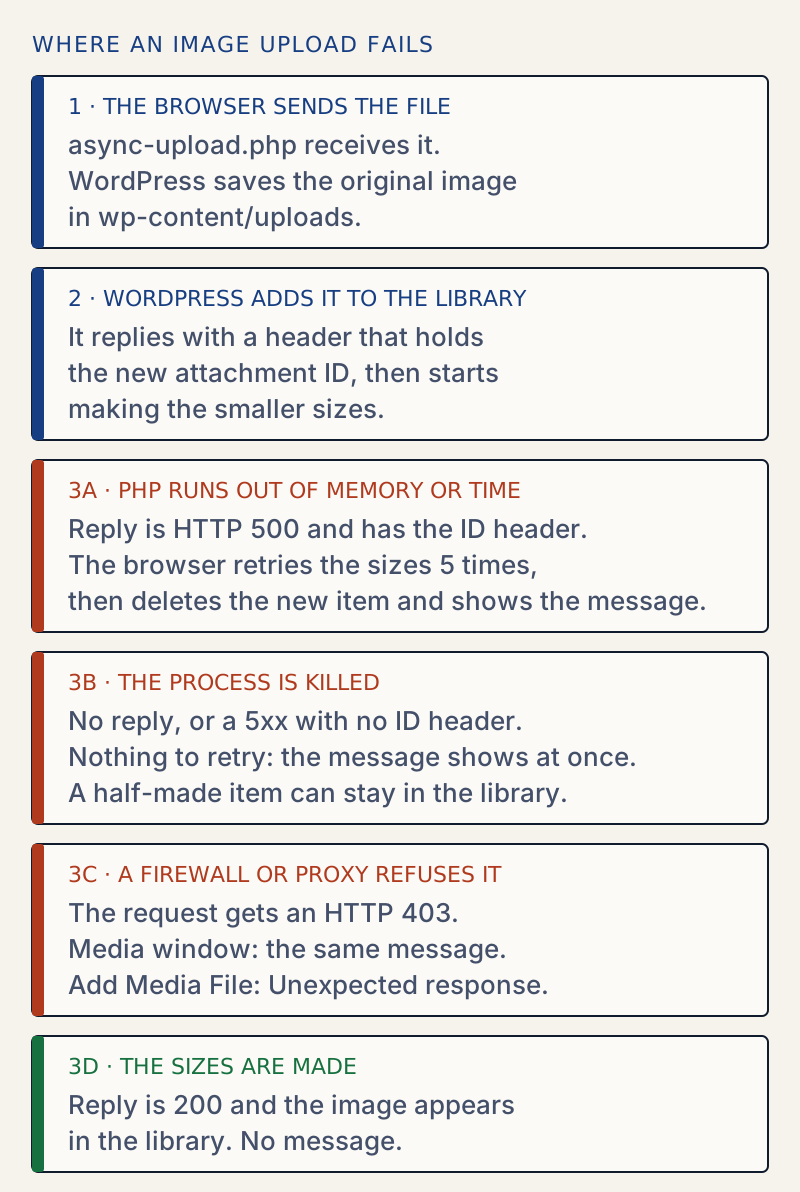
The text comes from the browser script, not from PHP. In wp-plupload.js, any HTTP error on a file whose type starts with image/ gets this message. A file that is not an image gets "Unexpected response from the server. The file may have been uploaded successfully. Check in the Media Library or reload the page." instead.
When PHP stops with an error#
This is the case a low memory limit gives. The test site had WP_MAX_MEMORY_LIMIT set to 128M, the GD library forced on, and a 9000 by 6000 pixel JPEG of about 1 MB. The answer from the server was:
HTTP/1.1 500 Internal Server ErrorX-WP-Upload-Attachment-ID: 7Content-Type: text/plain; charset=UTF-8<p>There has been a critical error on this website.</p>PHP Fatal error: Allowed memory size of 134217728 bytes exhausted (tried to allocate 2097152 bytes) in /var/www/html/wp-includes/class-wp-image-editor-gd.php on line 118Because the answer carries the item number, the browser does not give up. It asks WordPress up to five more times to make the sizes (action=media-create-image-subsizes). In the browser the requests were:
500 async-upload.php500 admin-ajax.php action=media-create-image-subsizes500 admin-ajax.php action=media-create-image-subsizes500 admin-ajax.php action=media-create-image-subsizes500 admin-ajax.php action=media-create-image-subsizes500 admin-ajax.php action=media-create-image-subsizes200 admin-ajax.php (clean-up: the item is deleted)That is one upload and five retries, each ending in the same fatal error, so the debug log has six entries for one click. After the fifth retry the browser asks WordPress to delete the item (it only does so for an item under 10 minutes old) and shows the message. After this, Media → Library was empty.
When the process is killed#
If the process is killed by the host, for example by a memory cap, there is no clean answer. On a test site with the Imagick library, which uses memory outside PHP's own limit. The server closed the connection with no reply:
curl: (52) Empty reply from serverTwo things follow. The browser has no item number, so it cannot retry or clean up, and shows the message at once. And the item can stay in the library: one test upload had the original file and only one of its six sizes. Delete such items by hand. Some browsers also send the upload a second time when the connection drops, so you may find a duplicate.
A refused request#
A 403 from a firewall, with the reply never coming from WordPress, gives different text depending on where you upload. On a test site, async-upload.php was made to answer 403:
| Where you upload | Text shown for a JPEG that got a 403 |
|---|---|
| Media → Library (grid, and the media window in the editor) | The server cannot process the image. This can happen if the server is busy… |
| Media → Add Media File | Unexpected response from the server. The file may have been uploaded successfully. Check in the Media Library or reload the page. |
A 500 with no item number gave the "cannot process" message on both screens. So if you see "Unexpected response", look at the HTTP status in the network tab first.
Other messages that look alike#
| Message | Where it comes from | What to do |
|---|---|---|
| The server cannot process HEIC images. Convert it to JPEG before uploading. | The browser, when you pick the file; the upload still goes ahead | Export the photo as JPEG from your photo app |
| An error occurred in the upload. Please try again later. | The reply was not valid JSON, for example because a plugin printed a warning into it | Turn off debug display, find the plugin; see the invalid JSON response page |
| %s exceeds the maximum upload size for this site. | The file is bigger than PHP allows | See file exceeds the maximum upload size |
With a line of text printed before WordPress answered, the media window showed "An error occurred in the upload. Please try again later." Add Media File showed no error at all: the bar stayed on "Crunching…" with my text beside it. If you see "Crunching…" that never ends, look for output printed by a plugin, such as a PHP warning.
What is not in WordPress 7.1.4#
- The bare "HTTP error." text that many older guides quote is not in WordPress 7.1.4. The browser script's strings for upload failures are the ones in this page.
- "Post-processing of the image failed" is also not in 7.1.4. It is older wording for the same kind of failure.
Why the fixes work#
GD, one of WordPress's two image libraries, holds the whole picture in PHP's memory as raw pixels, about 4 bytes each. A 9000 by 6000 pixel image is about 216 MB before WordPress makes a copy to resize it. File size does not matter, because a JPEG is compressed and the pixels are not. That is why a smaller picture and a higher memory limit both fix it: they change the number that runs out. The figure is an estimate from the pixel count (width times height times 4 bytes), not a measurement.
Which image library do I have#
Tools → Site Health → Info → Media Handling shows whether Imagick or GD is in use and the file size limits. Imagick is the default when it is installed. Its memory is counted outside PHP's memory_limit, so on a host that kills processes by total memory the failure shows as a killed process (above) instead of a PHP fatal error.
If a small image still fails, see the 500 error page. If WordPress refuses the file type itself, see sorry, you are not allowed to upload this file type.
Sources
- wp-plupload.js: the upload error handler and the retry steps (7.1.4) · HTTP errors on images, the 5 retries and the cleanup
- script-loader.php: the upload message strings (7.1.4) · exact text of http_error_image, http_error and the HEIC message
- wp-admin/includes/media.php: media_handle_upload (7.1.4) · the X-WP-Upload-Attachment-ID header and when sub-sizes are made
- wp-admin/includes/image.php: wp_create_image_subsizes (7.1.4) · the 2560 pixel big-image threshold
- PHP manual: imagecreatetruecolor · GD true-colour images are held in memory as pixels
- wp_image_editors hook · Imagick and GD are the two default editors
- Introducing handling of big images in WordPress 5.3
One email when something breaks or changes.
New plugins and re-tested guides, about twice a month. Never a sales pitch.