Why it happens
- You asked for a reset more than once and clicked the link in an older email. Each request replaces the key, so only the newest email works.
- The key was already used up. A successful password reset clears it, and so does logging in with your password (for example after you remembered it).
- The key in the link was changed. A character was cut off or added by the email program, or the link was retyped. Keys are case sensitive.
- The browser did not keep the short-lived cookie WordPress sets when the link is opened. A browser that blocks cookies for your site leaves WordPress with no key. Opening the link with no cookie kept ends on this message.
How to fix it
Try the fixes in this order. Each one is independent: stop as soon as the error is gone.
Request one new link and use only that email
- Use the form that the error page already shows: type your username or email address and click Get New Password. Do not request a second link.
- Wait for the email. Check the spam folder. Open the newest email only, and delete older reset emails so you cannot click one by mistake.
- Open the link in the same browser you will log in with. Click it once, choose a password, and click Save Password.
- With two requests in a row, the first link gives this message and the second shows the Reset Password screen (see the table below).
Copy the whole link instead of clicking it
- If the email program shows the link on two lines or adds text to it, copy it from start to end and paste it into the address bar.
- The link must contain
login=with your username andkey=with 20 letters and digits. A key that is shorter or longer, or has other letters, is rejected. A key with one letter cut off, or one letter added, gives this message. - Capital letters matter. A key typed in upper case was rejected.
- A full stop or a
>after the key is harmless. WordPress removes anything that is not a letter or digit before it checks, and both opened the form.
Allow cookies for your site
- Open the link in a normal browser window, and allow cookies for your site in the browser settings or in any privacy extension. Then open the link again.
- Why: opening the link only sets a cookie called
wp-resetpass-plus a hash and sends you on towp-login.php?action=rp. The form reads the key from the cookie. With no cookie kept, the page ends on this message. The login page has its own message for the same cause: see cookies are blocked or not supported by your browser.
Check the key's age
- A key is good for 24 hours. After that you get a different message, "Your password reset link has expired. Please request a new link below.", with the same fix: request a new link. A key 23 hours old still opened the form. At 25 hours it said "has expired".
- A developer or host may have shortened it with the
password_reset_expirationfilter. With the filter set to one hour, a key two hours old said "has expired".
Reset the password with WP-CLI when no email arrives
- If the email never arrives, the reset link cannot work. Skip it. On the server run
wp user reset-password admin --skip-email --show-password. It prints a new random password for the accountadmin. - Or choose the password yourself with
wp user update admin --user_pass='a-long-new-password'. Logging in with the new password worked straight after. - Without WP-CLI, ask your host to run one of these two commands for you, or use another administrator account to set your password under Users.
- Then look at why no email arrived: check the spam folder and the address on your user profile.
WordPress shows this message when the reset key in your link does not match the one it has saved for your account. The usual reason is that a newer link was requested, so the one you clicked is out of date. Request one new link, open only that email, and it works. If email never arrives, reset the password with WP-CLI.
What you see#
You click the link in the reset email and land on the Lost Password screen with a red notice above the form. Nothing is wrong with the form. It is asking you to start again.
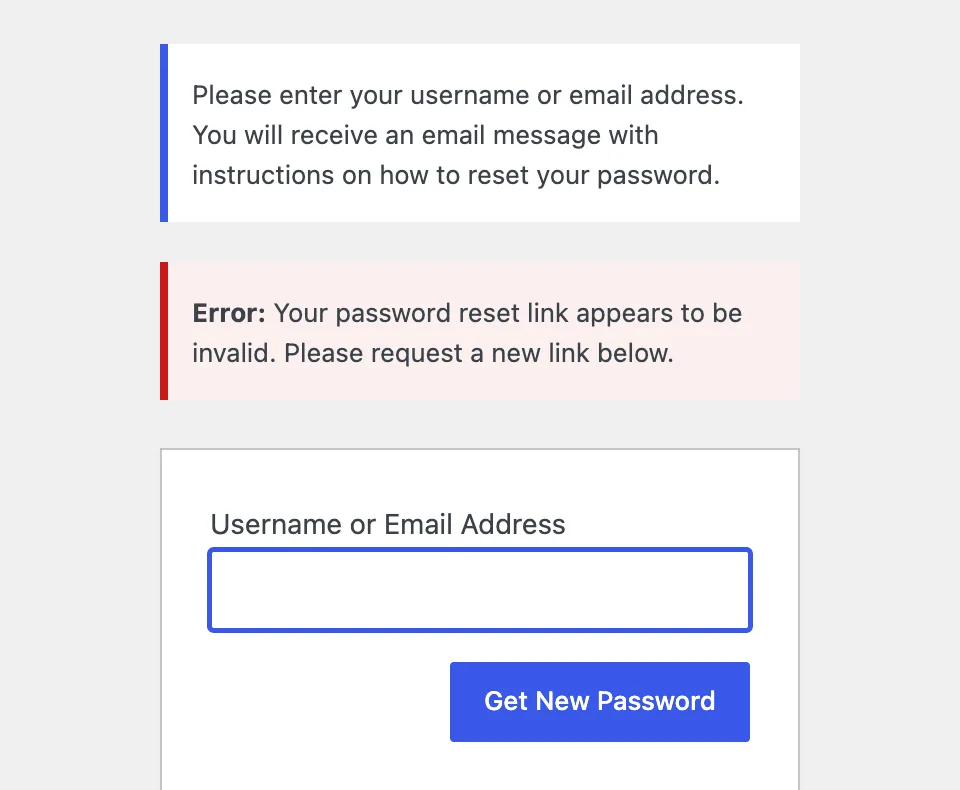
The message lives in wp-login.php. The address you land on ends in error=invalidkey. A second message, "Your password reset link has expired. Please request a new link below.", uses error=expiredkey. It is not the same as the link you followed has expired, which is the admin security token message.
How a reset key lives and dies#
When you ask for a reset, WordPress makes a random 20 character key, saves a hash of it with the current time in the user_activation_key column of your user, and puts the key in the email link. The key itself is never stored.
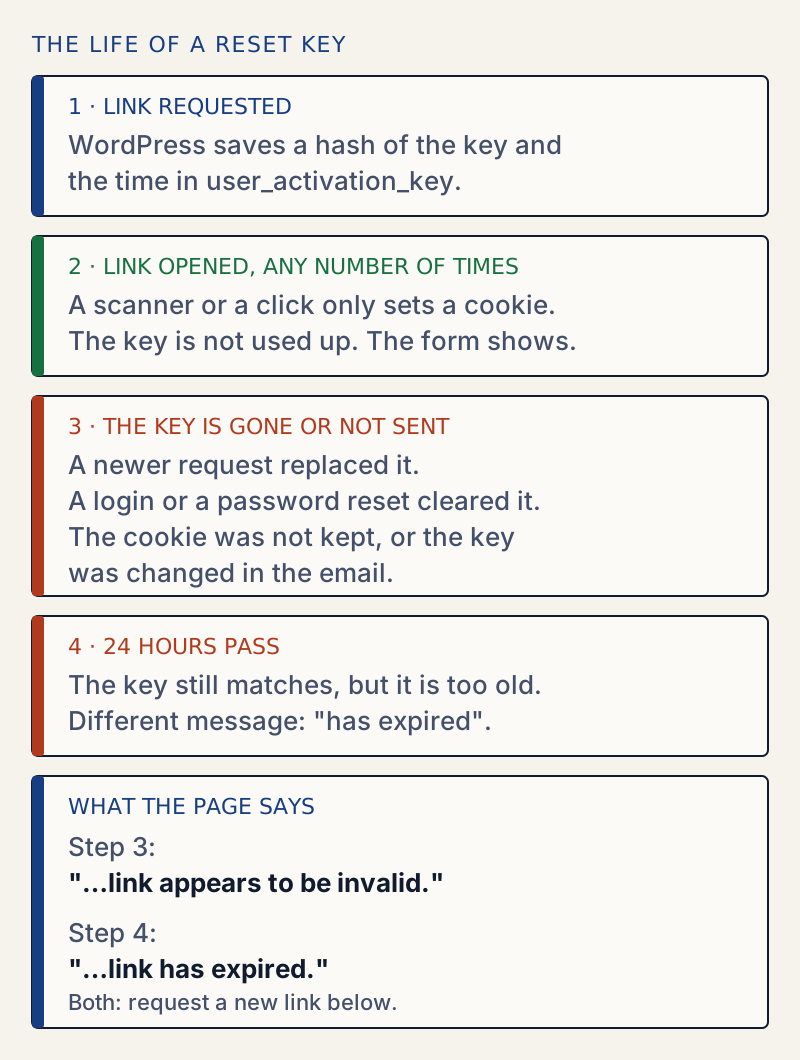
When you click the link, wp-login.php does not check the key at once. It stores login:key in a cookie, then redirects to the same page without the key in the address. The next request reads the cookie and calls check_password_reset_key(). Anything that fails there sends you to the message above.
| What was done on the lab site | Message |
|---|---|
| Opened the newest link | Form shown |
| Opened the link of an earlier request | "appears to be invalid" |
| Opened the link after logging in with my password | "appears to be invalid" |
| Opened the link after finishing a reset | "appears to be invalid" |
| Opened the link with no cookie kept | "appears to be invalid" |
| Key shortened by one letter, or one letter added | "appears to be invalid" |
| Key in upper case | "appears to be invalid" |
| Key 23 hours old | Form shown |
| Key 25 hours old | "has expired" |
Email scanners do not use the key up#
A common explanation is that a mail security scanner opens the link first and burns it. On WordPress 7.1.4 that is not what happens. A fresh link fetched the way a scanner does it gives this answer:
curl -s -o /dev/null -D - "http://localhost:8908/wp-login.php?login=admin&key=cig7Zx1NOvibMZVj2kag&action=rp&wp_lang=en_US" \ | grep -i "^HTTP\|^location\|^set-cookie"HTTP/1.1 302 FoundSet-Cookie: wordpress_test_cookie=WP%20Cookie%20check; path=/; HttpOnlySet-Cookie: wp_lang=en_US; path=/; HttpOnlySet-Cookie: wp-resetpass-3d8ef6ad555ec8925a8391c4c5cb9ba5=admin%3Acig7Zx1NOvibMZVj2kag; path=/wp-login.php; HttpOnlyLocation: /wp-login.php?action=rp&wp_lang=en_USThe request only sets a cookie and redirects. Nothing is written to the database. After that request, the same link opened in a browser showed the Reset Password screen. The scanner itself, which keeps no cookies, ends on the "invalid" screen, but you never see that.
So if you suspect a scanner, look elsewhere. What does break the link is a second reset request.
Why a login clears the key#
On a successful login, wp_signon() empties user_activation_key. The column before and after a request and a login with the password:
after request:1793344727...60 charslogin: 302after login:...0 charsThe link then showed "appears to be invalid". This is the same as an old link. It is safe: a reset link cannot outlive a login by the owner.
If the email never arrives#
No email, no key you can use. The link cannot be fixed, because there is none to click. The fix that does not depend on mail is WP-CLI:
wp user reset-password admin --skip-email --show-passwordReset password for admin.Password: !ERrA*z3Ym^&BvPXB6L%Emv%Success: Password reset for 1 user.The password in the output is a throwaway from a lab site. Log in with the one you get, then change it under Users → Profile. If the login then says the password is incorrect, see the password you entered for the username is incorrect.
Sources
- check_password_reset_key() — WordPress Developer Resources · return values and old-style keys
- password_reset_expiration hook — WordPress Developer Resources · default of one day
- wp user reset-password — WP-CLI Handbook · --skip-email and --show-password
- wp-login.php (resetpass case) — WordPress core 7.1.4 · the cookie, the redirect and the two messages
- wp-includes/user.php (get_password_reset_key, check_password_reset_key) — WordPress core 7.1.4 · how the key is stored and checked
One email when something breaks or changes.
New plugins and re-tested guides, about twice a month. Never a sales pitch.