Why it happens
- The password is wrong. A typo, caps lock, an old password saved in the browser, or a password manager entry for a different site.
- The password was changed since you last used it, by another administrator, a host tool or a reset you forgot.
- You typed the username of one account and the password of another. The box takes a username or an email address, and each points to one account.
- A lockout or security plugin is in the way. Its own message usually replaces this one, so seeing this message mostly means no lockout is active. Some plugins keep this text and add to it.
- The password was written to the database by hand with a wrong value, such as a hash of different text or a string that was cut off. Old hash formats on their own are fine: WordPress still accepts them.
How to fix it
Try the fixes in this order. Each one is independent: stop as soon as the error is gone.
Read which half of the message you got
- "The password you entered for the username X is incorrect" means the username is right and only the password is wrong. Do not change the username.
- "The password you entered for the email address X is incorrect" means the same, for a login by email.
- "The username X is not registered on this site" or "Unknown email address" is a different problem: no account has that name. Try your email address, or the other way round.
- The name in bold is what WordPress received, after it removed spaces and tags. Check it for typos.
Show the password and try again
- Click the eye icon in the password field to see what you type. Check caps lock.
- Type the password by hand once instead of using autofill. Browsers keep old passwords for the same address.
- Spaces at the start or end do not matter. On the test site,
adminas the username logged in, and so did a password saved asspaced(trailing space) typed with or without the space. WordPress trims them. - Capital letters in the username do not matter either.
AdminandADMINlogged in on the test site. Capitals in the password do matter.
Use Lost your password
- Click Lost your password? under the form, or in the message. Enter your username or email address.
- WordPress emails a reset link to the address on the account. Open it, choose a new password, then log in.
- If no mail arrives, check spam, then use the WP-CLI fix below. It does not need email.
- If the link says it is invalid, see your password reset link appears to be invalid. If the login page says cookies are blocked, see cookies are blocked or not supported by your browser.
Set a new password with WP-CLI
- Use this when mail does not work. You need SSH access to the server.
- List the accounts:
wp user list --fields=ID,user_login,user_email,roles. - Set a password:
wp user update admin --user_pass='a-long-new-password'. It prints "Success: Updated user 1." Use the ID or login from the list. - Or let WordPress make one:
wp user reset-password admin --show-password --skip-email. It prints the new password once. - Check a password without logging in:
wp user check-password admin 'the-password'. It prints nothing; the exit code is 0 for a match and 1 for no match. - The command line keeps what you type in the shell history. Change the password again from your profile after you log in. If you get in but every admin screen says you are not allowed, see sorry, you are not allowed to access this page.
Set a password in phpMyAdmin
- Use this when you have no WP-CLI. Back up the database first.
- Open the
wp_userstable (your prefix may differ), click Edit on your row, and in theuser_passrow choose MD5 in the function column. Type the new password in the value column and save. - WordPress still accepts a plain MD5 value. A stored
md5('oldpass')letoldpasslog in, and WordPress rewrote the column in its current format on that login. Treat this as a one-time key and change the password again at once, since MD5 is weak.
Check whether a plugin is blocking you
- If you get a message about too many attempts or a wait time, it is not this error. Wait for the time shown, or ask the plugin's settings for a list of blocked addresses.
- To test whether a plugin is involved, rename the plugin's folder in
wp-content/pluginsover SFTP, or runwp plugin deactivate plugin-name --skip-plugins. Then log in again. - On the test site, a filter that blocks logins turned a right password into the lockout message, and a wrong password into the same lockout message. So a right password in a lockout still fails, with a different text.
Make the message vague on purpose
- The two messages tell a visitor which usernames exist. To hide that, add this to a small plugin file or a code snippet tool. Do not edit core files.
add_filter( 'login_errors', function () { return '<strong>Error:</strong> Invalid username, email address or incorrect password.'; } );- On the test site, a wrong password, an unknown username and an unknown email all showed that one line. Right passwords still logged in. The line is the one WordPress itself uses when nothing else answers.
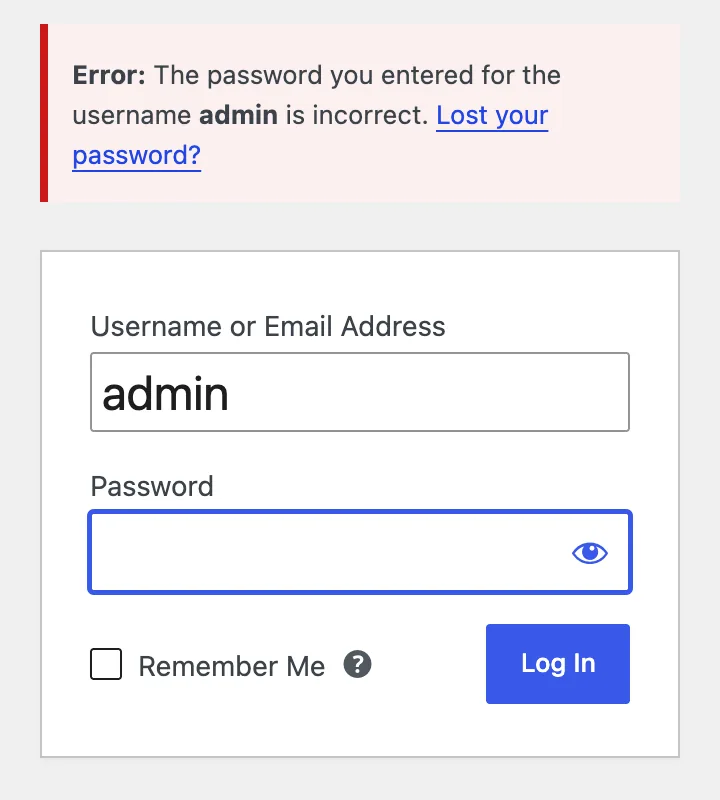
The username exists, but the password did not match what WordPress has stored. WordPress checks the name first and the password second, so this message tells you the first part was right. Reset the password, or set a new one with WP-CLI.
What you see#
The message is on the login screen, above the form. The password box is cleared and the cursor goes back into it. The username stays. The error was produced with a wrong password on a WordPress 7.1.4 test site.
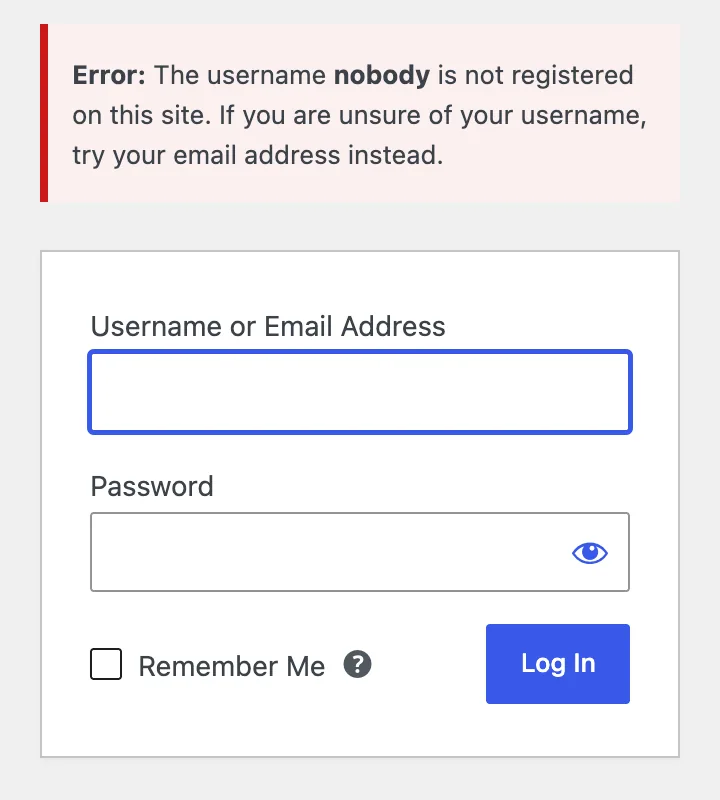
If the name does not belong to any account, you get a different message that does not mention the password at all:
How WordPress picks the message#
The check runs in wp_authenticate(), then in two functions in wp-includes/user.php, one for a username and one for an email address. They run in this order.
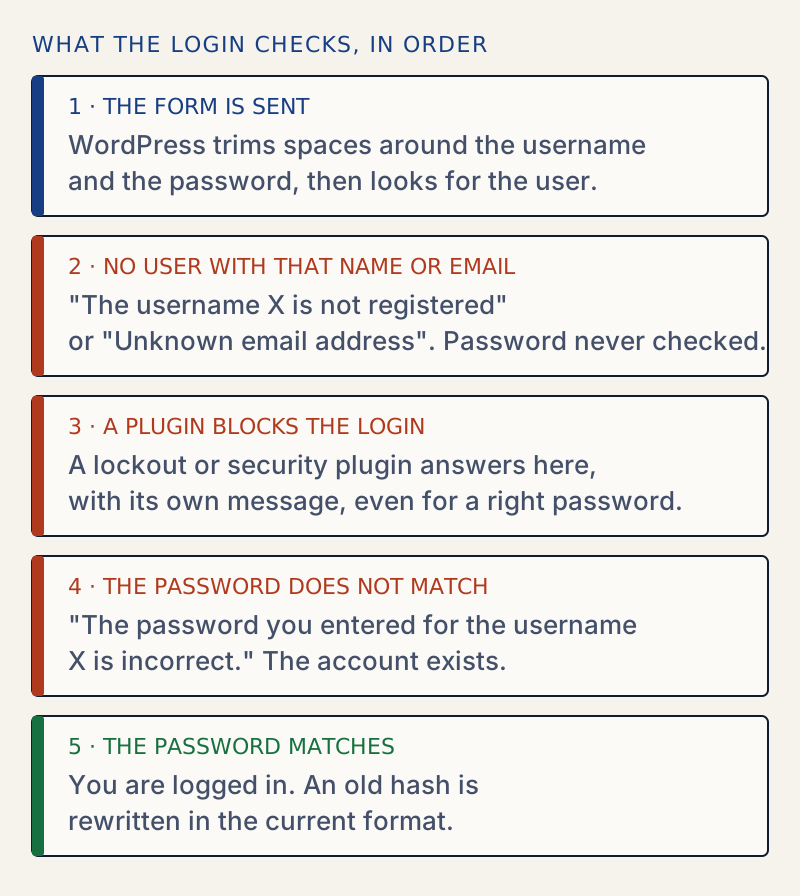
The order matters when you read the message. Step 2 stops before the password is looked at. Step 3 is where lockout plugins act, through the wp_authenticate_user filter, and it runs before the comparison. Only a login that passed both gets to step 4.
The messages on 7.1.4, from the login screen:
| What you typed | Message |
|---|---|
| Right username, wrong password | The password you entered for the username admin is incorrect. Lost your password? |
| Right email, wrong password | The password you entered for the email address admin@example.test is incorrect. Lost your password? |
| Username that does not exist | The username nobody is not registered on this site. If you are unsure of your username, try your email address instead. |
| Email that does not exist | Unknown email address. Check again or try your username. |
| Empty password | The password field is empty. |
The email message has no bold "Error:" in front, which is a small difference in core. It shows on the login screen.
What WordPress does to what you type#
Before the check, wp_authenticate() runs sanitize_user() on the name and trim() on the password. These results are from 7.1.4. The password was admin each time.
| Typed as username | Result |
|---|---|
admin | Logged in |
Admin, ADMIN | Logged in |
admin (spaces around) | Logged in |
admin<b> | Logged in, the tag is removed |
admin@example.test | Logged in, by email |
Capital letters are accepted because the database compares names without regard to case (on this MariaDB). The message echoes what you typed, so a login with ADMIN and a wrong password shows ADMIN in the message.
Passwords are different. They are case sensitive and nothing is removed except spaces at the very start and end, on the way in and when a password is saved. So a space pasted from a password manager is not the cause. Passwords with quotes, a backslash, & or < logged in without problems. WordPress refuses passwords over 4096 characters when the stored hash was made by WordPress.
What is stored#
WordPress 7.1 stores a bcrypt hash with the prefix $wp$2y$:
wp user list --fields=ID,user_login,user_email,user_passID user_login user_email user_pass1 admin admin@example.test $wp$2y$10$fGzSJ24i5q7PBS858c3KgeRBiIGDuiCmWSa8J9FvBYW.PhCT9V3o.The hash cannot be turned back into the password. That is why nobody, not even the host, can tell you the old one. The check hashes what you type and compares.
Older formats still work and are upgraded on the first successful login. An MD5 value and a phpass value ($P$…) written by hand both logged in, and the column read afterwards:
65596aece8ead4b14c78d52f2b88ec37 (before the login: plain MD5)$wp$2y$10$EzGofRGUzLDO8hcF0Cg0qeHe58Hg8CLjRfqZGqB3LMnEhimDeGlHa (after)$P$BrZXKeM2JkgsbYo9L0QXB8OwVCdo48/ (before the login: phpass)$wp$2y$10$YTjXHp8Wi7apFRQGWw.Xw.ux.k3DspkQTbMvOF1WcAgOv70E4PQRO (after)Lockout plugins#
A plugin that counts failed logins usually hooks wp_authenticate_user. A test hook that refuses every login with a "Too many failed attempts" message gave:
| Typed | Message shown |
|---|---|
| Right username, wrong password | Too many failed attempts. Try again in 15 minutes. |
| Right username, right password | Too many failed attempts. Try again in 15 minutes. |
| Username that does not exist | The username nobody is not registered on this site. |
So, while a lockout is on, a right password is also refused, with the plugin's text. If you see "The password you entered … is incorrect", no such hook refused you at that moment. The password is the problem. The third row shows a weakness: unknown names are answered before the hook, so the lockout does not hide which names exist.
Hiding which half was wrong#
WordPress shows a different message for an unknown name and for a wrong password. Anyone can use that to find real usernames. The login_errors filter changes the text. After adding the filter in the last fix, all three cases showed the same generic line, and a right password still logged in. This changes the login screen only. See the hardening guide for the wider list, and changing the login URL to cut down on guessing bots.
Related#
If the reset email has a link that does not work, or the login page says cookies are blocked, those are separate errors: see your password reset link appears to be invalid and cookies are blocked or not supported by your browser. If a form says the link has expired, see the link you followed has expired.
Sources
- wp_authenticate_username_password() · Where the two messages are produced, in wp-includes/user.php.
- wp_check_password() · Which hash formats are accepted (MD5, phpass, bcrypt) and the 4096 character limit.
- wp_authenticate_user filter · The hook lockout plugins use to refuse a login.
- login_errors filter · Changes the text shown above the login form.
- wp user update · The --user_pass option.
- wp user check-password · Exit codes 0 and 1.
One email when something breaks or changes.
New plugins and re-tested guides, about twice a month. Never a sales pitch.