Why it happens
- A plugin or theme file was deleted, or never uploaded. This happens after a partial SFTP upload, a copy that stopped halfway, a security scanner that removed a file, or a manual clean-up.
- A drop-in file in
wp-content(advanced-cache.php,object-cache.php) was written by a cache plugin that has since been deleted. The drop-in still tries to load the plugin's files. - A WordPress core file under
wp-includesorwp-adminis missing, usually after an interrupted update or a bad file clean-up. - The path is written for another server, such as
/home/olduser/public_html/...after a move to a new host. - The message ends in "Permission denied" instead. The file is there, but PHP's user may not read it because of its owner or mode.
- The file name has different capital letters on disk. Linux treats
Loader.phpandloader.phpas two files; Windows and macOS do not. A site built on a laptop can break on the server.
How to fix it
Try the fixes in this order. Each one is independent: stop as soon as the error is gone.
Read the path in the message
- The text after
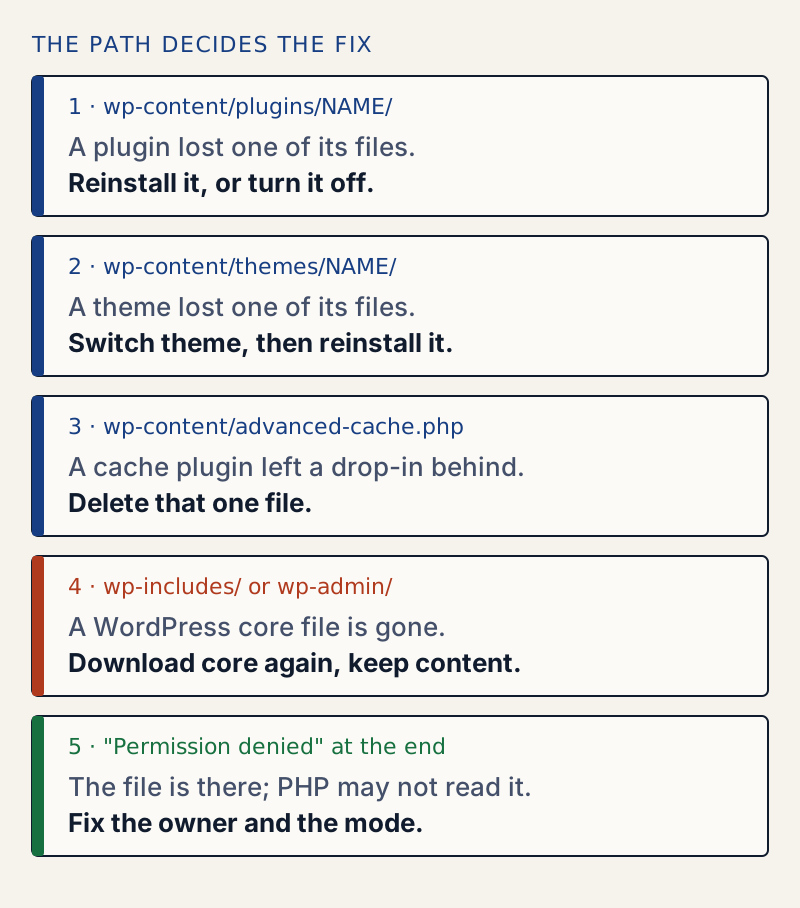
require(orinclude(is the file PHP could not open. The path after "in" is the file that asked for it. wp-content/plugins/NAME/is a plugin.wp-content/themes/NAME/is a theme.wp-content/advanced-cache.phporobject-cache.phpis a cache drop-in.wp-includes/orwp-admin/is WordPress core. Use the diagram below to pick the fix.- Read the last words too. "No such file or directory" means the file is not at that path. "Permission denied" means it is there but PHP may not read it. Go to the permission fix.
- If you only see "There has been a critical error on this website", the same message is in
wp-content/debug.log. See the debug log guide to turn it on.
Get the site back first: turn the plugin or theme off
- With WP-CLI over SSH, run
wp plugin deactivate my-plugin --skip-plugins, with the folder name from the path. On my test site this brought the front end back, and WP-CLI printed "Success: Deactivated 1 of 1 plugins." Without--skip-plugins, WP-CLI loads the broken plugin and hits the same fatal error. - Without WP-CLI, rename the plugin's folder over SFTP, for example
my-plugintomy-plugin.off. WordPress skips a plugin whose folder is missing, and takes it off the active list the next time you open wp-admin. - For a theme, run
wp theme activate twentytwentyfour --skip-themes --skip-plugins. I broke the active theme'sfunctions.phpwith arequireof a missing file. This command switched themes and the site came back. - This only stops the error. Fix the missing file with the next step before you turn the plugin or theme on again.
Put the plugin or theme files back
- Reinstall the same plugin. In wp-admin, a plugin that is still on wordpress.org can be installed again from Plugins → Add New Plugin. Over SSH:
wp plugin install akismet --force --skip-plugins. The--forceflag replaces the plugin folder with a fresh copy. Keep--skip-pluginson, or turn the plugin off first (the step above). WP-CLI loads active plugins, so without it the command hits the same fatal error and stops. - I deleted two files from Akismet, which made the site fail with this exact message.
wp plugin install akismet --force --skip-pluginsprinted "Plugin updated successfully." and the site loaded again. With Akismet still active and no--skip-plugins, the same command printed the warning and the fatal error instead. Settings are kept, because they are in the database, not in the plugin folder. - For a premium plugin or a theme that is not on wordpress.org, download the zip again from the seller and upload it over SFTP into
wp-content/pluginsorwp-content/themes. Do not delete the old folder first unless the zip is complete. - Do not rely on
wp plugin verify-checksumsto find the missing file. I deleted a file from Akismet andwp plugin verify-checksums akismet --skip-pluginsstill printed "Success: Verified 1 of 1 plugins." It did not list the file that was gone. The path in the message is the better guide. - If the file is custom code of yours, restore it from your backup or version control.
Delete a cache drop-in that points at a deleted plugin
- If the path in the message is
wp-content/advanced-cache.phporwp-content/object-cache.php, a cache plugin put that file there and then was removed. - Delete the file over SFTP or with
rm wp-content/advanced-cache.php. On my test site the site came back at once. WordPress only loads the drop-in when the file exists, and a site withWP_CACHEset totrueand no file works normally. - Reinstall the cache plugin if you still want it. It writes the drop-in again when you turn it on.
Repair WordPress core files
- Run
wp core verify-checksums. It compares every core file with the official list and names what is missing. Withpluggable.phpandpluggable-deprecated.phpremoved, it printed "Warning: File doesn't exist: wp-includes/pluggable.php", then "Error: WordPress installation doesn't verify against checksums." It works even though WordPress itself is broken. - Run
wp core download --force --skip-content --version=7.1.4, with your own version number.--forcereplaces core files and--skip-contentleaveswp-contentalone. Yourwp-config.php, plugins, themes and uploads were untouched on my test site. - Run
wp core verify-checksumsagain. It should print "Success: WordPress installation verifies against checksums." A warning about a file that "should not exist" is about an extra file you or your host added, not a missing one. - Without WP-CLI, download the same version from wordpress.org, unzip it, and upload only the
wp-adminandwp-includesfolders and the loose files in the top folder over SFTP. Leavewp-contentandwp-config.phpalone. The manual update steps list the folders to replace and the ones to keep.
Fix a path that belongs to another server
- A path such as
/home/olduser/public_html/wp-content/...in the message means a file has the old server's path written into it. Open the file named after "in" and look at the line number. - Replace the written path with one that follows the file. In your own code, use
__DIR__ . '/includes/loader.php'orplugin_dir_path( __FILE__ ).ABSPATHandWP_CONTENT_DIRare also safe. - If a plugin saved the path in its settings, set it again in the plugin's settings page, or ask the plugin's author.
Fix capital letters in the file name
- Compare the name in the message with the file on disk, letter by letter. On my test site a file called
Loader.phpdid not satisfyrequire '.../loader.php', and the result was the same "No such file or directory" message. - Rename the file on disk, or change the name in the code. Pick one spelling for each file and keep it.
Fix "Permission denied"
- When the message ends "Failed to open stream: Permission denied", the file is there. Run
ls -laon it and on each folder above it. PHP runs as a user such aswww-dataor your hosting account. That user must be able to read the file and to enter every folder on the path. - I tested two breaks. A file owned by
rootwith mode 600 gave "Permission denied". A folder with mode 600 (no execute bit) also gave it, even though the file inside was fine. - Give the files back to PHP's user. With root or sudo, run
chown www-data:www-data FILE, with your server's user. Set files to 644 and folders to 755. On shared hosting, ask the host to reset the owner, or use the file manager's permissions dialog. - Never use 777. The could not create directory page shows how to find the right owner and the right modes.
PHP was told to load a file and it could not. If the code asked with require, PHP stops there. If it asked with include, PHP warns and carries on. The folder in the path tells you whose file it is, and so what to do. The fix is almost always to put that one file back.
What you see#
On a site with WP_DEBUG_DISPLAY switched on, the message is printed at the top of the page. Here is a plugin that loads a helper file which no longer exists:

Most live sites hide this text. With WP_DEBUG_DISPLAY off, I got status 500 and the page "There has been a critical error on this website." The same lines went to wp-content/debug.log:
PHP Warning: require(/var/www/html/wp-content/plugins/my-plugin/includes/loader.php): Failed to open stream: No such file or directory in /var/www/html/wp-content/plugins/my-plugin/my-plugin.php on line 5PHP Fatal error: Uncaught Error: Failed opening required '/var/www/html/wp-content/plugins/my-plugin/includes/loader.php' (include_path='.:/usr/local/lib/php') in /var/www/html/wp-content/plugins/my-plugin/my-plugin.php:5There are always two lines when the code used require: a warning that says why, then a fatal error that ends the page. The warning is the useful one.
Read the path first#
The same message appears for a plugin, a theme, a cache drop-in and WordPress itself. Only the path tells them apart.
Which file, which cases I reproduced#
| What was wrong | Message ends | Result I saw | Fix |
|---|---|---|---|
Plugin file deleted, loaded with require | No such file or directory | Warning, then fatal. The whole site fails | Reinstall the plugin |
Same, loaded with include | No such file or directory | Two warnings, page keeps loading | Reinstall the plugin |
| Drop-in requires a deleted plugin | No such file or directory | Fatal on every page, wp-admin too | Delete advanced-cache.php |
Theme functions.php requires a missing file | No such file or directory | Fatal on every page | Switch theme, then restore the file |
wp-includes/pluggable.php missing | No such file or directory | Fatal in wp-settings.php line 612 | wp core download --force --skip-content |
| File owned by root, mode 600 | Permission denied | Same warning and fatal | Fix owner and mode |
| Folder mode 600 | Permission denied | Same | Fix the folder mode |
Loader.php on disk, loader.php in code | No such file or directory | Same as a deleted file | Match the capital letters |
How it works#
WordPress loads active plugins with include_once inside wp-settings.php. The plugin's main file then loads its own files. If the main file has require __DIR__ . '/includes/loader.php'; and loader.php is gone, PHP raises the warning and then a fatal error, Failed opening required. With include, PHP only warns, and the next lines run. I added an echo after an include of a missing file and the text appeared on the page.
This is the order that matters when it is core that is missing. wp-settings.php loads plugins first, then at line 612 it requires wp-includes/pluggable.php:
mv wp-includes/pluggable.php wp-includes/pluggable.php.bakcurl -s http://localhost:8903/Warning: require(/var/www/html/wp-includes/pluggable.php): Failed to open stream: No such file or directory in /var/www/html/wp-settings.php on line 612Fatal error: Uncaught Error: Failed opening required '/var/www/html/wp-includes/pluggable.php' (include_path='.:/usr/local/lib/php') in /var/www/html/wp-settings.php:612Here the culprit is not a plugin, even though every plugin was loaded before it. The path is in wp-includes, so it is core. Turning plugins off does not help, but repairing core does:
wp core verify-checksumswp core download --force --skip-content --version=7.1.4wp core verify-checksumsWarning: File doesn't exist: wp-includes/pluggable-deprecated.phpWarning: File doesn't exist: wp-includes/pluggable.phpError: WordPress installation doesn't verify against checksums.Downloading WordPress 7.1.4 (en_US)...md5 hash verified: 9761e62677474639e95b6168ed0a650fSuccess: WordPress downloaded.Success: WordPress installation verifies against checksums.The site answered 200 again. wp-config.php was not changed and the plugins folder was untouched.
A site that breaks a few seconds late#
PHP keeps compiled copies of files in memory (opcache), and by default checks the disk only every 2 seconds. When I moved wp-includes/pluggable.php away, the first request still returned 200. After a wait of a few seconds it returned 500. The same happens in reverse for permissions: a file PHP had already loaded kept working after I made it root-only with mode 600, but a file PHP had not loaded yet failed at once with "Permission denied". If a test right after a change looks fine, wait a few seconds and load the page again.
When the whole folder is gone#
If the whole plugin folder is missing, you do not see this error at all. WordPress checks that each active plugin's main file exists before it loads it. I moved my-plugin out of wp-content/plugins and the site loaded with status 200 and no message. The next time someone opened wp-admin, validate_active_plugins() took it off the active list with "Plugin file does not exist." So this error means the folder is there and one file inside is not. That is usually a half-copied update or upload.
Same words, different problem#
"Failed to open stream" is PHP's wording for any file or network open. Only the last words change:
| Message ends | What it means |
|---|---|
| No such file or directory | The path does not exist. This page. |
| Permission denied | The file exists and PHP's user may not read it. See the permission fix |
Operation not permitted, after an open_basedir restriction in effect warning | The host limits PHP to certain folders and the path is outside them. Ask the host, or fix the path |
| Connection refused, or HTTP request failed! | A web address, not a file. The server you called is down or blocked |
I reproduced all four with PHP on the command line. The open_basedir case printed an open_basedir restriction in effect warning first, then "Operation not permitted", then "Failed opening".
Do not edit the line, restore the file#
The quick idea is to remove the require line or turn it into @include. That hides the message, but the plugin then runs without its code and breaks in the next place. Put the file back. If you cannot, turn the plugin off.
If it keeps happening after a fix, a deploy or a sync tool is probably deleting files. See how to update plugins safely for a calmer routine. If PHP names a missing class after a missing vendor folder, see class not found. If the site shows only a blank page and no message, read the white screen of death, and for the generic screen see the critical error page.
Sources
- PHP manual: require · require fails with an Error, include only warns
- WP-CLI: wp core verify-checksums · compares installed core files with the official md5 list
- WordPress core: wp-settings.php · active plugins and the advanced-cache.php drop-in are loaded here, then pluggable.php is required
- WordPress core: wp-includes/load.php · wp_get_active_and_valid_plugins() skips a plugin whose file does not exist
- WordPress core: wp-admin/includes/plugin.php · validate_active_plugins() deactivates a plugin whose file is gone
- WordPress Documentation: Updating WordPress · manual update: replace wp-admin and wp-includes, keep wp-content and wp-config.php
One email when something breaks or changes.
New plugins and re-tested guides, about twice a month. Never a sales pitch.