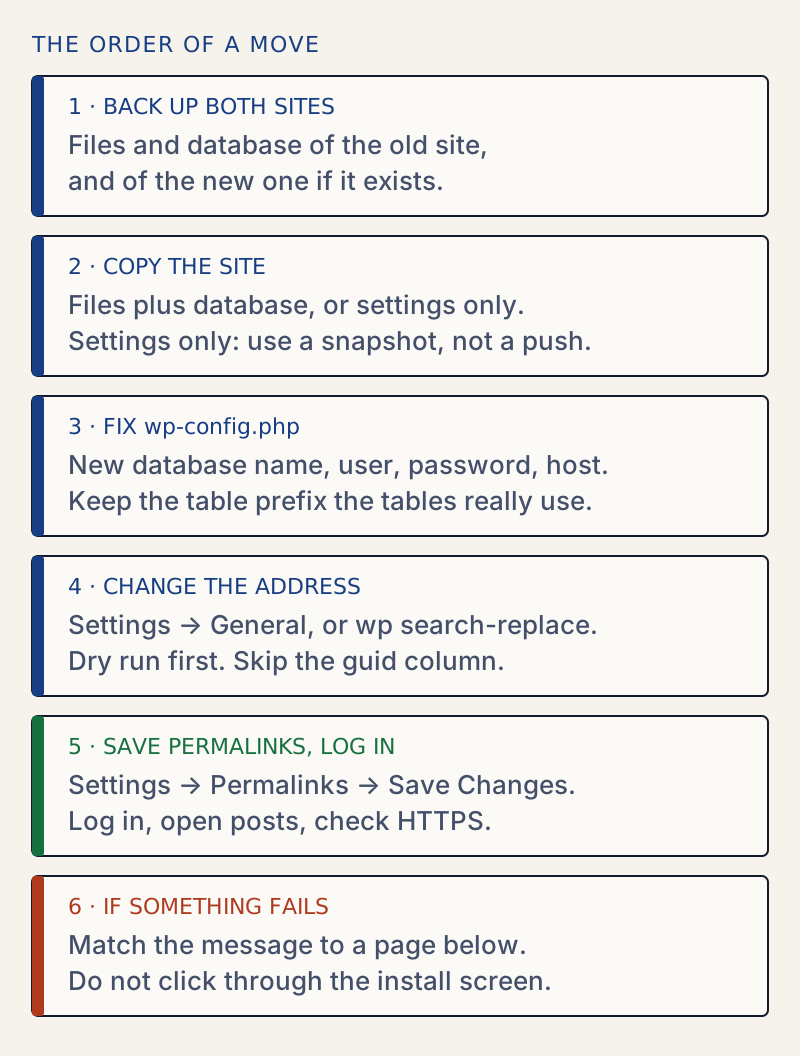
Moving the whole site: back up, copy the files and the database, fix wp-config.php, change the address, save permalinks. Moving only settings from staging to live: do not push the database. Use the guides in the first section below.
A whole-site move goes wrong in a few known places: the database details, the table prefix, the site address, the HTTPS settings, the saved permalinks and the PHP version. Do the steps in order, change the address on purpose, and keep the old site until the new one has passed the checks. For a page that does not match any of this, start at Fix a broken WordPress site.
Which kind of move is yours?#
| You want to | Start with |
|---|---|
| Put staging changes on live (copy only the settings you changed) | Move settings from staging to live |
| Carry settings to another site (as a file) | Export and import settings |
| Change host or domain (copy files and database) | The checklist below |
A database push from staging replaces posts, comments and orders made on live since the copy. That is why the first row copies settings and not the database.
A checklist for a whole-site move#
- Make a backup of the old site, and of the new site if it already has content.
- Copy the files and the database to the new host.
- Open
wp-config.phpon the new host. Set the database name, user, password and host the new server gave you. Keep the$table_prefixthe copied tables really use. You type these by hand; the new host shows them in its control panel. - If the address changed, change it in Settings → General. For a fixed address, the wp-config.php generator can write
WP_HOMEandWP_SITEURL. If you cannot log in, usewp search-replacewith--dry-runfirst, and skip theguidcolumn. - Go to Settings → Permalinks and press Save Changes. This rebuilds the saved rewrite rules.
- Log in, open a post, a page and the home page, and check that the browser shows a padlock.
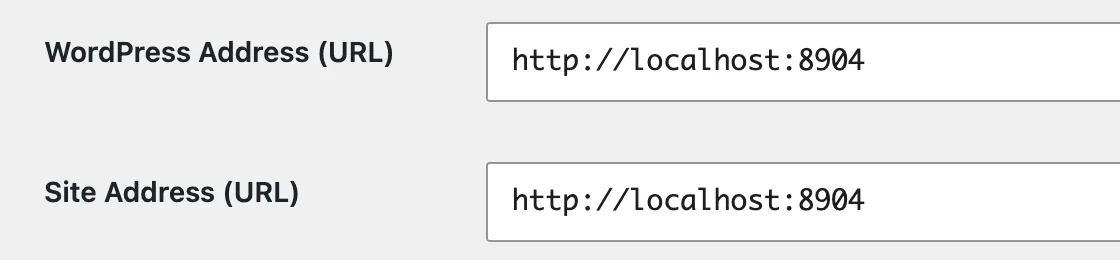
These two fields matter most. A wrong scheme or host here leads to the redirect loop and mixed content pages below.
The sections above list each message with its fix. WellTend Snapshots is only for the settings-only case: it is not a backup and does not move a whole site, so keep a real backup for steps 1 and 2.