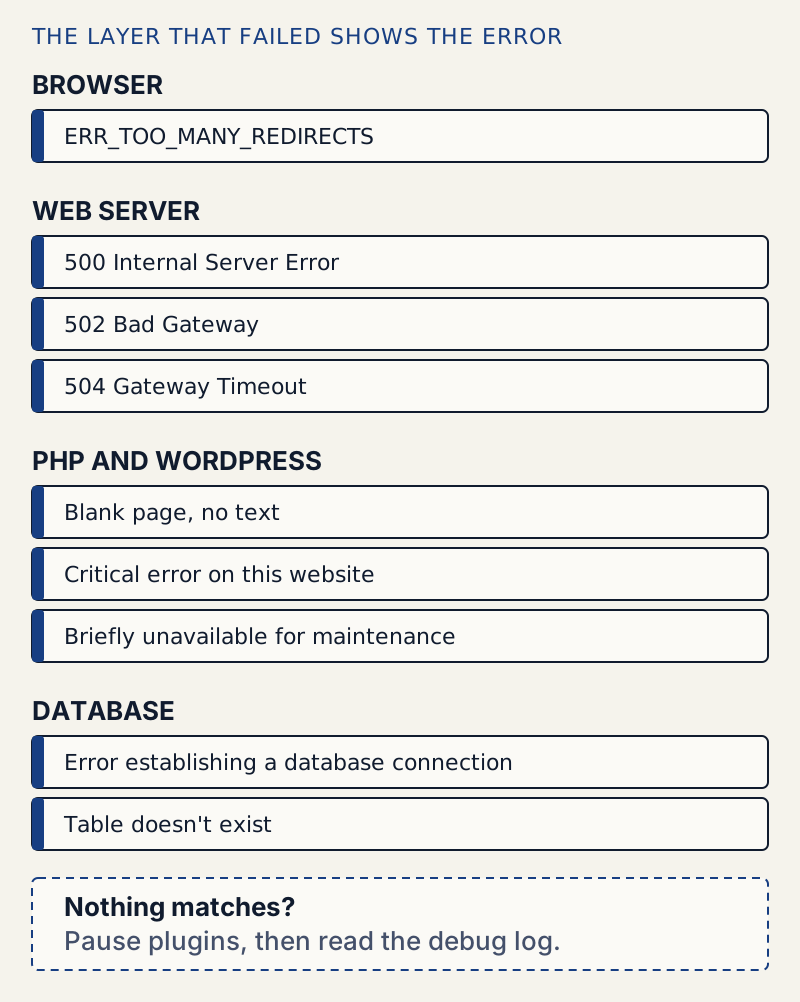
Start with the message on your screen, not with a guess. Each message points to a different layer: PHP, the database, the web server or your settings. The table below sends you to the right page. If nothing matches, do the same two things every time: pause the plugins, then read the debug log.
Match the message on your screen to a page below. If nothing matches, do the same two things every time: pause all plugins, then read the debug log. Each message comes from a different layer (browser, web server, PHP, database), which is why the fix differs.
Which page to open first#
- Blank page, no text: White screen of death. PHP failed where nothing could be printed.
- "There has been a critical error on this website.": Critical error. A PHP fatal error, most often a plugin or theme.
- "Error establishing a database connection": Database connection. WordPress cannot reach its database.
- A 500 page that is not WordPress's: 500. The web server stopped before WordPress ran.
- 502 Bad Gateway: 502. The server in front got no usable answer from PHP.
- 504 Gateway Time-out: 504. The server gave up waiting for PHP.
- ERR_TOO_MANY_REDIRECTS: Too many redirects. Two layers send the browser back and forth.
- "Briefly unavailable for scheduled maintenance": Maintenance message. An update left a lock file behind.
- Posts show 404, pages work: Posts return 404. The saved link rules are stale.
- The editor crashes or will not save: Editor error or Not a valid JSON response.
- Padlock missing after a move to HTTPS: Mixed content.
- A fatal error in the log: see "The log names a fatal error" at the end of this page.
- Cannot sign in: see "Locked out of the dashboard" at the end of this page.
Do these first, whatever the error#
- Ask what changed. A plugin or theme update, a new snippet, a PHP version change by your host, or a settings change. Most breakages start there.
- Take a copy before you touch anything. At least download
wp-config.phpand thewp-contentfolder over SFTP, or ask your host for a backup. - Change one thing at a time and reload after each. That way you know which step worked.
- Do not delete a plugin first. Deactivating keeps its settings, so you can switch it back on after an update. Renaming a plugin folder (see below) is a safe way to deactivate it.
Recovery mode#
Since WordPress 5.2, a fatal error in a plugin or theme can send the administration email a message with the subject "Your Site is Experiencing a Technical Issue". The link in it opens recovery mode, where the broken plugin is paused and you can sign in. It expires after a day, and WordPress sends at most one email a day by default, so check spam and do not wait for a second one.
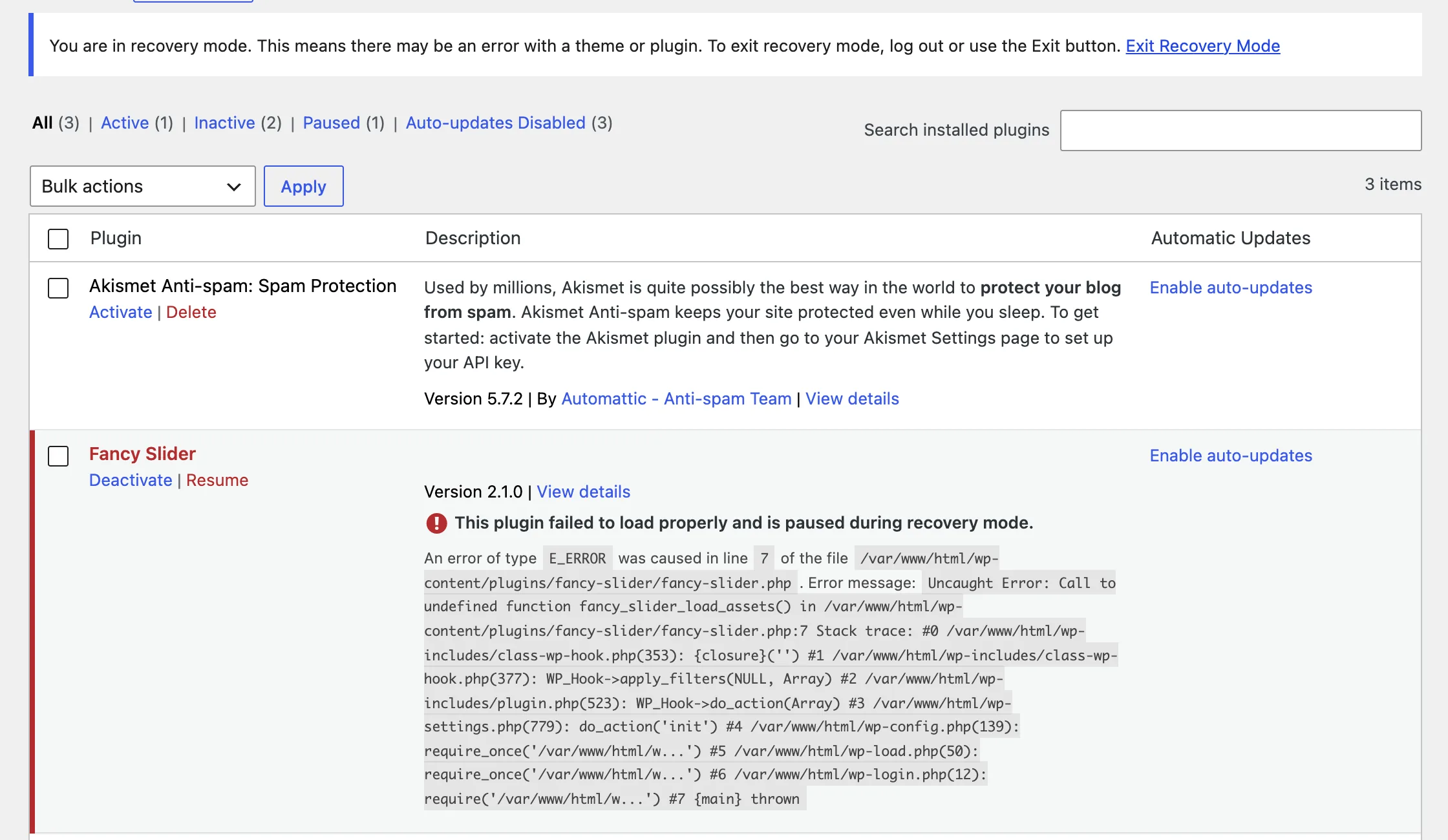
Recovery mode only pauses plugins and themes. If the error is in a must-use plugin, in wp-config.php or in core files, no email comes and nothing is paused. Go to the log. The critical error page has the full steps.
The debug log#
The log tells you the exact file and line. Turn it on without showing errors to visitors: set WP_DEBUG and WP_DEBUG_LOG to true and WP_DEBUG_DISPLAY to false in wp-config.php. Reload the broken page once, then open wp-content/debug.log and find the last line that starts with PHP Fatal error or PHP Parse error. The path in it names the plugin or theme.
Disable plugins without the dashboard#
When you cannot sign in, switch the plugin off from outside WordPress.
- SFTP or your host's file manager. Rename the plugin's folder in
wp-content/plugins, for examplesome-plugintosome-plugin.off. WordPress skips a plugin whose folder is missing. - WP-CLI. Run
wp plugin deactivate some-plugin --skip-plugins. Without--skip-plugins, WP-CLI loads the broken plugin and fails with the same fatal error. - Cannot tell which plugin?
wp plugin deactivate --all --skip-pluginsturns off every active plugin. Switch them back on one at a time and reload after each. - A theme?
wp theme list --skip-themesshows what is installed; thenwp theme activate <default-theme> --skip-themesswitches to one of the default themes.
The reason this works: WordPress only runs code from active plugins. Take the plugin out of the list, or out of the folder, and its broken code never runs.
Prevention that fits#
- Update one thing at a time, with a way back. That is the routine in updating plugins safely.
- See fatal errors early. WellTend Health Monitor counts fatal errors in the PHP error log and names the plugin or theme from the file path. It cannot tell you that your site is down, because it runs inside your site. For that you need an uptime service.
- Undo a bad settings change. WellTend Snapshots keeps your settings as snapshots and takes a safety snapshot before every restore. It saves settings only, not posts, media or files, so keep a real backup as well.
Neither plugin fixes a broken site for you. They help you find the cause sooner and put settings back after one.