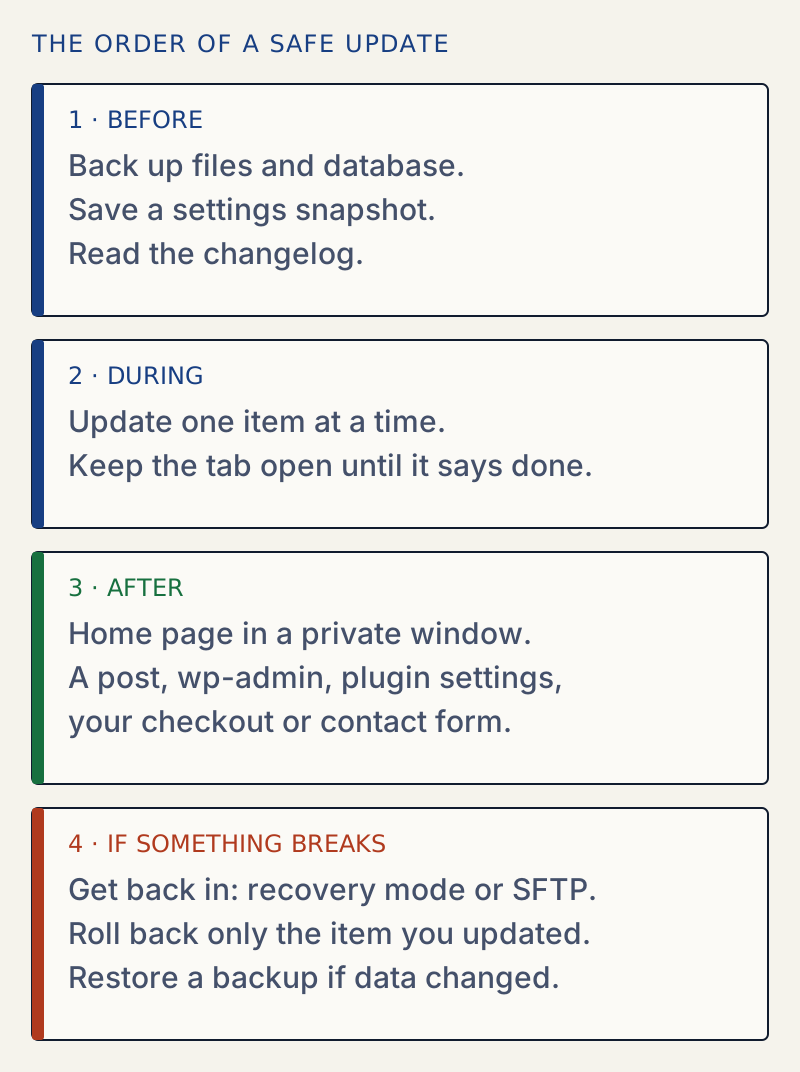
Back up first, update one thing at a time, check the site after each update, and know before you start how you would undo it. Everything on this page is a part of that order. Find the step you are on, then open the page it points to in the lists below the article. If your site is already down, start with Fix a broken WordPress site.
A checklist you can follow today#
Before
- A backup of the files and the database has finished, and you know where to download it. Use your host's backup tool or a backup plugin.
- You saved your settings. WellTend Snapshots does this with a button or
wp awc config snapshot create --label="Before updates". - You read the changelog for the big jumps, and for any new PHP or WordPress requirement.
- For anything that matters, you tried it on a staging copy first.
- You know how to get into your files over SFTP or SSH, in case wp-admin stops working.
During
- Update one plugin, theme or WordPress version at a time. If something breaks, the last update is the cause.
- Do not close the tab or press Back until the screen says it is done. A page left half-way is how the "maintenance" and "update in progress" messages get stuck.
After
- Open the home page in a private window, so a cache does not hide a problem.
- Open one post, wp-admin and the plugin's own settings.
- Use your checkout or contact form: send a test message, run a test order, log in as a member.
Where a Dashboard → Updates screen gives you a head start#
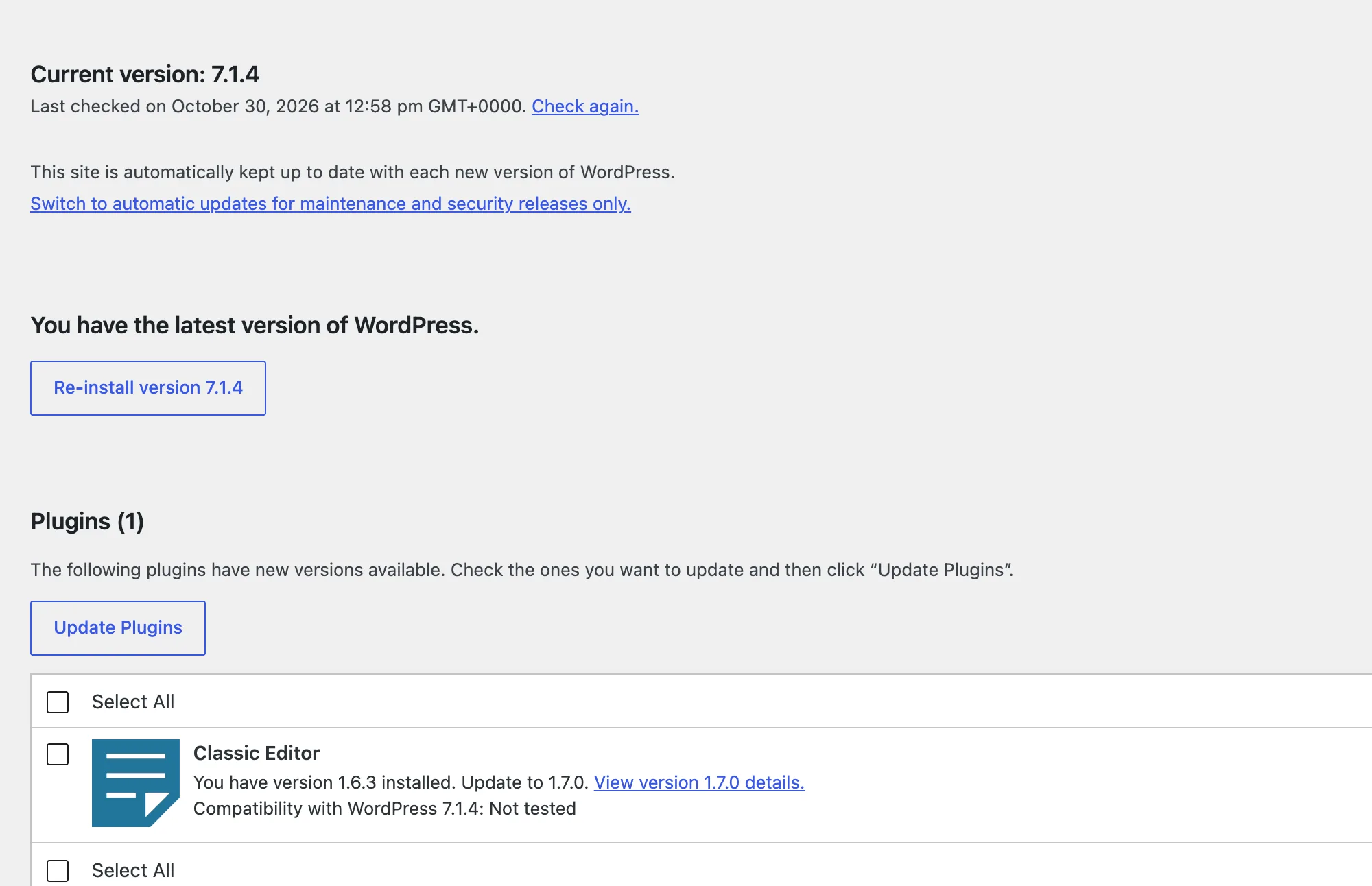
This is the one screen to read before you tick a box. It shows the version you have and the version waiting, a link to the changelog for each, and a line saying whether the plugin's author has tested it with your WordPress version. On my lab site that line said "Not tested" for Classic Editor 1.7.0. That is a reason to read the changelog first, not a reason to skip the update.
What undoes what#
Each safety net covers a different loss. Pick the one that fits what broke.
| What went wrong | What puts it back |
|---|---|
| One plugin or theme update broke the site | Roll back just that item to its previous version. Update plugins safely has the steps. |
| An update changed settings you care about | Compare against the snapshot you saved, then put those settings back. See find and undo changed settings. |
| Many things changed, or the plugin changed its own database tables | Restore the backup. This also removes anything new since the backup, such as orders and comments. |
Two limits are worth knowing, because both are tested in the update routine guide. Rolling back a plugin replaces its files only; the settings the new version wrote to the database stay. And WordPress does restore the old version on its own after a fatal error, but only for automatic updates of active plugins, and it only looks at the home page.
Where WellTend helps#
- WellTend Snapshots saves your settings (core, theme and the plugins it knows) before you update, shows in plain sentences what changed, and takes a safety snapshot before every restore so you can undo the restore. It saves settings only. It is not a backup of posts, media or files.
- WellTend Health Monitor counts fatal errors and blames the plugin or theme by its file path, shows which updates are waiting, and keeps history.
- WellTend Site and Admin Toolkit has an optional Plugins and Themes Rollback module. It is off until you switch it on, and it only connects to WordPress.org when you use its screen.
Safe Updates: planned, not released#
We are planning a plugin called Safe Updates. The idea is to take a snapshot before each plugin, theme or core update, check the site afterwards for fatal errors and failed requests, and roll the update back if the check fails. It is not released and you cannot install it. It lives in our workshop, and the routine on this page is what to use today. The workshop page has a Notify me form that sends one email if it is released.